

Kueue Monitoring
View the size of the Kueue-managed cluster, workload status, scheduling performance, and resource capacity on one screen.
Prerequisites
- An administrator account with access to AI Training Admin
Click Kueue → Kueue Monitoring in the sidebar.
Page title
In the current demo, the page title appears as pageTitles.monitoring because a translation string is missing. This does not affect functionality.
Cluster summary · Workload metrics
Summarizes cluster size and Kueue workload status.
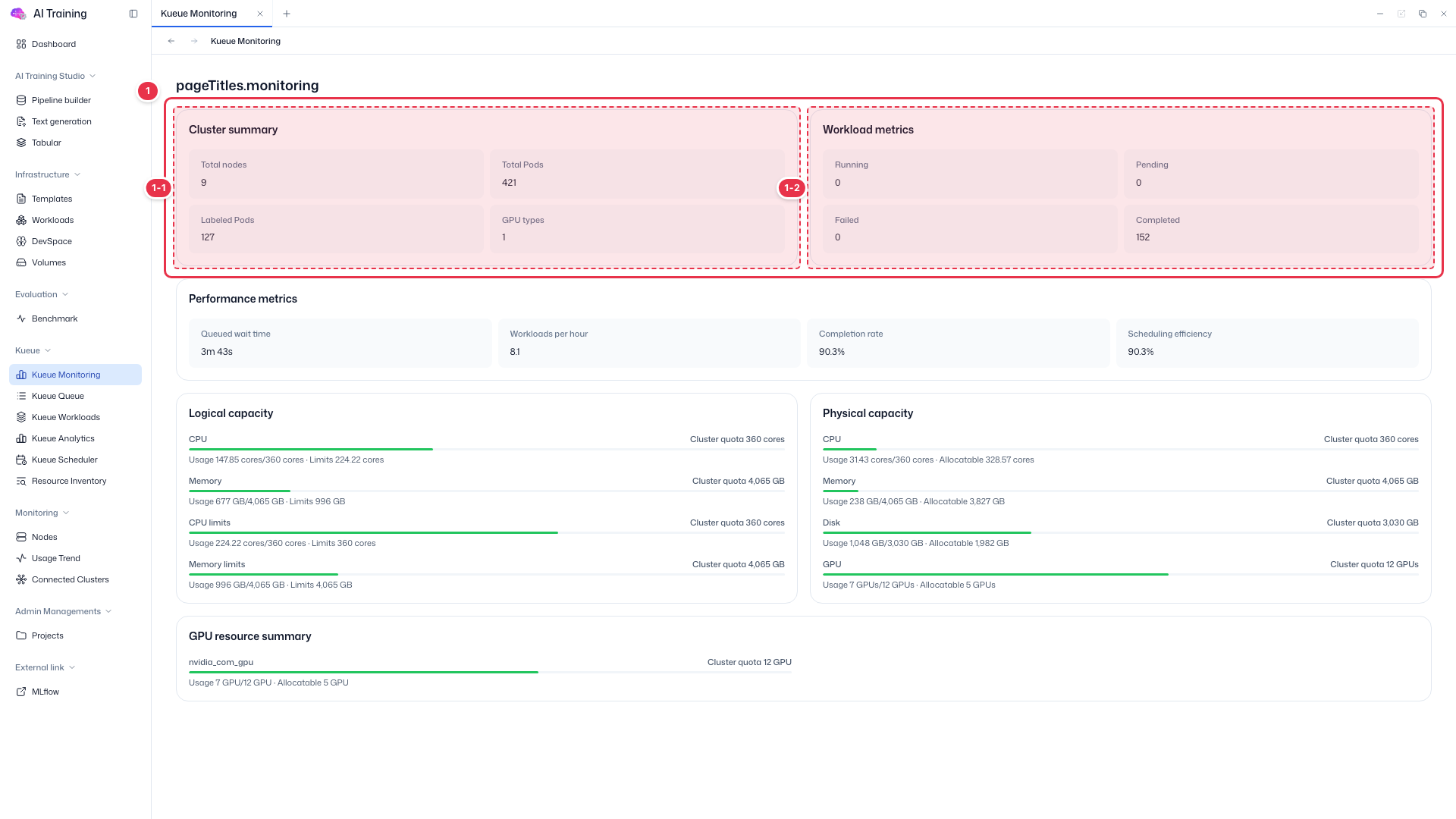
| No. | Feature | Item | Description |
|---|---|---|---|
| 1-1 | Cluster summary | Total nodes · Total Pods · Labeled Pods · GPU types | · Total nodes and pods, pods labeled for Kueue, and the number of GPU types. |
| 1-2 | Workload metrics | Running · Pending · Failed · Completed | · Count of Kueue-managed workloads by status. |
Performance metrics
Shows how smoothly queue scheduling is running.
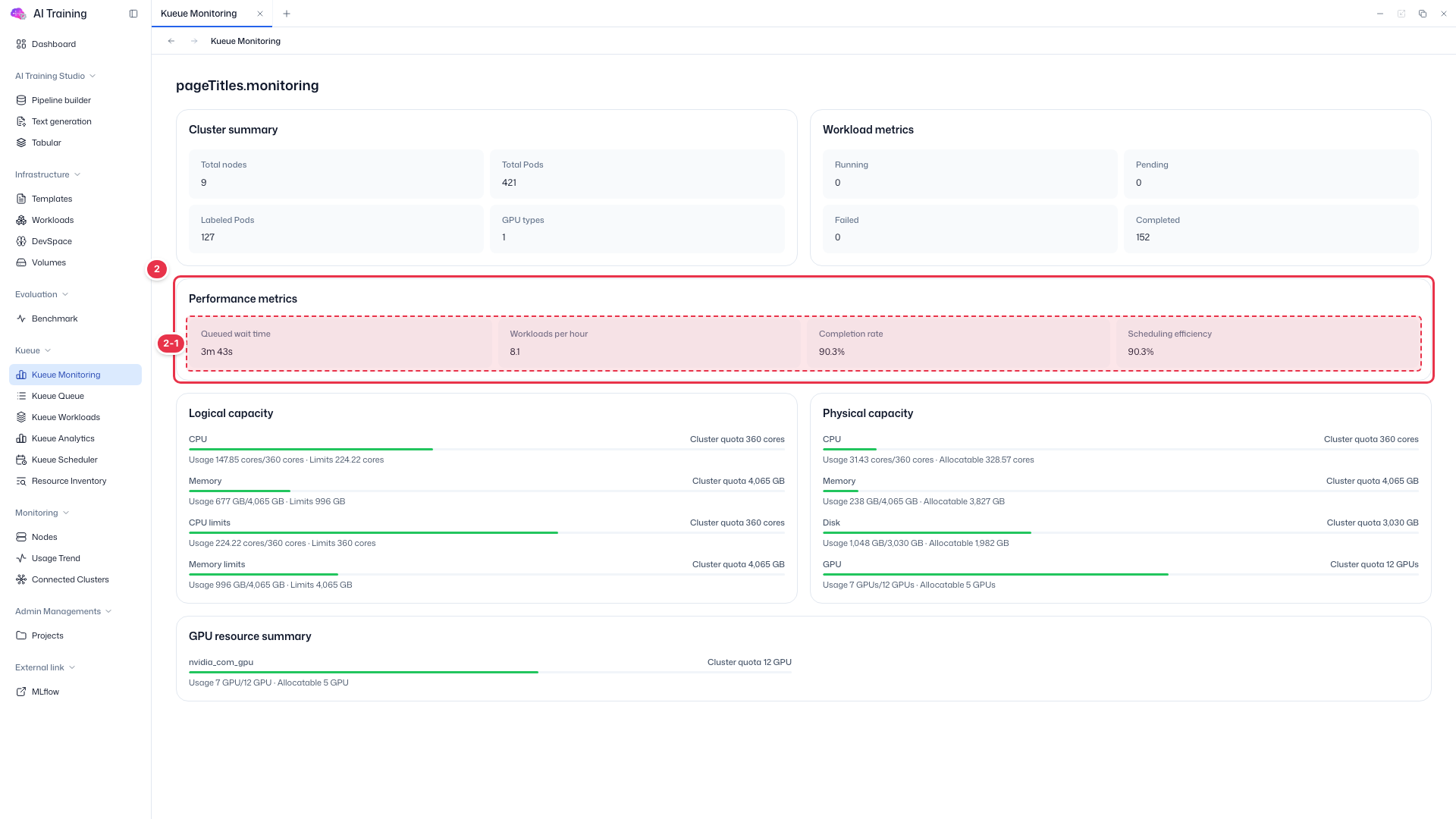
| No. | Feature | Item | Description |
|---|---|---|---|
| 2-1 | Metrics | Queued wait time | Average time workloads waited in the queue. |
| Workloads per hour | Workloads processed per hour. | ||
| Completion rate | Share of workloads that completed. | ||
| Scheduling efficiency | Share of requested resources assigned on time. |
Logical · Physical capacity
Compare resource usage by quota (logical) and by actual nodes (physical).
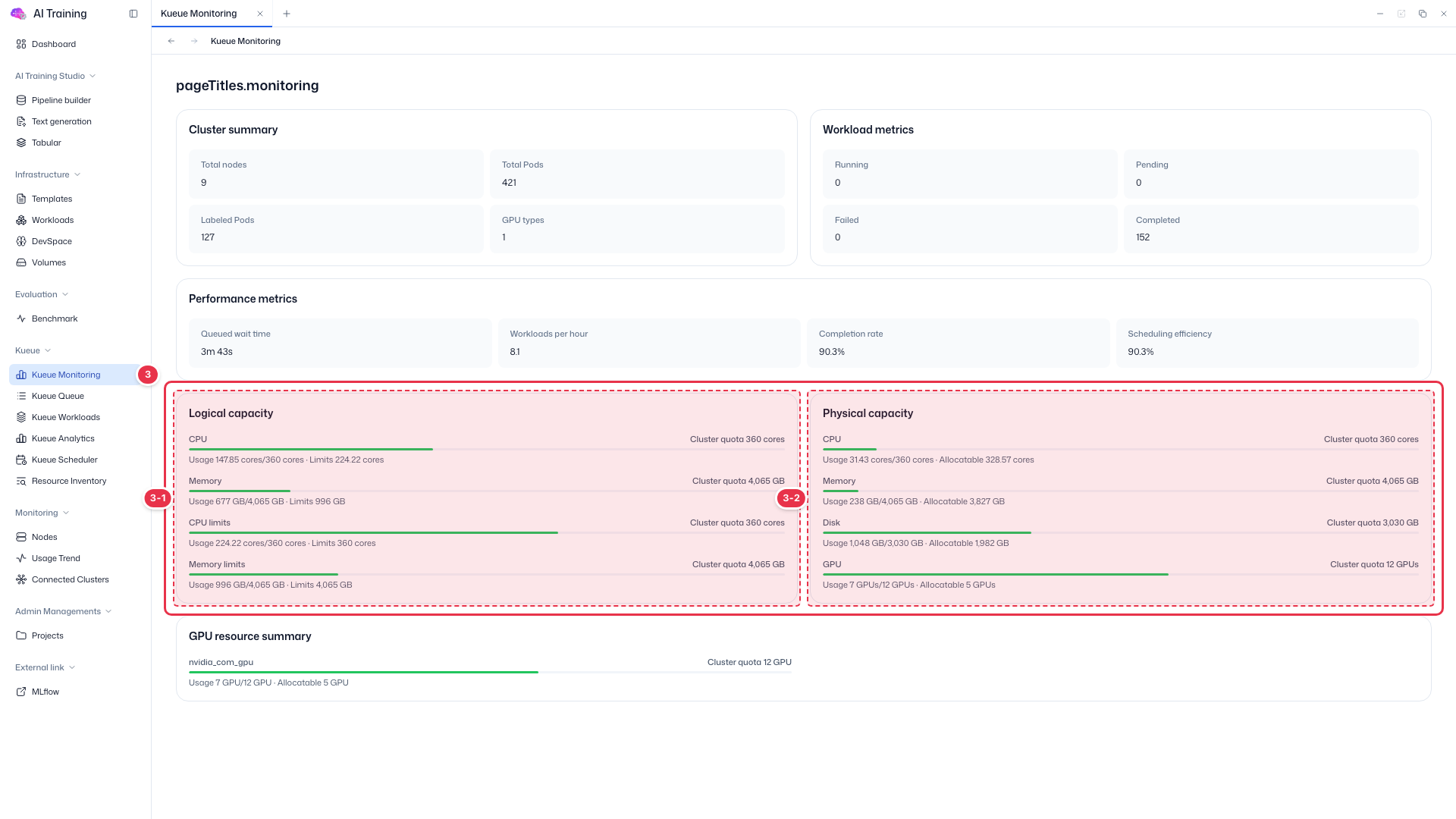
| No. | Feature | Item | Description |
|---|---|---|---|
| 3-1 | Logical capacity | CPU · Memory · 한도 | · Requests (Usage) and limits against the cluster quota. These are reserved amounts, not actual use. |
| 3-2 | Physical capacity | CPU · Memory · Disk · GPU | · Amount actually in use on nodes and the remaining allocatable amount. A red bar means it is nearly full. |
GPU resource summary
Quota, usage, and remaining amount by GPU type.
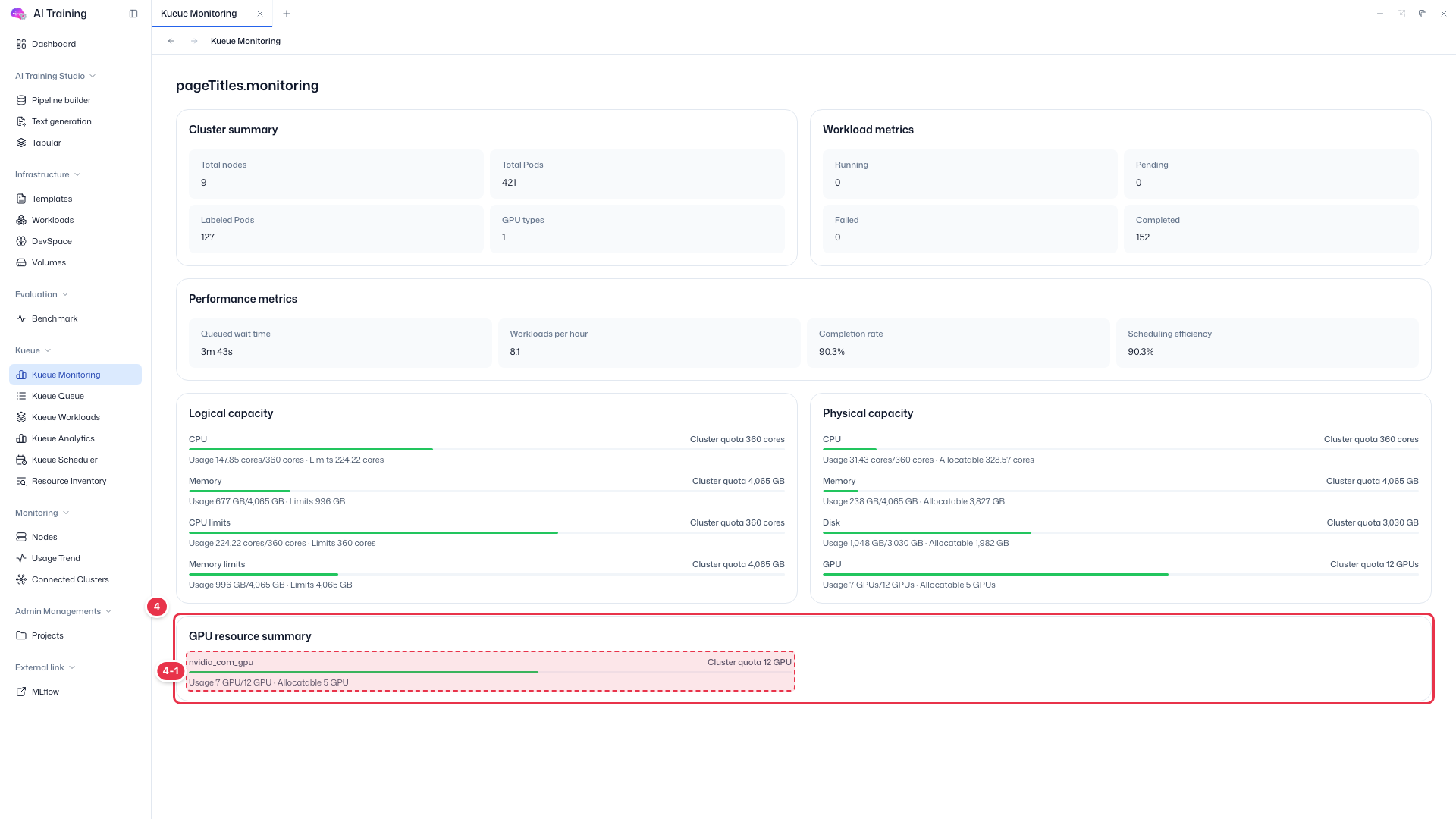
| No. | Feature | Item | Description |
|---|---|---|---|
| 4-1 | GPU type | e.g., nvidia_com_gpu | · Shows usage and allocatable amount for each GPU resource name. |