Build a Pipeline
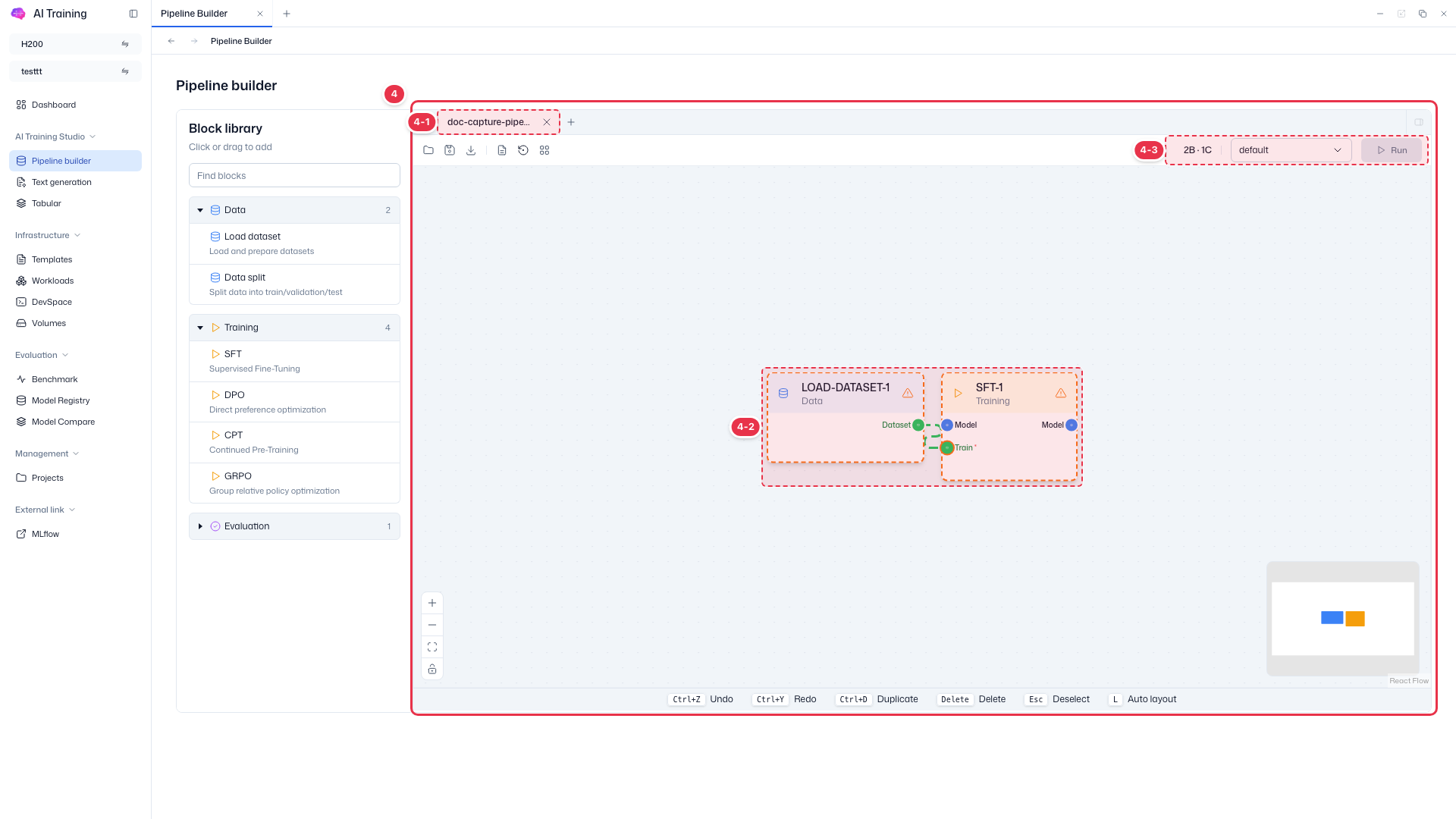
Place blocks on the canvas and connect them to build a training pipeline, then save it. You can load a saved pipeline later to keep editing it.
Step 1. Add and connect blocks
In the left sidebar, click AI Training Studio → Pipeline builder.
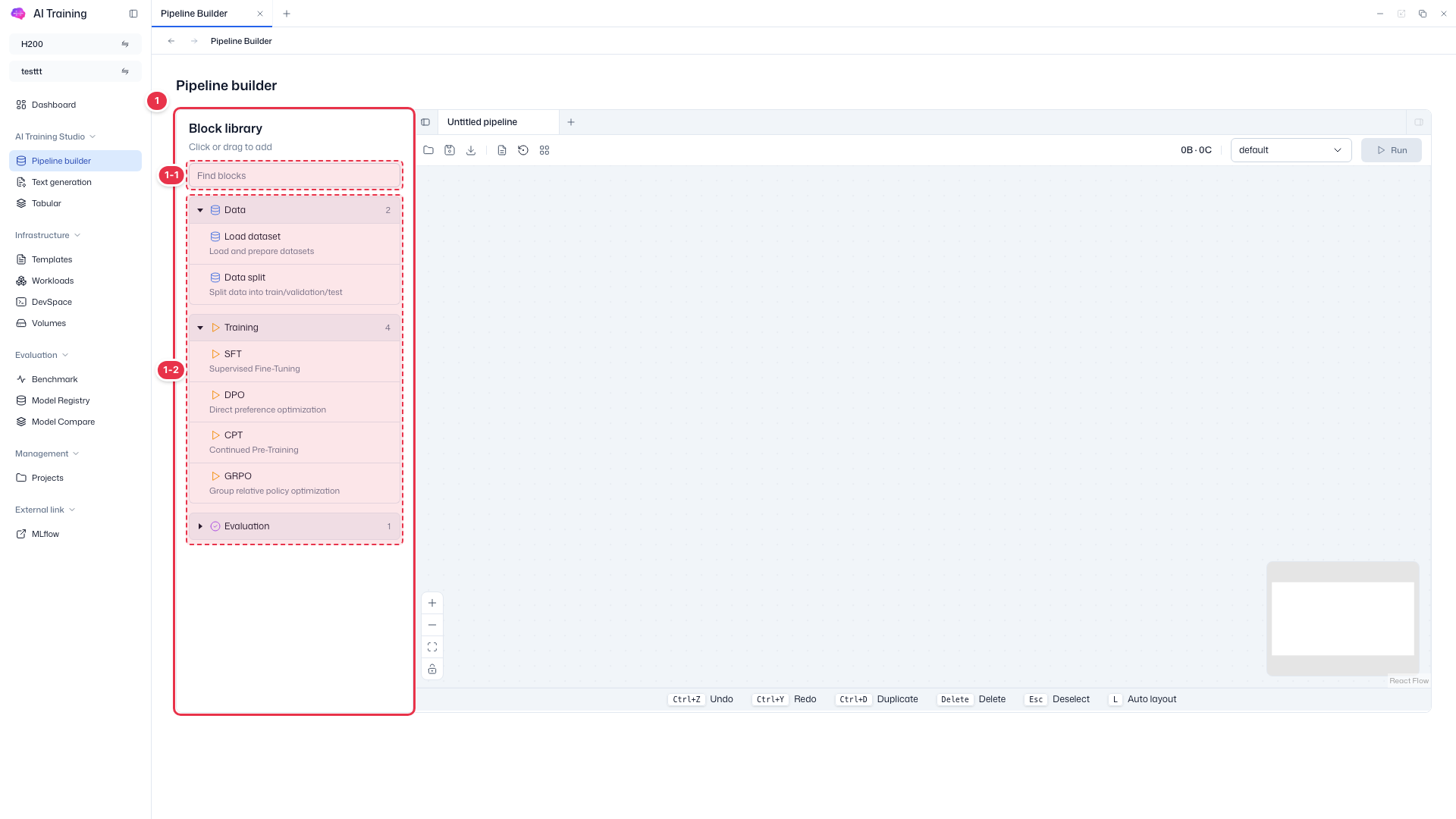
Click a block in the Block library on the left, or drag it onto the canvas.
Group Blocks Data Load dataset, Data split Training SFT, DPO, CPT, GRPO Evaluation Evaluation block Drag a block’s output port (e.g., Dataset on Load dataset) to the next block’s input port (e.g., Train on SFT).
Click a block to open its settings panel on the right. A warning icon means required settings are still missing.
Step 2. Save
Click the save icon in the canvas toolbar, enter a Pipeline name (required) and a Description, then click Save. The canvas tab is renamed to the pipeline name.
Step 3. Load a saved pipeline
Click the folder icon at the far left of the toolbar to open the Pipelines list.
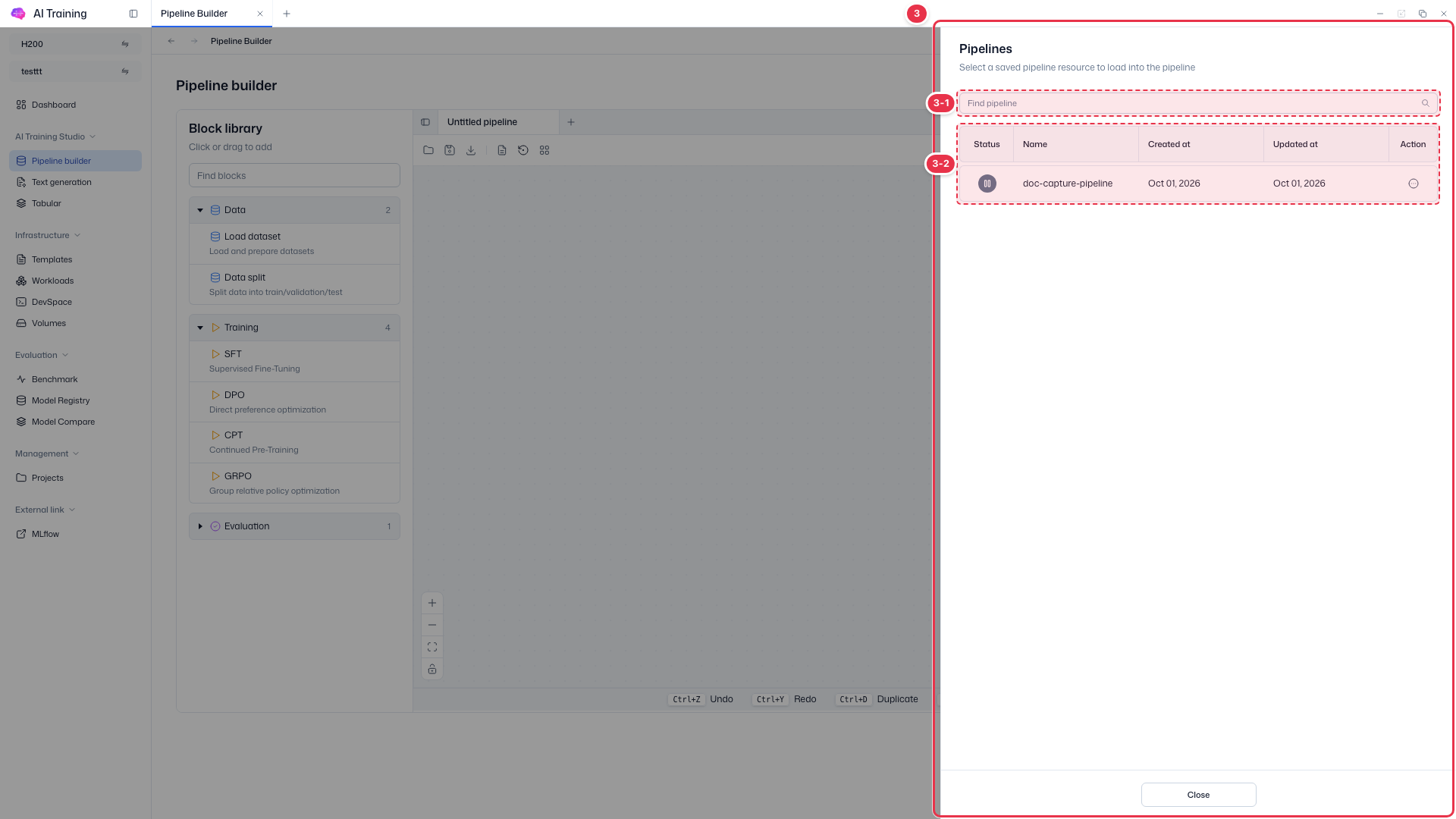
In the row’s Action (⋯) menu, choose View Pipeline. Use Delete to remove pipelines you no longer need.
The pipeline opens in a new canvas tab.