

Run a Pipeline
Run a pipeline you built on a local queue.
Prerequisites
- A pipeline you connected and saved in Build a Pipeline
- A local queue in the project
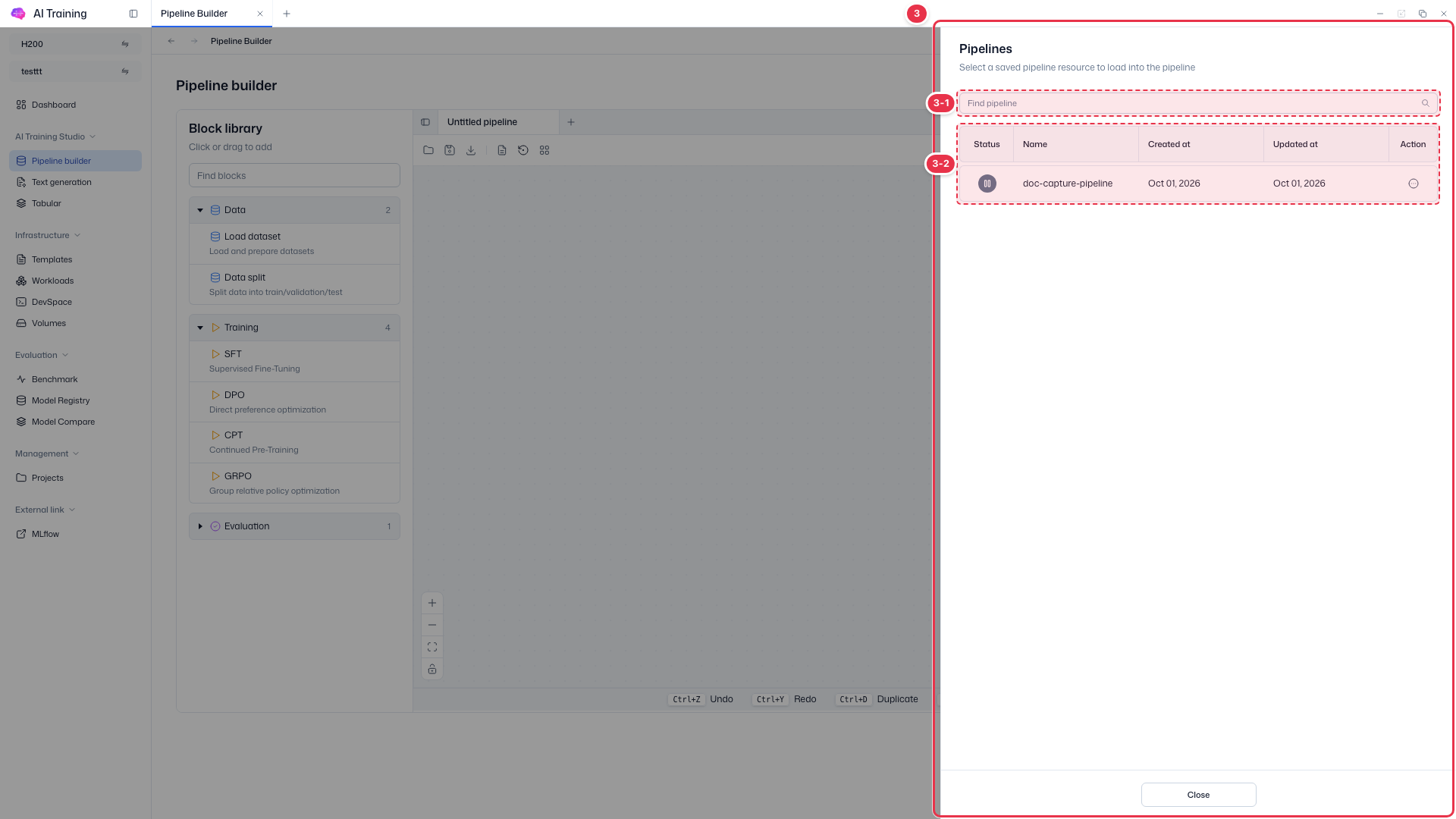
Step 1. Open the pipeline
In AI Training Studio → Pipeline builder, click the folder icon at the far left of the toolbar and choose View Pipeline in the row’s Action (⋯) menu.
Step 2. Choose a local queue and Run
On the right side of the canvas toolbar, choose the local queue (e.g., default) and click Run.
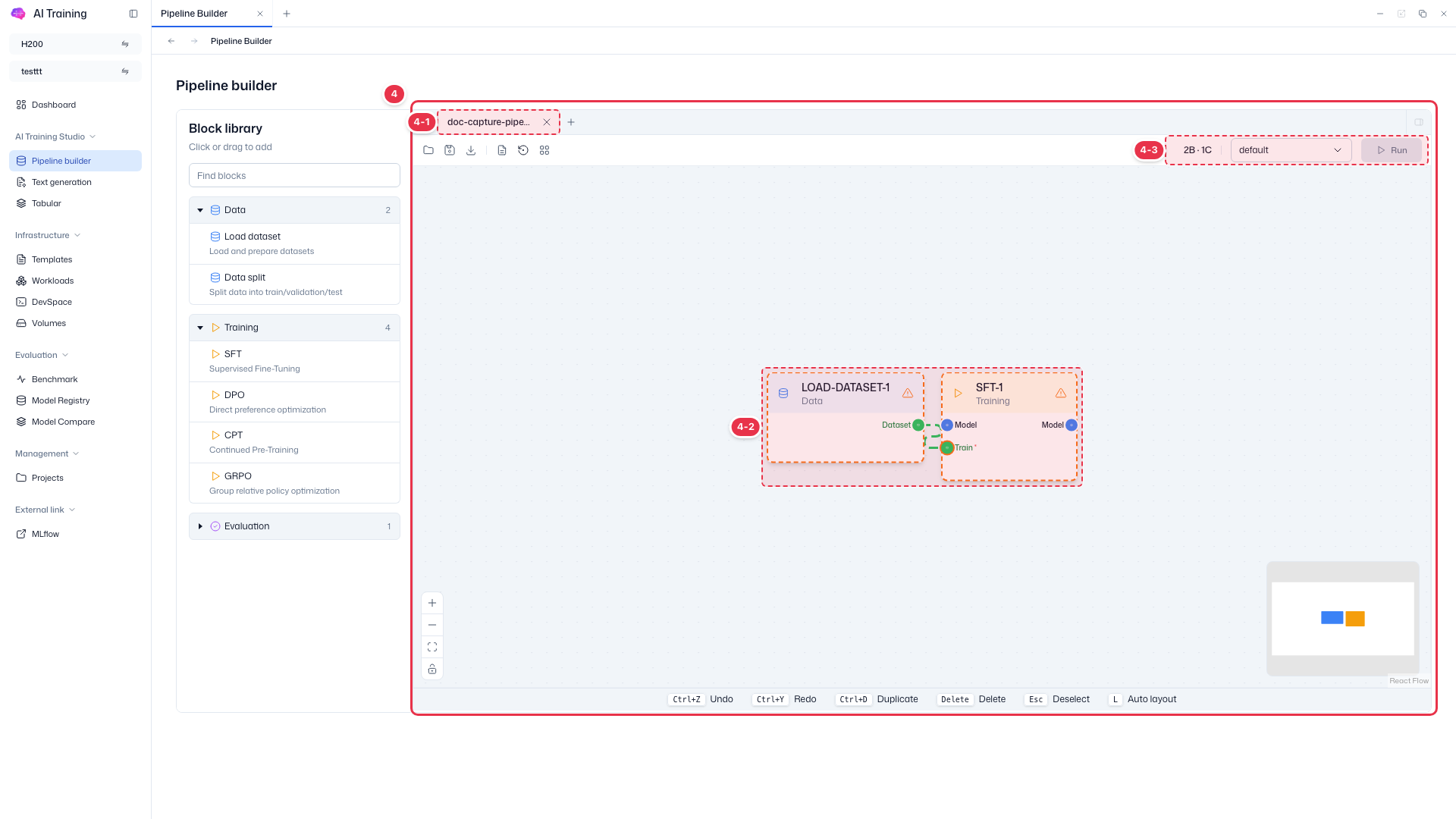
| Item | Description |
|---|---|
2B · 1C | Number of blocks and connections on the canvas. |
| Local queue | The queue the pipeline runs on. Local queues connected to the project are listed. |
| Run | Enabled once every block’s required settings are filled. Disabled while any block shows a warning icon. |
Step 3. Check the result
Check the pipeline’s progress in the Status column of the Pipelines list.