

Model Registry
Register a completed experiment as a model in Model Registry and create a version.
Registration happens only on the experiment detail page
Whether to register a model, and which Alias to assign, should be decided after reviewing its training results (metrics, settings, lineage). That's why the Register to Model button appears only on the detail page of a completed experiment. The Model Registry screen is for browsing registered models and managing versions and Aliases, so it has no register button.
Prerequisites
- Account with access to AI Training
- A Text Generation or Tabular experiment in completed status
- The project the experiment belongs to is selected
Step 1. Open the experiment detail page
- Click AI Training Studio → Text Generation or Tabular in the left sidebar.
- Click an experiment whose status is completed to open its detail page.
Step 2. Register model
- Click Register to Model in the detail page header. It is enabled only when the experiment is completed and has a project.
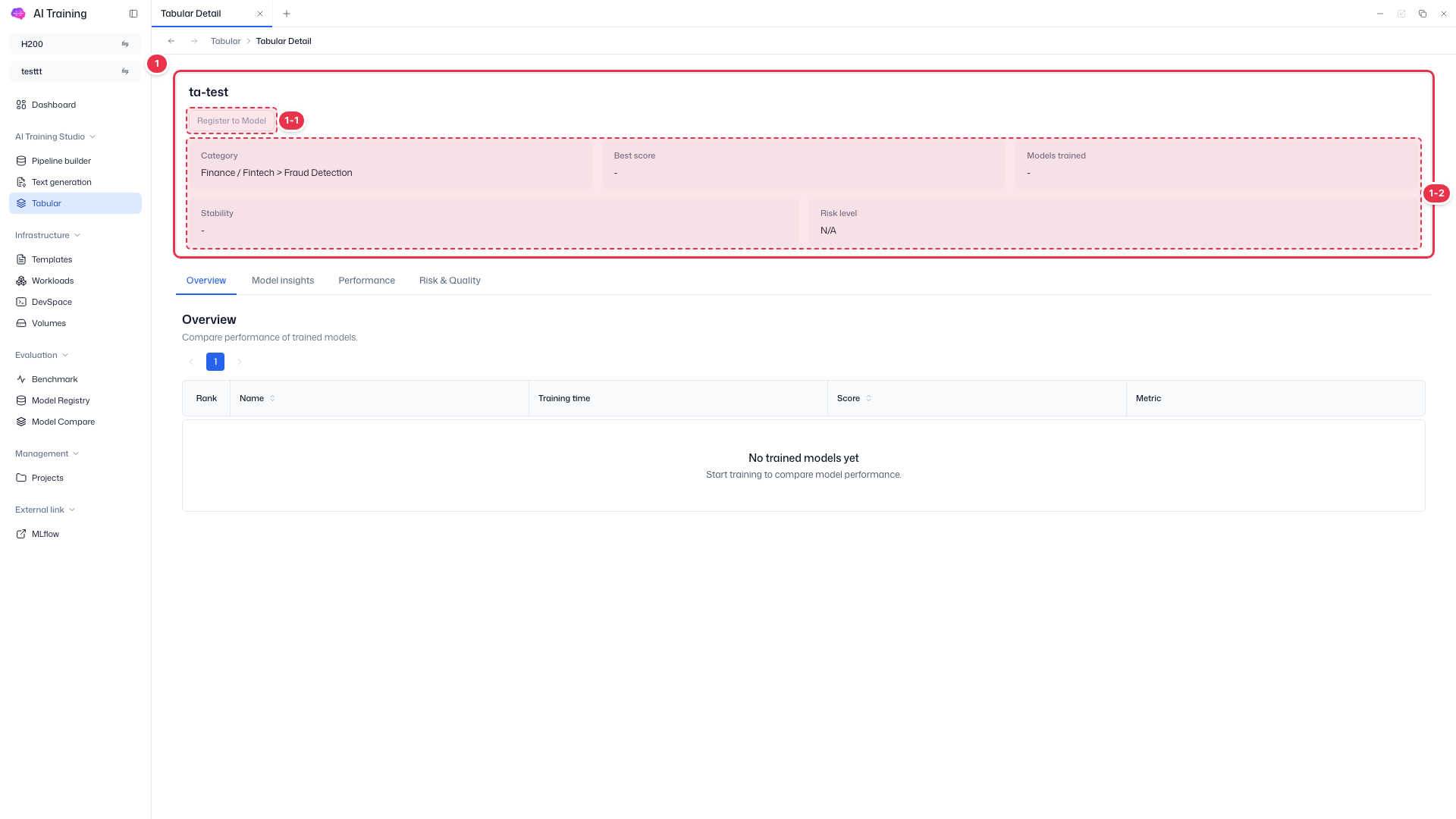
The Register to Model button is right below the experiment name (number 1-1). The screenshot shows a failed experiment, so the button is disabled.
- In the registration drawer, choose a Category from the dropdown or enter a new one with Custom, and enter a Description.
- Complete the registration.
Alias after Registration
Immediately after registration, no Alias is set. If needed, assign a Best/Active/Custom Alias from the registered model's row action menu (Assign Alias) in Model Registry.
Step 3. Verify in Model Registry
- Click Evaluation → Model Registry in the left sidebar. Trained models are grouped by category.
- Click the category to open its detail page, and verify the registered model's version, Alias, and storage path.
| Column | Description |
|---|---|
| Model Name | Name of the trained model |
| Version | Version assigned to the model |
| Aliases | Aliases set for this model and version |
| Storage Path | Source storage path for this model version |
| Created at | Date the model was registered |
Row Action Buttons
| Button | Action |
|---|---|
| Assign Alias | Open Assign Alias drawer |
| Manage Alias | Open Manage Alias drawer |
| Activity History | Open Alias/version change history drawer |
| Delete | Show delete confirmation modal |