

Tabular Detail and Model Registration
Click an experiment name in the Tabular list to open its detail screen. Review the training results, and once the experiment is completed, register the result model in Model Registry.
Prerequisites
- The project containing the Tabular experiment selected
- To register a model, the experiment must be completed
Click an experiment name in the AI Training Studio → Tabular list.
Experiment summary · Register model
Shows the experiment name, result summary, and the model registration button.
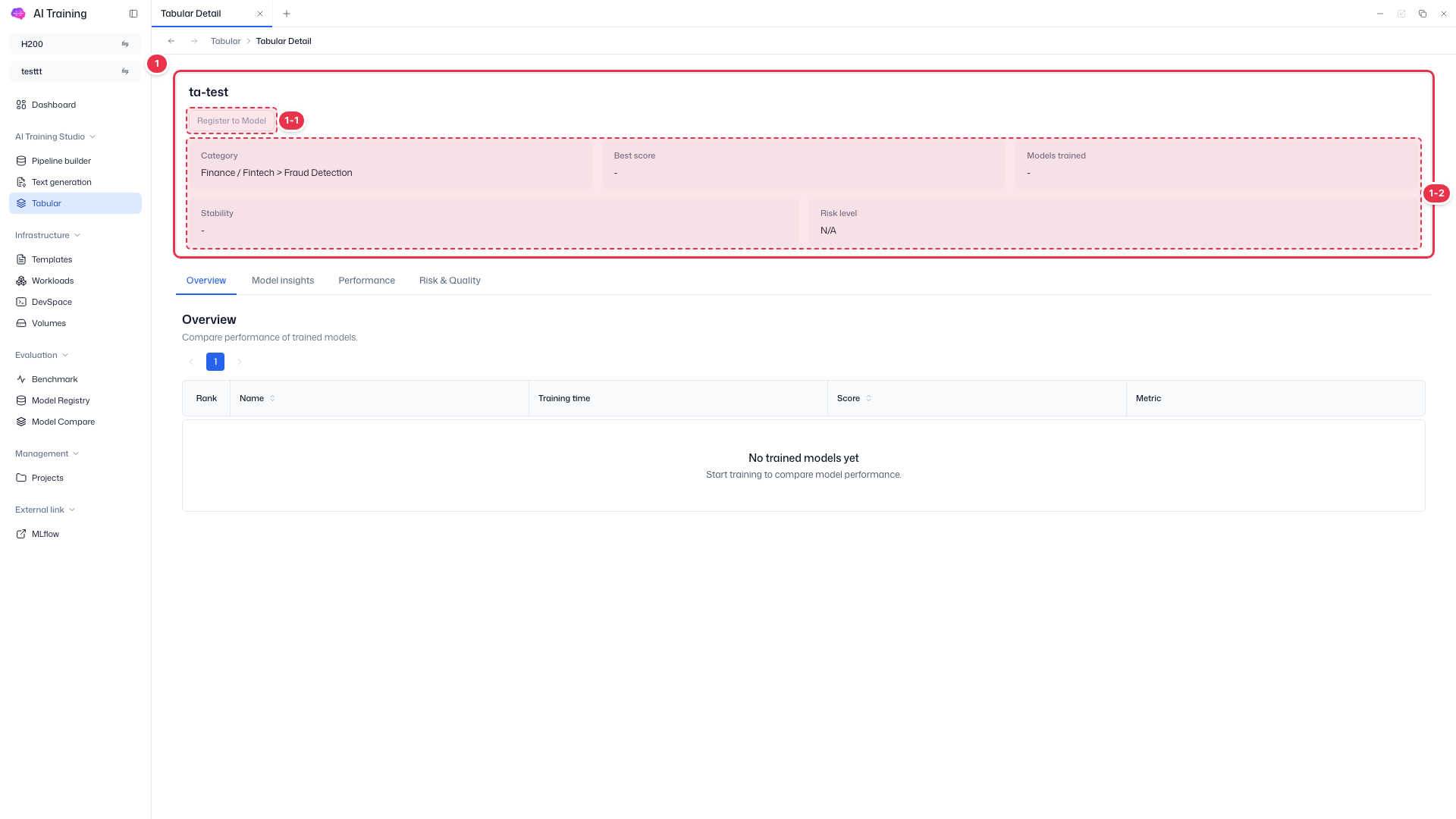
| No. | Feature | Item | Description |
|---|---|---|---|
| 1-1 | Register to Model | Register model | · Enabled only when the experiment is completed and has a project. Click to open the registration drawer; registered models appear in Evaluation → Model Registry. Disabled for running or failed experiments. |
| 1-2 | Summary | Category | The chosen domain and use case (e.g., Finance / Fintech > Credit Scoring). |
| Best score | Best evaluation score among trained models. | ||
| Models trained | Number of candidate models trained. | ||
| Stability · Risk level | Assessment of result stability and risk. |
Result tabs
View training results in tabs.
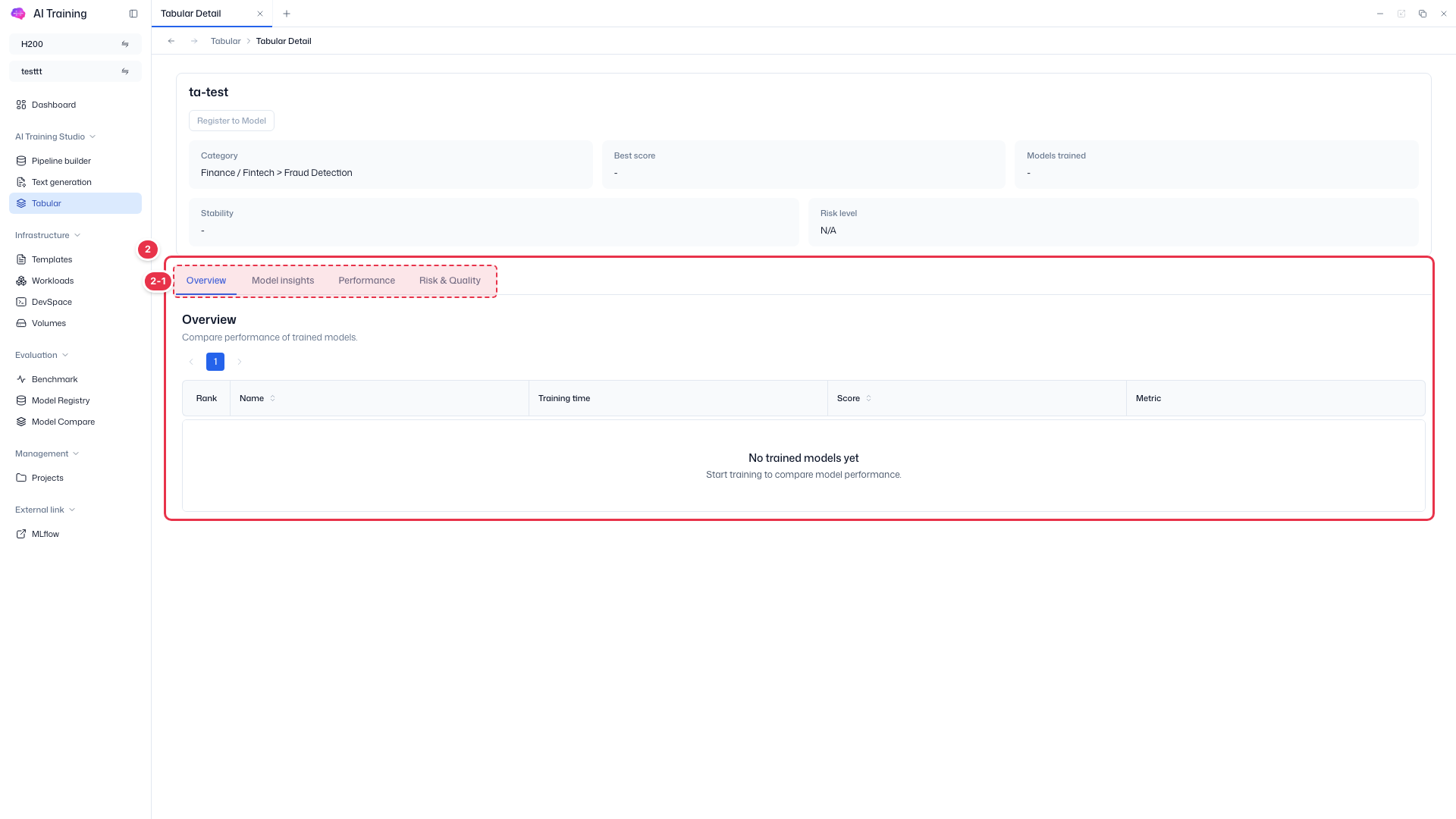
| No. | Feature | Item | Description |
|---|---|---|---|
| 2-1 | Tabs | Overview | Compare trained models by score (Rank, Name, Training time, Score, Metric). |
| Model insights | Interpretation such as feature importance for the selected model. | ||
| Performance | Performance with evaluation metrics and charts. | ||
| Risk & Quality | Data quality and risk check results. |
Models are registered only from this screen
The Register to Model button appears only on the detail screen of a completed experiment, because whether to register and which Alias to assign should be decided after reviewing the results. See Model Registry for the full procedure. The screenshot shows a failed experiment, so the button is disabled.