

Dashboard
Dashboard is the first screen you see in AI Inference. It shows the selected cluster and project, resource usage, workload and volume summaries, and recent activity at a glance.
Prerequisites
- An account with access to AI Inference
- A cluster and project selected at the top of the sidebar (if you have no project yet, see When you have no project first)
When you have no project
If you open AI Inference for the first time and do not belong to any project, you see the screen below instead of the Dashboard. The sidebar shows only the Projects menu, and the center shows Create a project to get started with a Create Project button.
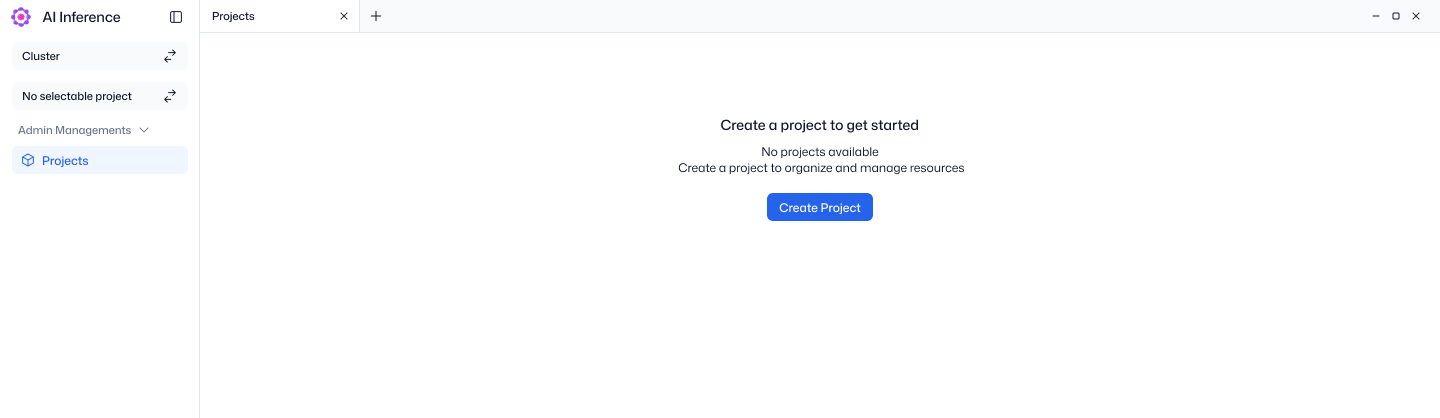
- Click Create Project to create a project. For the fields, see Create a project.
- Select the new project at the top of the sidebar to see the Dashboard.
If you need to join an existing project
If you need to work in a project that already exists, do not create a new one. Ask that project's administrator to add you as a member. Members are added in IAM (Manage members).
Cluster · Project selection
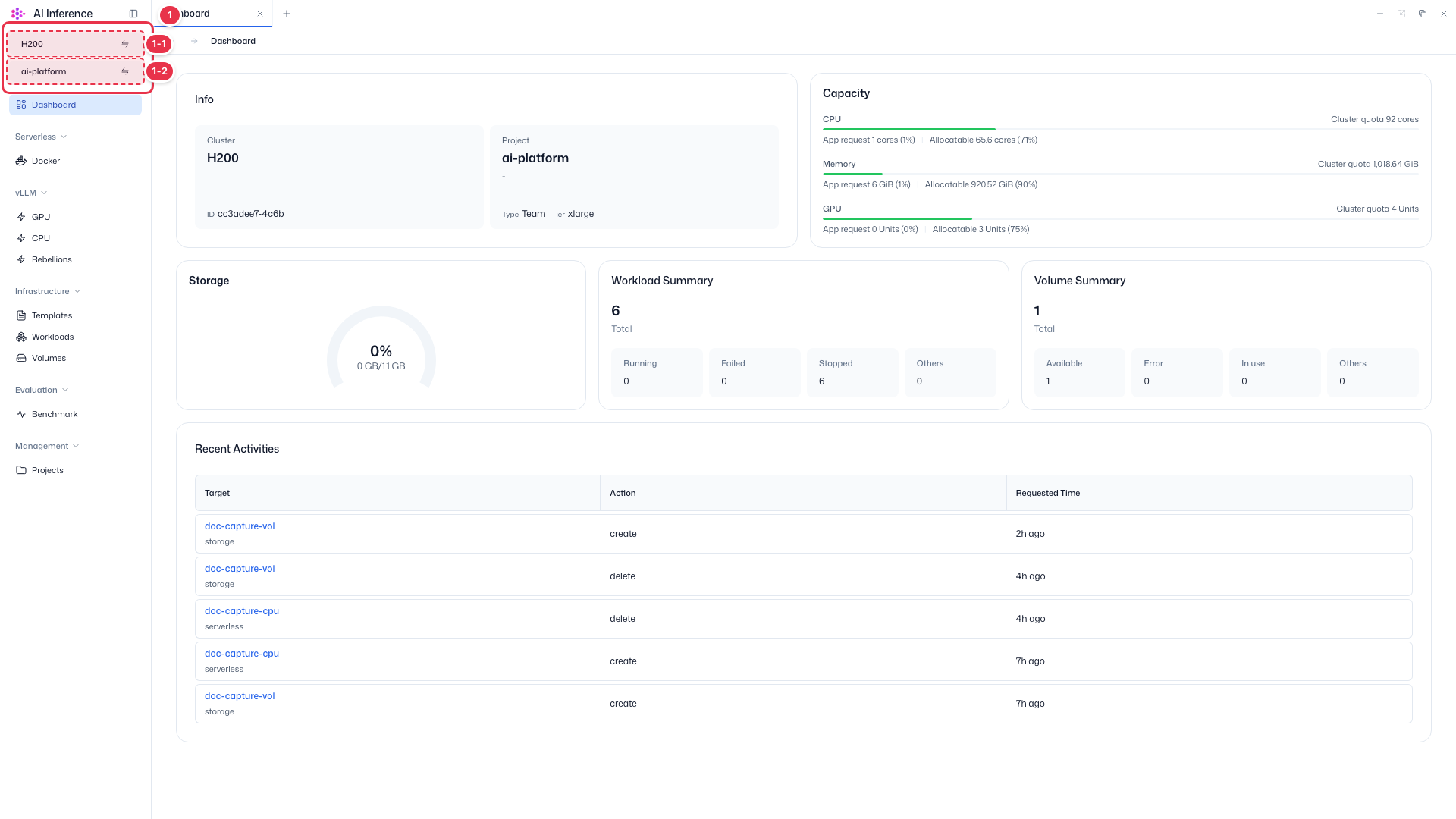
Every screen in AI Inference is shown for the cluster and project selected here.
| No. | Feature | Item | Description |
|---|---|---|---|
| 1-1 | Cluster | Cluster selector | · Current cluster name. Click to choose another cluster. |
| 1-2 | Project | Project selector | · Current project name. Click to switch to another project you belong to. |
Info · Capacity
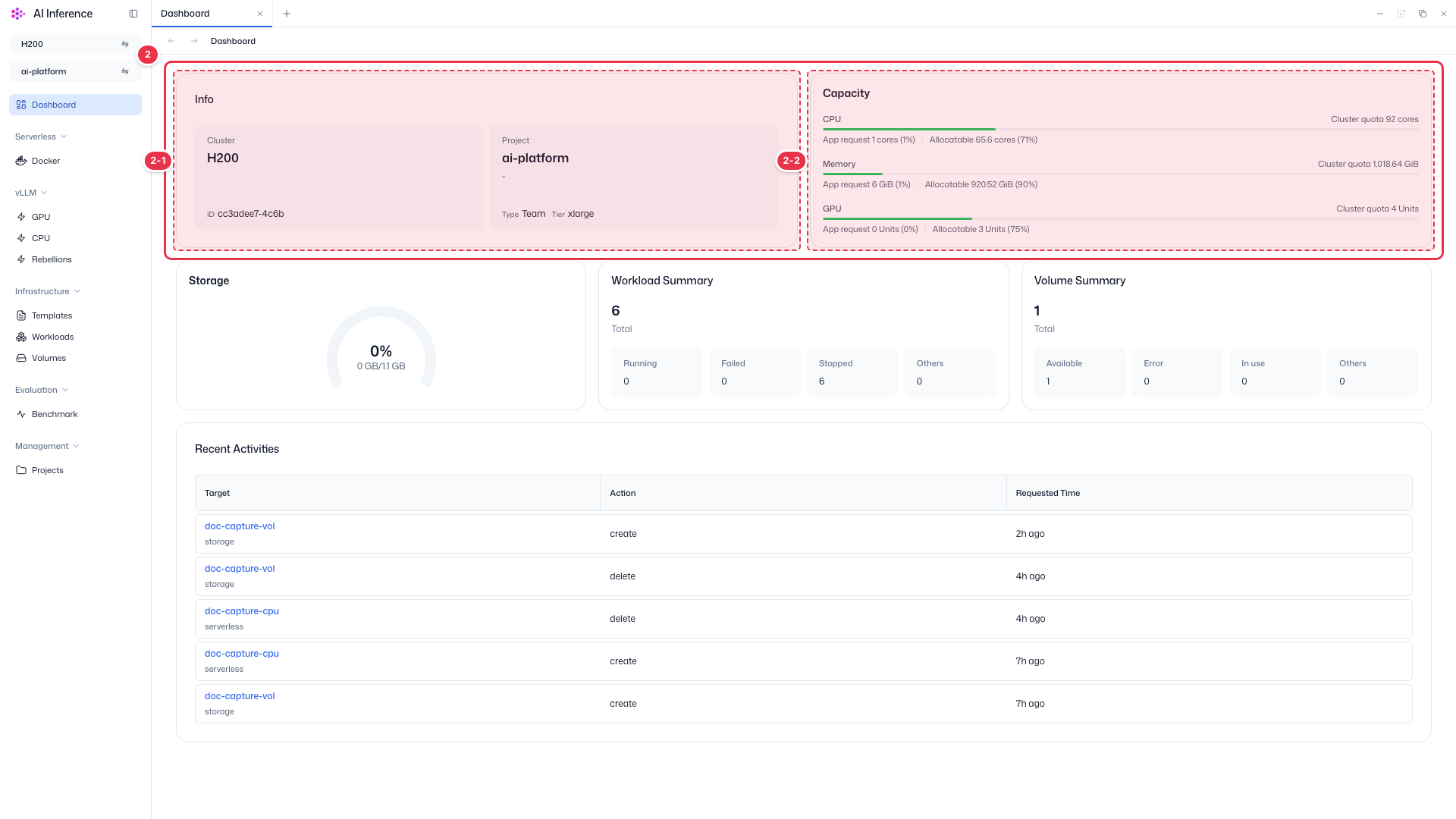
Information on the selected cluster and project, and resource usage.
| No. | Feature | Item | Description |
|---|---|---|---|
| 2-1 | Info | Cluster · Project | · Shows the cluster name and ID, and the project name, type, and tier. |
| 2-2 | Capacity | CPU · Memory · GPU | · Bars show this app’s requests (App request) and the remaining allocatable amount against the cluster quota. |
Summary cards
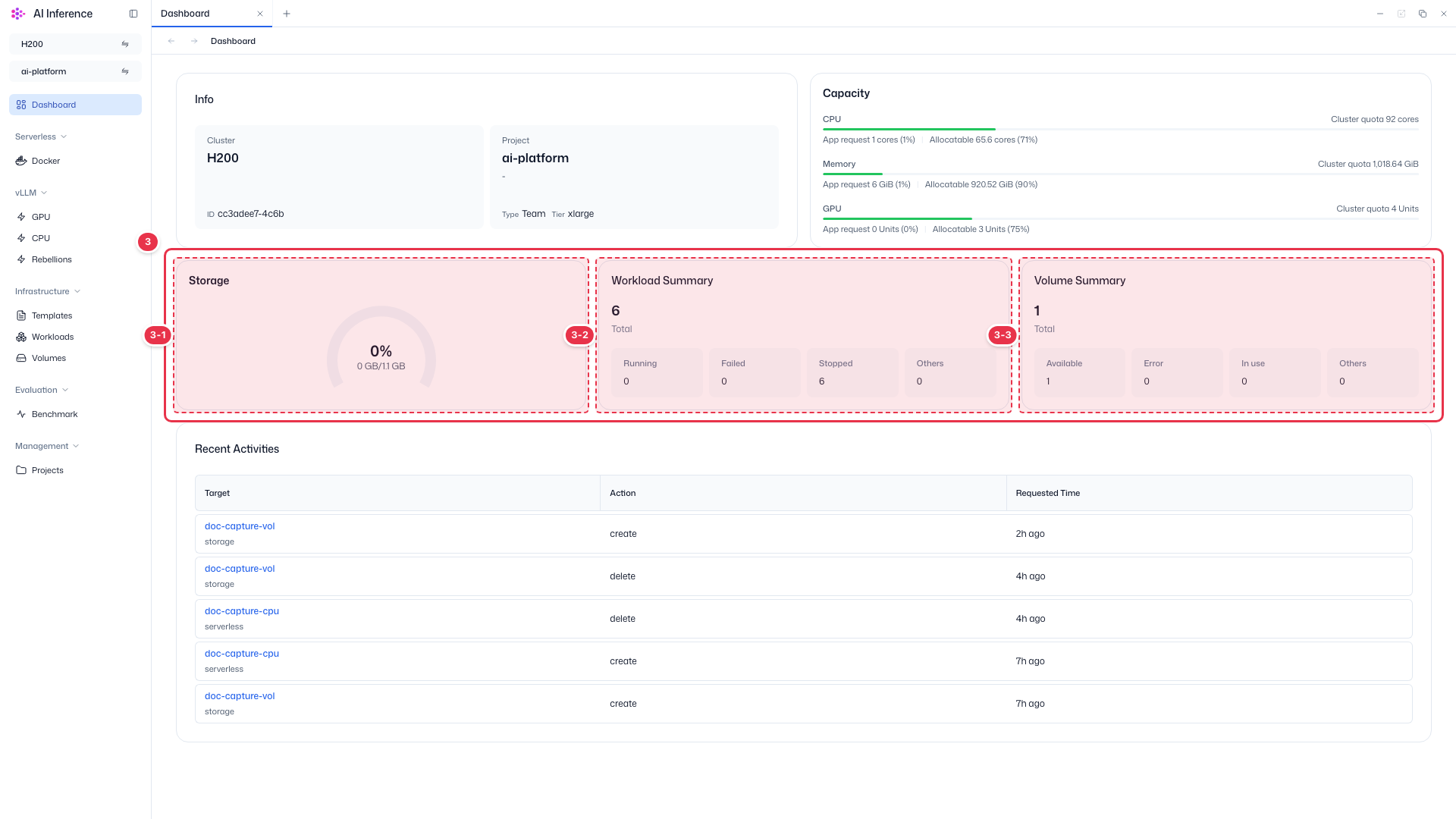
Summarizes the current state of storage, workloads, and volumes.
| No. | Feature | Item | Description |
|---|---|---|---|
| 3-1 | Storage | Storage usage | · Project storage usage as a percentage and capacity. |
| 3-2 | Workload Summary | Workloads | · Total workloads and the count by status (Running, Failed, Stopped, Others). |
| 3-3 | Volume Summary | Volumes | · Total volumes and the count by status (Available, Error, In use, Others). |
Recent Activities
Recent activity in this project, such as creations and deletions.
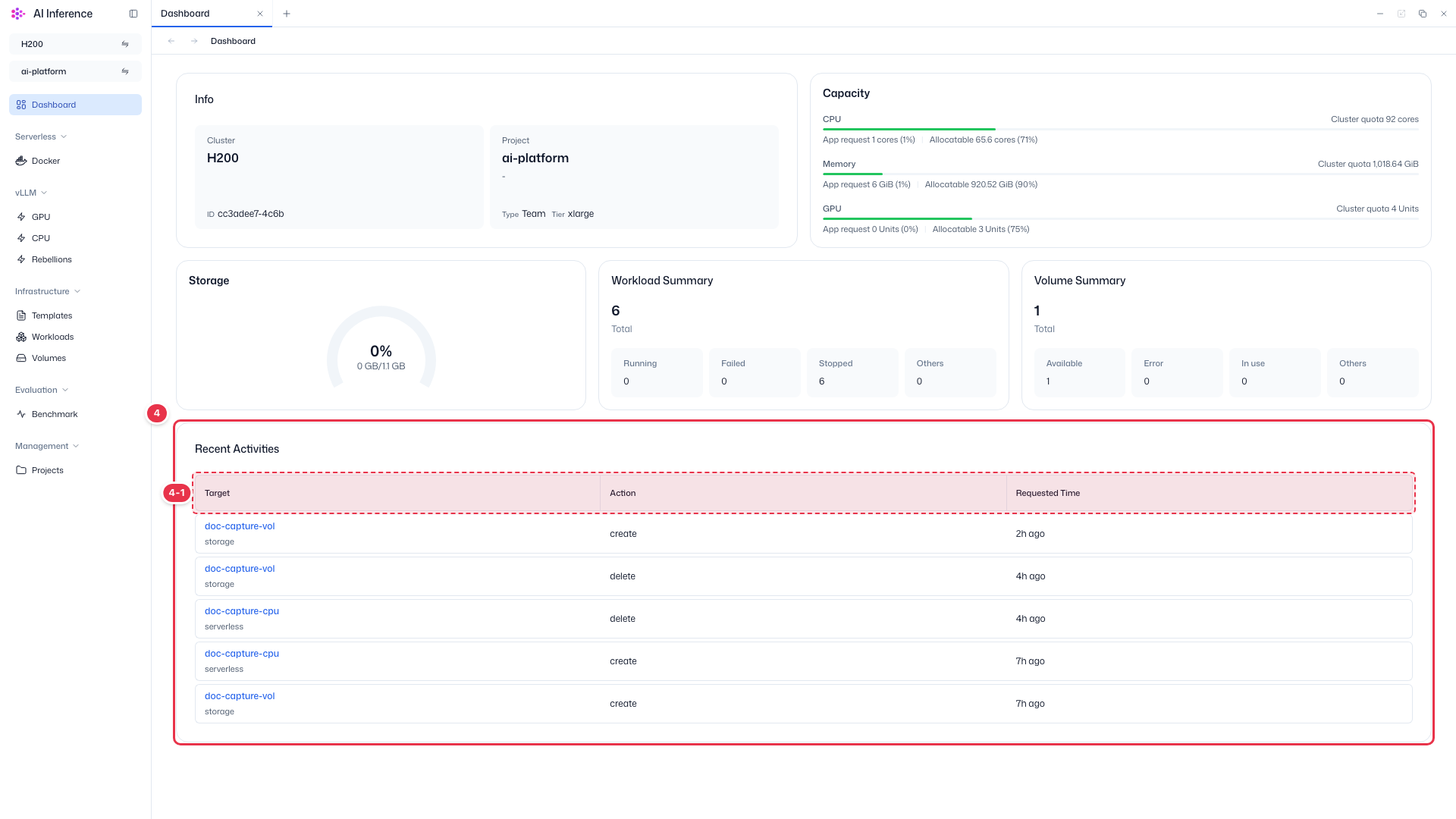
| No. | Feature | Item | Description |
|---|---|---|---|
| 4-1 | Columns | Target | Name and kind (e.g., serverless) of the resource. Click the name to open that resource. |
| Action | The action performed (create, delete, etc.). | ||
| Requested Time | When the action was requested. |
When resources run out
If Allocatable under Capacity is 0, you cannot launch more endpoints or workloads with that resource. Choose another cluster or ask your administrator to adjust the quota.