

Create an Endpoint
Import a container image (Import docker image) and create a serverless endpoint.
Prerequisites
- The Docker image to deploy (and credentials for a private registry)
- The cluster and project for the endpoint selected
Step 1. Open the creation screen
In the Serverless → Docker list, click Create endpoint at the top right to open Import docker image.
Step 2. Enter the settings
From the top, the screen has image settings, endpoint settings, hardware requirements, and autoscaling settings. The Summary on the right shows whether each section’s required values are filled.
Docker image configuration
Specify the container image to deploy and the registry credentials.
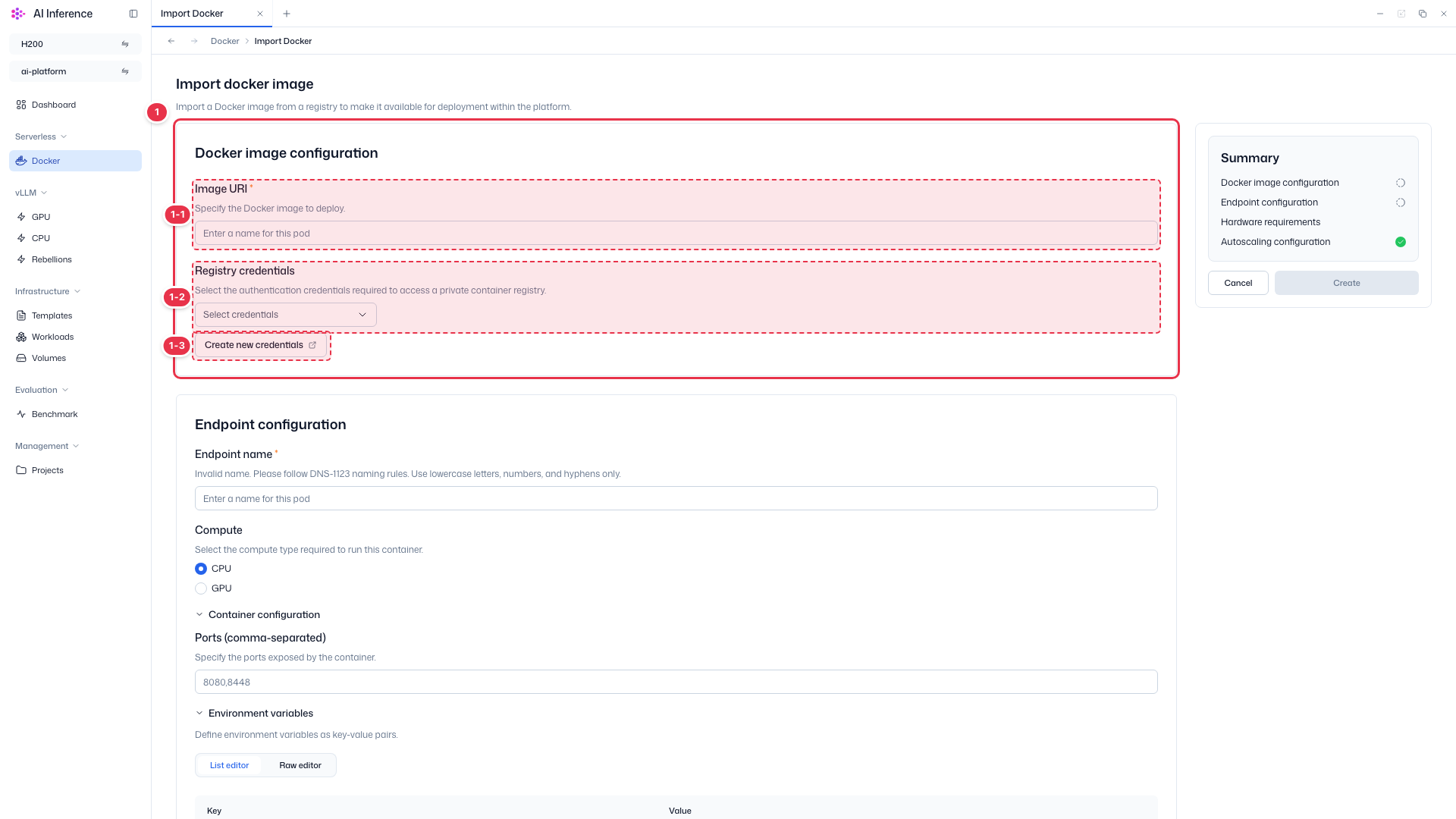
| No. | Feature | Item | Description |
|---|---|---|---|
| 1-1 | Image URI | Required | · Enter the Docker image to deploy (e.g., registry.example.com/team/app:1.0). |
| 1-2 | Registry credentials | Optional | · For an image in a private registry, choose the credentials to access it. Leave empty for public images. |
| 1-3 | Add credentials | Create new credentials button | · If no credentials are listed, opens a screen to register new credentials. |
Endpoint configuration
Specify the endpoint name, compute type, and container settings.
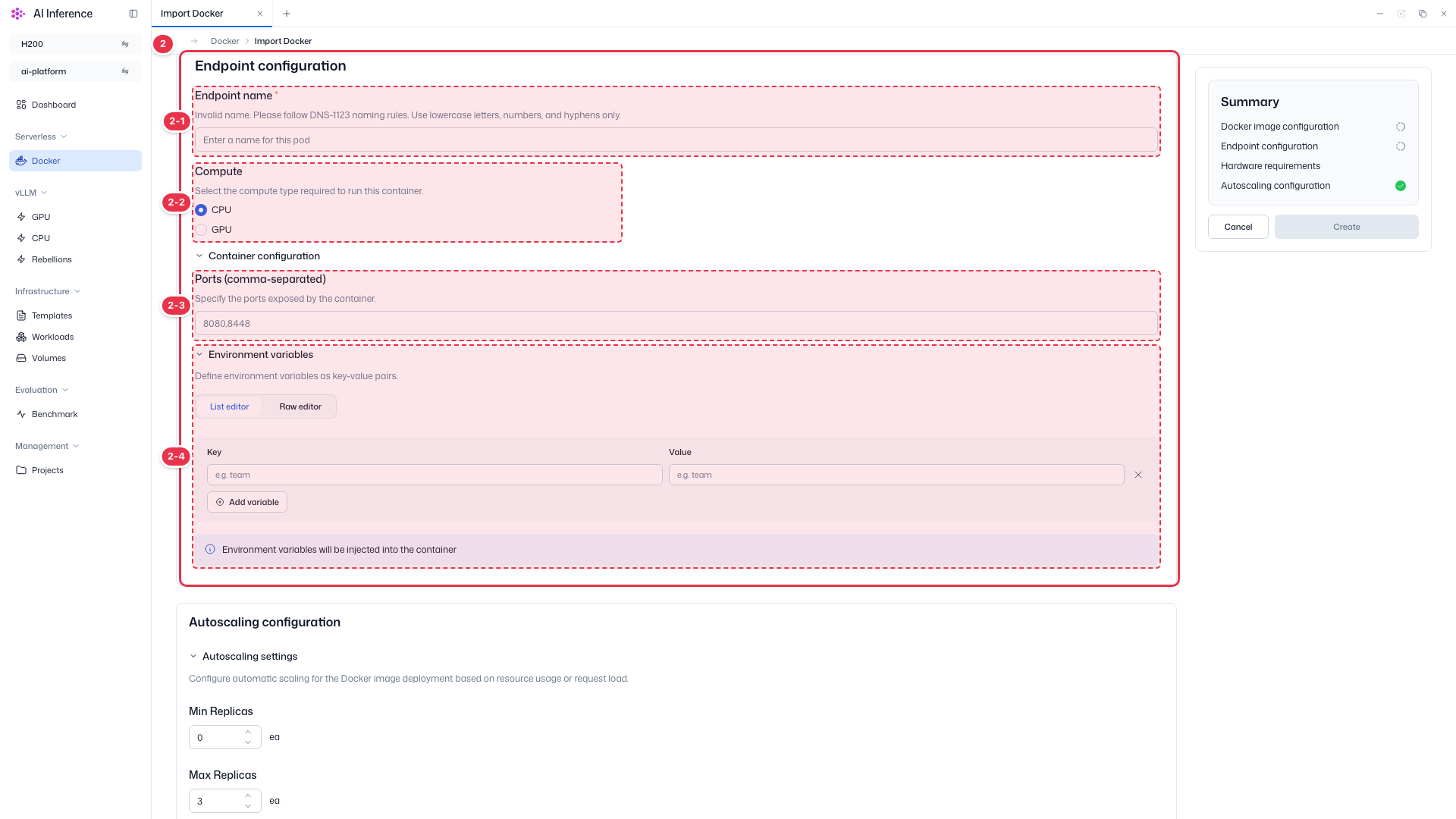
| No. | Feature | Item | Description |
|---|---|---|---|
| 2-1 | Endpoint name | Required | · Endpoint name. Use only lowercase letters, numbers, and hyphens (DNS-1123). |
| 2-2 | Compute | CPU / GPU | · Choose whether the container runs on CPU or GPU. |
| 2-3 | Ports | Comma-separated | · Ports exposed by the container. Separate multiple ports with commas. |
| 2-4 | Environment variables | List editor / Raw editor | · Key-value environment variables for the container. In Raw editor, enter them as KEY=VALUE lines. |
Summary
Shows the completion status of each section and finishes creation.
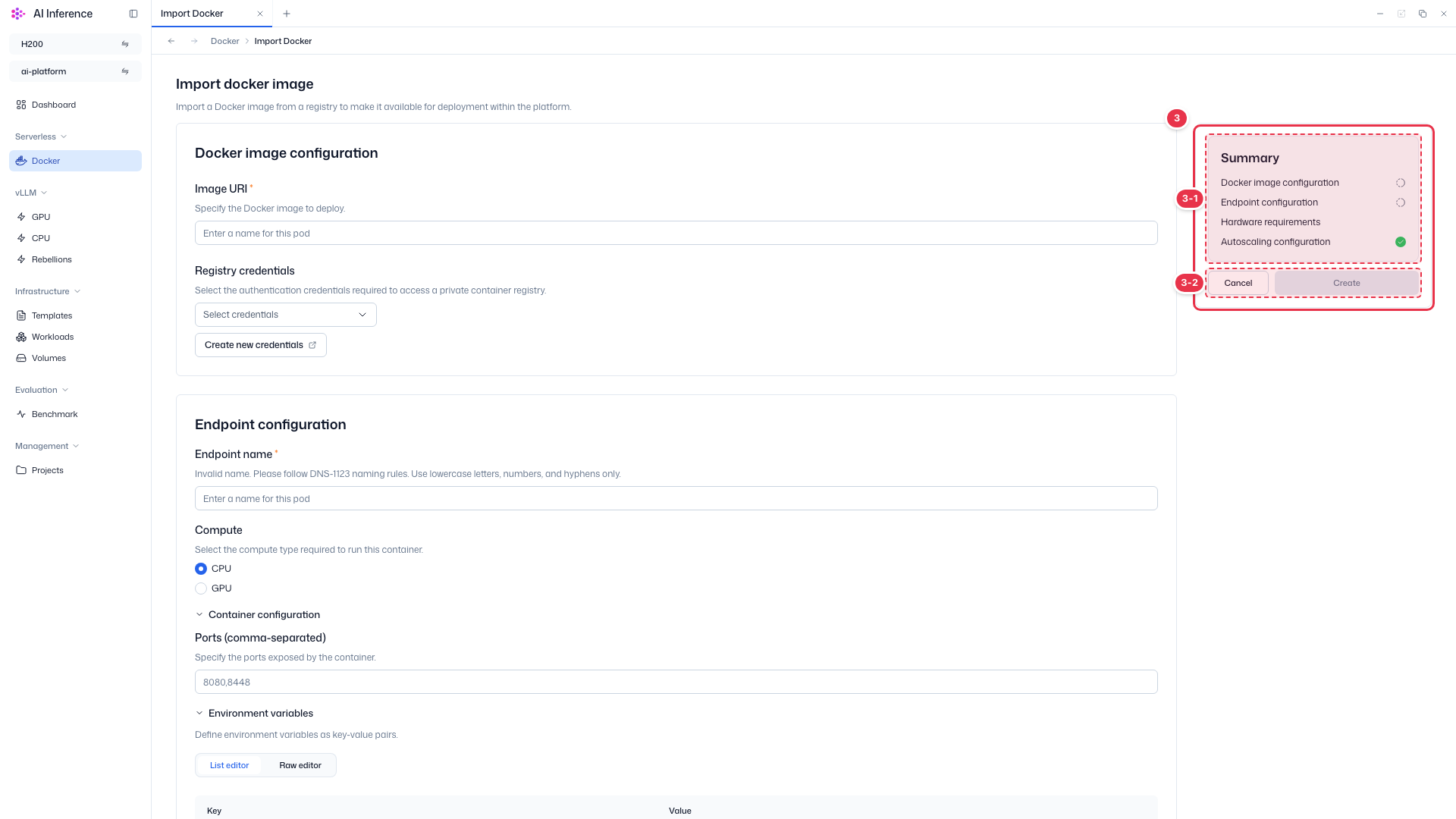
| No. | Feature | Item | Description |
|---|---|---|---|
| 3-1 | Progress | Sections | · A green check appears on each section (Docker image configuration, Endpoint configuration, Hardware requirements, Autoscaling configuration) once its required values are filled. |
| 3-2 | Create | Create button | · Enabled once all required values are filled. Click to create the endpoint and return to the list. Cancel discards your input and returns to the list. |
Hardware requirements and autoscaling
Below Endpoint configuration, set the resources for each replica in Hardware requirements and the minimum and maximum replicas in Autoscaling configuration. Autoscaling has defaults, so it is marked complete from the start.
Step 3. Check the result
Click Create to return to the list, where the new endpoint appears. Its status changes while the image is pulled and started; if an error occurs, check the cause in View logs.