

Alert detail
The detail screen you open by clicking an alert name on the Alert board. It has a summary section on top and three tabs.
- Path: Alert › Alert board › (click an alert name)
Summary · Actions
Top of the alert detail. Shows the current state and key metrics as cards; the Acknowledge/Resolve button appears depending on state.
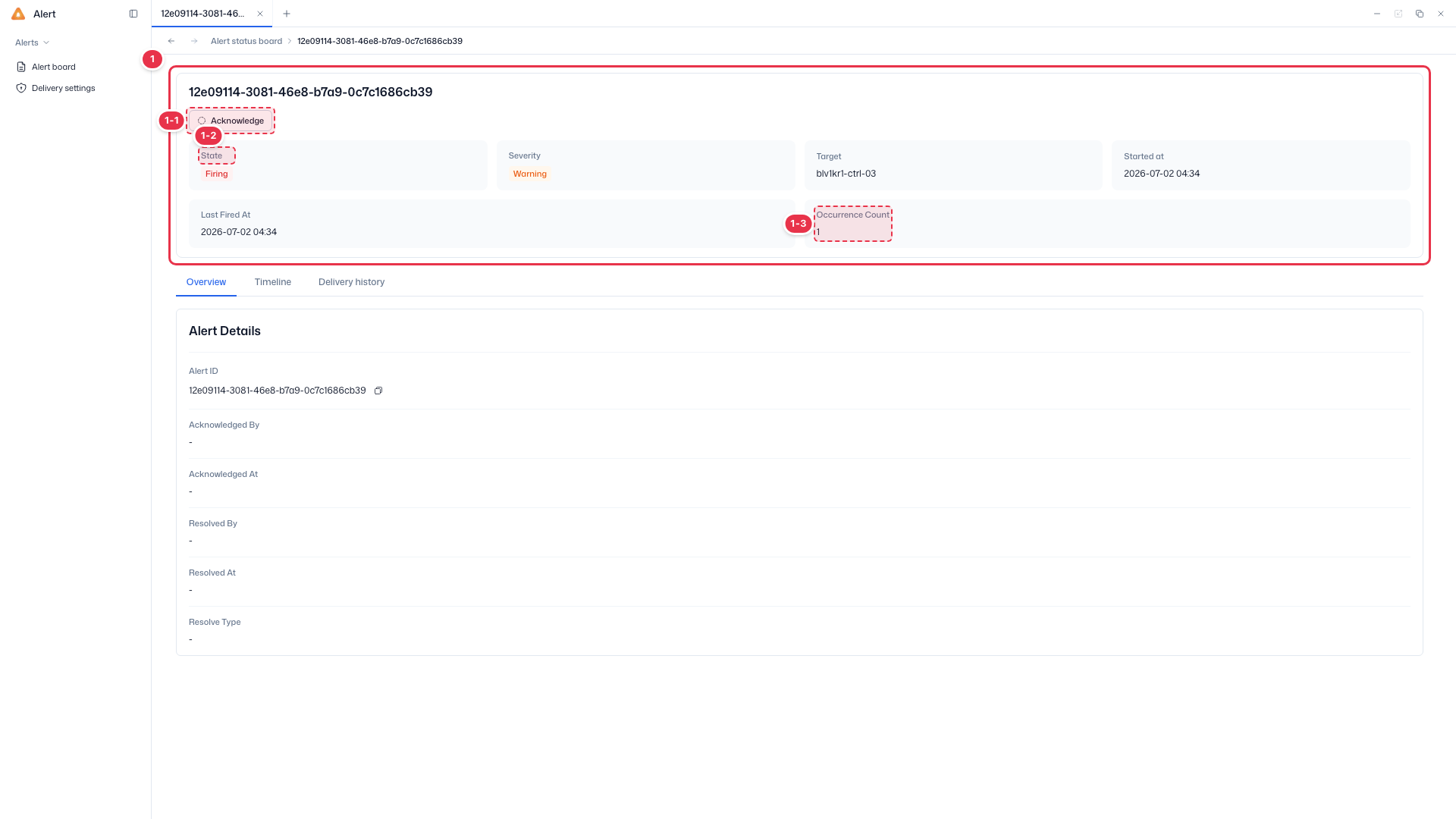
| No. | Feature | Item | Description |
|---|---|---|---|
| 1-1 | State transition | Acknowledge / Resolve | · Move the state through Firing → Acknowledge → Resolve. |
| 1-2 | Summary cards | State / Severity | Current state / severity. |
| Target / Started at | Target / first fired time. | ||
| 1-3 | Summary cards | Last Fired At | Time the alert last fired. |
| Occurrence Count | Cumulative number of occurrences. |
Tabs
The alert detail is split into three tabs.
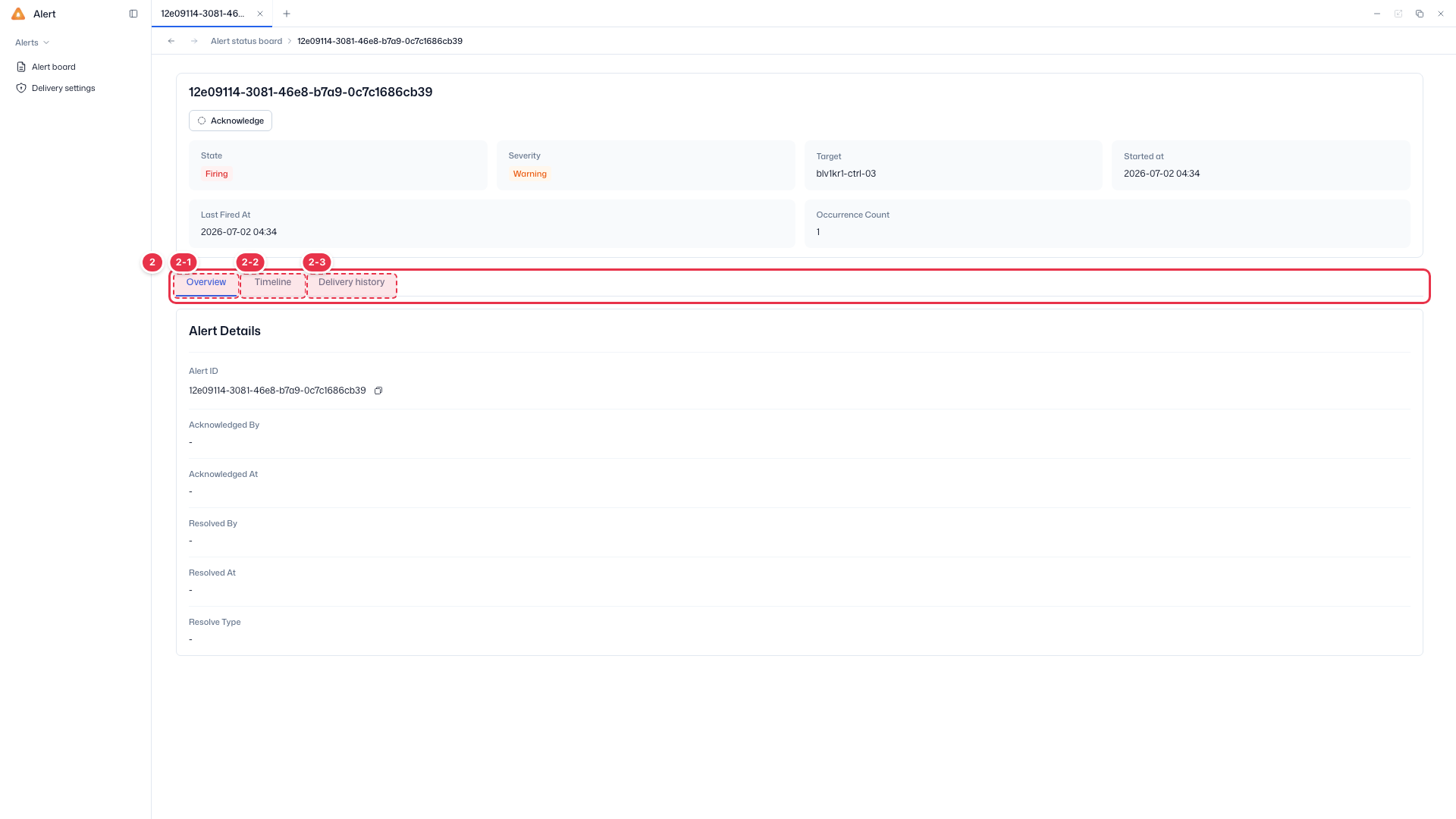
| No. | Feature | Item | Description |
|---|---|---|---|
| 2-1 | Overview | Overview | · Alert detail information (ID, acknowledge/resolve records). |
| 2-2 | Timeline | Timeline | · State-change history timeline. |
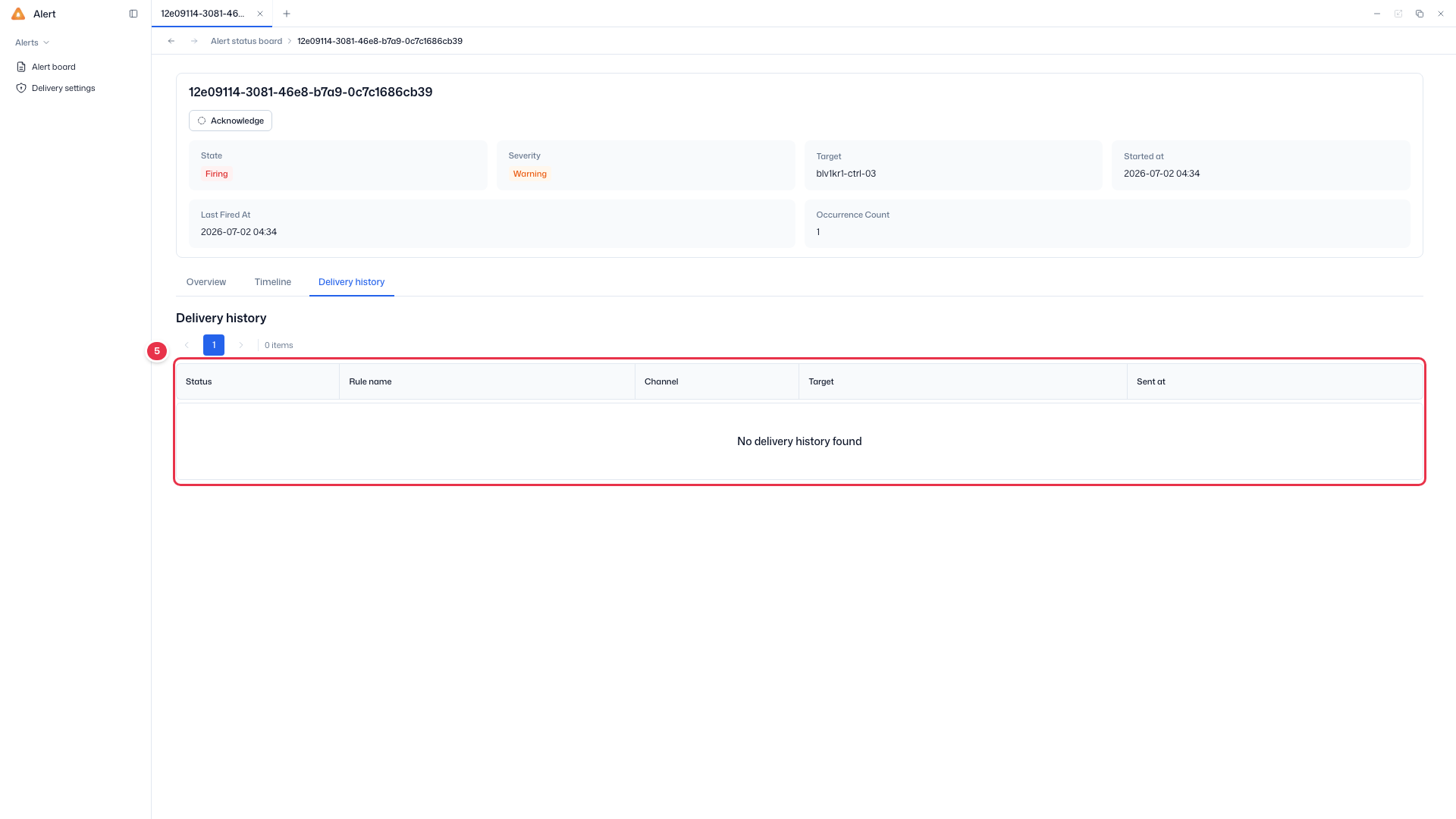
| 2-3 | Delivery history | Delivery history | · Per-channel notification delivery history. |
Overview tab
Detailed identification and handling information for the alert.
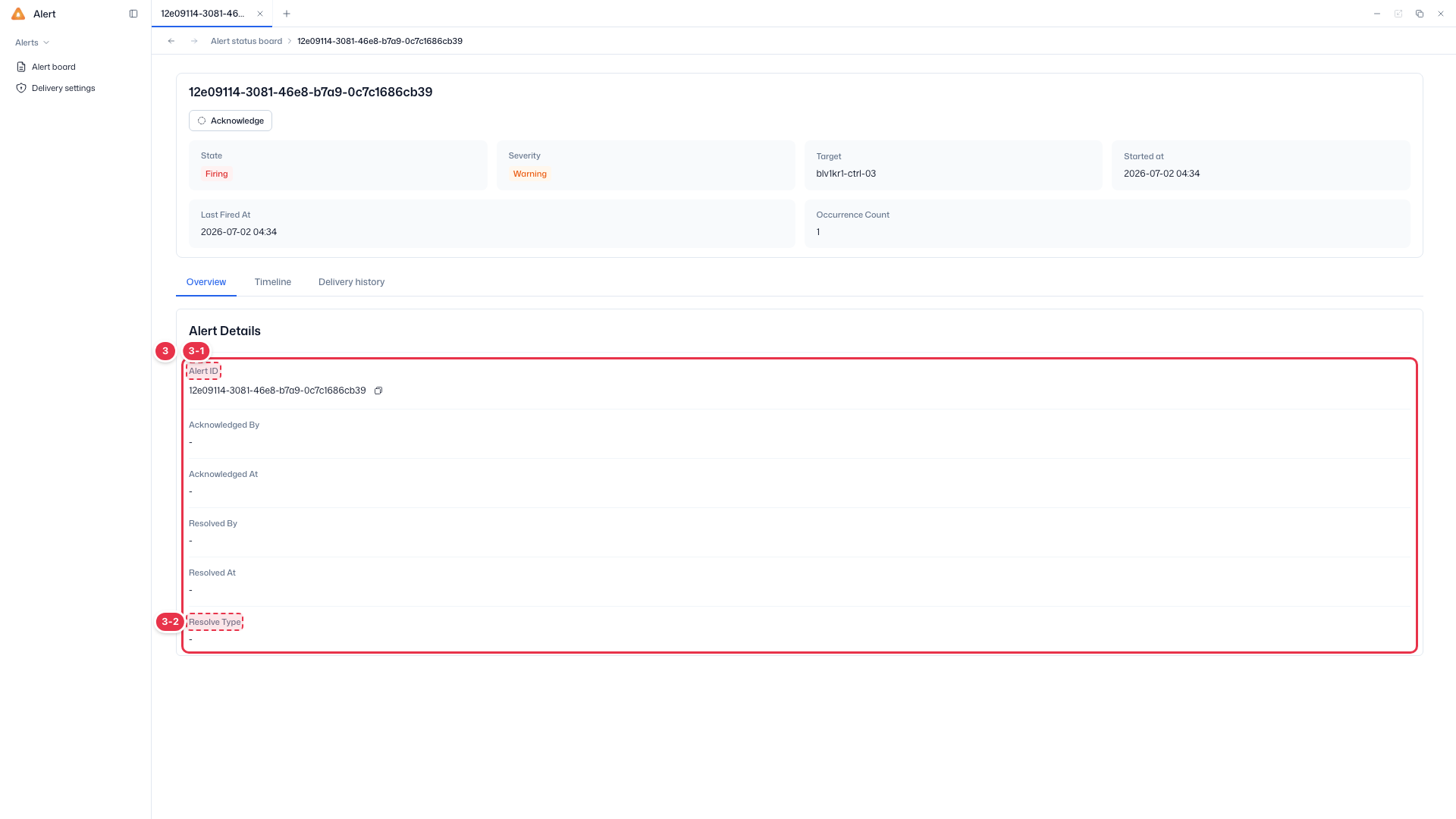
| No. | Feature | Item | Description |
|---|---|---|---|
| 3-1 | Identification | Alert ID | Unique alert ID (copyable). |
| Acknowledged By / At | User who acknowledged / time. | ||
| 3-2 | Resolution | Resolved By / At | User who resolved / time. |
| Resolve Type | Resolution type (Manual / Auto). |
Timeline tab
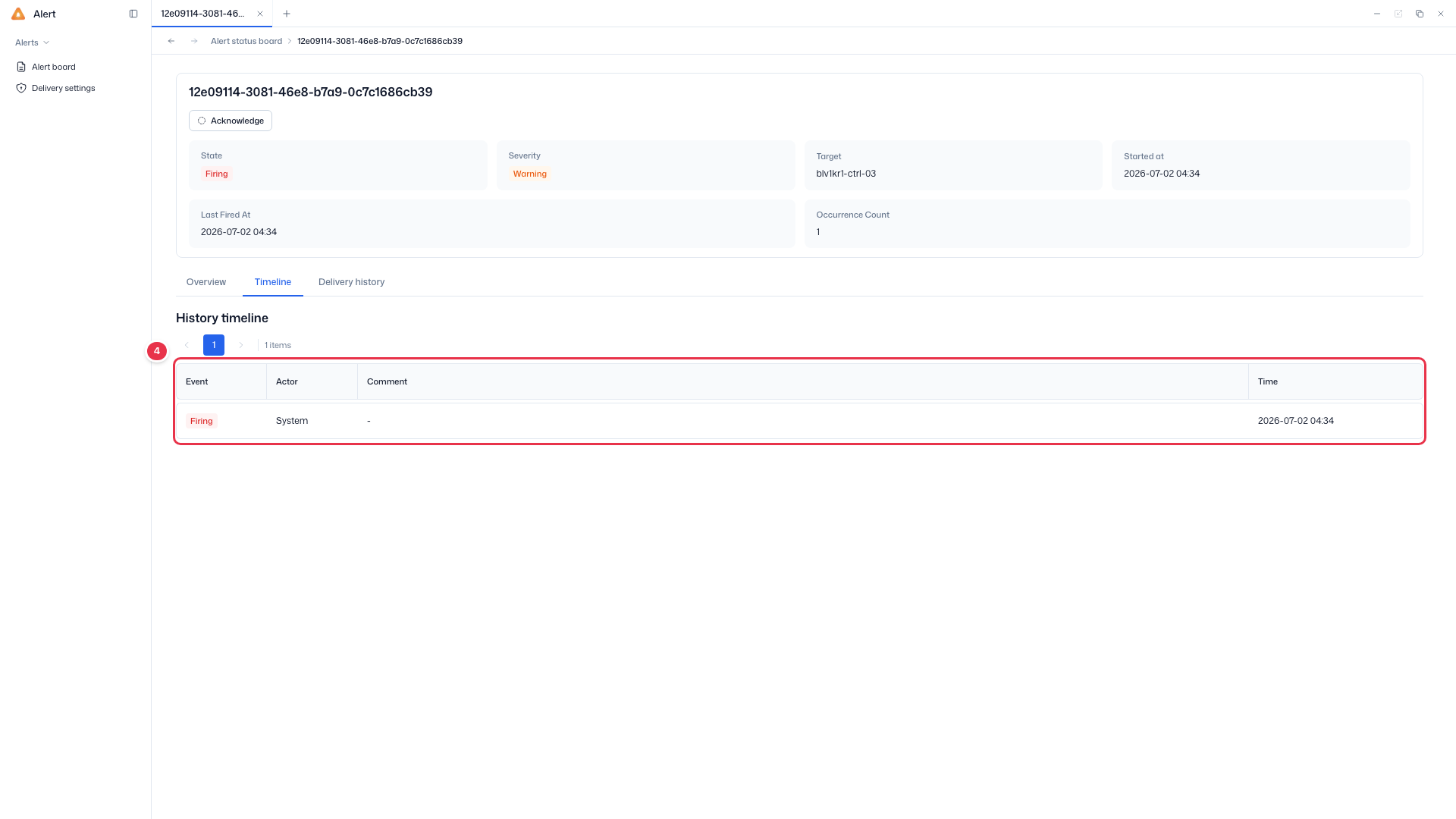
State-change history. Columns: Event (state) · Actor · Comment · Time.
Delivery history tab
Per-channel delivery records. Columns: Status · Rule name · Channel · Target · Sent at.
State transitions
The button in the summary appears based on the current state.
| State | Button shown |
|---|---|
| Firing | Acknowledge |
| Acknowledged | Resolve |
| Resolved | none |
- Acknowledge — marks that an operator is aware. It records Acknowledged By/At and immediately stops repeat notifications.
- Resolve — opens a Comment (handling notes) drawer. The Comment is required (max 1,000 characters); on confirmation the state becomes Resolved and Resolved By/At and Resolve Type (Manual) are recorded.
Auto Resolve
When the condition clears or a resolved signal is received from the source system, the system resolves the alert automatically. In this case the Timeline Actor is System, Resolve Type is Auto, and there is no Comment.
Timeline events
The Timeline tab shows the state-change history newest first (top).
| Event | Description |
|---|---|
| Firing | Alert fired (Actor = System) |
| Acknowledged | An operator acknowledged it |
| Resolved | An operator closed it (Manual) |
| Auto Resolved | The system closed it automatically (Auto, Actor = System) |
| Comment | A comment left by a user |
Delivery history status
In the delivery records, Status is the delivery result and Kind is the delivery type.
- Status: Success · Failed · Pending (waiting / in progress)
- Kind: Initial (first send) · Retry · Repeat (repeated send while ongoing)
Next steps
- Alert board — back to the alert list
- Delivery settings — configure alert delivery rules