

Manage certificates
In Certificates of System Mode KMS, view TLS certificates used for internal service-to-service communication (mTLS workload certificates, etc.) and renew or revoke them.
System Mode only — Requires system administrator (SysAdmin) privileges.
Management scope
The system KMS manages internal service-to-service certificates. Web SSL certificates (including the login screen), customer, and gateway domain certificates are generated externally and deployed manually at the infrastructure layer, and are not managed by KMS.
Prerequisites
- Signum Engineering Mode (system administrator) access
- The target certificate must already be issued
Step 1 — Browse the certificate list
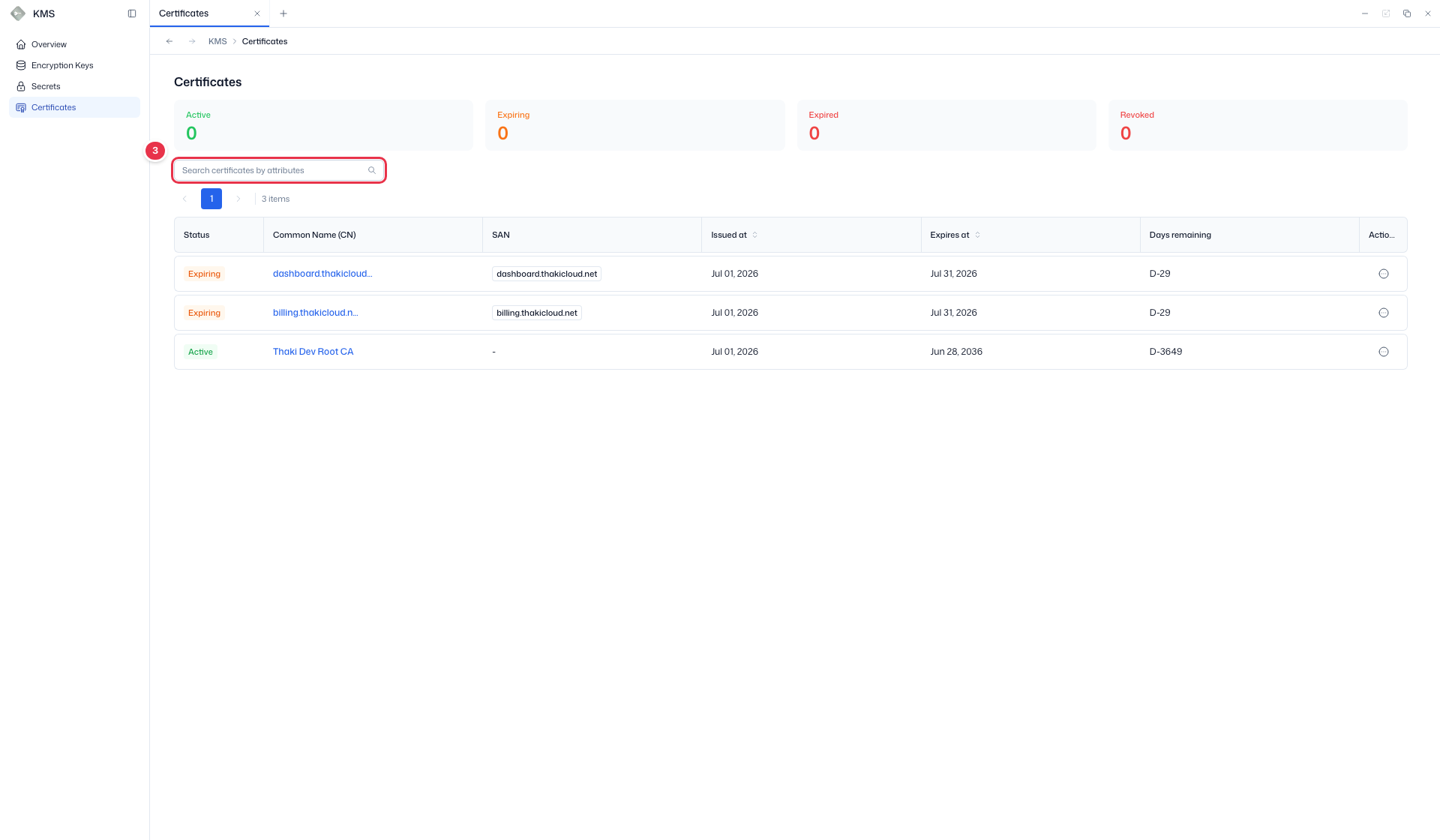
Go to KMS → Certificates. The status summary cards at the top (No. 2) show counts of valid, expiring, expired, and revoked certificates at a glance. Find a certificate using search (No. 3), and check CN, SAN, issue/expiry date, and days remaining in the list table (No. 4).
The Action menu on the right of each row provides Renew / Revoke.
1 Sidebar (SNB)
Use the left sidebar to move between the four KMS screens (Overview, Encryption Keys, Secrets, Certificates).
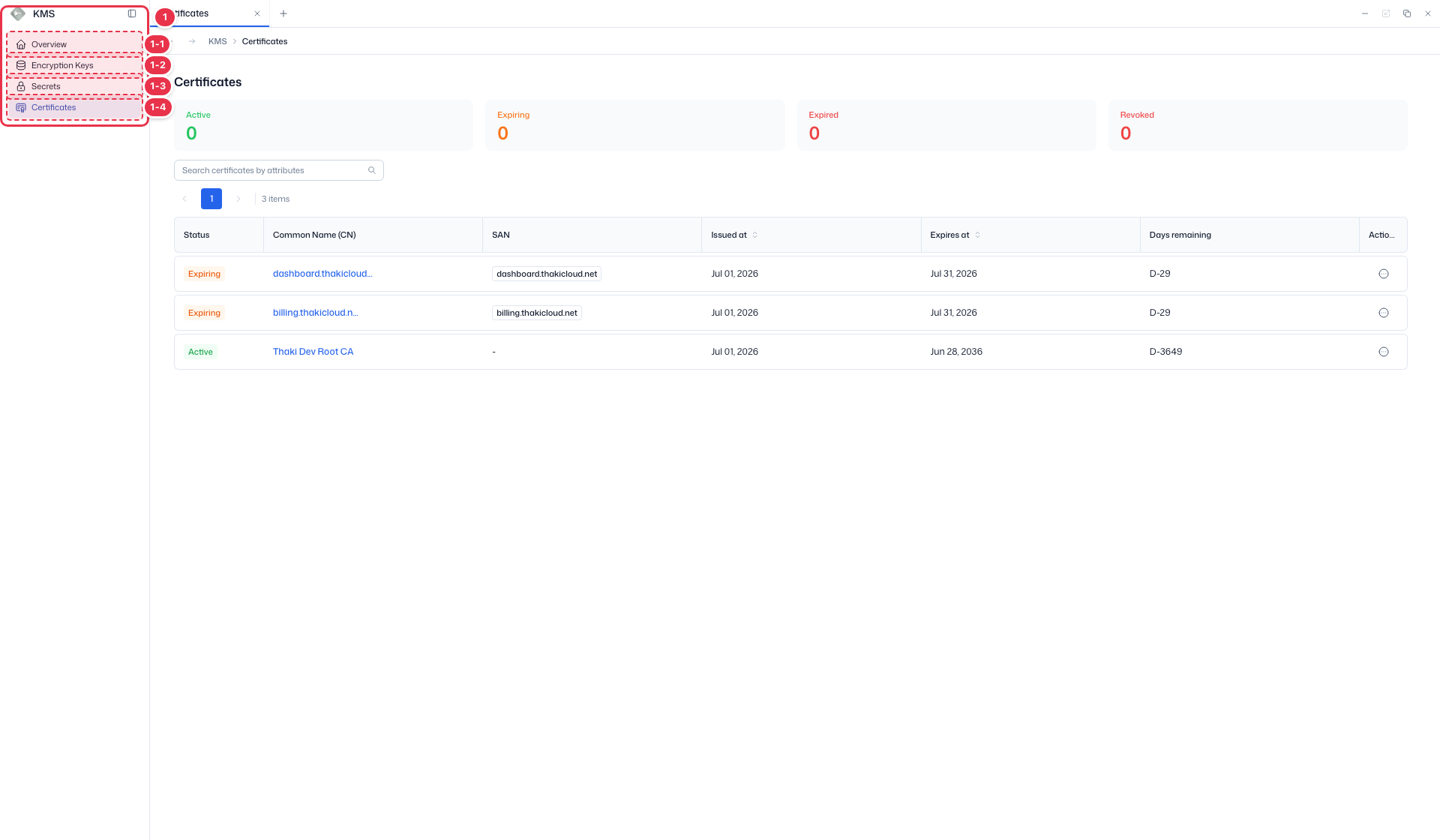
| No. | Feature | Item | Description |
|---|---|---|---|
| 1-1 | Overview | Overview | · Summary dashboard for keys, certificates, and secrets. |
| 1-2 | Encryption keys | Encryption Keys | · Encryption key list — rotate, archive, destroy. |
| 1-3 | Secrets | Secrets | · Manage secret values, versions, and expiration. |
| 1-4 | Certificates | Certificates | · View, renew, and revoke TLS certificates. |
2 Status summary cards
Summary cards counting certificates by status (Active, Expiring, Expired, Revoked).
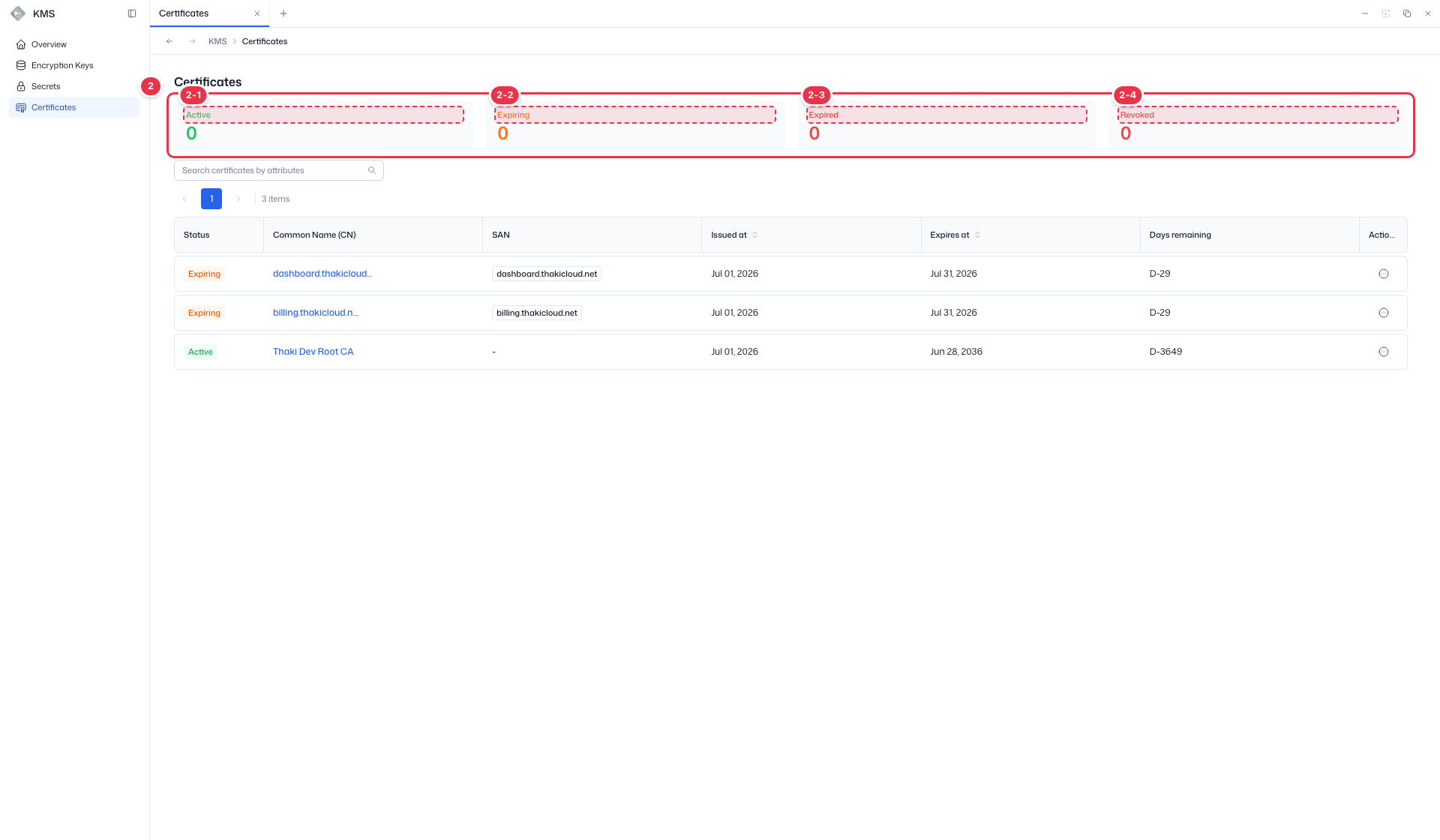
| No. | Feature | Item | Description |
|---|---|---|---|
| 2-1 | Active | Active | · Number of valid certificates. |
| 2-2 | Expiring | Expiring | · Number of certificates expiring soon. |
| 2-3 | Expired | Expired | · Number of expired certificates. |
| 2-4 | Revoked | Revoked | · Number of revoked certificates. |
3 Search
Search certificates by attributes such as CN or SAN.
4 Certificate list table
List of certificates. Click a CN to open its detail page.
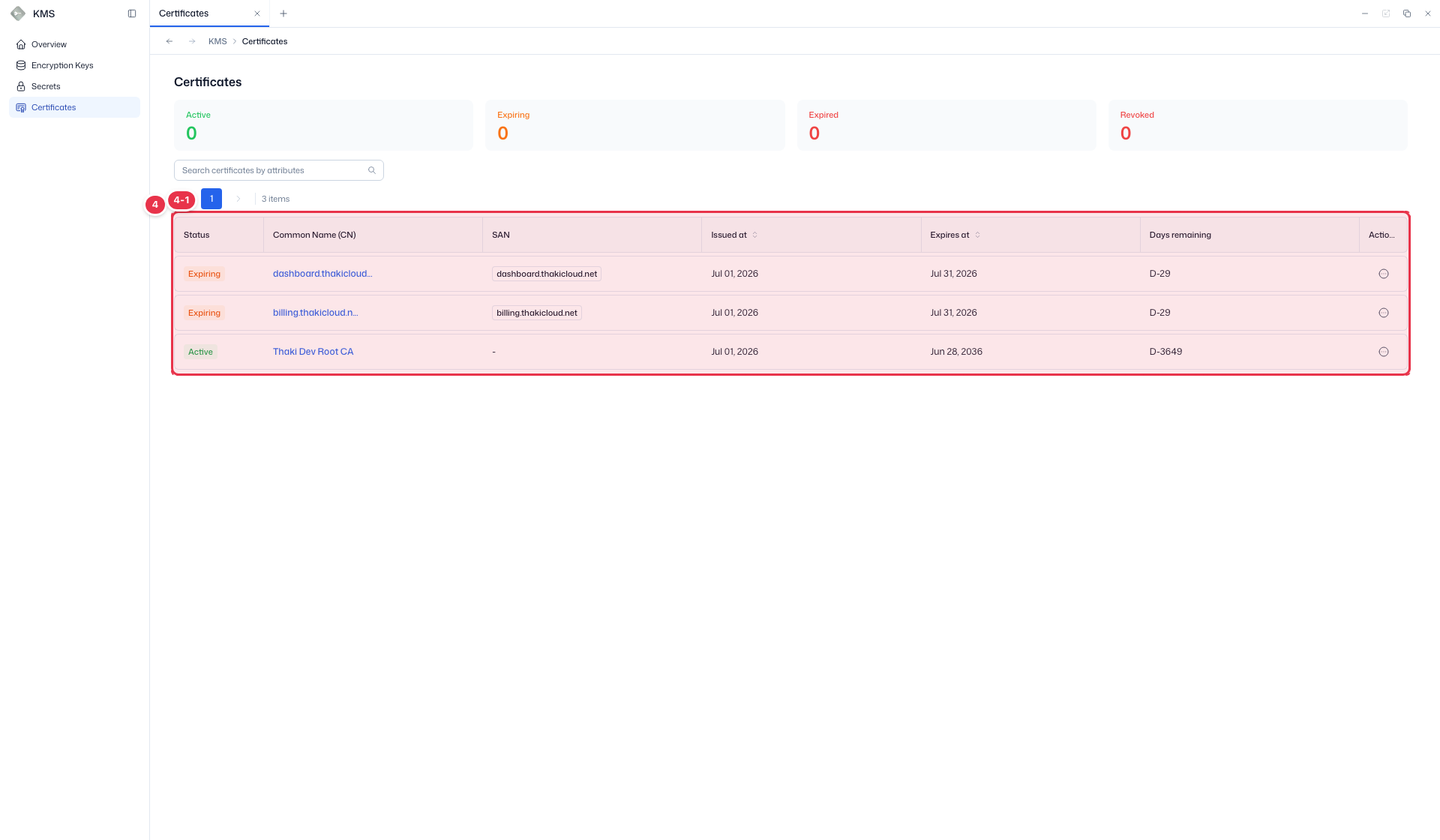
| No. | Feature | Item | Description |
|---|---|---|---|
| 4-1 | Columns | Status | Certificate status — Active / Expiring, etc. |
| Common Name (CN) | Certificate subject CN (click to open detail). | ||
| SAN | Subject Alternative Name. | ||
| Issued at | Issue time. | ||
| Expires at | Expiration time. | ||
| Days remaining | Days until expiration (D-n). | ||
| Actions | Row menu — Renew / Revoke. |
Step 2 — Review, renew, or revoke a certificate
Click a Common Name (CN) in the list to open the detail page. The summary card (No. 1) shows status, domain, SAN, serial number, signature/public key algorithm, and issue/expiry date.
- Renew — Renew the certificate before expiry.
- Revoke — Revoke the certificate to withdraw trust.
The History tab (No. 2) shows the audit history (actor, source IP, action, result, and reason) of issuance, renewal, and revocation.
1 Certificate summary
Details of the selected certificate and the renew/revoke actions.
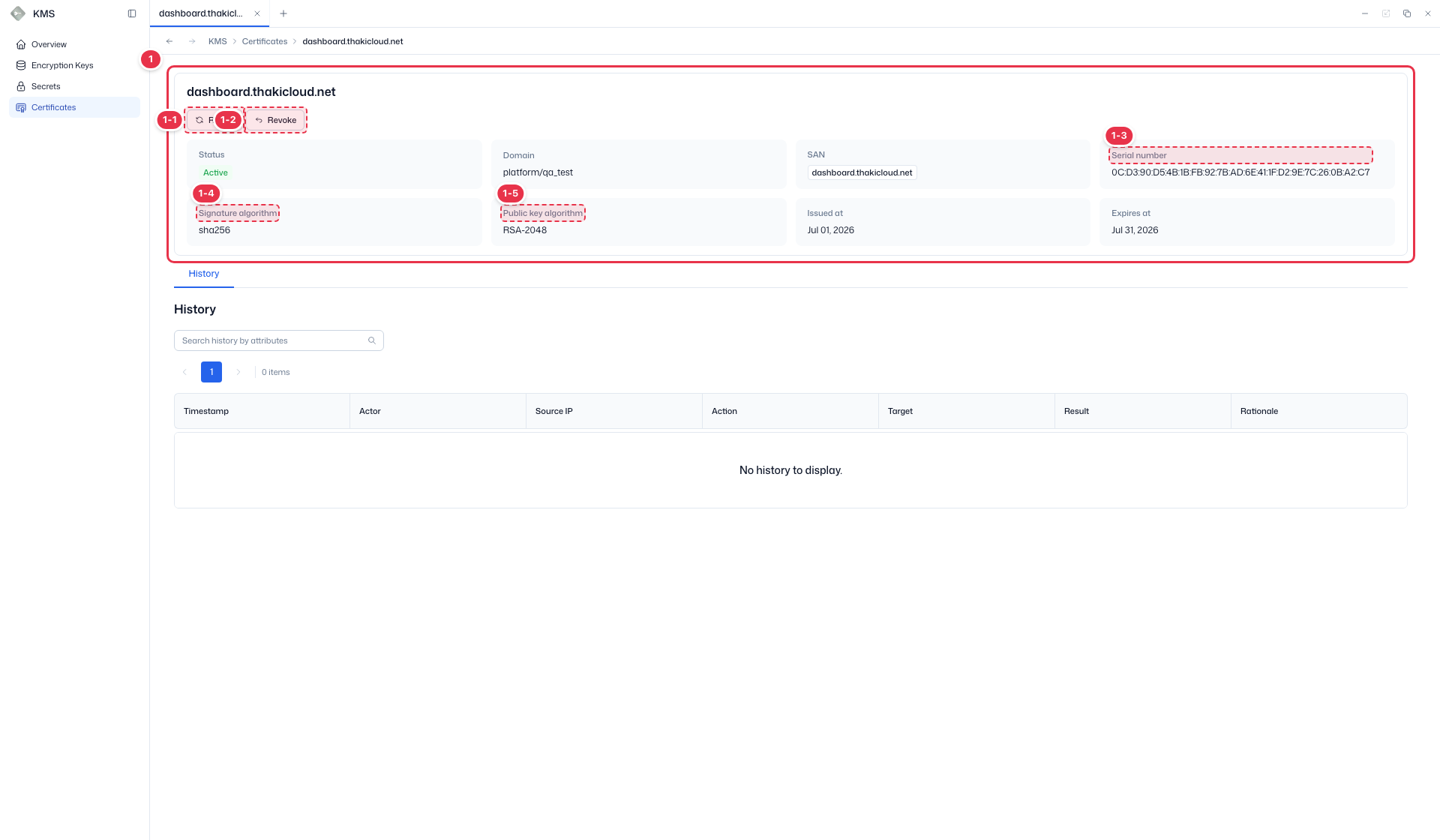
| No. | Feature | Item | Description |
|---|---|---|---|
| 1-1 | Renew | Renew | · Renew the certificate before expiry. |
| 1-2 | Revoke | Revoke | · Revoke the certificate (withdraw trust). |
| 1-3 | Serial | Serial number | · Certificate serial number. |
| 1-4 | Signature algorithm | Signature algorithm | · Signature algorithm (e.g. sha256). |
| 1-5 | Public key algorithm | Public key algorithm | · Public key algorithm (e.g. RSA-2048). |
2 History
Audit history of the certificate — issuance, renewal, revocation, etc.
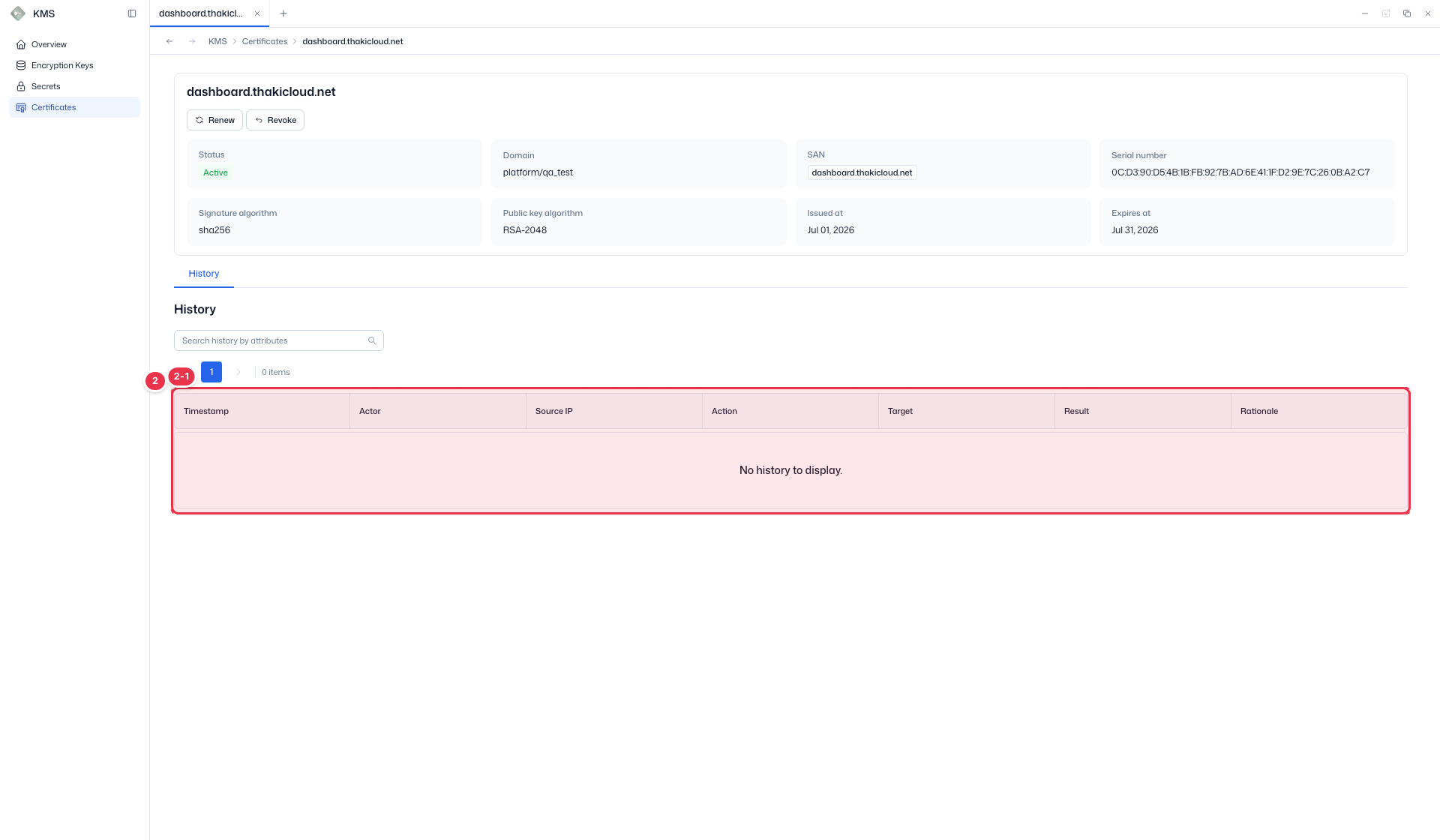
| No. | Feature | Item | Description |
|---|---|---|---|
| 2-1 | Columns | Timestamp | Event time. |
| Actor | Who performed the action. | ||
| Source IP | Request source IP. | ||
| Action | Action performed (issue/renew/revoke, etc.). | ||
| Target | Target resource. | ||
| Result | Action result. | ||
| Rationale | Reason for the action. |
WARNING
Revoke withdraws trust in a certificate. Services using it may immediately fail TLS validation, so verify the impact before revoking.
Certificate state model
| State | Readable | TLS auth | Description |
|---|---|---|---|
| Active | O | O | Valid. Usable normally |
| Expiring | O | O | Within 30 days of expiry. Auto-transitioned and due for renewal |
| Expired | O | X | Expired. Validity period ended |
| Revoked | O | X | Revoked. Excluded from the trust chain, authentication not possible |
Expired transitions automatically when the validity period ends; it is predictable and recoverable via renewal (Renew). Revoked is an irreversible action explicitly performed by an administrator in response to key leakage, policy violation, etc., and is immediately registered in CRL/OCSP and excluded from the trust chain. Expired and Revoked are terminal states and do not transition to other states.
The History tab is linked to the audit log, recording the actor, source IP, action, result, and reason of each transition.
Verify the result
- On renewal, Expires at / Days remaining are updated and the status stays Active.
- On revocation, the status becomes Revoked and is reflected in the top summary cards.