

Manage secrets
In Secrets of System Mode KMS, view internal system secrets such as JWT signing keys and infrastructure credentials, and manage their values, rotation, tags, and expiration policy.
System Mode only — Requires system administrator (SysAdmin) privileges. The secrets handled by the system KMS are limited to assets needed for internal system operation and platform security. Personal secrets (Password, MFA, API Secret, etc.) are managed in IAM My Page.
KMS does not issue secrets
The initial issuance of a secret is performed by each app or integrated system (e.g. IAM, Keycloak). The issued secret is passed to KMS for encrypted storage, and the value itself is shown only once at initial issuance. After that, KMS provides only the existence, metadata, and state as a store. Re-issuance is performed in IAM or the source app.
Prerequisites
- Signum Engineering Mode (system administrator) access
- The target secret must already exist
Step 1 — Browse the secret list
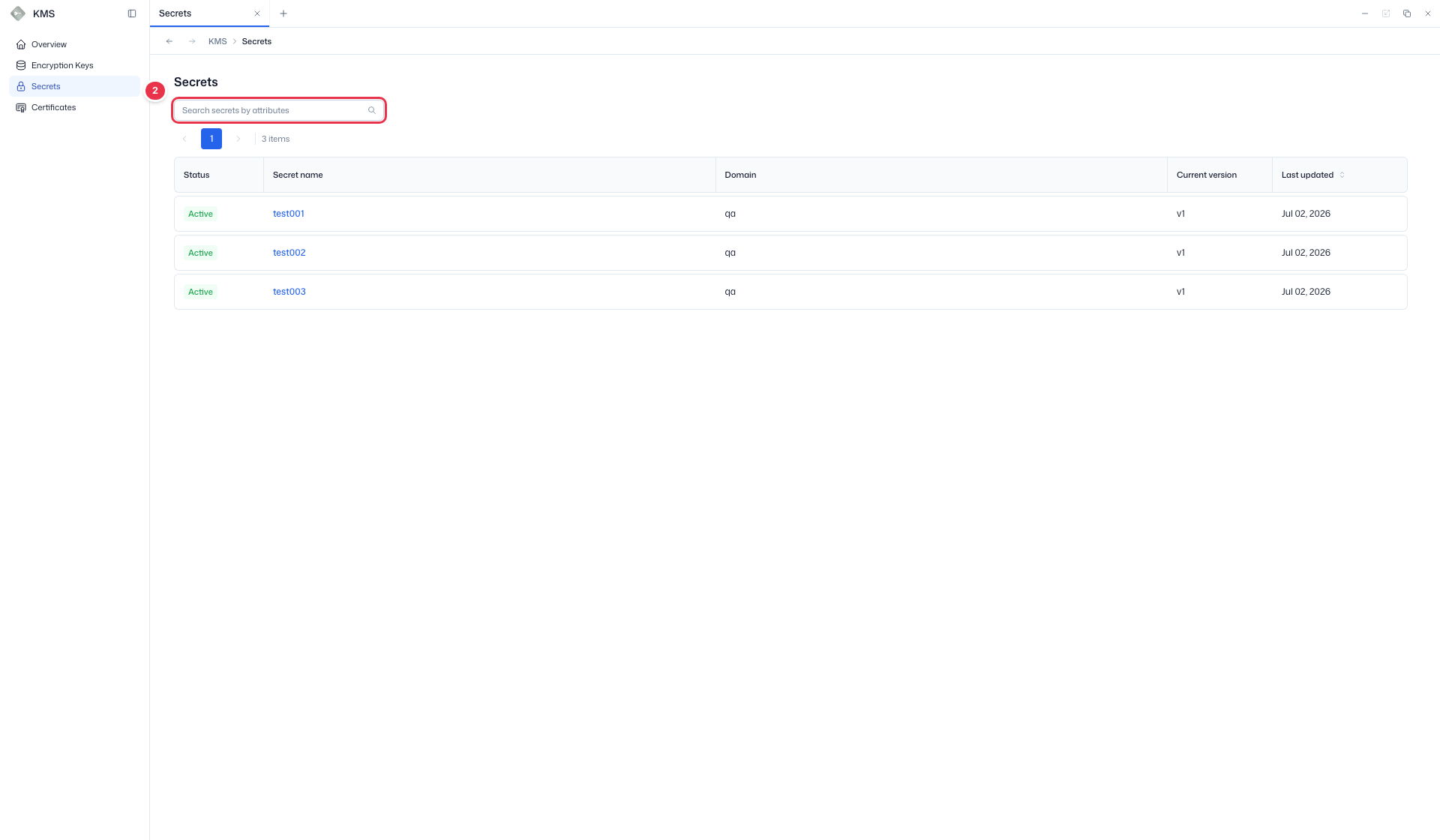
Go to KMS → Secrets. Find a secret using the sidebar (No. 1) and search (No. 2), and check status, domain, current version, and last updated time in the list table (No. 3).
1 Sidebar (SNB)
Use the left sidebar to move between the four KMS screens (Overview, Encryption Keys, Secrets, Certificates).
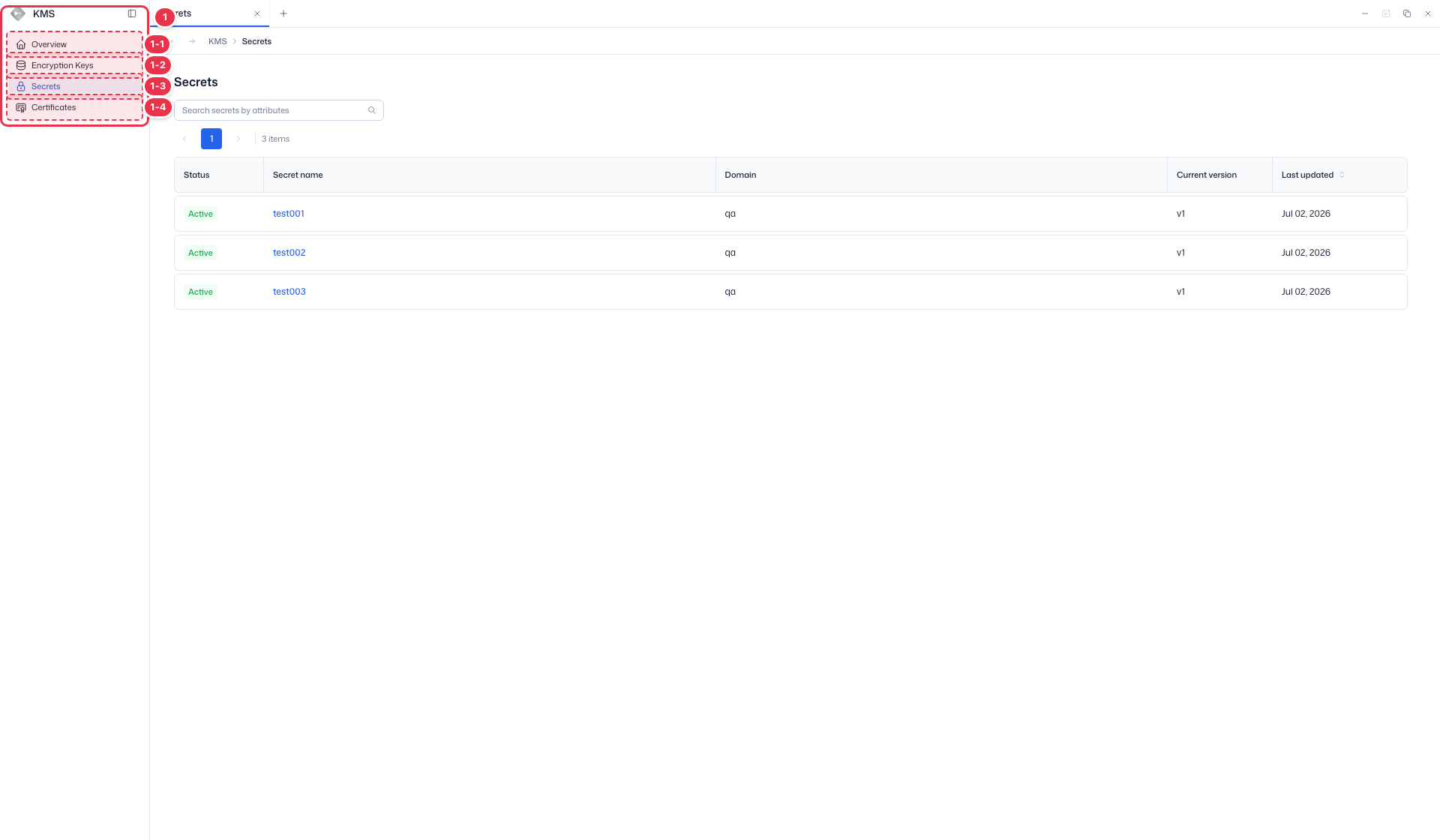
| No. | Feature | Item | Description |
|---|---|---|---|
| 1-1 | Overview | Overview | · Summary dashboard for keys, certificates, and secrets. |
| 1-2 | Encryption keys | Encryption Keys | · Encryption key list — rotate, archive, destroy. |
| 1-3 | Secrets | Secrets | · Manage secret values, versions, and expiration. |
| 1-4 | Certificates | Certificates | · View, renew, and revoke TLS certificates. |
2 Search
Search secrets by attributes such as name or domain.
3 Secret list table
List of stored secrets. Click a secret name to open its detail page.
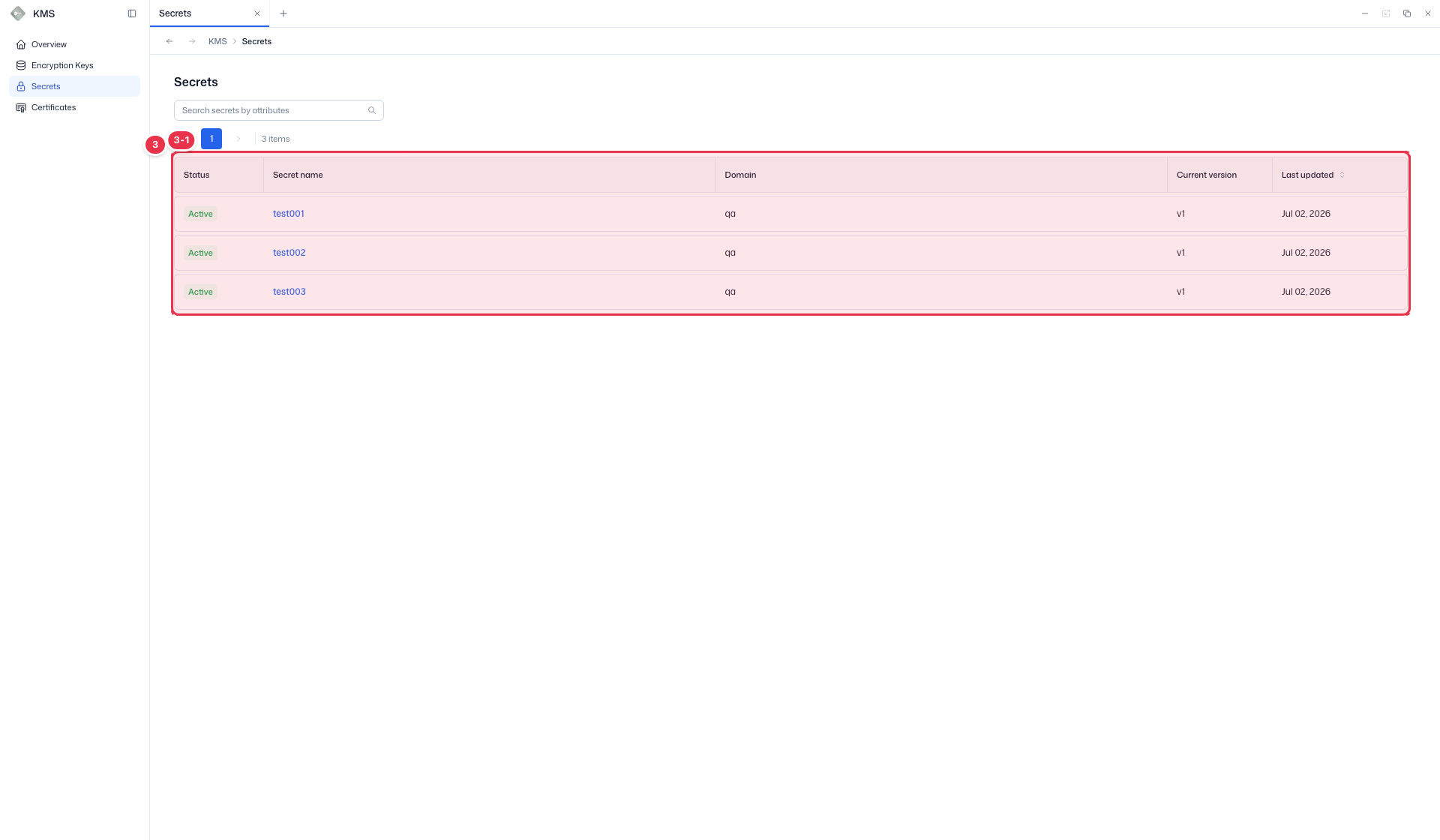
| No. | Feature | Item | Description |
|---|---|---|---|
| 3-1 | Columns | Status | Secret status — Active, etc. |
| Secret name | Secret name/path (click to open detail). | ||
| Domain | Domain the secret belongs to. | ||
| Current version | Current version number. | ||
| Last updated | Last update time. |
Step 2 — Manage secret details
Click a Secret name in the list to open the detail page. The summary card (No. 1) shows status, path, and current version, and you can rotate immediately with Rotate now.
The Details tab (No. 2) lets you manage the following.
- Secret value — Masked by default; reveal it with Show secret value.
- Tags — Add/edit tags with Edit.
- Expiration settings — Turning on Enable expiration applies an expiration policy. Saving creates a new version with the same data.
The History tab (No. 3) shows the per-version change history of the secret.
1 Secret summary
Basic information of the selected secret and the rotate action.
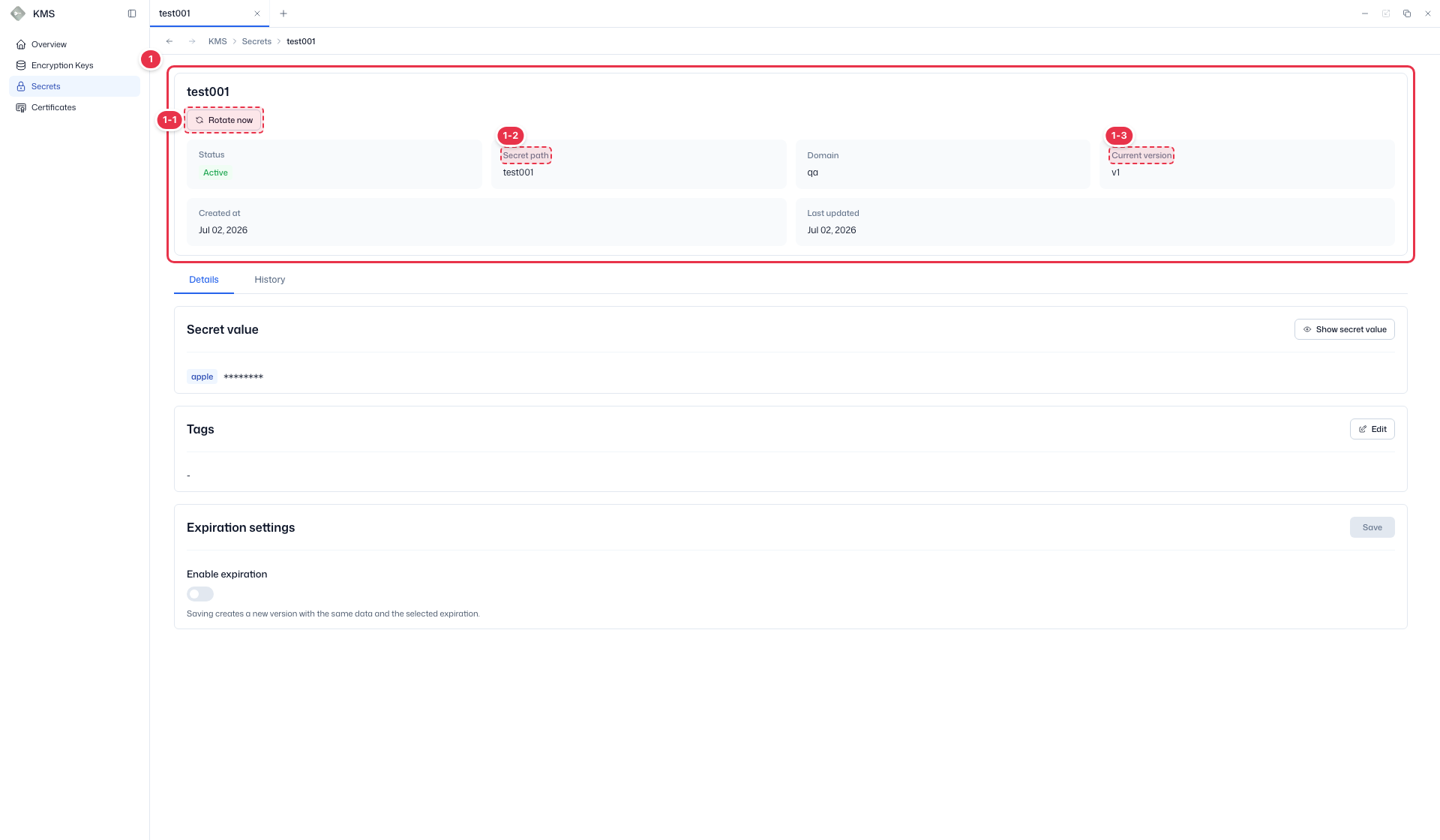
| No. | Feature | Item | Description |
|---|---|---|---|
| 1-1 | Rotate immediately | Rotate now | · Rotate the secret to a new version. |
| 1-2 | Path | Secret path | · Secret storage path. |
| 1-3 | Current version | Current version | · Current version number. |
2 Details — value, tags, expiration
Review the secret value, edit tags, and configure the expiration policy.
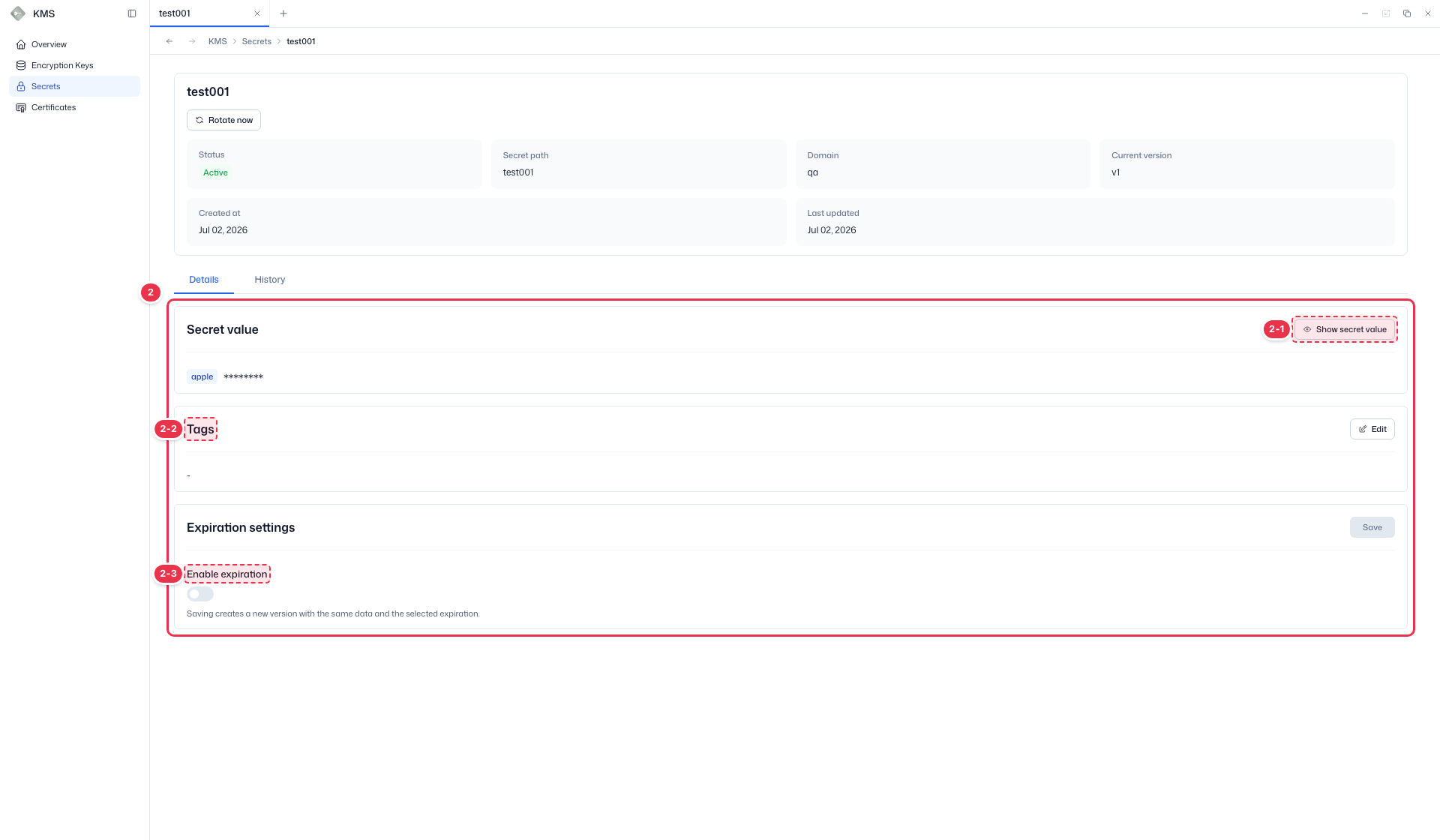
| No. | Feature | Item | Description |
|---|---|---|---|
| 2-1 | Show value | Show secret value | · Show/hide the masked secret value (key-value pairs). |
| 2-2 | Tags | Tags | · Add/edit tags with Edit. |
| 2-3 | Enable expiration | Enable expiration | · Turning on expiration creates a new version with the same data. |
3 Change history (History tab)
View the per-version change history of the secret on the History tab.
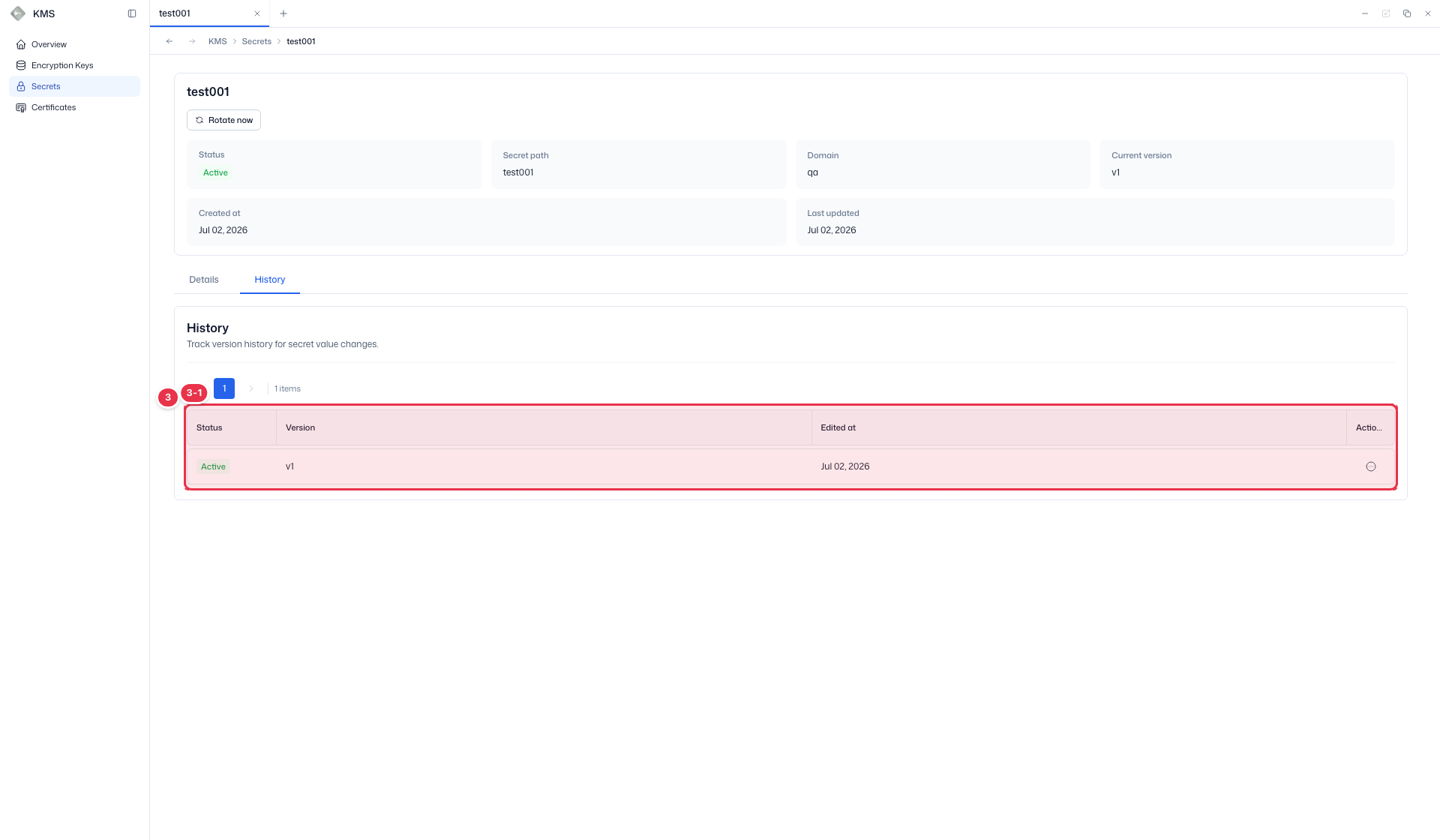
| No. | Feature | Item | Description |
|---|---|---|---|
| 3-1 | Columns | Status | Version status. |
| Version | Secret version number. | ||
| Edited at | When this version was edited/created. | ||
| Actions | Per-version row menu. |
Secret state model
Secret state is also managed independently per version. Within a single secret (UUID), at most one version is Active; creating a new version automatically transitions the previous Active version to Deactivated. The Overview dashboard aggregates these counts (Active, Expired, Deactivated, Deleted).
| State | Readable | Description |
|---|---|---|
| Active | O | Currently used version |
| Expired | O | TTL expired. Not blocked immediately; prompts replacement |
| Deactivated | O | Previous version. Read allowed to avoid outages in services referencing older versions |
| Deleted | X | Soft-deleted. Recoverable within 30 days |
| Destroyed | X | Permanently deleted (unrecoverable) |
Actions available in the console
The only direct action currently available in the secret console is Rotate now (create a new version). State transitions such as Deactivate, Delete, and Destroy are performed only by restricted roles per policy, and require confirmation and a reason.
Delete and retention policy
- If only one Active version remains, Deactivate/Delete are blocked.
- Deleted state automatically transitions to Destroyed (permanent deletion) after 30 days.
- For security, creating a new value is preferred over reusing an old value, and UI recovery is not provided (DB-level recovery only).
Verify the result
- Rotation and expiration changes are reflected in the detail and in the list's Current version / Last updated.