

Log explorer
The main screen for searching and exploring logs across the platform.
- Path: Log › Log › Log explorer
Sidebar (SNB)
From the Log group in the left sidebar, move to Log explorer, Saved queries, or Live tail.
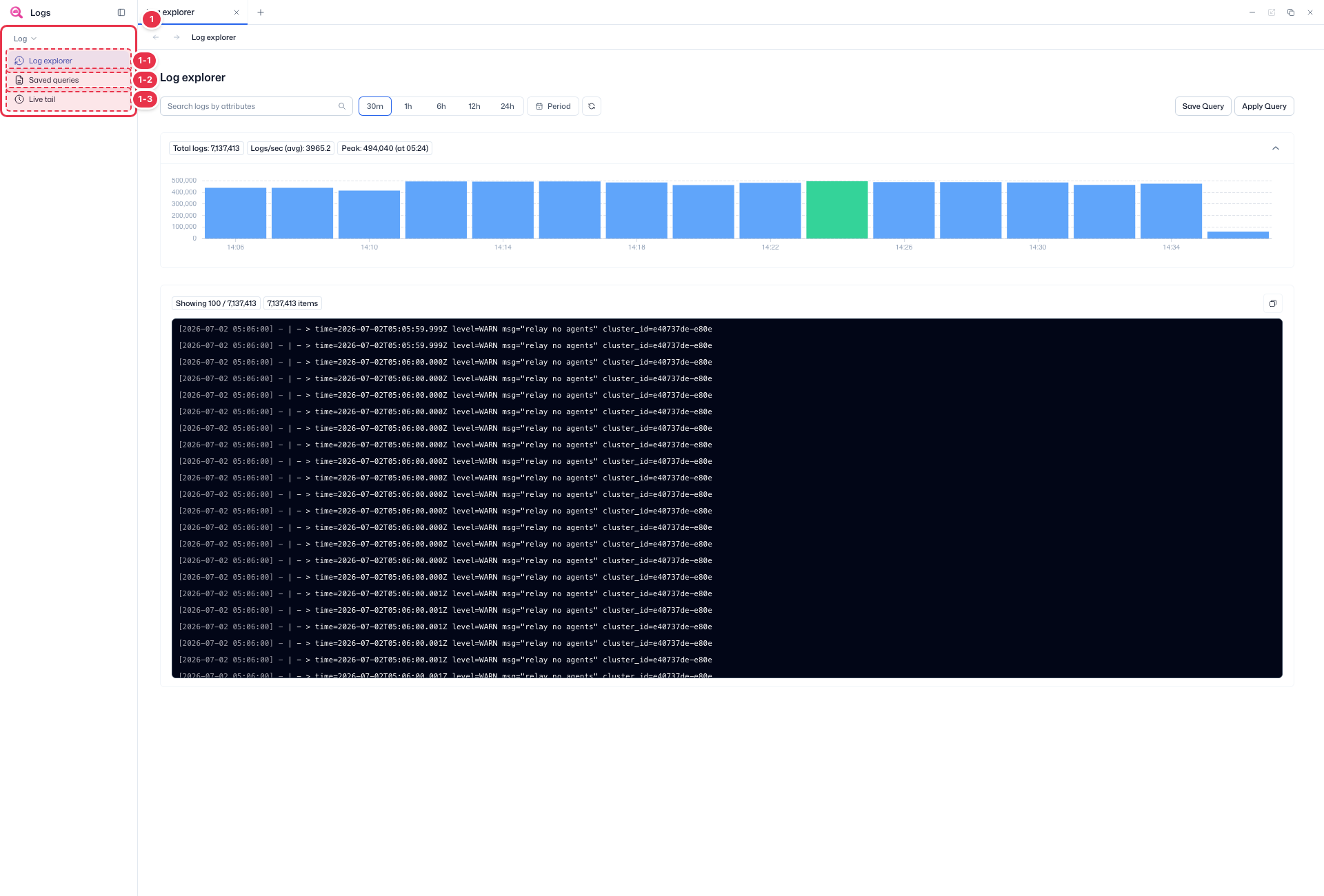
| No. | Feature | Item | Description |
|---|---|---|---|
| 1-1 | Log explorer | Log explorer | · Search and explore platform logs. |
| 1-2 | Saved queries | Saved queries | · Manage and re-run saved search queries. |
| 1-3 | Live tail | Live tail | · Follow incoming logs in real time. |
Search · Period · Query
Search logs by attribute, pick a time range, and save or apply a query.
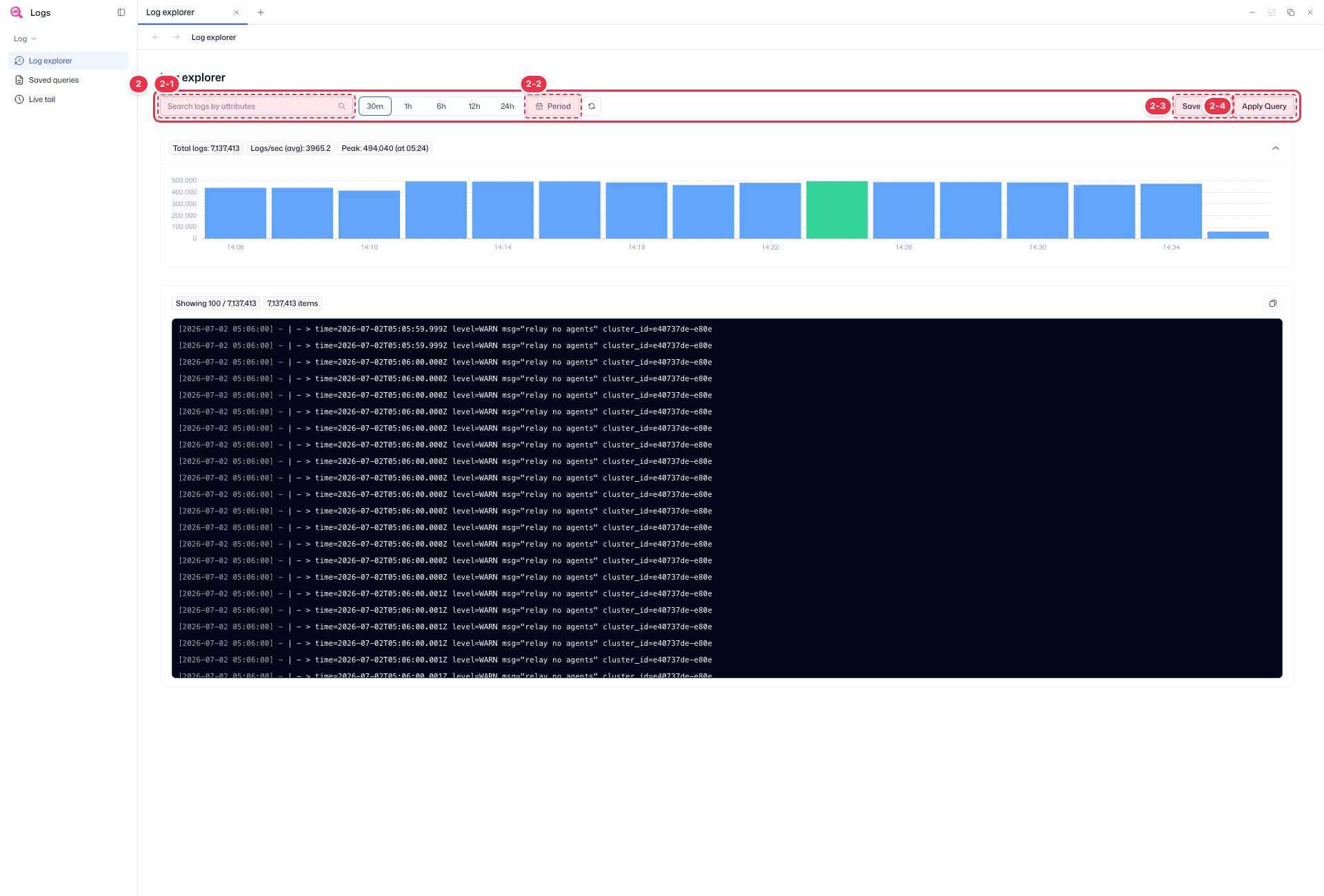
| No. | Feature | Item | Description |
|---|---|---|---|
| 2-1 | Search | Search logs by attributes | · Filter logs by attributes such as service, level, or message. |
| 2-2 | Time range | Period (30m~24h) | · Pick 30m·1h·6h·12h·24h, or set a custom range with Period. |
| 2-3 | Save query | Save Query | · Save the current search as a saved query. |
| 2-4 | Apply query | Apply Query | · Apply the entered search conditions. |
Summary · Histogram
Shows total logs, logs/sec (avg), peak, and a per-time log trend (histogram) for the selected range.
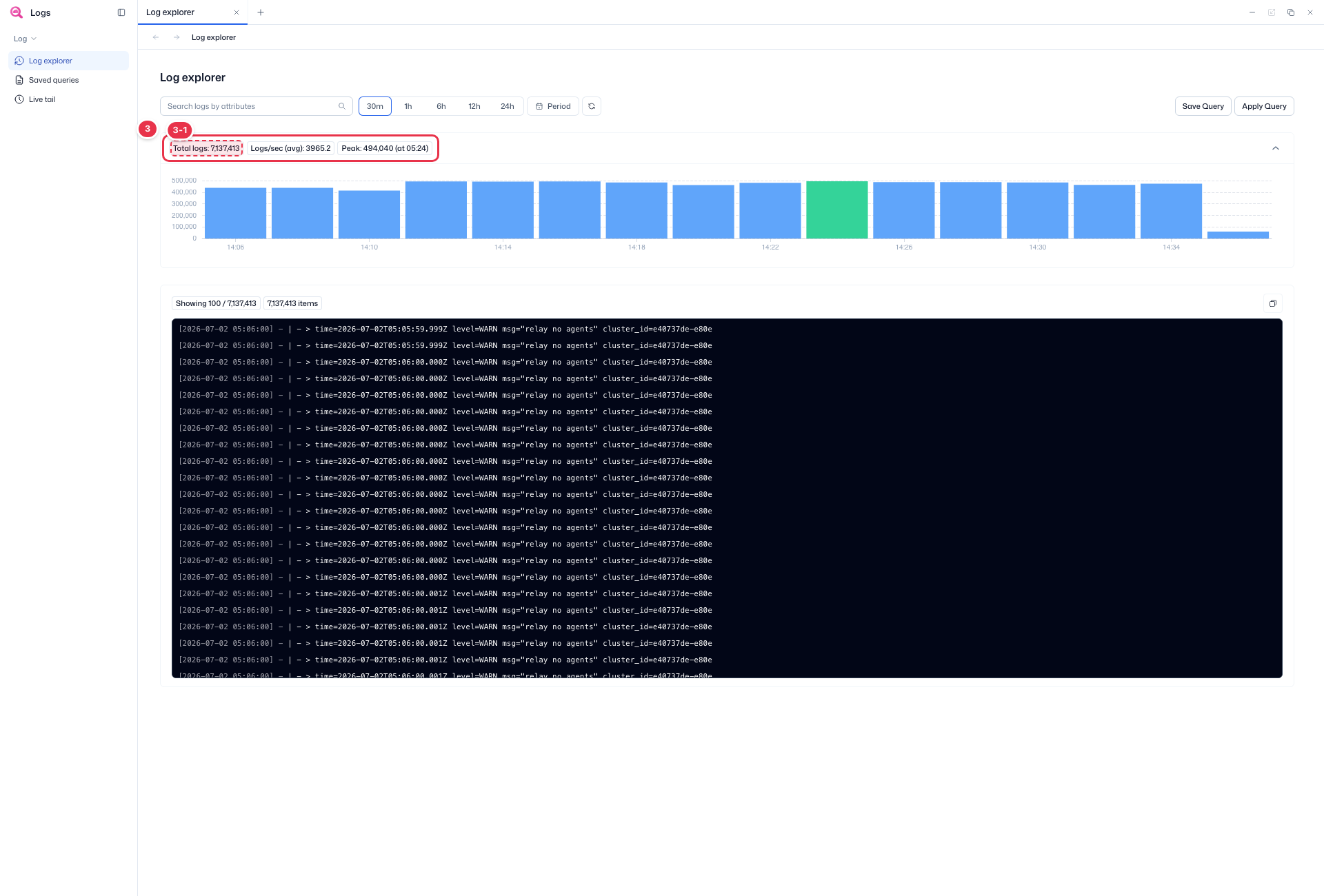
| No. | Feature | Item | Description |
|---|---|---|---|
| 3-1 | Summary chips | Total logs · Logs/sec (avg) · Peak | · Total logs, average logs per second, and peak time for the selected range. |
Log results
Shows matched logs as a console, newest first. Each line has time, level, and message.
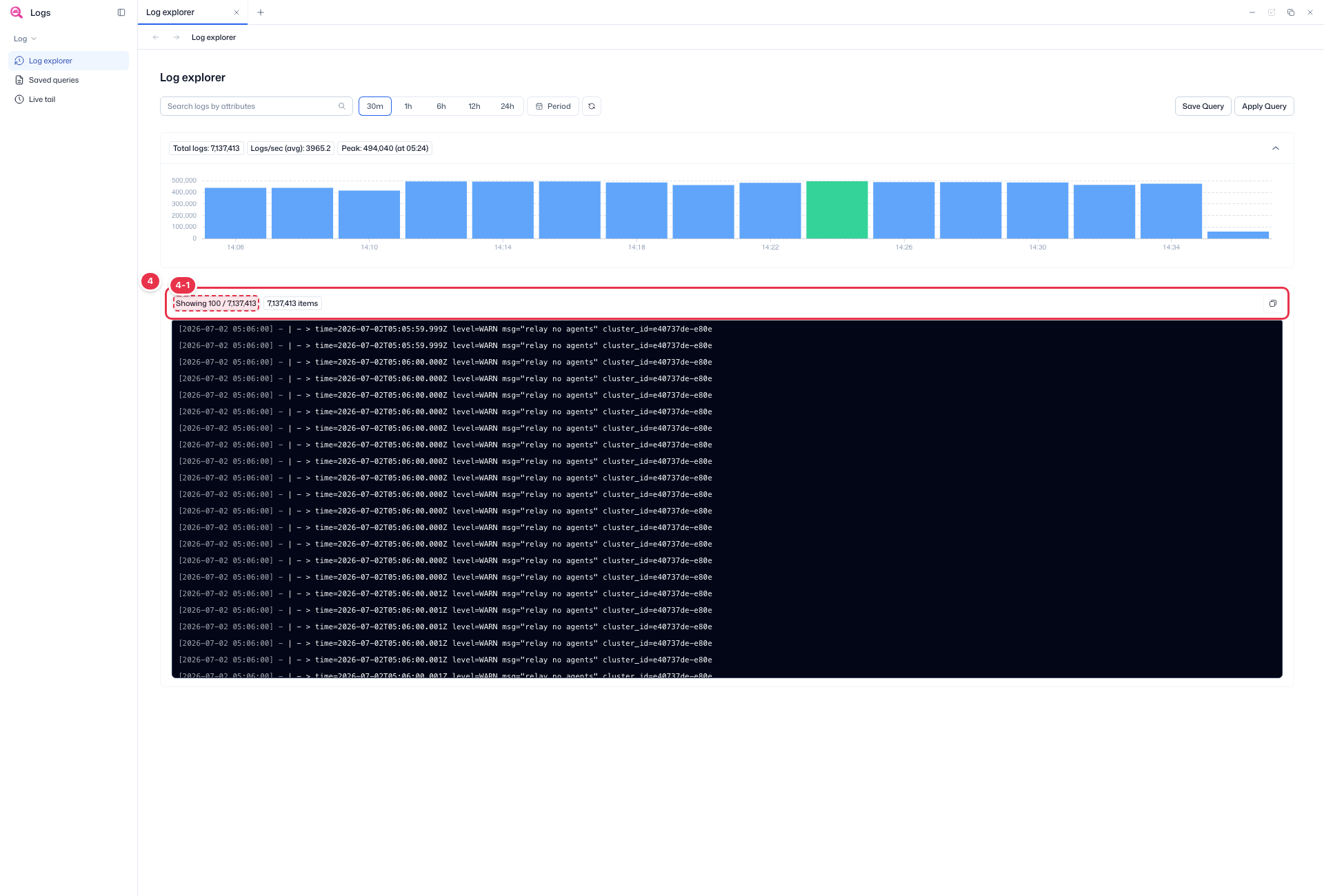
| No. | Feature | Item | Description |
|---|---|---|---|
| 4-1 | Result count | Showing N / total · items | · Number of logs shown and total count. Copy with the icon on the right. |
Searching logs
- Enter attributes (service, level, message, etc.) in the search box (No. 2-1).
- Pick a range (No. 2-2) among 30m·1h·6h·12h·24h, or set a custom one with Period.
- Apply with Apply Query (No. 2-4). Save frequent conditions with Save Query (No. 2-3) and re-run them from Saved queries.
Read the trend from the summary chips and histogram (No. 3), then review time·level·message in the result console (No. 4), newest first.
Next steps
- Saved queries — manage saved queries
- Live tail — real-time log monitoring