

Browse Models (Model hub)
Find base models provided by ThakiCloud and models fine-tuned in AI Training, and view their details.
Step 1. Open Model hub
In the left sidebar, click Models → Model hub. Follow the numbers on the screens below.
SNB
Hub menus. Switch between models and datasets.
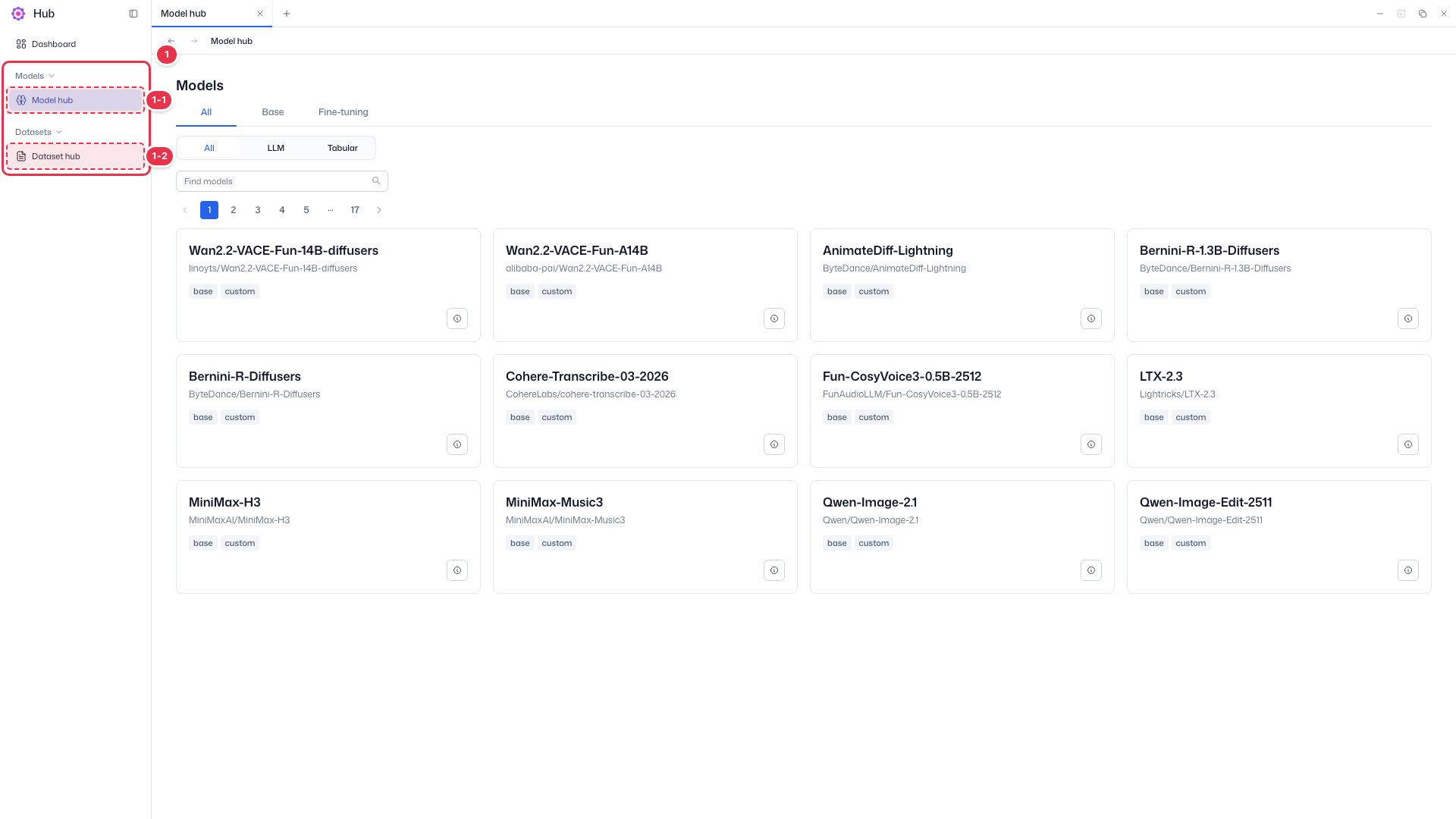
| No. | Feature | Item | Description |
|---|---|---|---|
| 1-1 | Models | Model hub | · Current screen. Browse models in Hub as cards. |
| 1-2 | Datasets | Dataset hub | · Click to go to the dataset list. |
Search · Filters
Narrow the model list by kind, type, and name.
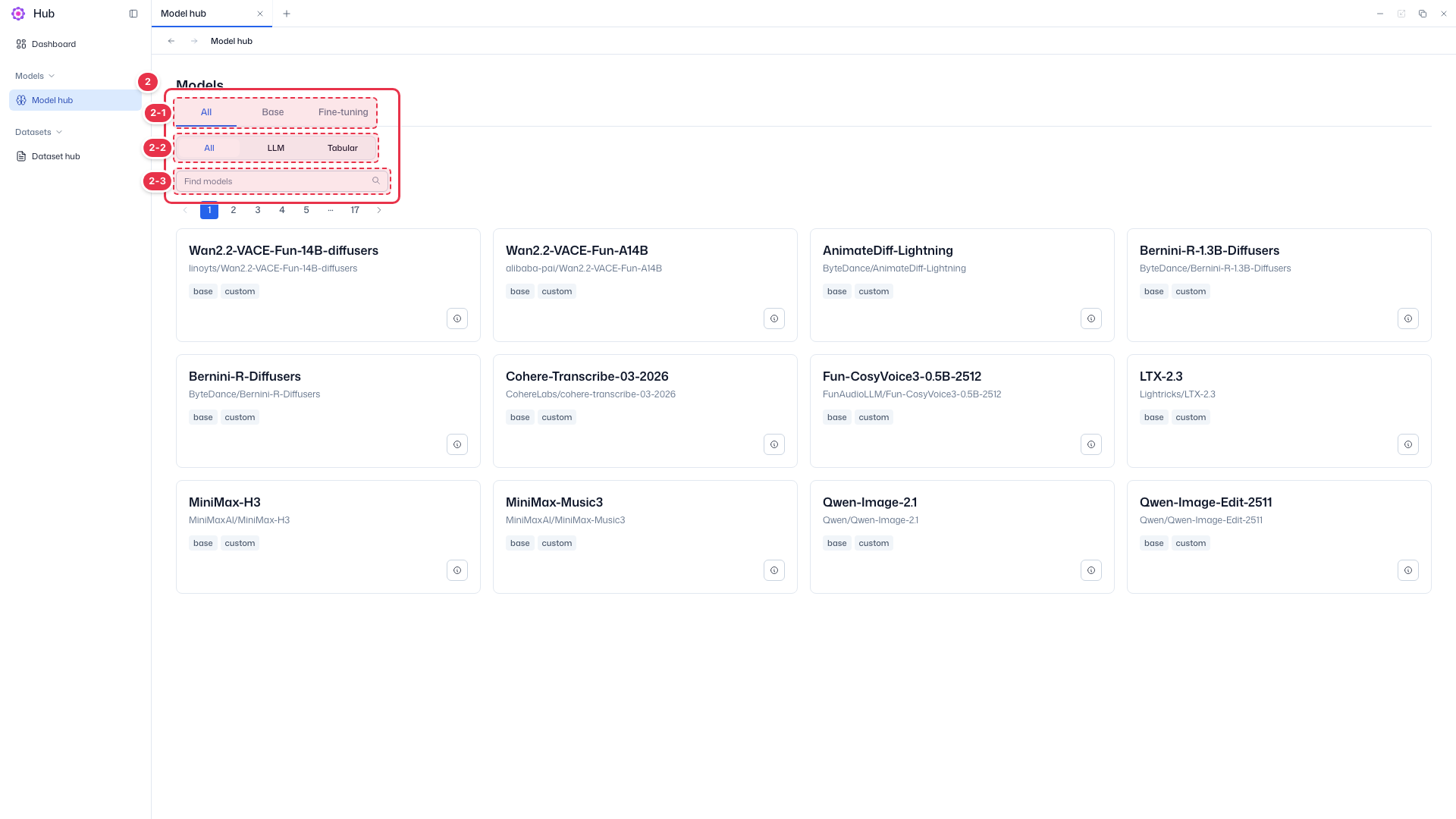
| No. | Feature | Item | Description |
|---|---|---|---|
| 2-1 | Kind tabs | All · Base · Fine-tuning | · Show base models or fine-tuned models separately. |
| 2-2 | Type chips | All · LLM · Tabular | · Filter by model type. |
| 2-3 | Search | Find models | · Search by model name. |
Model card
Each model is one card. Use the page numbers above the cards for long lists.
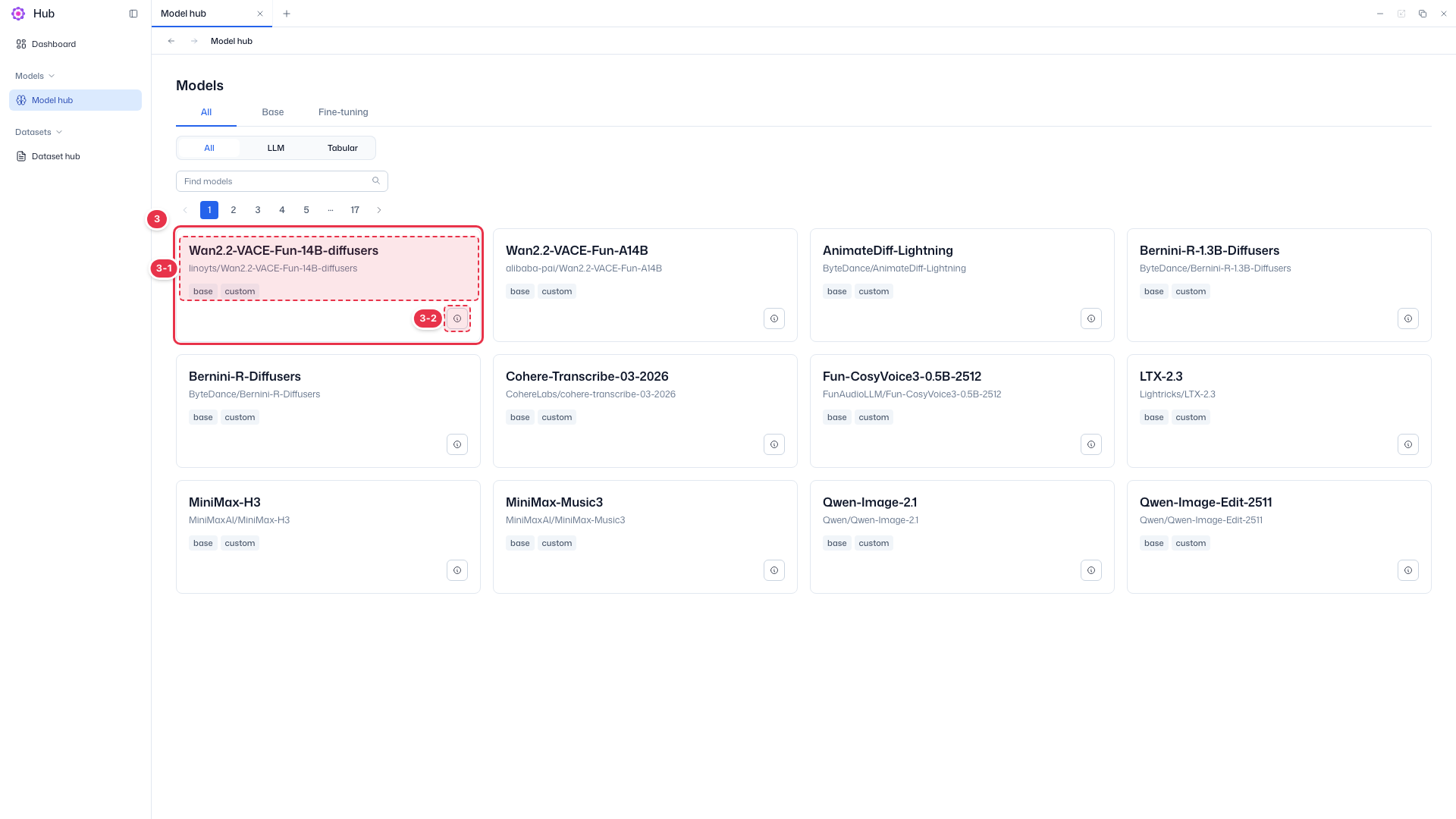
| No. | Feature | Item | Description |
|---|---|---|---|
| 3-1 | Card info | Name · Repository path · Tags | · Model name, source repository path (e.g., Qwen/Qwen-Image-2.1), and kind/source tags (base, custom, etc.). |
| 3-2 | View details | ⓘ button | · Click to open the model detail drawer on the right. |
Step 2. View model details
Click the ⓘ button on a model card (number 3-2) to open the detail drawer on the right.
Base model detail drawer
The drawer that opens from the card’s ⓘ button. Shows basic model information and available features.
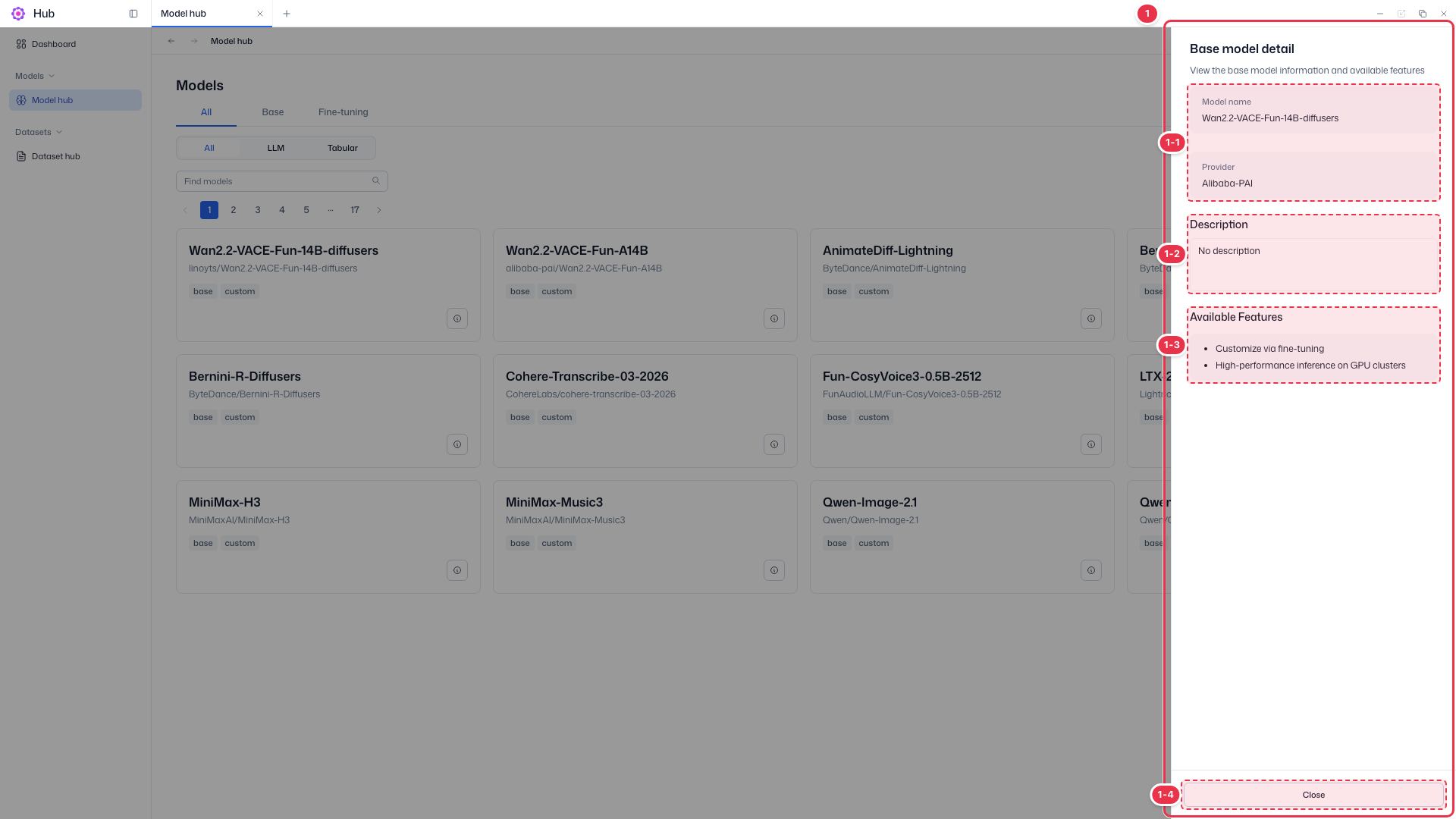
| No. | Feature | Item | Description |
|---|---|---|---|
| 1-1 | Basic info | Model name · Provider | · Model name and provider. |
| 1-2 | Description | Description | · Model description. Shows No description when empty. |
| 1-3 | Available features | Available Features | · What you can do with this model (e.g., fine-tuning, inference on GPU clusters). |
| 1-4 | Close | Close | · Close the drawer and return to the list. |
Fine-tuned model details
Details of a fine-tuned model also show the base model (Used Model) and dataset (Used Dataset) used for training.