

Dashboard
The first screen shown when you open the Audit app. You can reopen it anytime from Dashboard in the left sidebar; it summarizes the last 24 hours of audit activity and ingestion-pipeline statistics.
Sidebar (SNB)
From the left sidebar, move to each Audit screen (Dashboard · Audit logs · Reports).
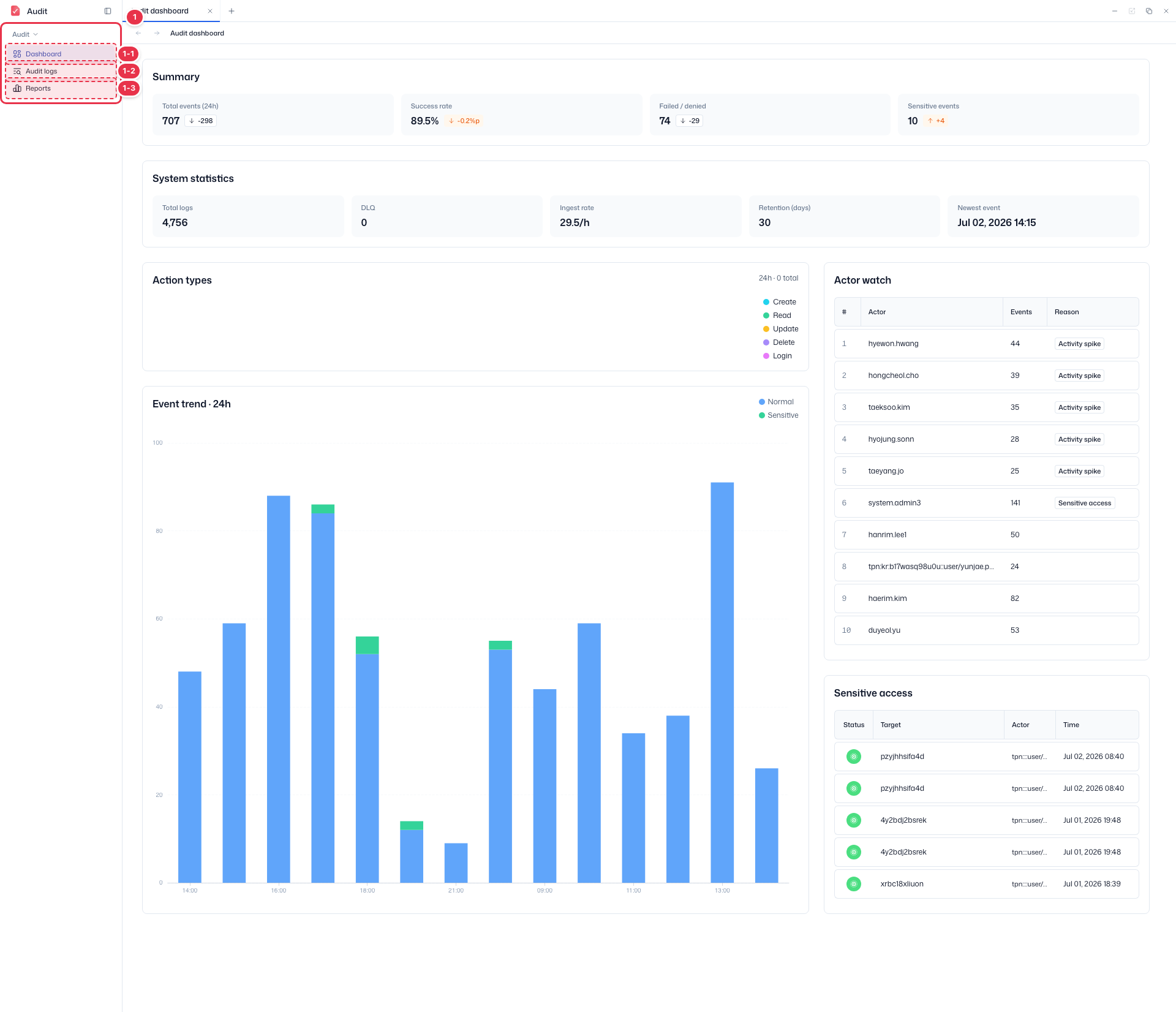
| No. | Feature | Item | Description |
|---|---|---|---|
| 1-1 | Dashboard | Dashboard | · Summarizes audit status and statistics. |
| 1-2 | Audit logs | Audit logs | · Review and filter audit event logs across the platform. |
| 1-3 | Reports | Reports | · Generate and export audit reports. |
Summary cards
Summarizes key metrics of audit events over the last 24 hours.
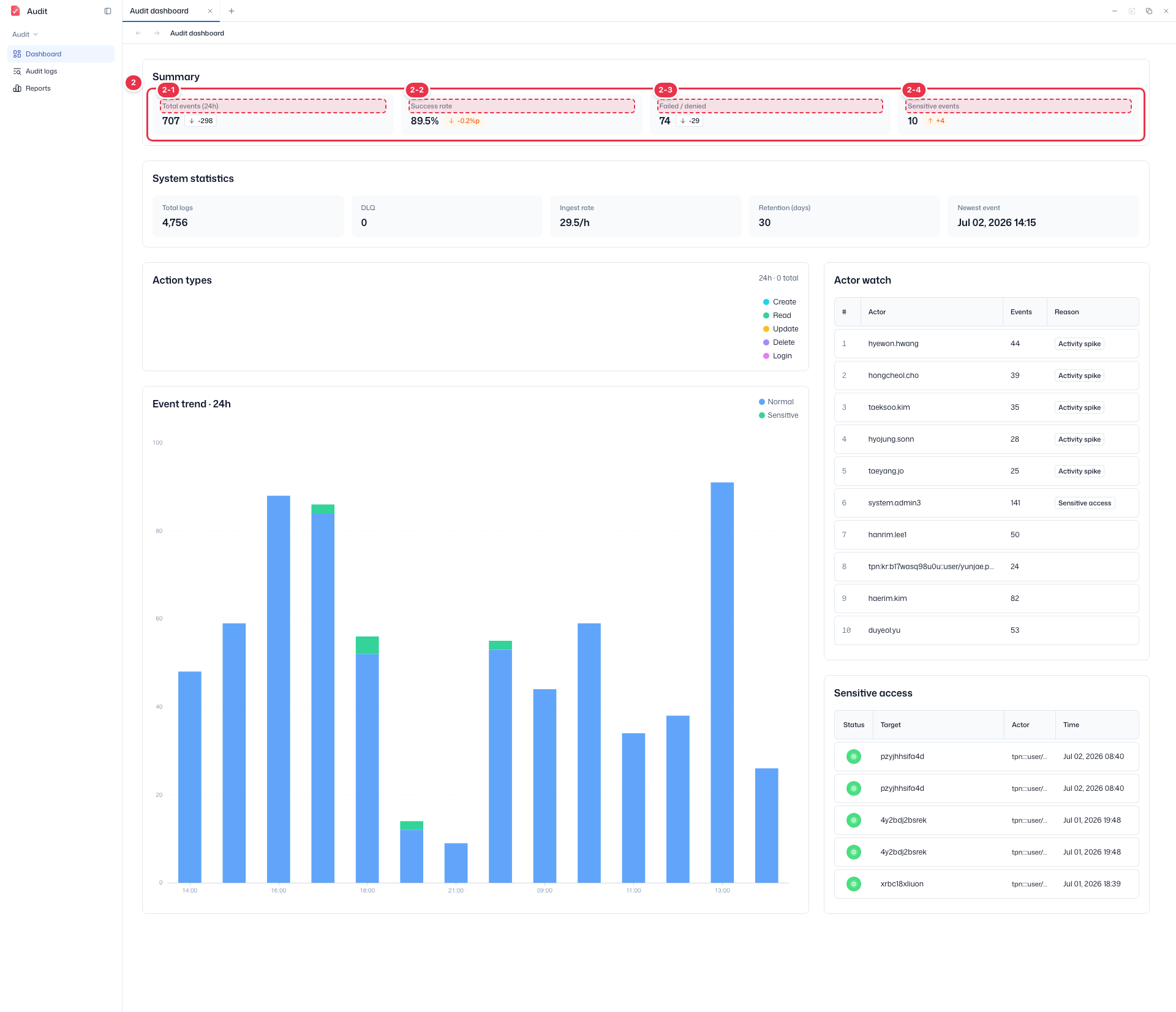
| No. | Feature | Item | Description |
|---|---|---|---|
| 2-1 | Total events (24h) | Total events (24h) | · Total events over the last 24h and change vs. the previous day. |
| 2-2 | Success rate | Success rate | · Ratio of successful events and its change. |
| 2-3 | Failed / denied | Failed / denied | · Number of failed or denied events. |
| 2-4 | Sensitive events | Sensitive events | · Number of sensitive events such as sensitive-resource access. |
System statistics cards
Shows system statistics for the audit-log ingestion pipeline.
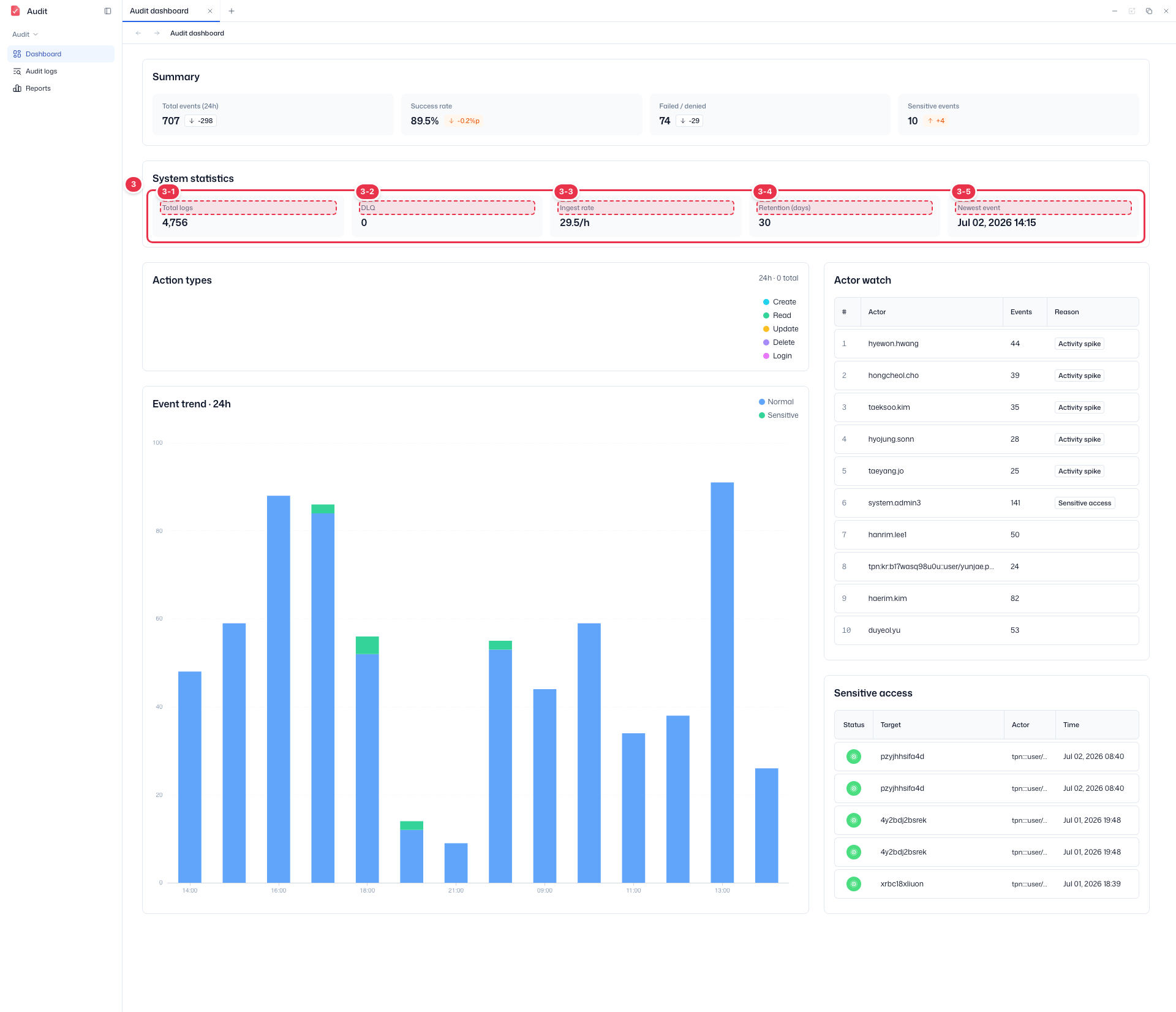
| No. | Feature | Item | Description |
|---|---|---|---|
| 3-1 | Total logs | Total logs | · Total number of ingested audit logs. |
| 3-2 | DLQ | DLQ | · Number pushed to the Dead Letter Queue on processing failure. |
| 3-3 | Ingest rate | Ingest rate | · Log ingestion rate per hour. |
| 3-4 | Retention | Retention (days) | · Audit-log retention period in days. |
| 3-5 | Newest event | Newest event | · Timestamp of the most recently ingested event. |
Analytics charts
Shows the action-type distribution and the 24h event trend chart in the left column.
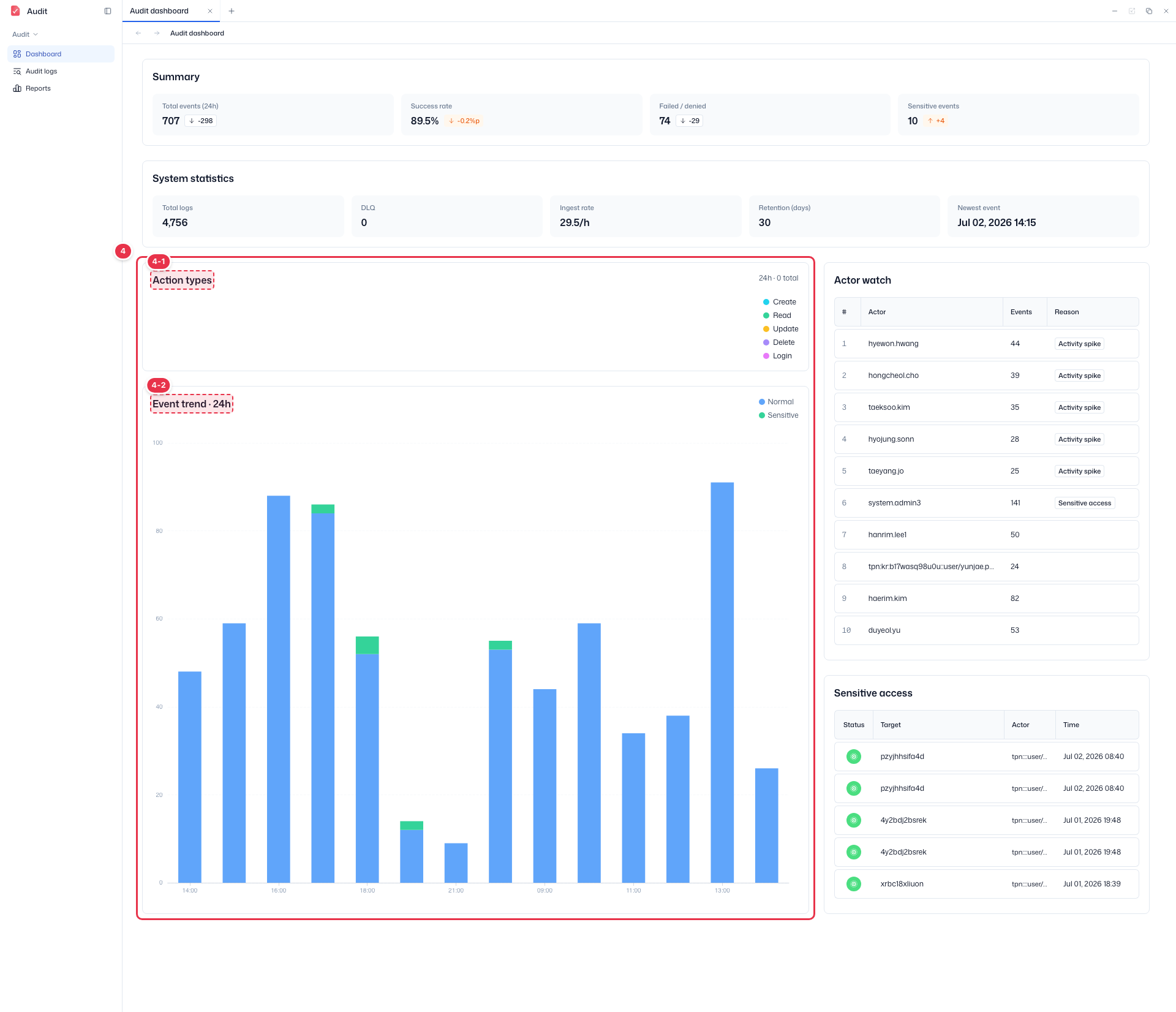
| No. | Feature | Item | Description |
|---|---|---|---|
| 4-1 | Action types | Action types | · Distribution of action types (Create·Read·Update·Delete·Login). |
| 4-2 | Event trend | Event trend · 24h | · Normal vs. Sensitive event trend over 24h. |
Actor watch
Ranks actors with activity spikes or sensitive-resource access.
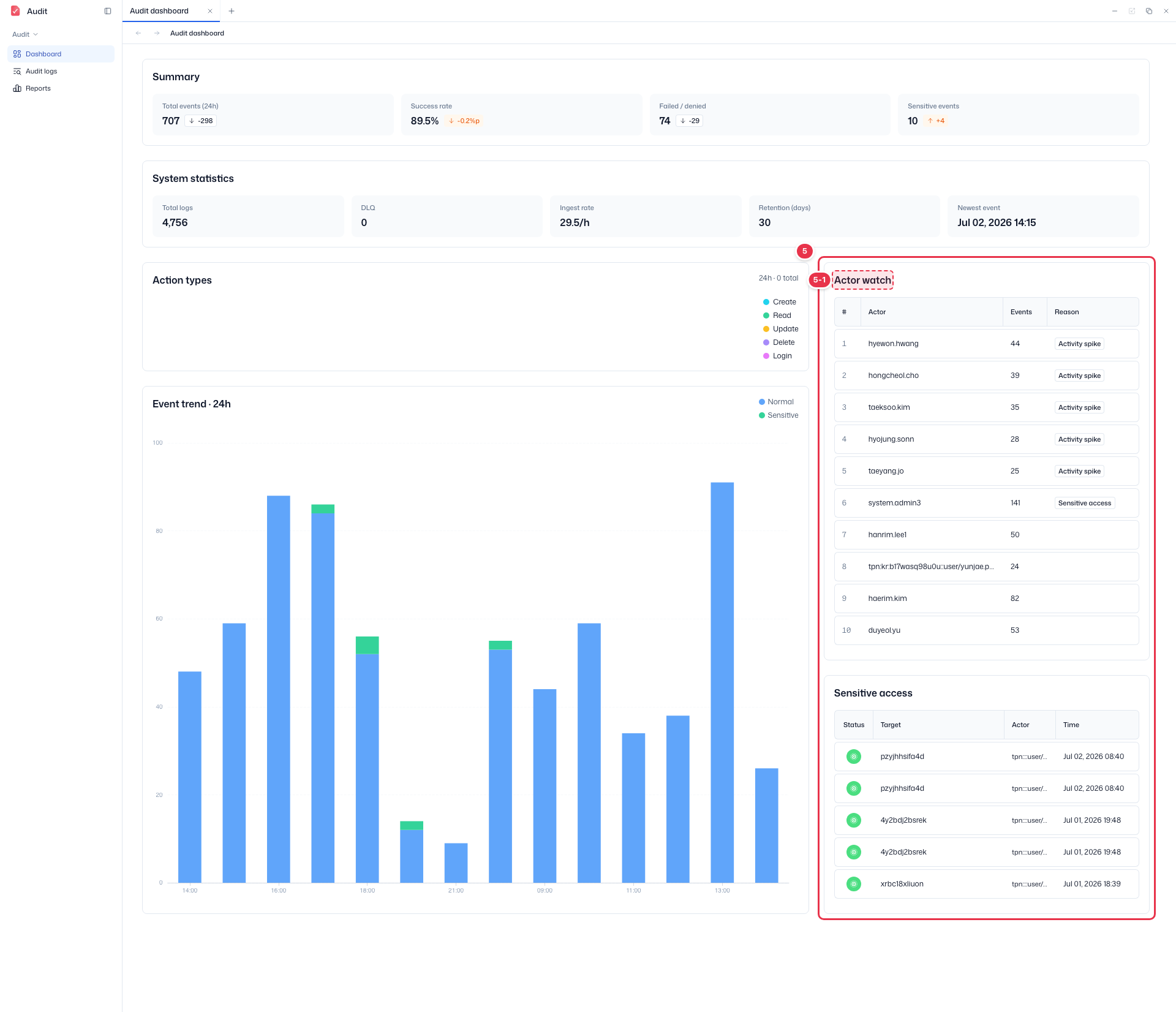
| No. | Feature | Item | Description |
|---|---|---|---|
| 5-1 | Actor watch | Actor · Events · Reason | · Shows per-actor event counts and the reason (Activity spike · Sensitive access). |
System statistics is admin-only
System statistics (No. 3), the ingestion/storage pipeline metrics, is shown only to system administrators (SysAdmin). Each widget loads and handles errors independently, so a single failed widget does not freeze the whole screen.
Actor watch · Sensitive access
The right column shows the top Actor watch (actors with notable activity) and recent Sensitive access events.
Actor watch: shows per-actor counts, change, denials, and sensitive access ranked by spike vs. the previous day. Each row shows a single representative reason by priority.
Reason Condition (highest priority first) Denial spike Top actor by denials and denials ≥ 5 Denied Denials > 0 Sensitive Sensitive access > 0 Activity spike Increase vs. the previous day Sensitive access: a list of recent sensitive events. Selecting a row opens that event's detail.
PII such as actor names is role-based masked (see Filter events).