

View audit logs
Review security and operational event logs across the platform in Signum Audit. Enter from Audit logs in the left sidebar.
Audit logs screen
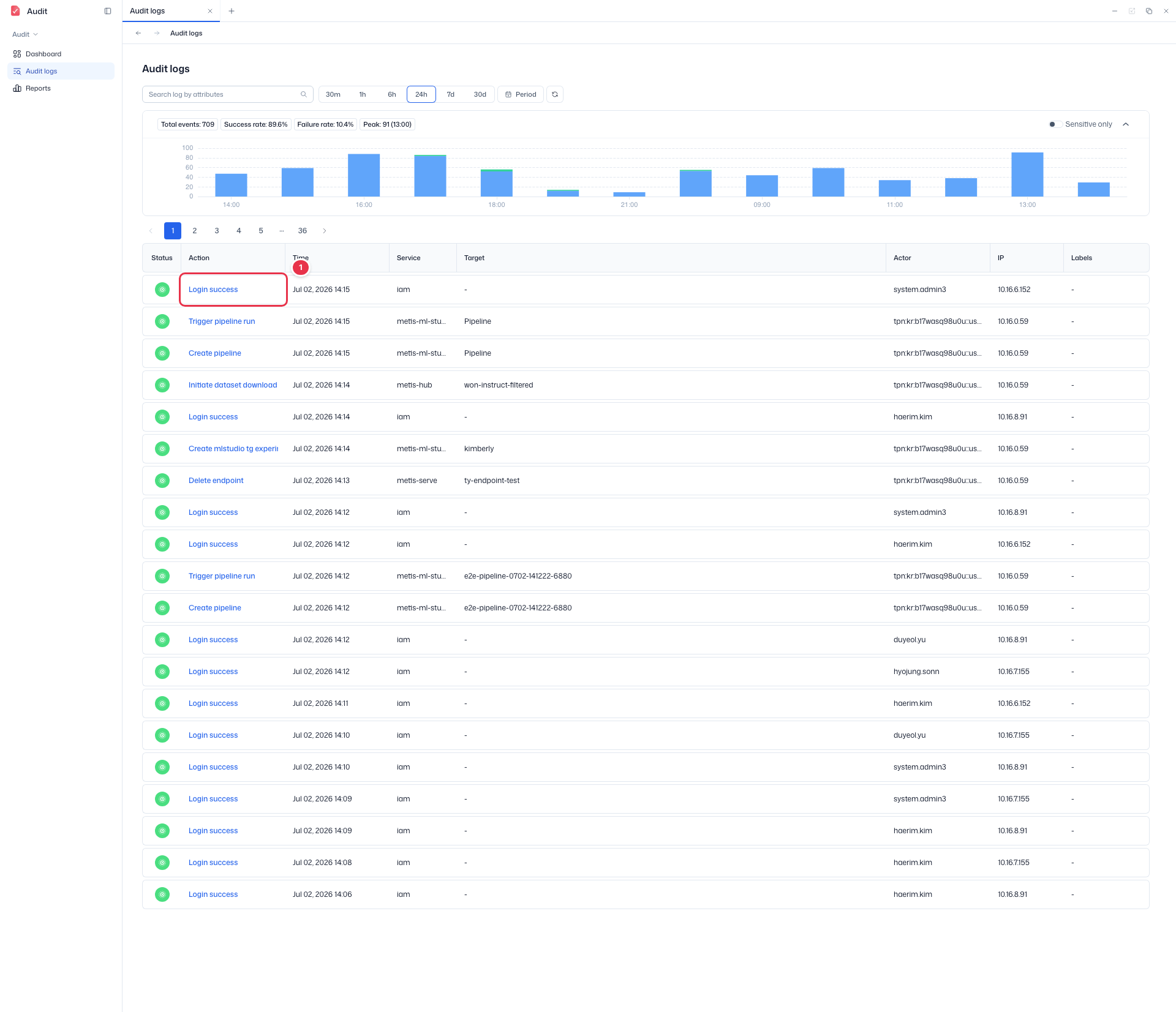
Pick a time range at the top, search by attribute, and review events in the list below the summary and trend. By default, the last 24 hours of events are shown newest first.
Sidebar (SNB)
From the left sidebar, move to each Audit screen (Dashboard · Audit logs · Reports).
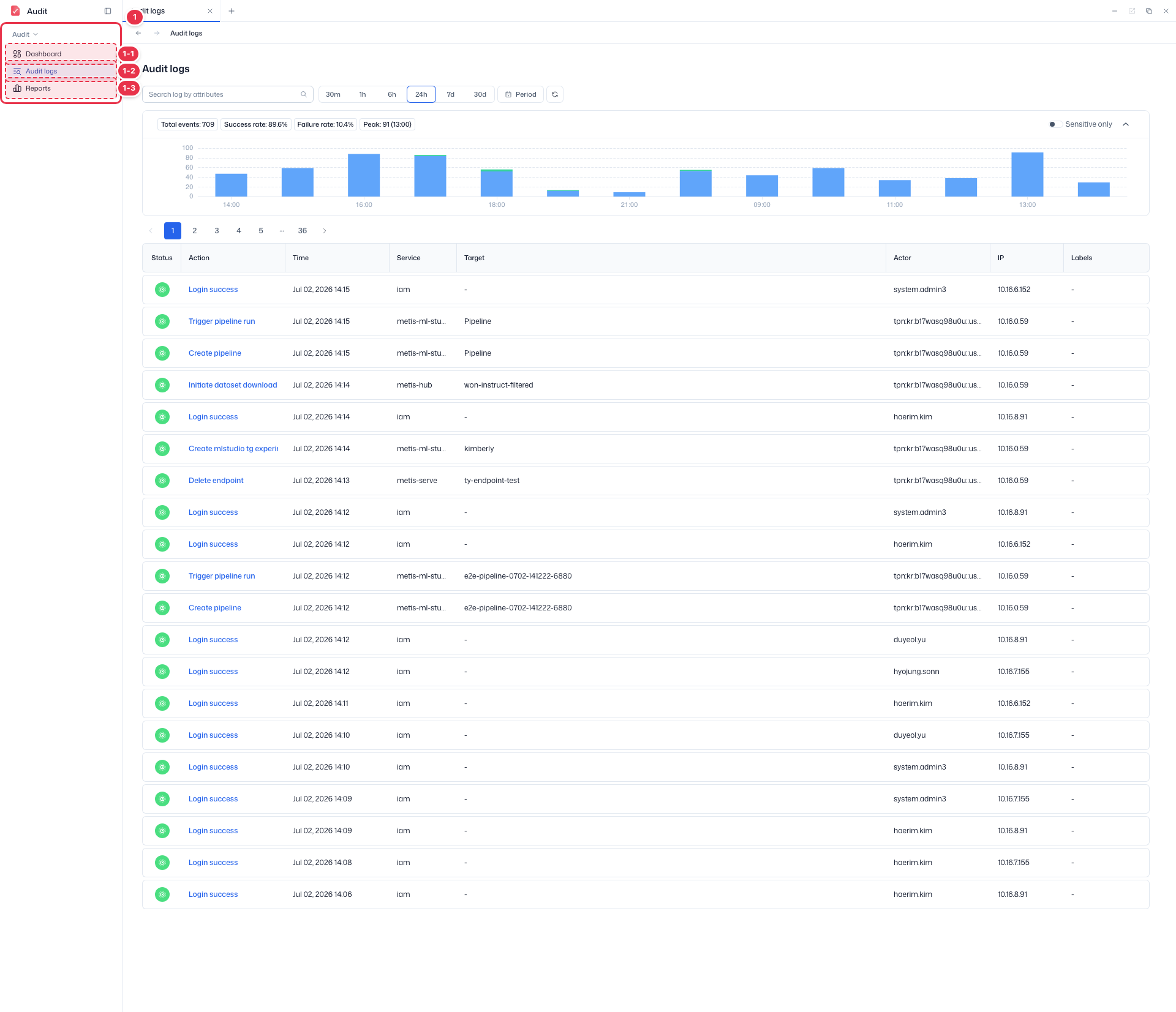
| No. | Feature | Item | Description |
|---|---|---|---|
| 1-1 | Dashboard | Dashboard | · Summarizes audit status and statistics. |
| 1-2 | Audit logs | Audit logs | · Review and filter audit event logs across the platform. |
| 1-3 | Reports | Reports | · Generate and export audit reports. |
Search · Period
Search logs by attribute and pick a time range.
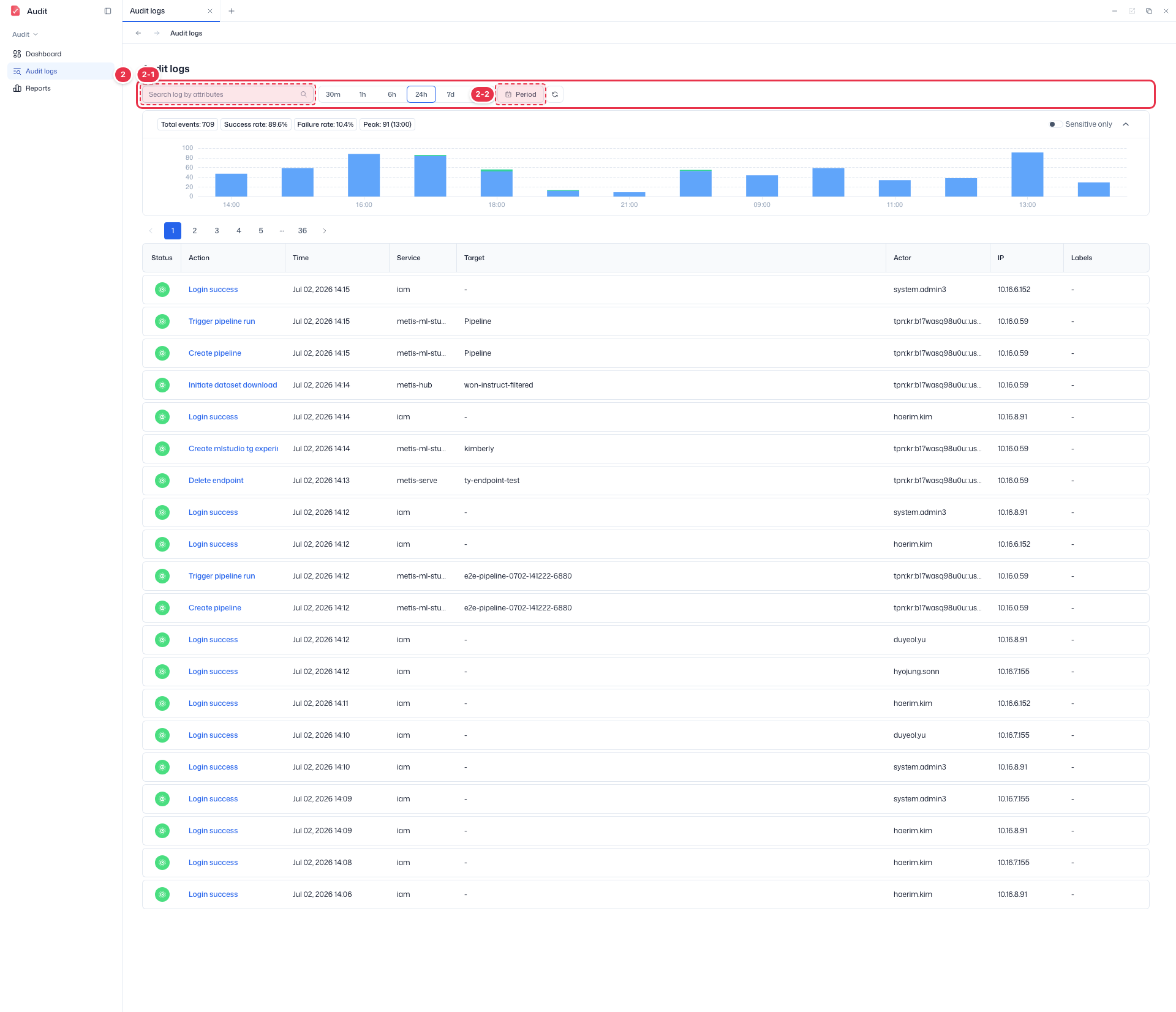
| No. | Feature | Item | Description |
|---|---|---|---|
| 2-1 | Search | Search log by attributes | · Filter by attributes such as result, action, service, target, actor, IP, and labels. |
| 2-2 | Time range | Period (30m~30d) | · Pick 30m·1h·6h·24h·7d·30d, or set a custom range with Period. |
Summary · trend
Shows total events, success rate, failure rate, peak, and a per-time event trend for the selected range.
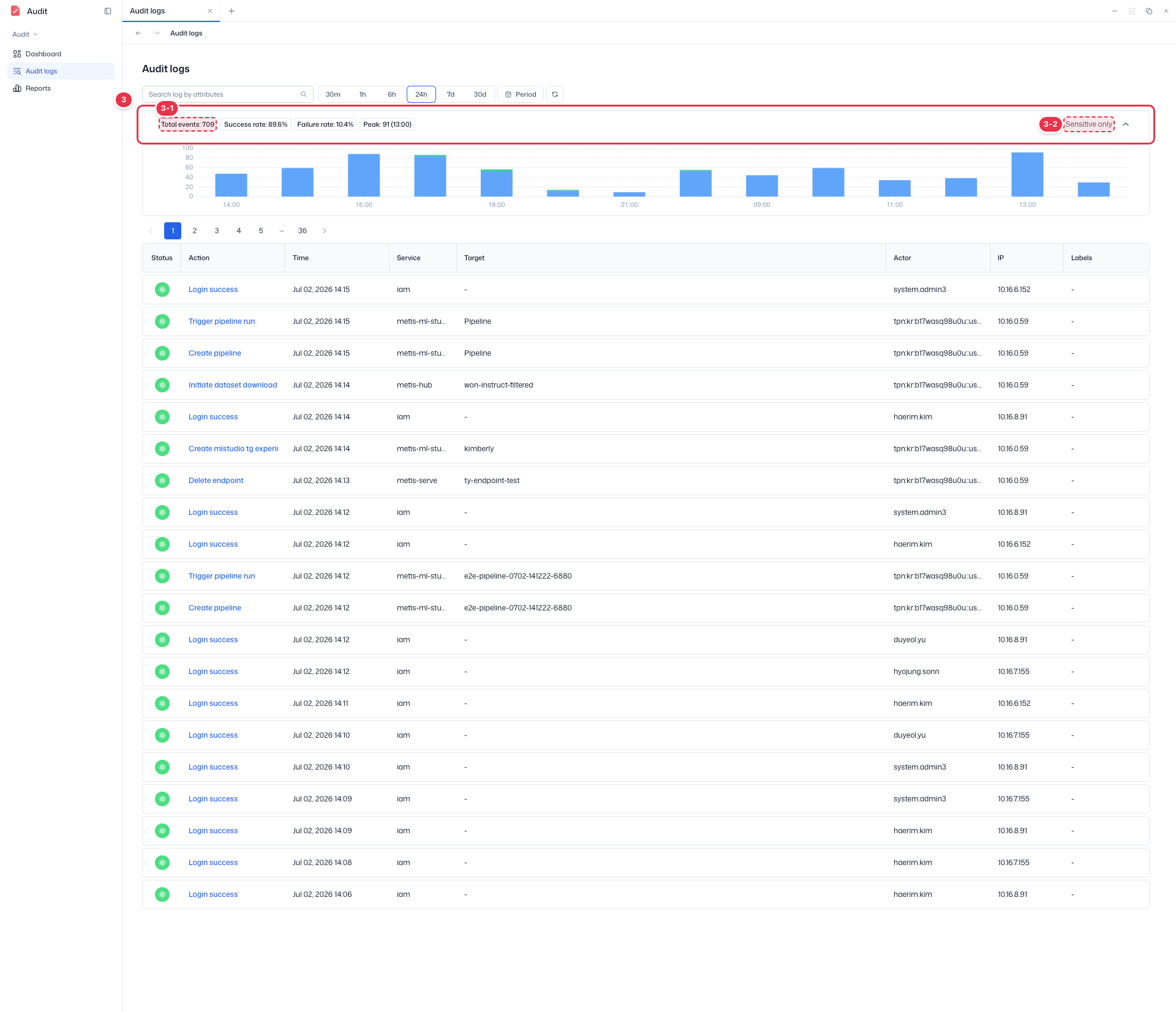
| No. | Feature | Item | Description |
|---|---|---|---|
| 3-1 | Summary chips | Total events · Success rate · Failure rate · Peak | · Total events, success rate, failure rate, and peak time for the selected range. |
| 3-2 | Sensitive filter | Sensitive only | · When on, shows only sensitive events. |
Audit logs table
List of audit events, newest first. Click Action to open the event detail.
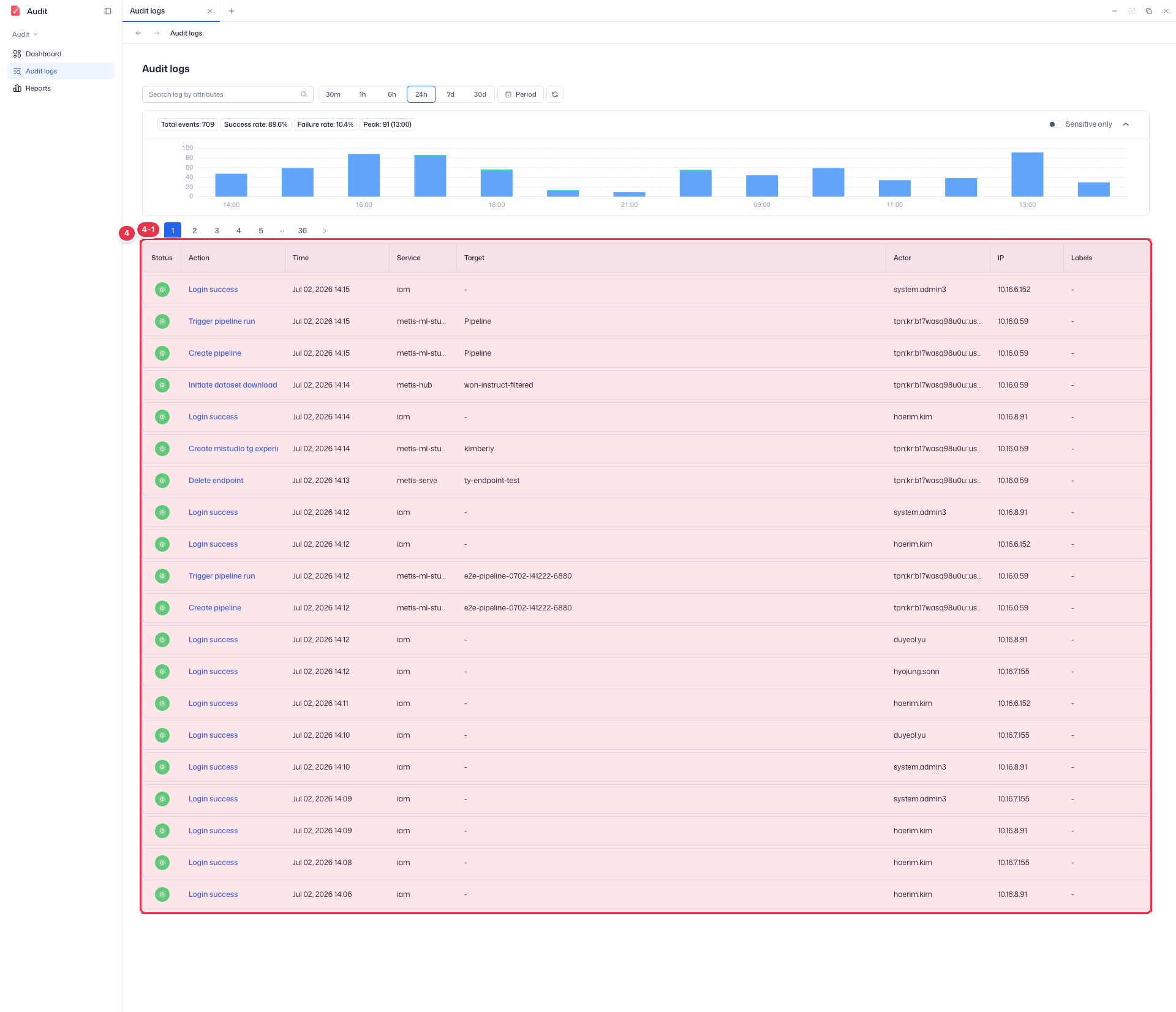
| No. | Feature | Item | Description |
|---|---|---|---|
| 4-1 | Columns | Status | Success/failure (icon). |
| Action | The event action. Click to open the detail. | ||
| Time | Event time. | ||
| Service | Service that generated the event (e.g., iam). | ||
| Target / Actor | Target resource and the acting actor. | ||
| IP / Labels | Source IP and labels. |
- Sorting is fixed to newest first, and sensitive events are marked distinctly in the row.
- Page size is 10 / 20 / 50 / 100 (default 20); changing a filter returns to page 1.
- The action verb and event ID columns can be added via column settings.
Masking and scope
The scope is isolated per the project (tenant) selected at the top. For regular users (Domain User), actor PII (ID·name·IP·TPN) is masked in all events, and for sensitive events the reason and diff are additionally hidden. Administrators (SysAdmin·Domain Admin) see the original values.
Event detail
Clicking Action in the list opens the event detail screen.
Detail entry (click Action)
Clicking Action in the list opens the event detail screen.
Event detail
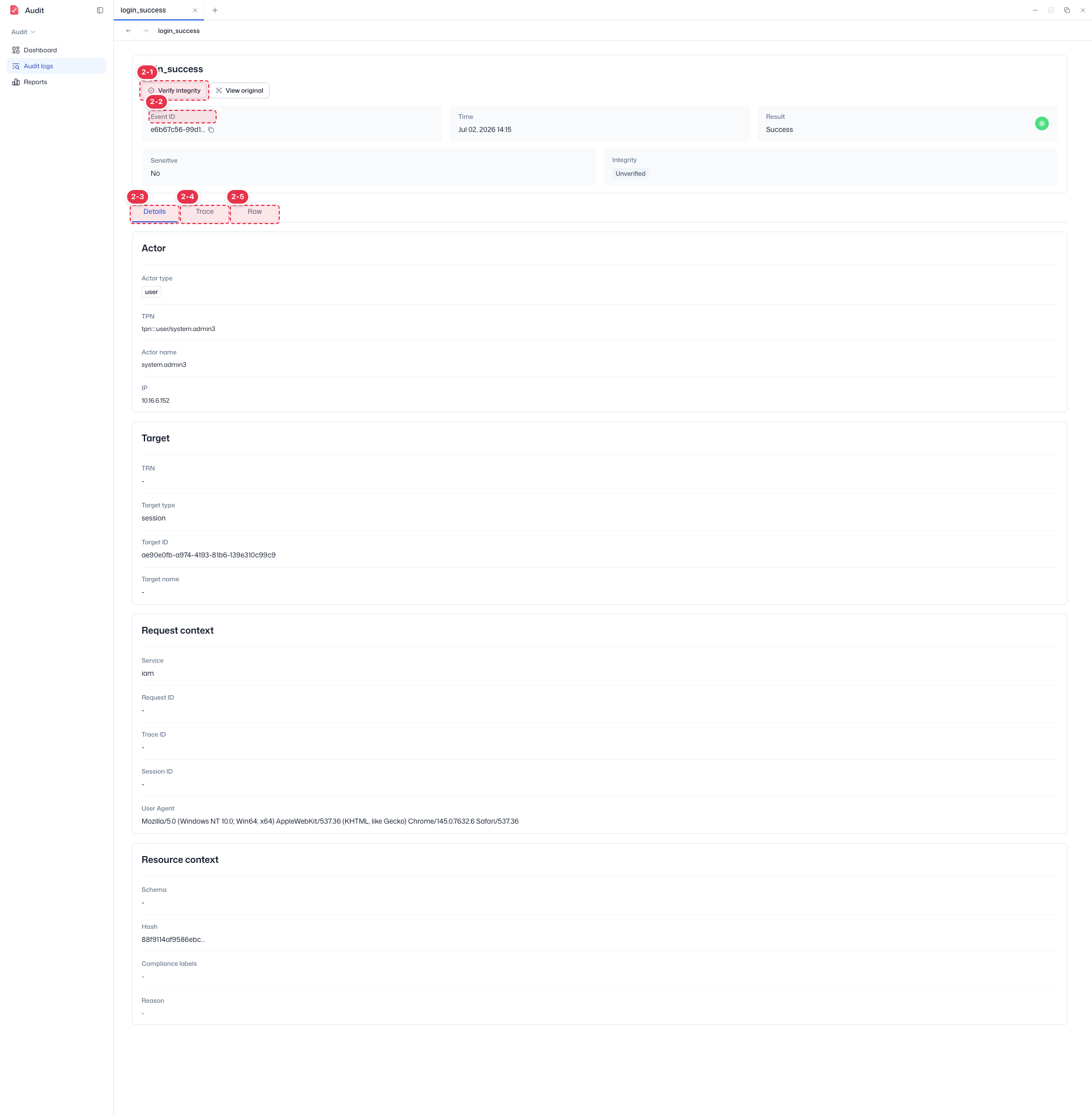
Review the event summary and the Details · Trace · Raw tabs.
| No. | Feature | Item | Description |
|---|---|---|---|
| 2-1 | Verify integrity / View original | Verify integrity · View original | · Verify integrity: check for tampering after ingestion. View original: see the original event. |
| 2-2 | Summary card | Event ID · Time · Result · Sensitive · Integrity | · Summarizes the event ID, time, result, sensitivity, and integrity status. |
| 2-3 | Details tab | Details | · Actor (type·TPN·name·IP) and target (TRN·type·ID·name) information. |
| 2-4 | Trace tab | Trace | · Event correlation/trace information. |
| 2-5 | Raw tab | Raw | · The raw event payload. |
The top identification area shows the event ID, time, result, sensitivity, and the Verify integrity status; the event ID can be copied to the clipboard (full JSON copy is also supported).
- Verify integrity (No. 2-1): checks for tampering after ingestion and shows the integrity status (e.g.,
Unverified). - View original (No. 2-1): reveals masked values as their originals. See View original below.
- Details tab (No. 2-3): the full 5W1H context of the event — actor (Who: type·TPN·name·IP), target (What: type·ID·name·TRN), request/source (Where: service·request ID·trace ID·session·User-Agent), and resource scope (domain·partition·project·group·schema·reason·compliance labels·integrity hash). Create/update/delete events also show a diff (before → after).
- Trace tab (No. 2-4): related events tied to the same request (request_id), in time order, tracing the chain a single action creates across services and where it failed or was denied.
- Raw tab (No. 2-5): per-event metadata and the full raw JSON.
Prioritize Failure, Denied, and sensitive events during security investigations.
View original (Break-glass)
Masking is the default; originals are viewable only with admin privileges + a reason + a time-limited session.
- Enter a reason (10–500 chars) and a duration (1–24 hours, default 4) to open a temporary session that auto-expires.
- Opening and closing View original is itself recorded as an audit event, so who opened it, when, why, and for how long is traceable. Without permission it is denied.