

Live tail
The screen for monitoring incoming logs in real time.
- Path: Log › Log › Live tail
- Screen title: Live tail monitoring
Sidebar (SNB)
From the Log group in the left sidebar, move to Log explorer, Saved queries, or Live tail.
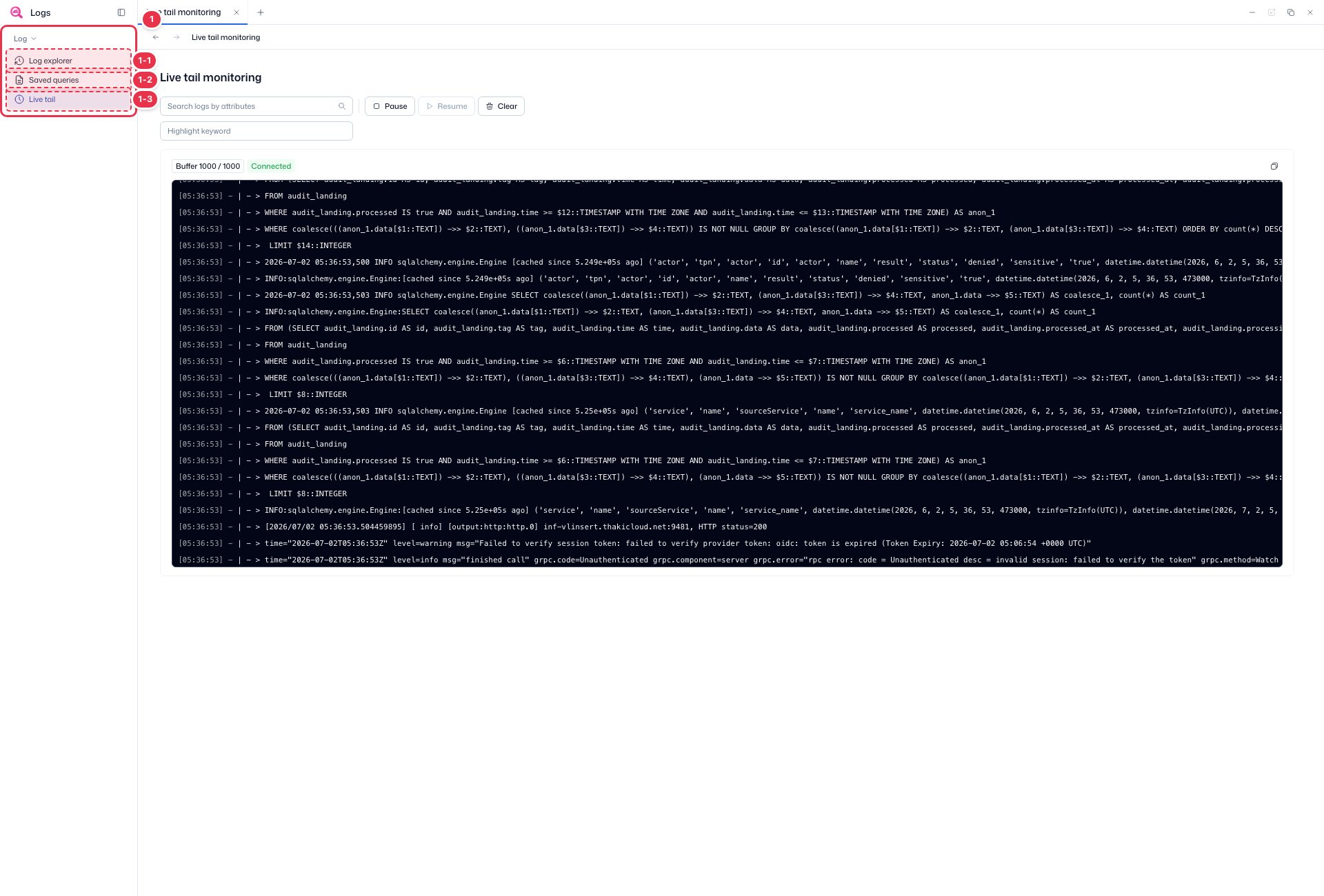
| No. | Feature | Item | Description |
|---|---|---|---|
| 1-1 | Log explorer | Log explorer | · Search and explore platform logs. |
| 1-2 | Saved queries | Saved queries | · Manage and re-run saved search queries. |
| 1-3 | Live tail | Live tail | · Follow incoming logs in real time. |
Search · Controls · Highlight
Search and control the live log stream and highlight keywords.
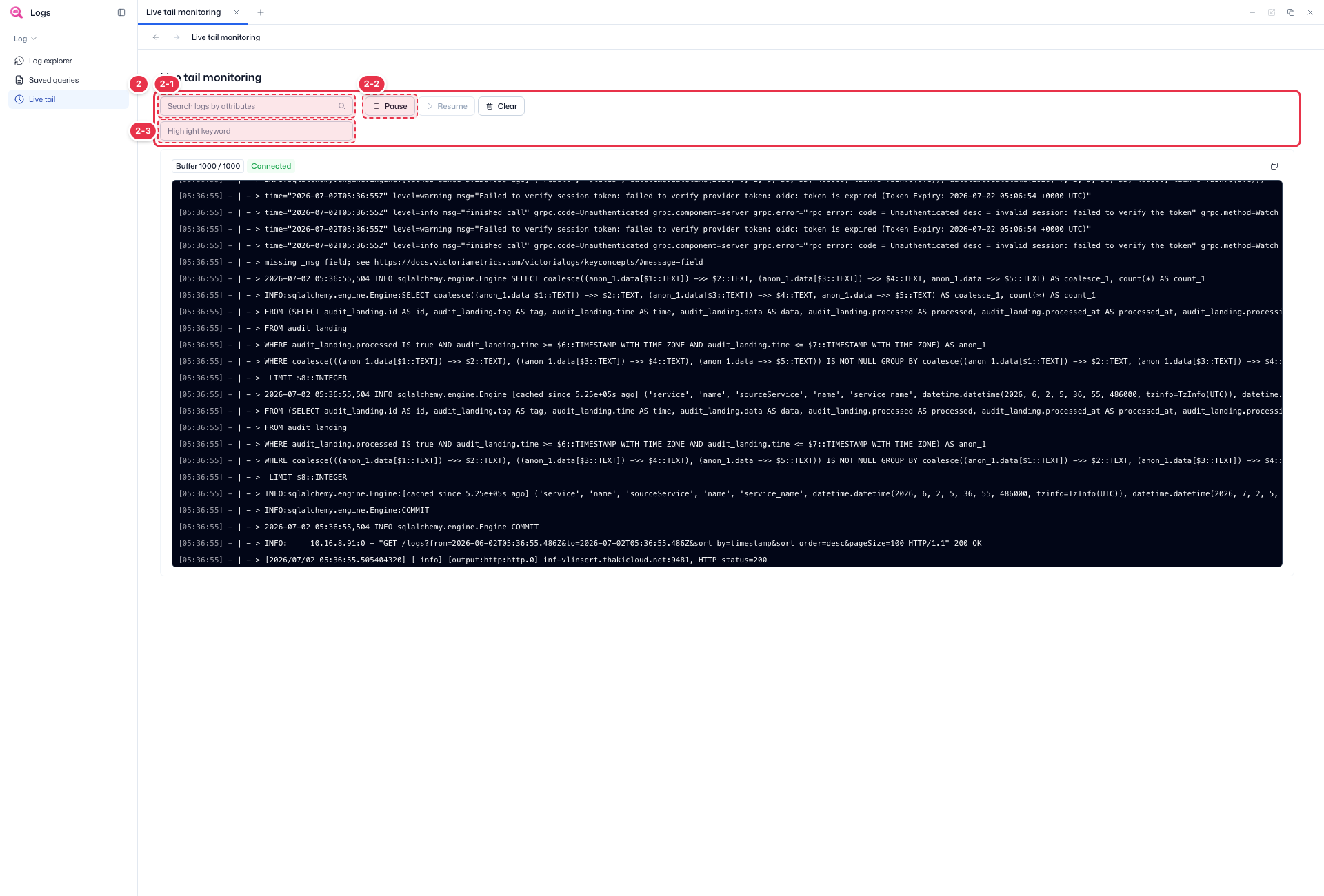
| No. | Feature | Item | Description |
|---|---|---|---|
| 2-1 | Search | Search logs by attributes | · Filter the stream by attributes. |
| 2-2 | Pause / Resume / Clear | Pause · Resume · Clear | · Pause: stop the stream. Resume: continue. Clear: empty the buffer. |
| 2-3 | Highlight keyword | Highlight keyword | · Highlight the entered keyword in the stream. |
Live console
Follows incoming logs in real time, with the buffer size and connection status.
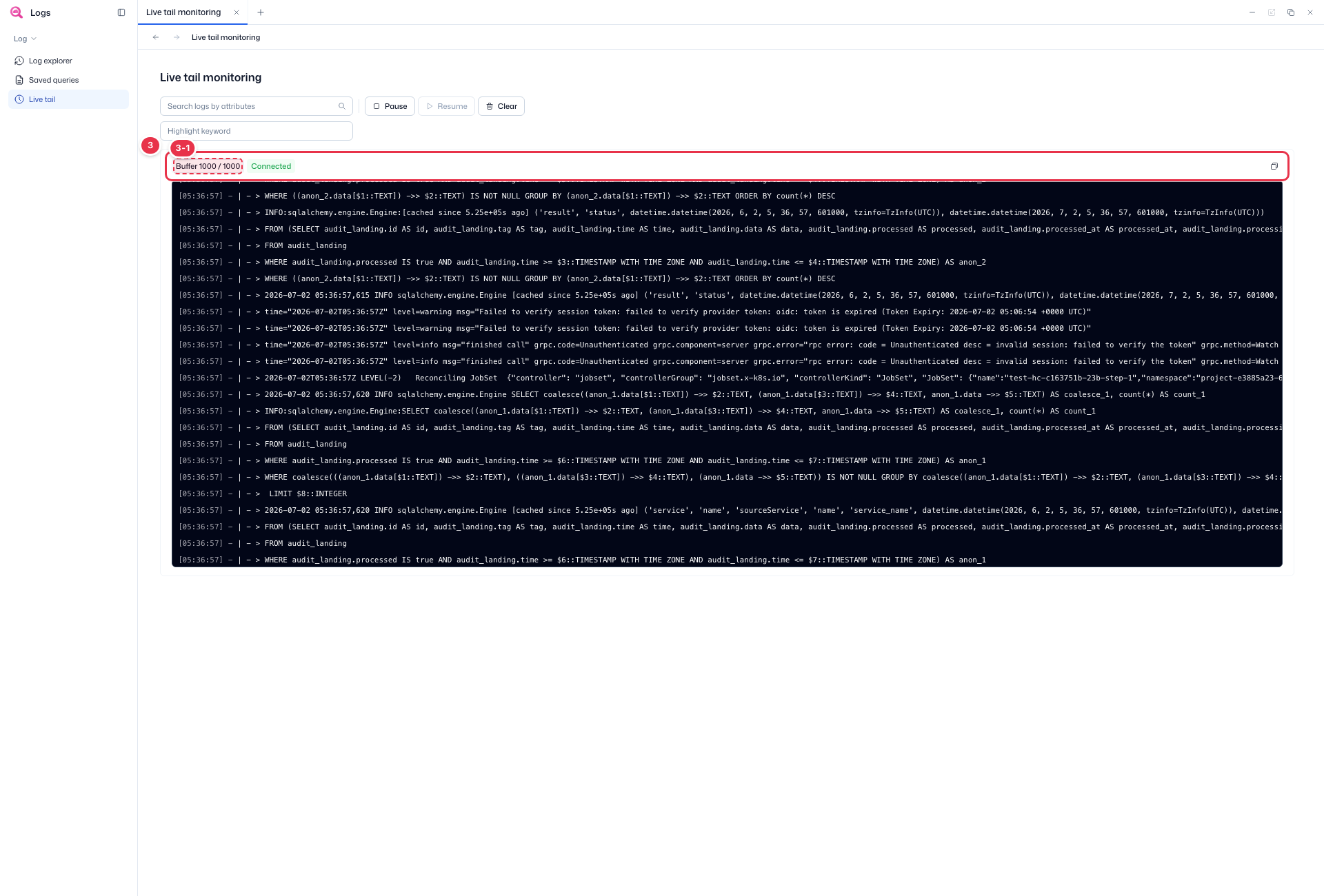
| No. | Feature | Item | Description |
|---|---|---|---|
| 3-1 | Buffer · connection | Buffer N / N · Connected | · Number of logs in the buffer and the stream connection status (Connected). |
Monitoring
- On entry, logs stream in real time, with the buffer size and Connected status shown at the top (No. 3).
- Filter the stream with the search box (No. 2-1), and highlight a keyword with Highlight keyword (No. 2-3).
- Use Pause to stop and inspect a section, Resume to continue, and Clear to empty the buffer (No. 2-2).
Next steps
- Log explorer — range-based log search
- Saved queries — manage saved queries