

Servers
An inventory screen for viewing registered Ironic bare-metal servers and understanding domain allocation/reclamation and power state. It provides the foundation for registering GPU servers as bare-metal nodes to be used as worker nodes for the Compute app.
- Path: Cloud Builder › Inventory › Servers
- Permission: System administrators only
- Search: Attribute-based text search (default filter key: Serial)
- Checkboxes: Supported (but rows with Status
Used/Failedcannot be selected)
Server list screen
Sidebar (SNB)
From the left sidebar, move to each Cloud Builder screen (inventory, compute nodes, system information).
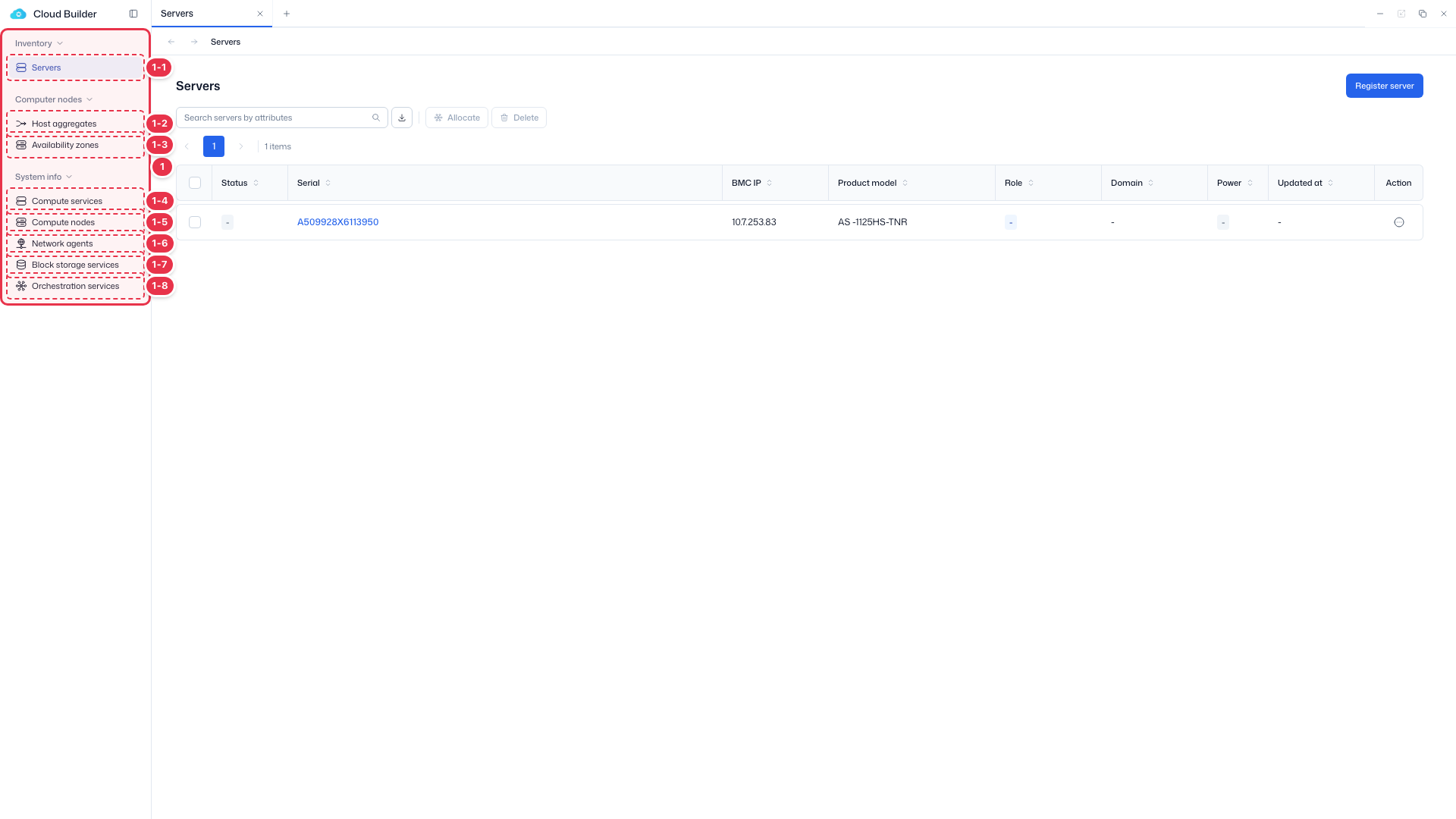
| No. | Feature | Item | Description |
|---|---|---|---|
| 1-1 | Servers | Servers | · Bare-metal server inventory (register, allocate, delete). |
| 1-2 | Host aggregates | Host aggregates | · Logical groups of hosts. |
| 1-3 | Availability zones | Availability zones | · Availability zones (AZ). |
| 1-4 | Compute services | Compute services | · Service endpoint status. |
| 1-5 | Compute nodes | Compute nodes | · Nodes, hypervisors, and resource providers. |
| 1-6 | Network agents | Network agents | · Neutron agent status. |
| 1-7 | Block storage services | Block storage services | · Cinder services and backends. |
| 1-8 | Orchestration services | Orchestration services | · Heat engine status. |
Search · Actions
Search servers, allocate or delete selected items, or register a new server.
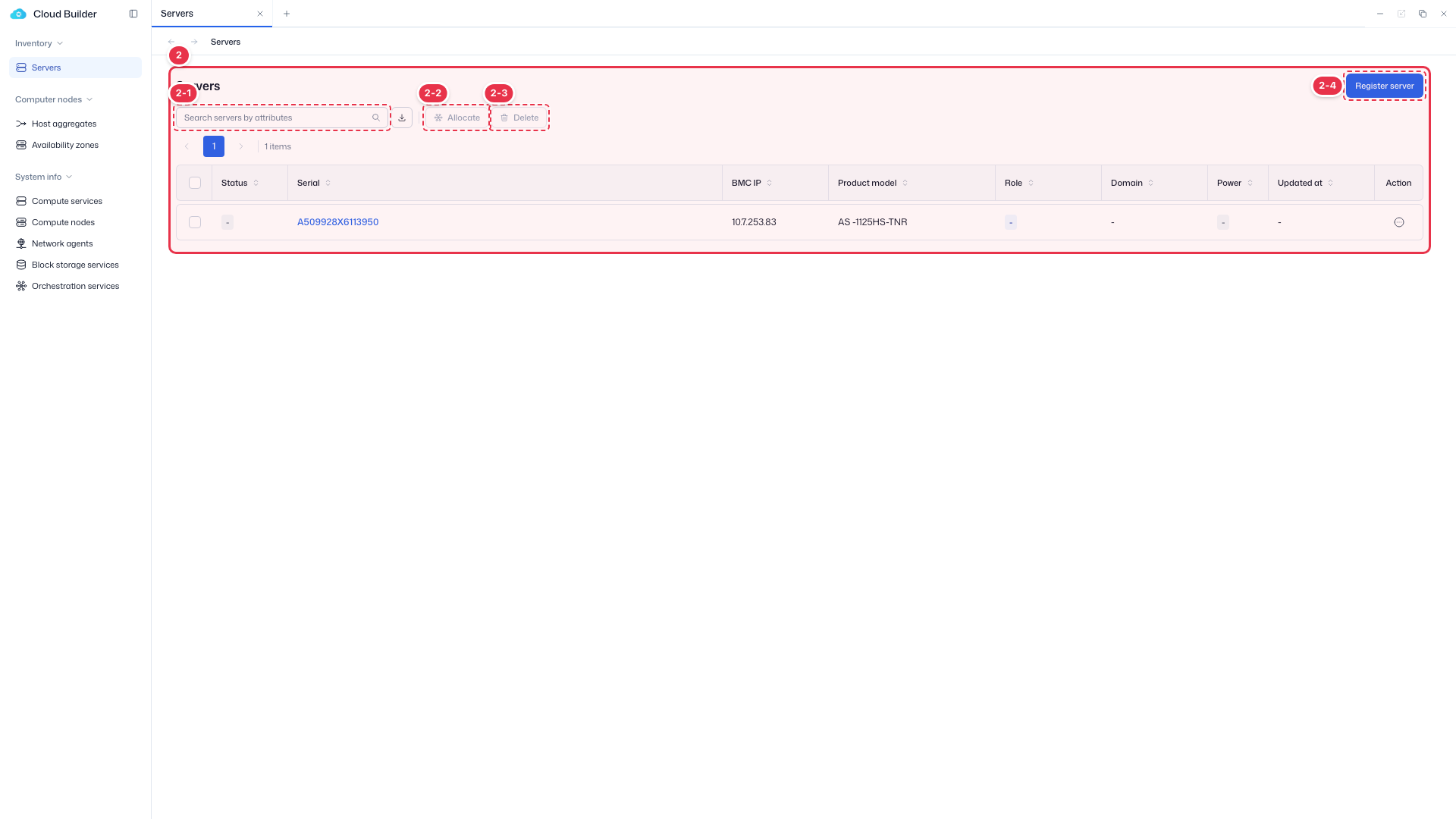
| No. | Feature | Item | Description |
|---|---|---|---|
| 2-1 | Search | Search | · Search servers by attribute (default filter key: Serial). |
| 2-2 | Allocate | Allocate | · Assign Role and Domain to the selected server (Status ≠ Used). |
| 2-3 | Delete | Delete | · Remove the selected server from inventory. |
| 2-4 | Register server | Register server | · Collect server information over the BMC connection and register it. |
Server list table
List of registered servers. Default sort is Serial ascending.
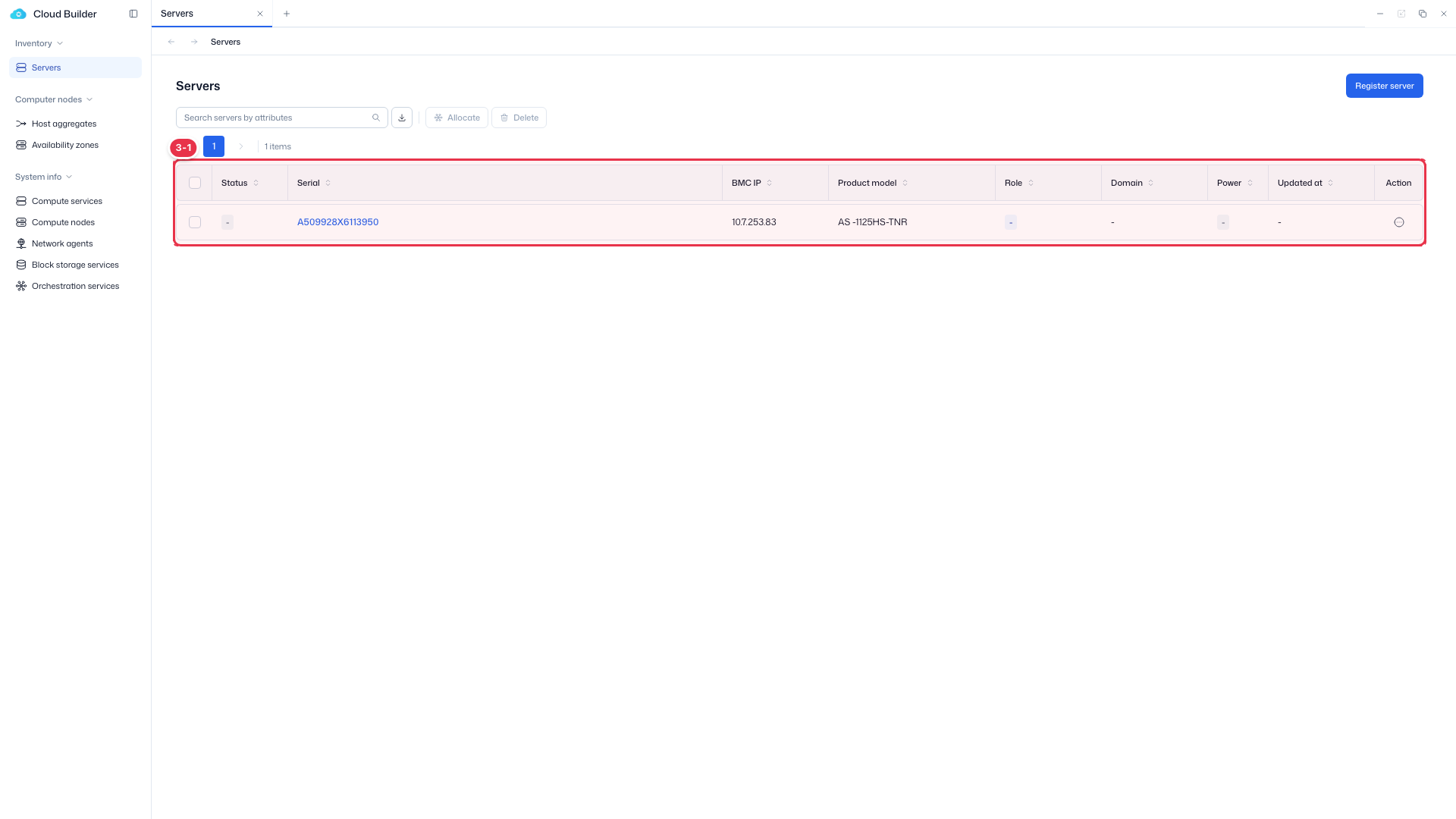
| No. | Feature | Item | Description |
|---|---|---|---|
| 3-1 | List columns | Status | Server status — Available / Used / Failed. |
| Serial | Serial number (click to open details). | ||
| BMC IP / Product model | BMC access IP, hardware model. | ||
| Role / Domain | Assigned role, allocated domain. | ||
| Power / Updated at | Power state, last update time. | ||
| Action | Row menu — Allocate / Edit / Delete. |
Status definitions
| Status | Meaning |
|---|---|
Available | Available for domain allocation. Immediately after registration or after being returned by the Compute app |
Used | Allocated to a domain and enrolled in the Compute app. Domain cannot be changed or selected |
Failed | A physical hardware error occurred in Ironic. Cannot be selected |
Status flow: register → Available → Allocate (assign Role and Domain) → Used → returned by the Compute app → Available. On a physical hardware error it becomes Failed, and returns to Used once resolved.
Builder/Compute status separation
The builder does not interpret detailed Ironic provision_state values; it determines Used/Available based on whether domain_id exists. Only error is treated as a hardware error (Failed), and it takes precedence over Used. On return, the Role (Baremetal node) is retained and only the domain is released.
Allocate server
Assigns a Role and Domain to the selected server. On Save the Status switches to Used and it is enrolled in that domain's Compute app.
Allocate entry (row action)
Choose Allocate from the row menu (or the top Allocate button).
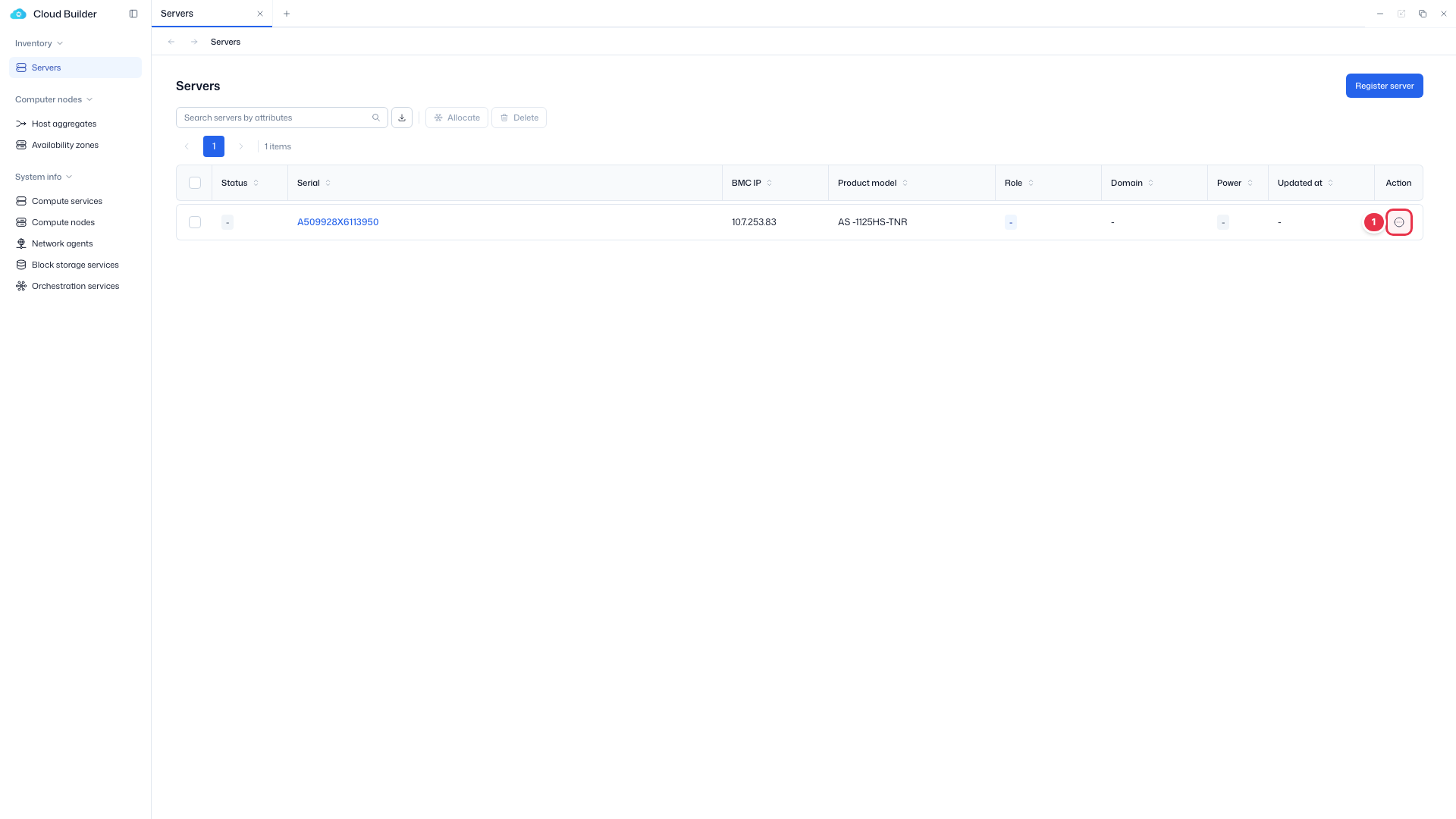
Allocate drawer
Assign a Role and Domain to the selected server. On save, Status switches to Used.
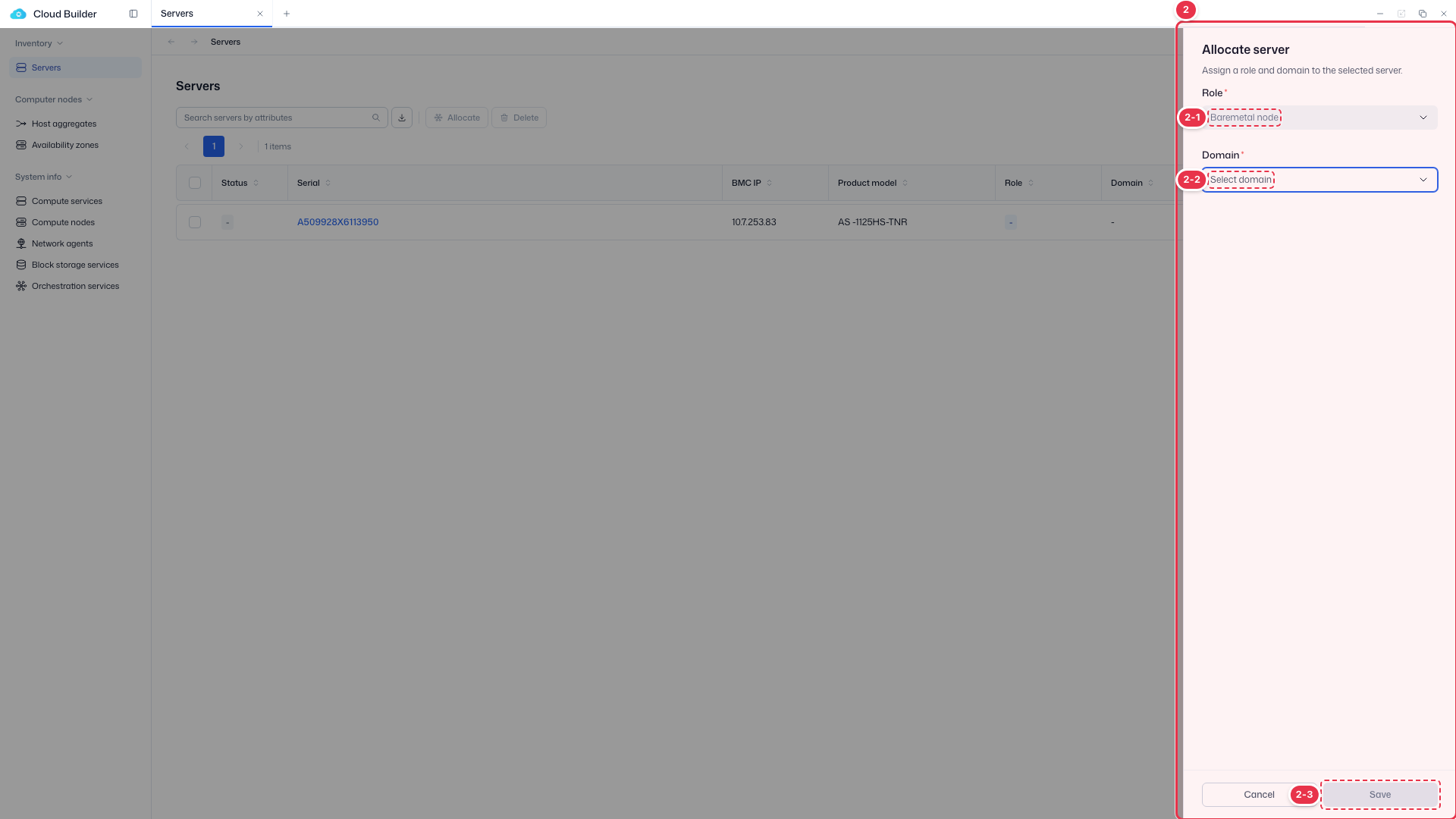
| No. | Feature | Item | Description |
|---|---|---|---|
| 2-1 | Role | Role | · Fixed to Baremetal node. |
| 2-2 | Domain | Domain | · Select the domain to allocate (required to enable Save). |
| 2-3 | Save / Cancel | Save / Cancel | · Save: allocate. Cancel: close. |
Edit server
Edits the server's physical location (Location).
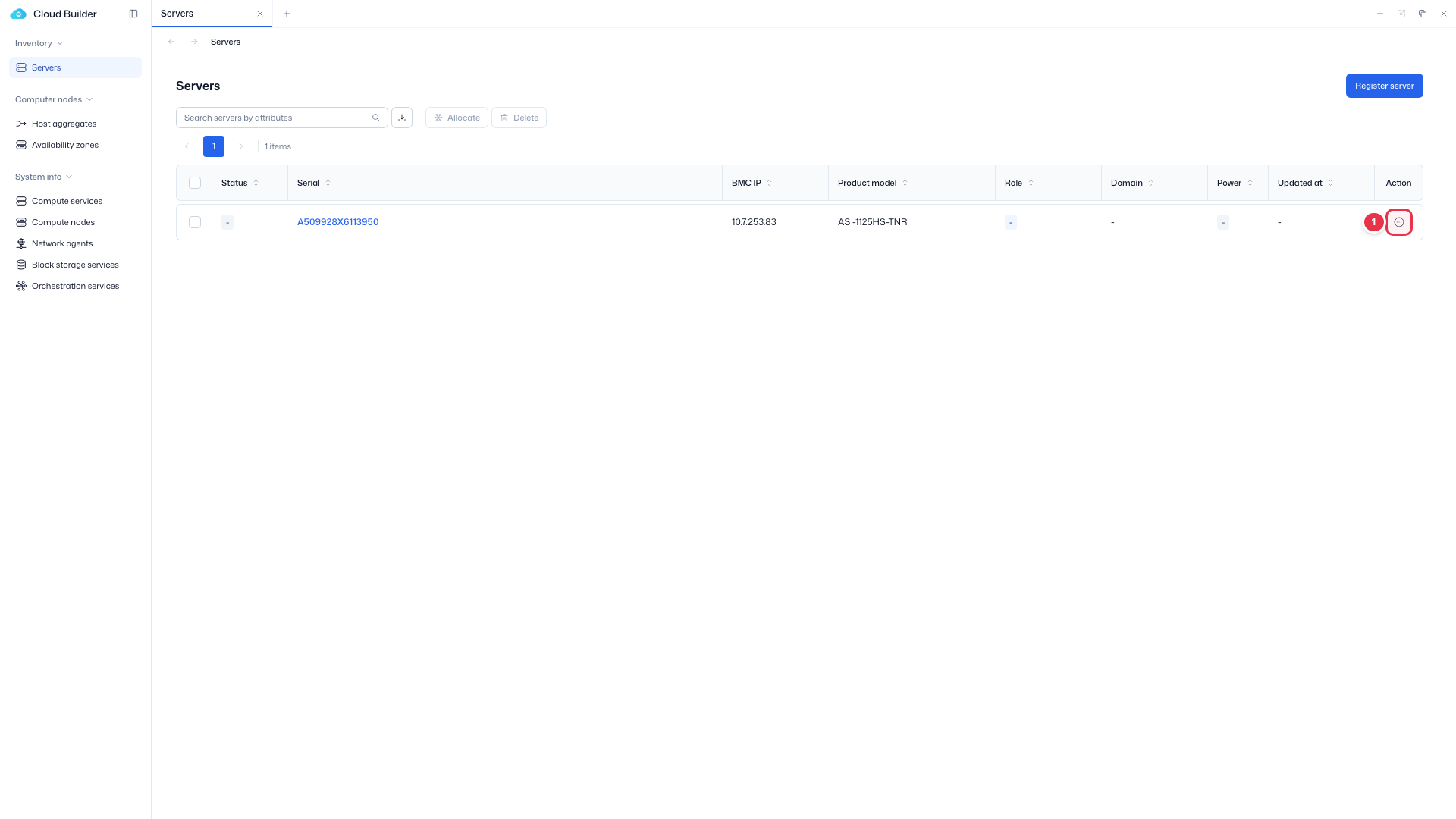
Edit entry (row action)
Choose Edit from the row menu.
Edit drawer
Edit the server's physical location (Location).
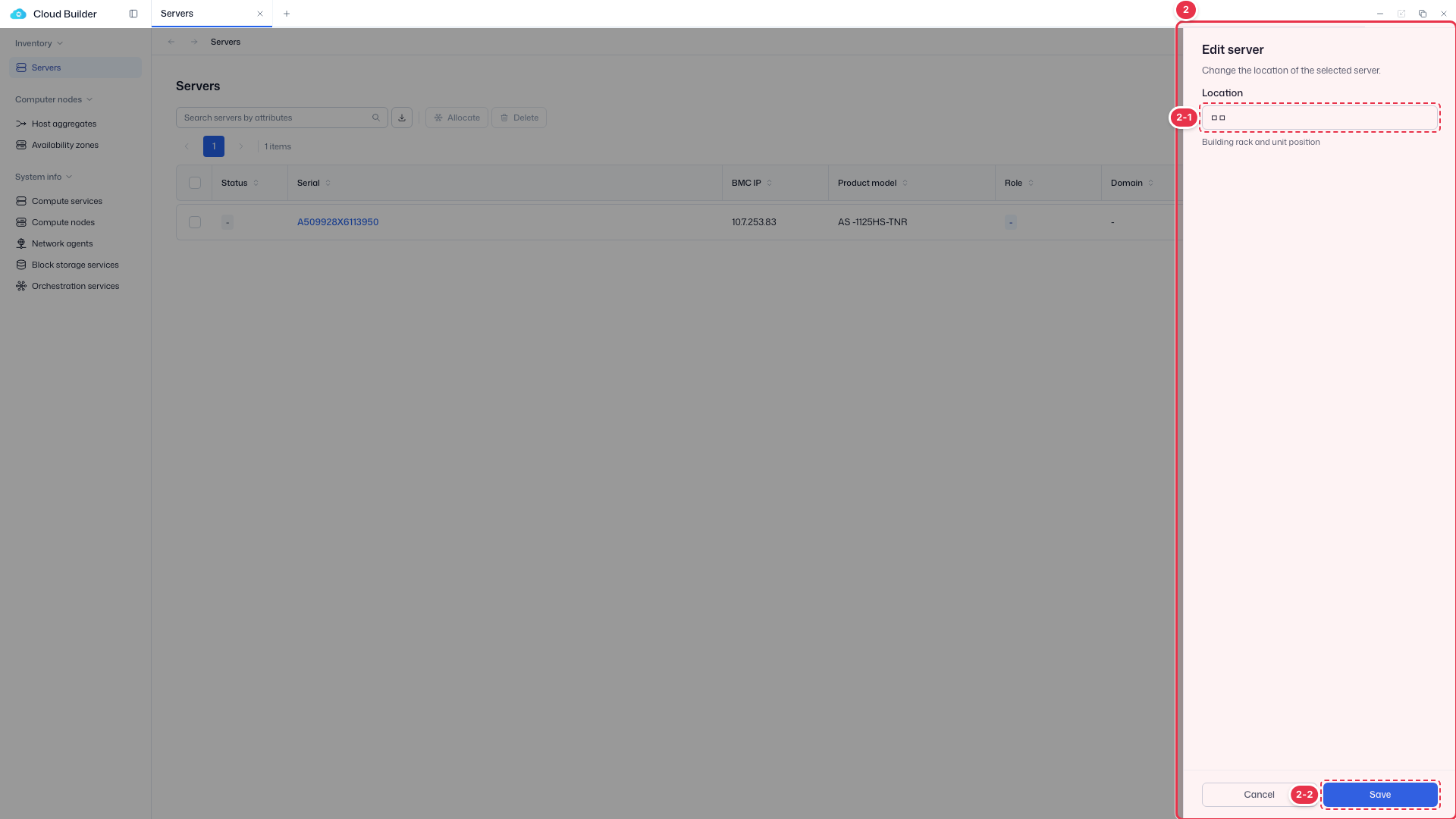
| No. | Feature | Item | Description |
|---|---|---|---|
| 2-1 | Location | Location | · Building, rack, and unit location. |
| 2-2 | Save / Cancel | Save / Cancel | · Save: save. Cancel: close. |
Delete server
Permanently removes the server from the inventory. This cannot be undone, and the confirmation modal shows the target Serial.
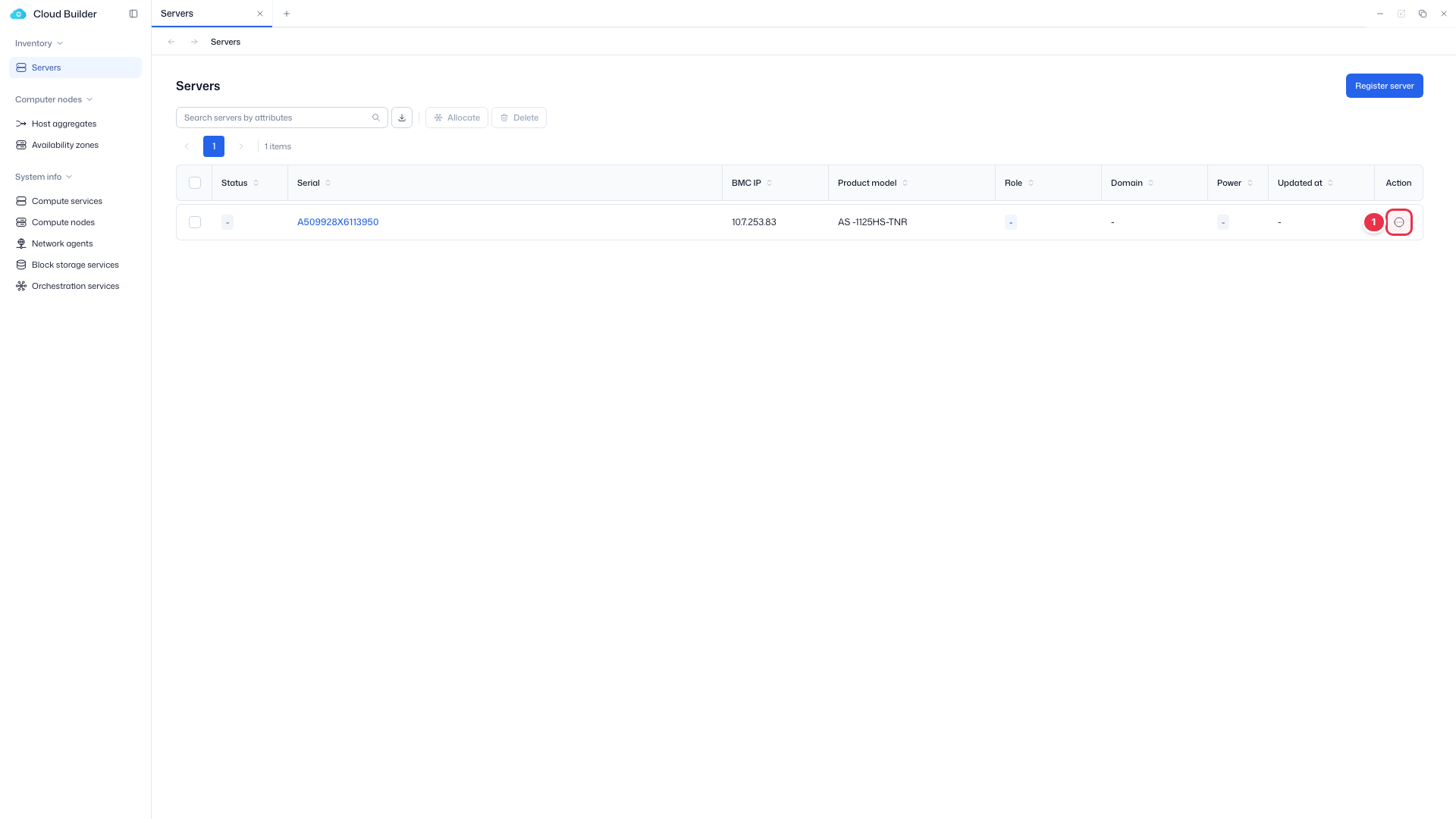
Delete entry (row action)
Choose Delete from the row menu.
Delete confirmation modal
Permanently removes the server from inventory. This cannot be undone.
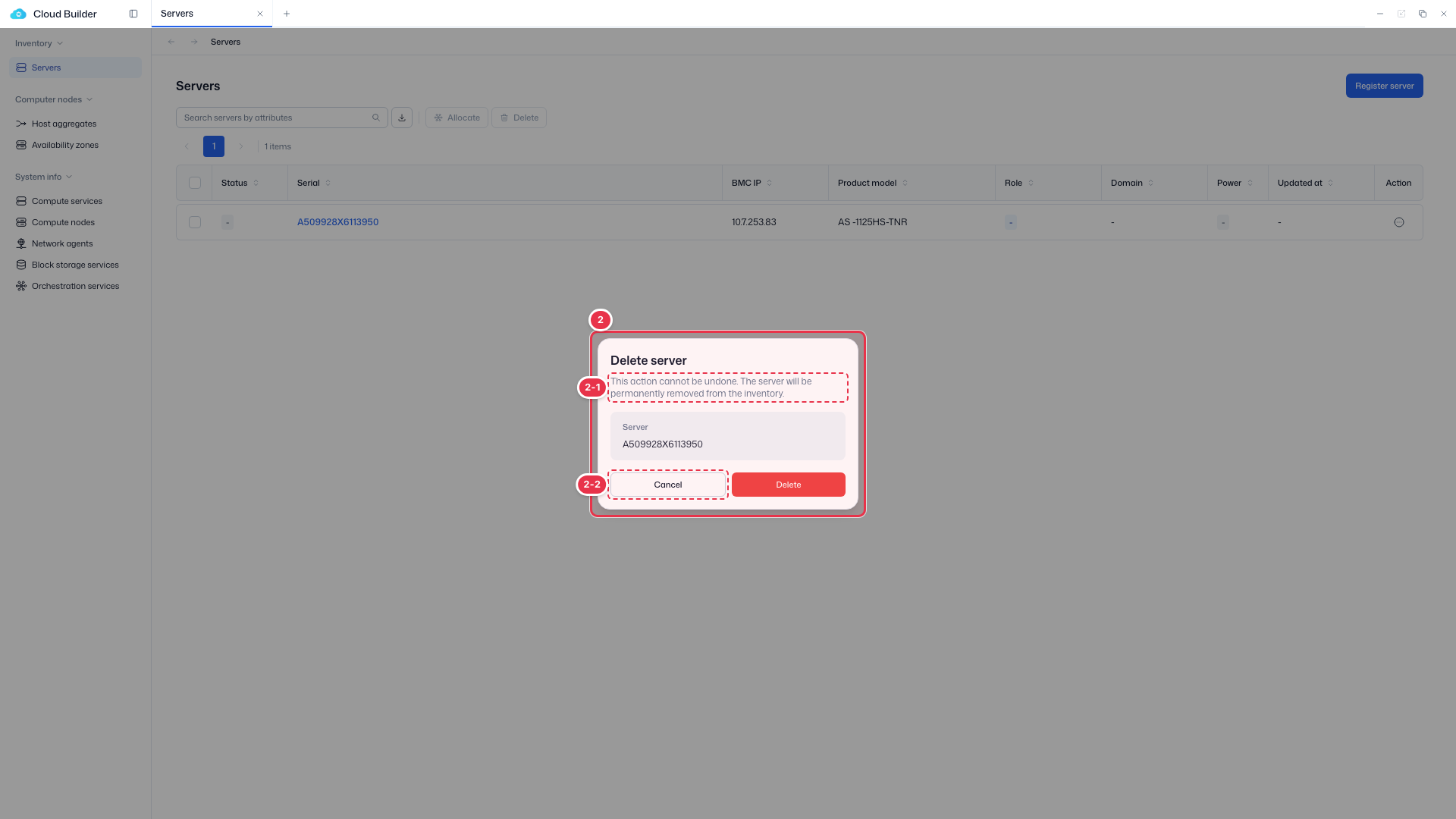
| No. | Feature | Item | Description |
|---|---|---|---|
| 2-1 | Delete notice | Target Serial | · Shows the delete target and a warning. |
| 2-2 | Cancel / Delete | Cancel / Delete | · Delete: permanently delete. Cancel: close. |
Register server
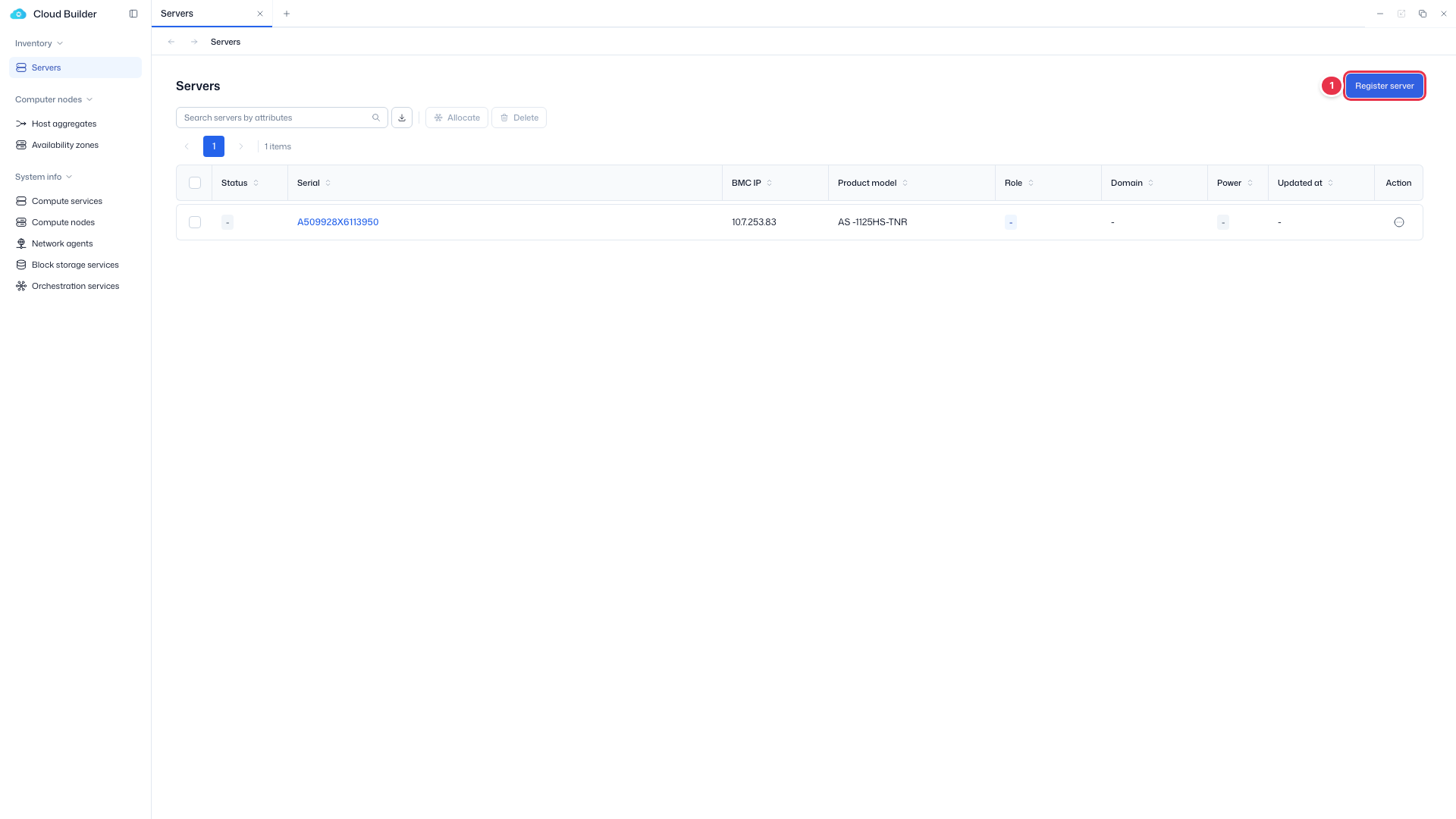
Enter via the top Register server button. It connects to the BMC (Redfish) endpoint, automatically collects (Fetch) the server information, and registers it in the inventory. The progress steps appear in the Summary on the right.
Register entry button
Click to open the server registration page.
Server registration form
Automatically collects hardware information over the BMC (Redfish) connection, then registers it in the inventory. The steps appear in the Summary on the right.
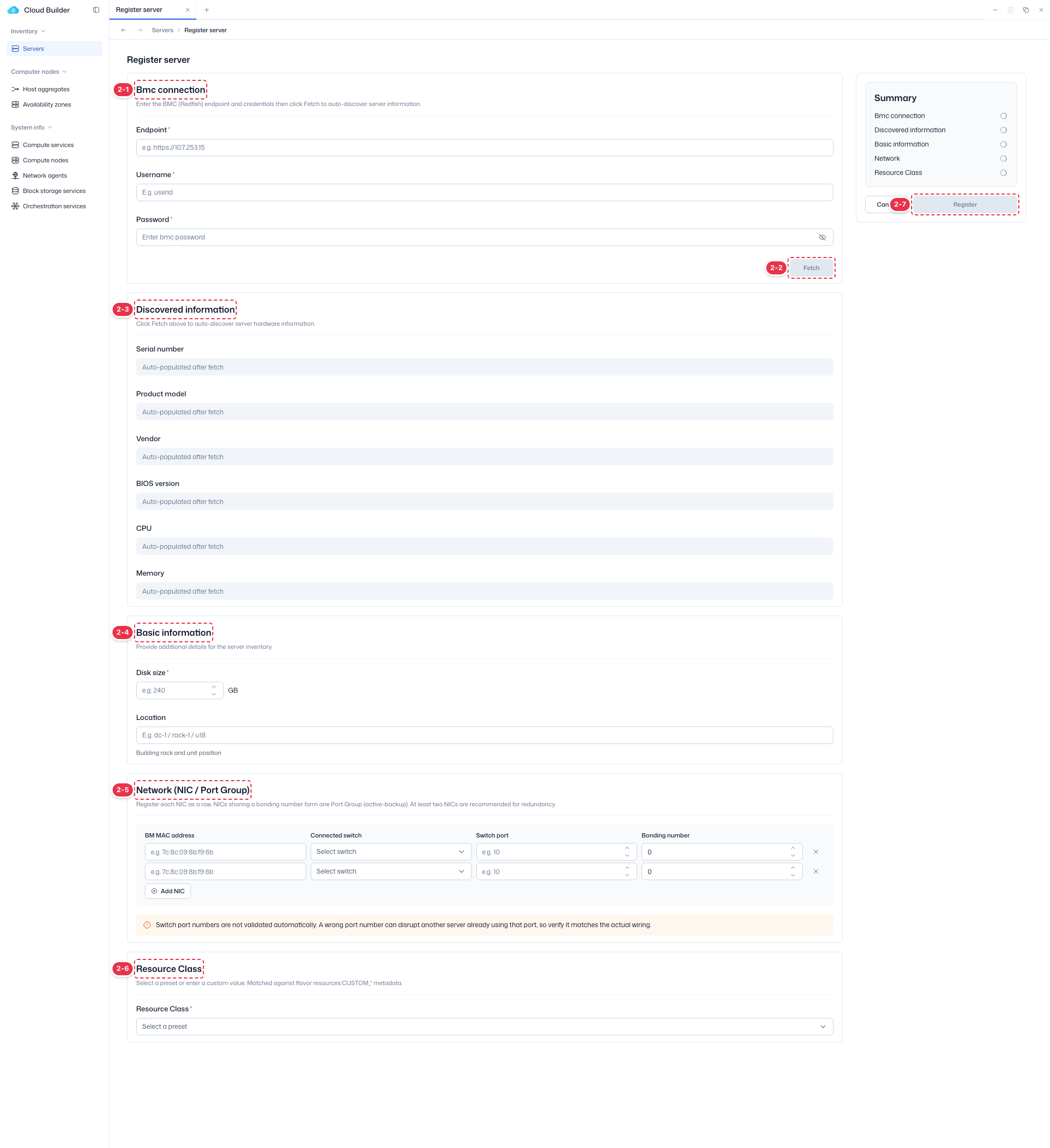
| No. | Feature | Item | Description |
|---|---|---|---|
| 2-1 | BMC connection | Bmc connection | · Enter Endpoint, Username, and Password, then Fetch to collect information. |
| 2-2 | Fetch information | Fetch | · Connect to the BMC and collect server information automatically. |
| 2-3 | Discovered information | Discovered information | · Serial, Product model, Vendor, BIOS, CPU, and Memory are filled in automatically. |
| 2-4 | Basic information | Basic information | · Enter Disk size (required) and Location. |
| 2-5 | Network | Network | · Enter MAC, switch, port, and Bonding per NIC. The same Bonding forms one Port Group. |
| 2-6 | Resource Class | Resource Class | · Select a preset or enter a custom value. |
| 2-7 | Register / Cancel | Register / Cancel | · Register: register. Cancel: return to the list. |
WARNING
Switch port numbers are not validated automatically. An incorrect port number can affect another server that already uses that port, so verify that it matches the actual cabling.
Server details
Click the Serial link to view an individual server's identification information and hardware specifications.
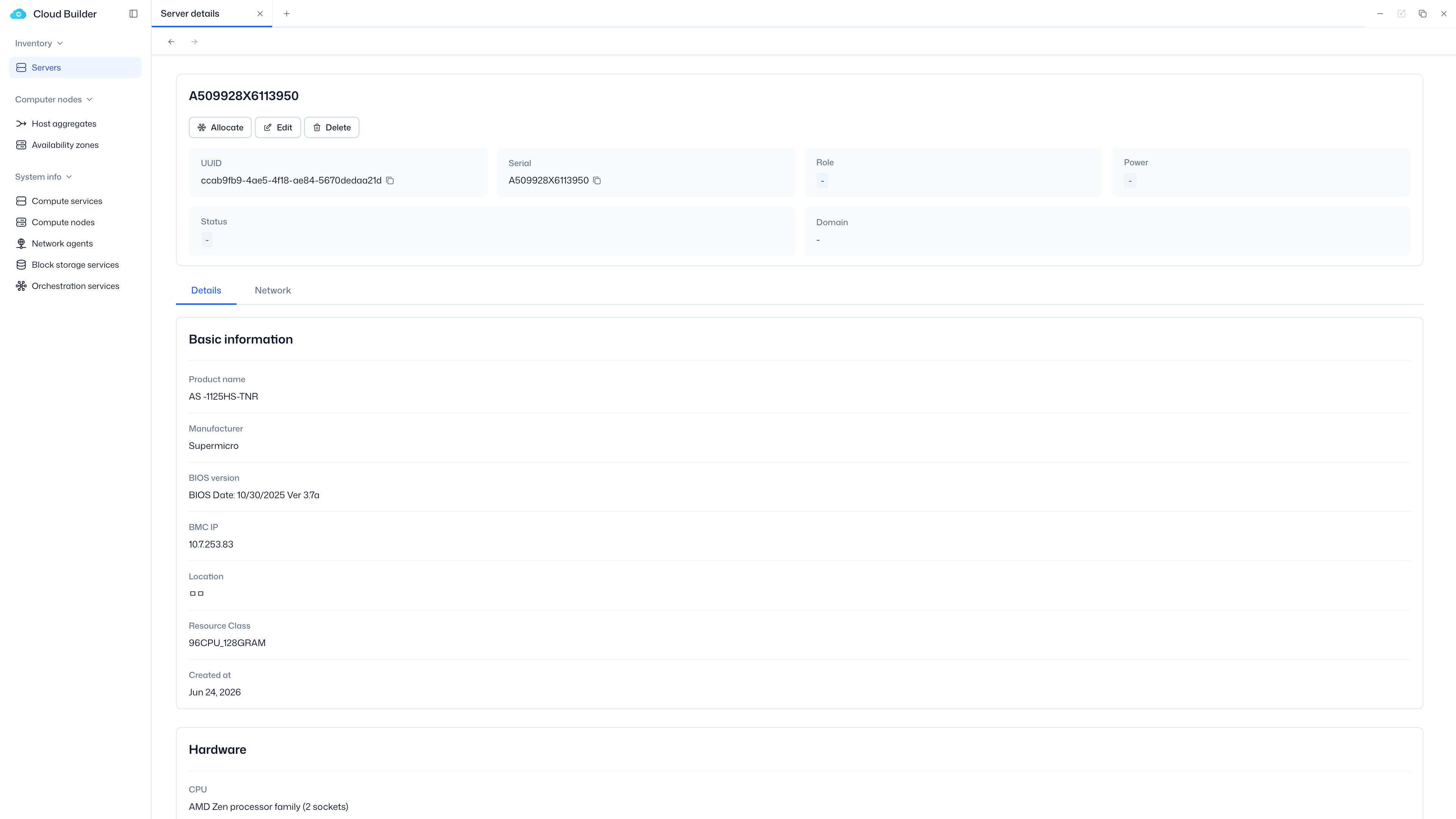
- Header buttons: Allocate / Edit / Delete
- Header InfoGrid: UUID (copy) · Serial (copy) · Role · Power · Status · Domain
- Tabs: Details / Network
- Details › Basic information: Product name · Manufacturer · BIOS version · BMC IP · Location · Resource Class · Created at
- Details › Hardware: CPU (model + socket count) · Memory
Compute app integration
- Once a domain is assigned via Allocate, the server is enrolled in that domain's Compute app, and the domain cannot be changed in the builder.
- The Compute app does not create/delete nodes; it synchronizes the builder state read-only, and on release the server returns to
Available. - Deletion is only possible in the builder (the Compute side only has the concept of returning).