

Domains
The screen for viewing and creating platform domains (tenants). Only system administrators (SysAdmin) can create and delete domains.
- Path: IAM › Administration › Domains
System Domain
The list also shows the SysAdmin-only System Domain. It is auto-created at system initialization and cannot be edited or deleted. Only regular domains can be created and deleted.
Sidebar (SNB)
From the left sidebar, move to each IAM screen (Home, System administrators, Domains, policies, Active sessions, Event logs).
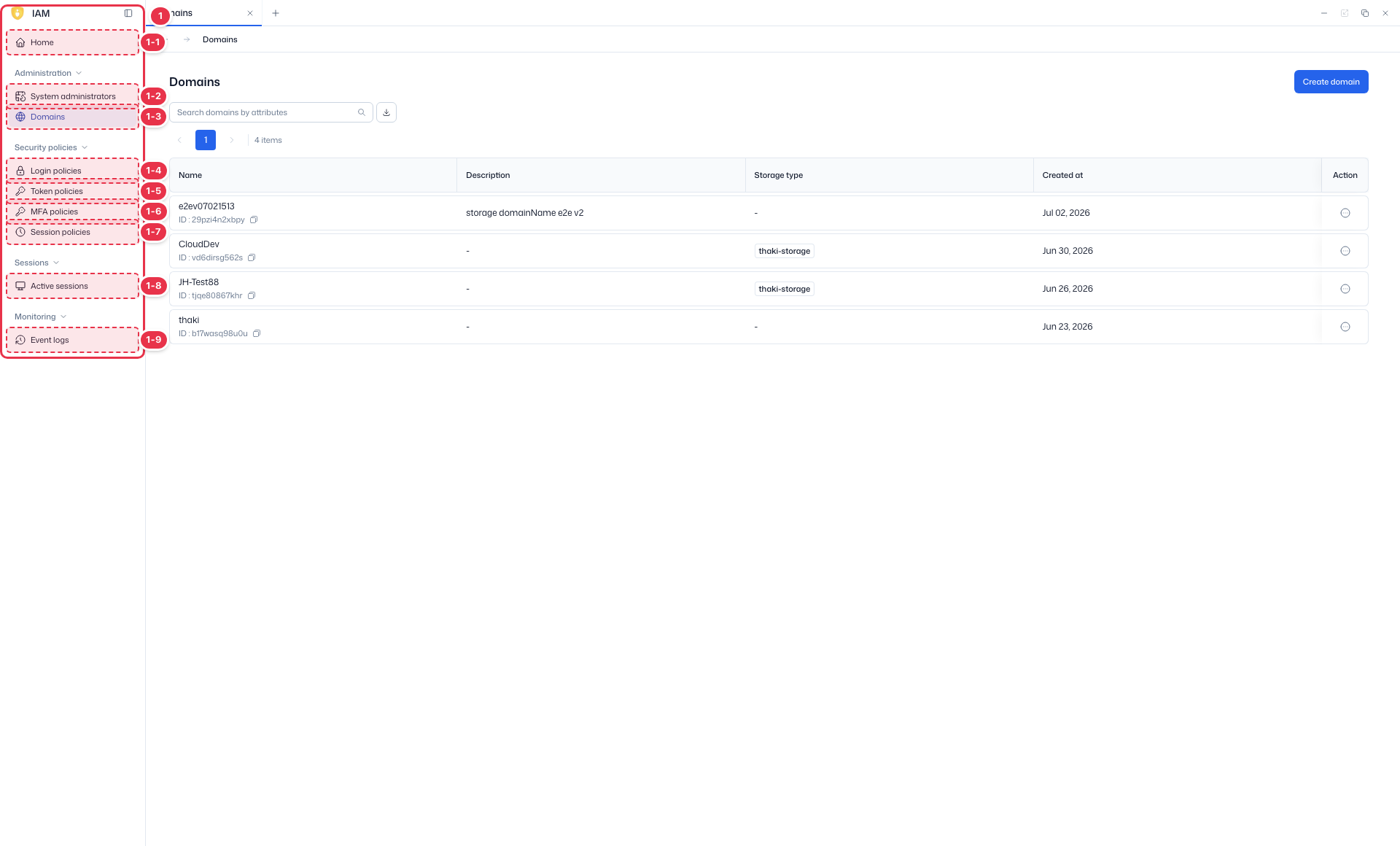
| No. | Feature | Item | Description |
|---|---|---|---|
| 1-1 | Home | Home | · Dashboard of domain status, authentication, users, and recent events. |
| 1-2 | System administrators | System administrators | · View, create, and delete system administrator accounts. |
| 1-3 | Domains | Domains | · View and create platform domains (tenants). |
| 1-4 | Login policies | Login policies | · Password and account lockout policies. |
| 1-5 | Token policies | Token policies | · General policies such as token lifetime. |
| 1-6 | MFA policies | MFA policies | · MFA enforcement and methods. |
| 1-7 | Session policies | Session policies | · General session policies such as session lifetime. |
| 1-8 | Active sessions | Active sessions | · View and terminate active sessions. |
| 1-9 | Event logs | Event logs | · View IAM event logs. |
Search · Create
Search domains or create a new one.
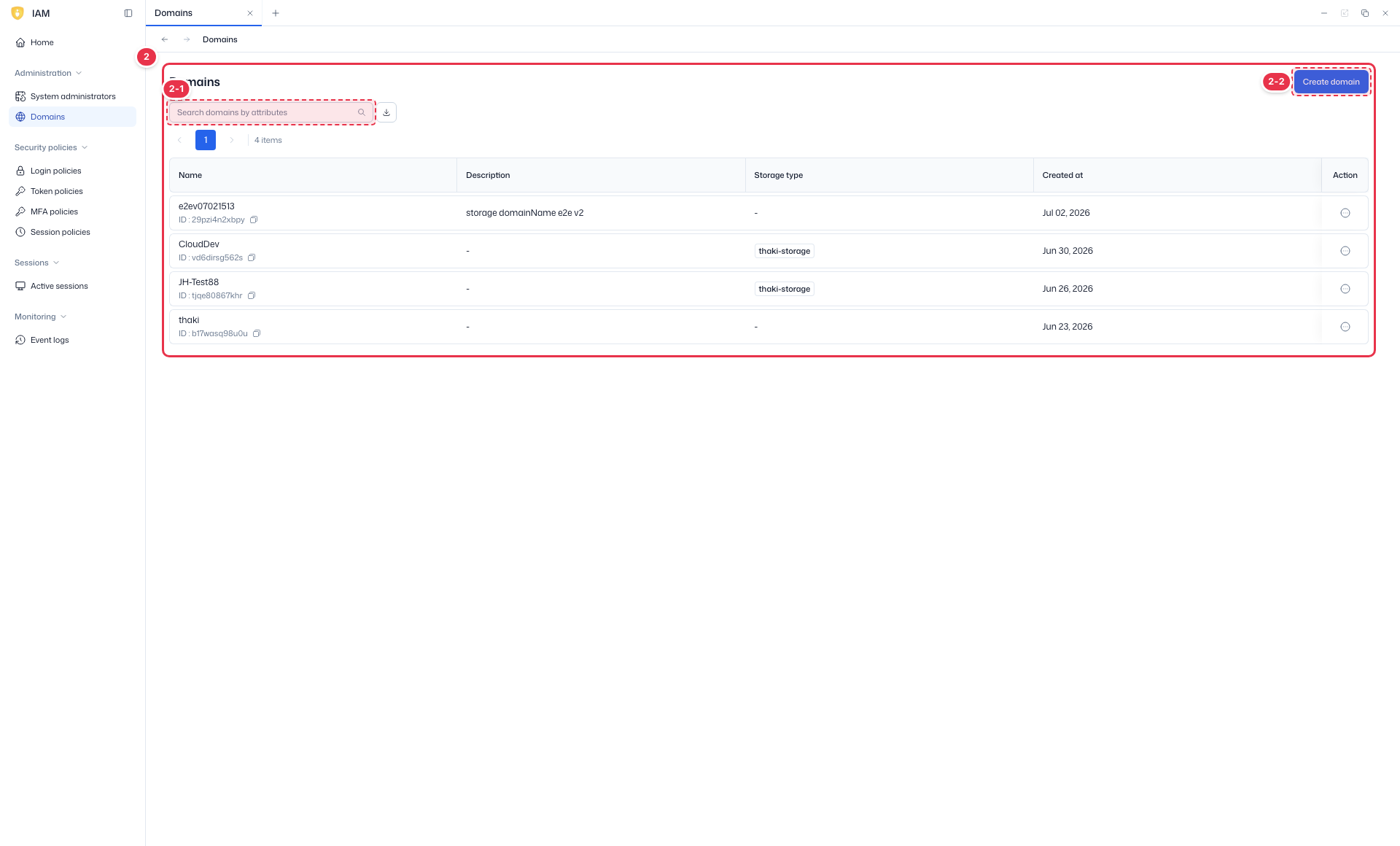
| No. | Feature | Item | Description |
|---|---|---|---|
| 2-1 | Search | Search | · Search by name and other attributes. |
| 2-2 | Create | Create domain | · Open the new domain wizard. |
List table
List of platform domains (read-only).
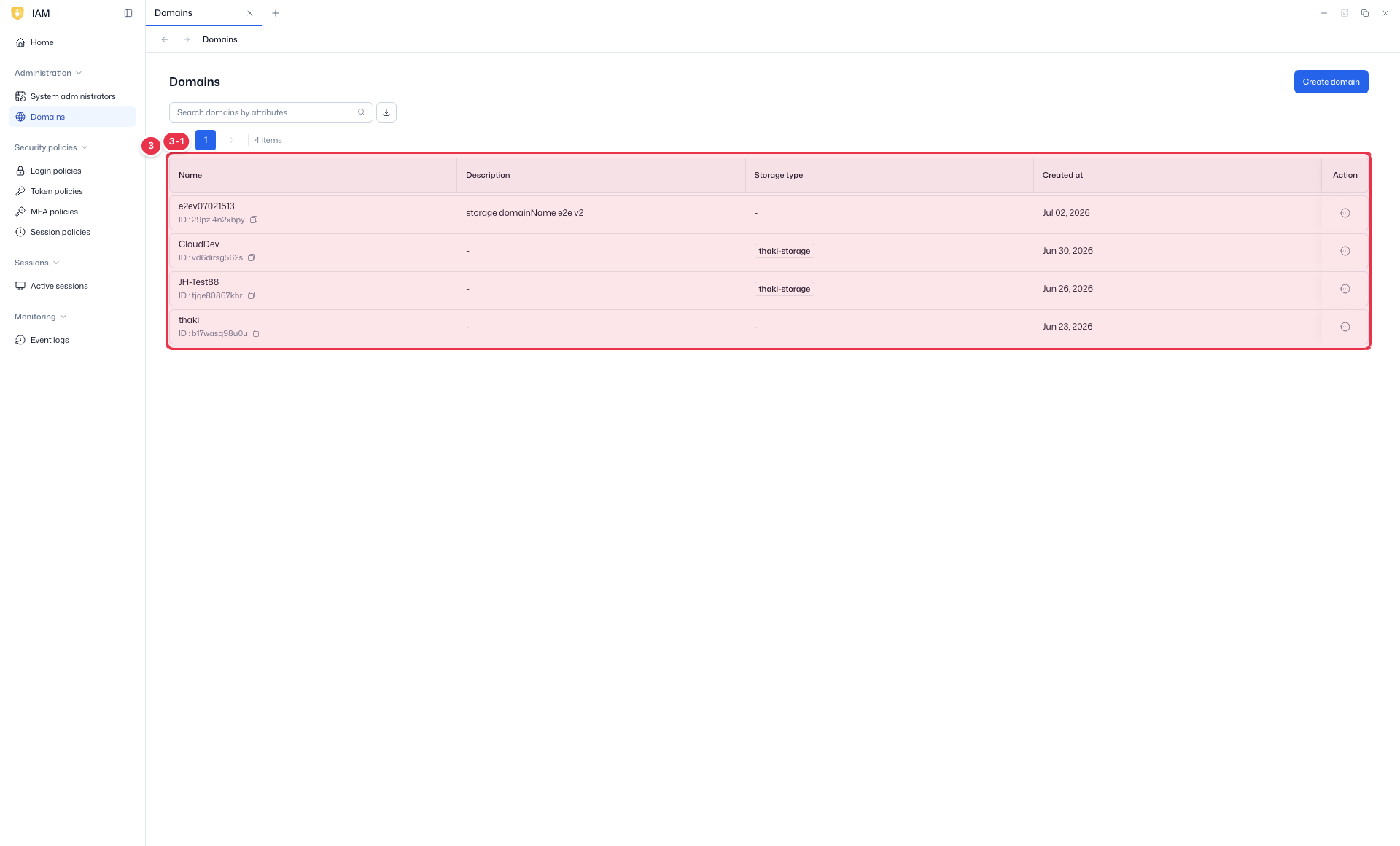
| No. | Feature | Item | Description |
|---|---|---|---|
| 3-1 | Columns | Name | Domain name. |
| Description | Description. | ||
| Storage type | Storage type (Local storage, etc.). | ||
| Created at | Creation time. | ||
| Action | Per-row actions. |
Creating a domain
Click Create domain (No. 2-2) to open a 3-step wizard.
Create wizard (Create domain)
Opened by Create domain. A 3-step wizard — fill each step and proceed with Next.
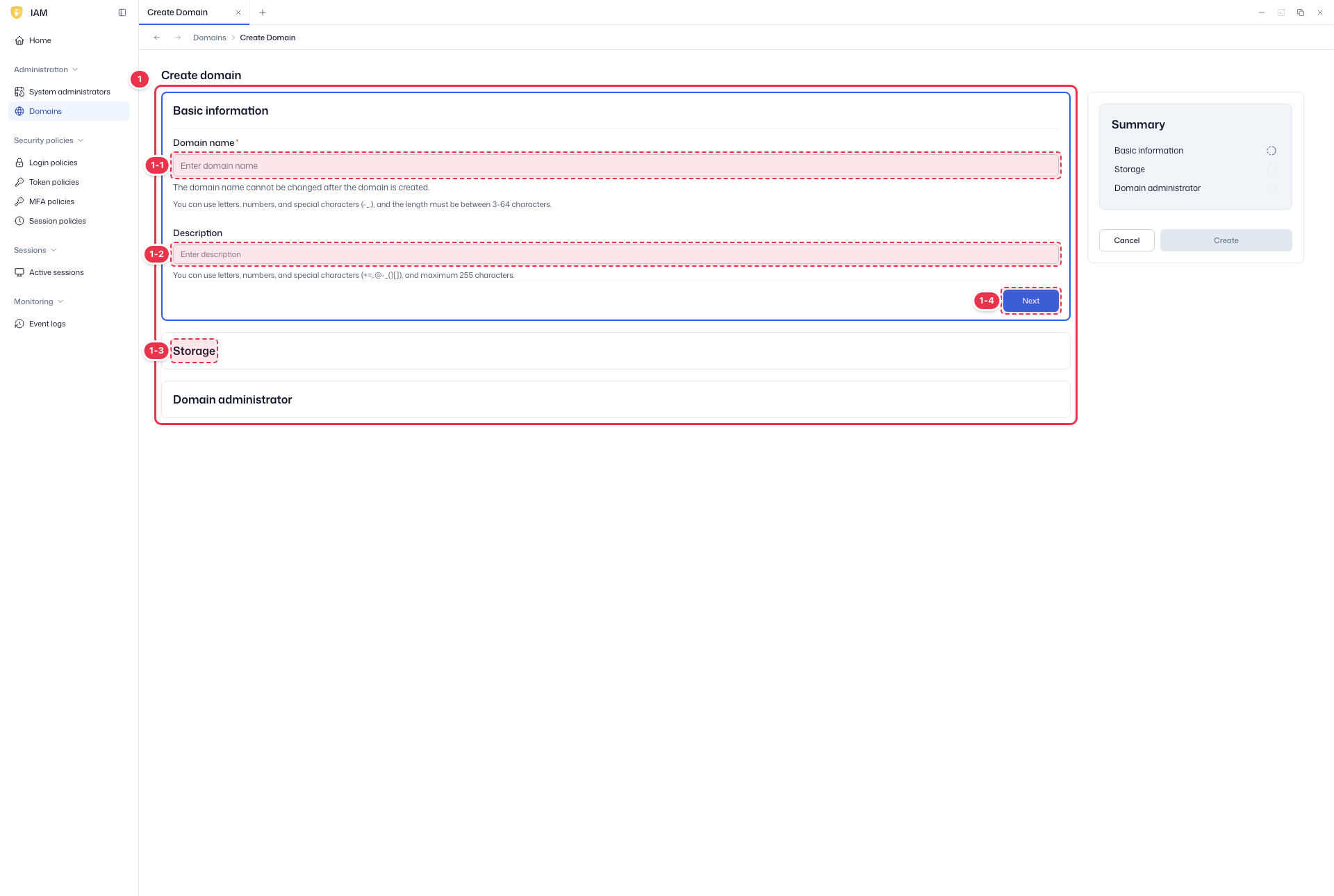
| No. | Feature | Item | Description |
|---|---|---|---|
| 1-1 | Domain name | Domain name * | · Name of the domain to create (required). |
| 1-2 | Description | Description | · Domain description. |
| 1-3 | Steps | Basic information / Storage / Domain administrator | · Proceed through Basic information (name/description) → Storage (Local storage, etc.) → Domain administrator (admin account). |
| 1-4 | Next / Create / Cancel | Next / Create / Cancel | · Next: next step. Create on the last step. Cancel: close. |
- Basic information — enter the domain name (required · unique · unchangeable after creation) and description, then Next.
- Storage — choose a storage type (required · unchangeable after creation), then Next.
- Thaki Storage: on domain creation, 4 Ceph pools (
{domainID}-volumes·images·backups·k8s-pv) are auto-created and the Storage app is used. - Local storage: created without pools; the Storage app is not used (volume types are managed in the Compute app).
- Thaki Storage: on domain creation, 4 Ceph pools (
- Domain administrator — set at least one domain admin account: Username (3–64 chars · unchangeable), Email, Display name (defaults to Username if empty), and password (auto temporary or manual). Create with Create.
Auto-provisioning
On completion, a Policy, Admins group, Users group, and Default tenant are auto-created, plus the 4 Ceph pools if Thaki Storage was selected. The Default tenant cannot be deleted and is removed only when the domain is deleted.
Next steps
- System administrators — manage system administrators
- Security policies — security policies