

System administrators
The screen for viewing, creating, and deleting platform system administrator accounts.
- Path: IAM › Administration › System administrators
About SysAdmin
A system administrator (SysAdmin) is a Global-scope administrator not tied to any domain, belonging to the System Domain mapped to the master realm. Its permissions are a built-in policy — they cannot be edited, deleted, or assigned to others, and are excluded from custom policies. SysAdmin cannot directly access domain resources; access is only via a temporary Role granted by a Domain Admin.
Sidebar (SNB)
From the left sidebar, move to each IAM screen (Home, System administrators, Domains, policies, Active sessions, Event logs).
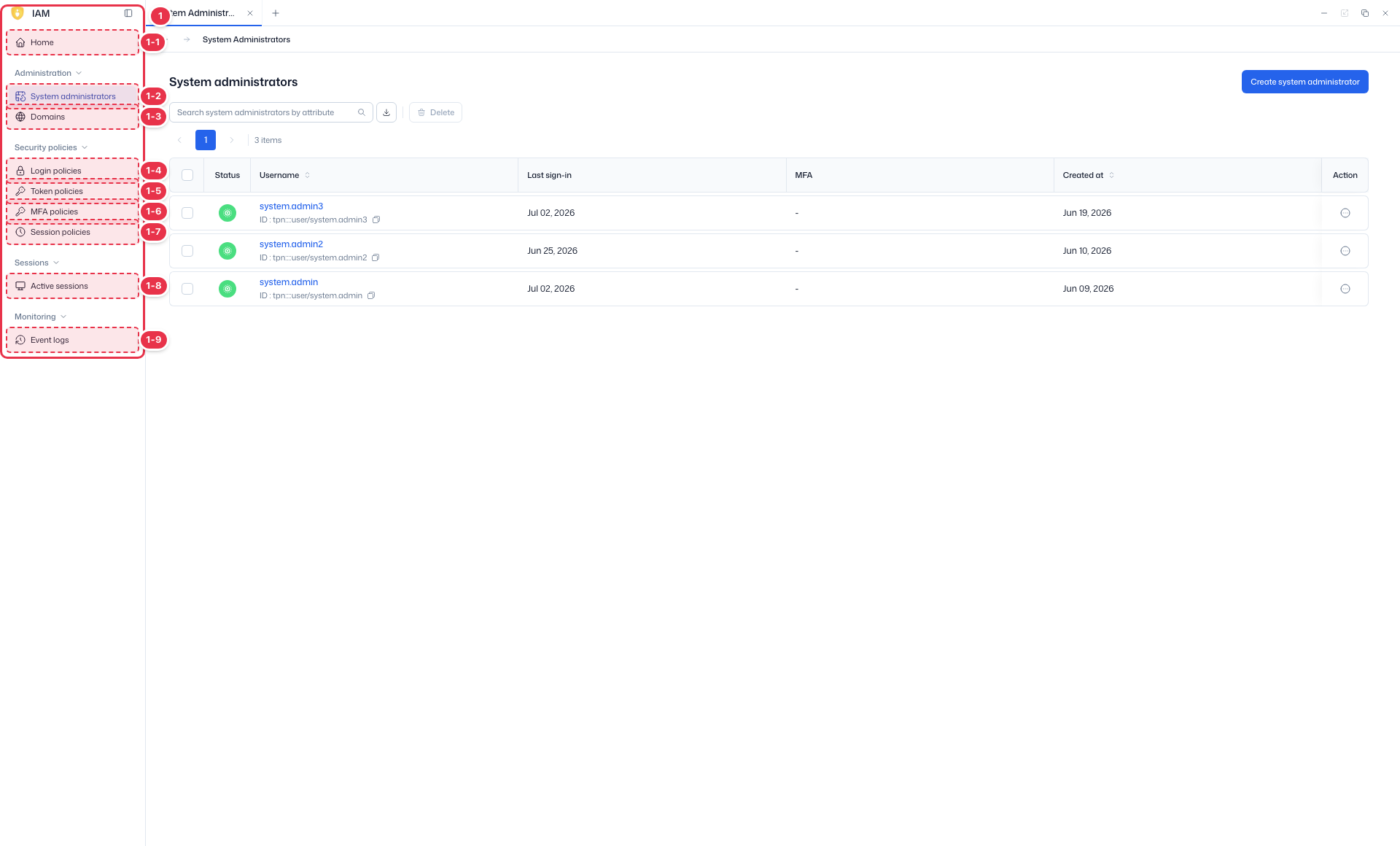
| No. | Feature | Item | Description |
|---|---|---|---|
| 1-1 | Home | Home | · Dashboard of domain status, authentication, users, and recent events. |
| 1-2 | System administrators | System administrators | · View, create, and delete system administrator accounts. |
| 1-3 | Domains | Domains | · View and create platform domains (tenants). |
| 1-4 | Login policies | Login policies | · Password and account lockout policies. |
| 1-5 | Token policies | Token policies | · General policies such as token lifetime. |
| 1-6 | MFA policies | MFA policies | · MFA enforcement and methods. |
| 1-7 | Session policies | Session policies | · General session policies such as session lifetime. |
| 1-8 | Active sessions | Active sessions | · View and terminate active sessions. |
| 1-9 | Event logs | Event logs | · View IAM event logs. |
Search · Create · Delete
Search system administrators and create or delete them.
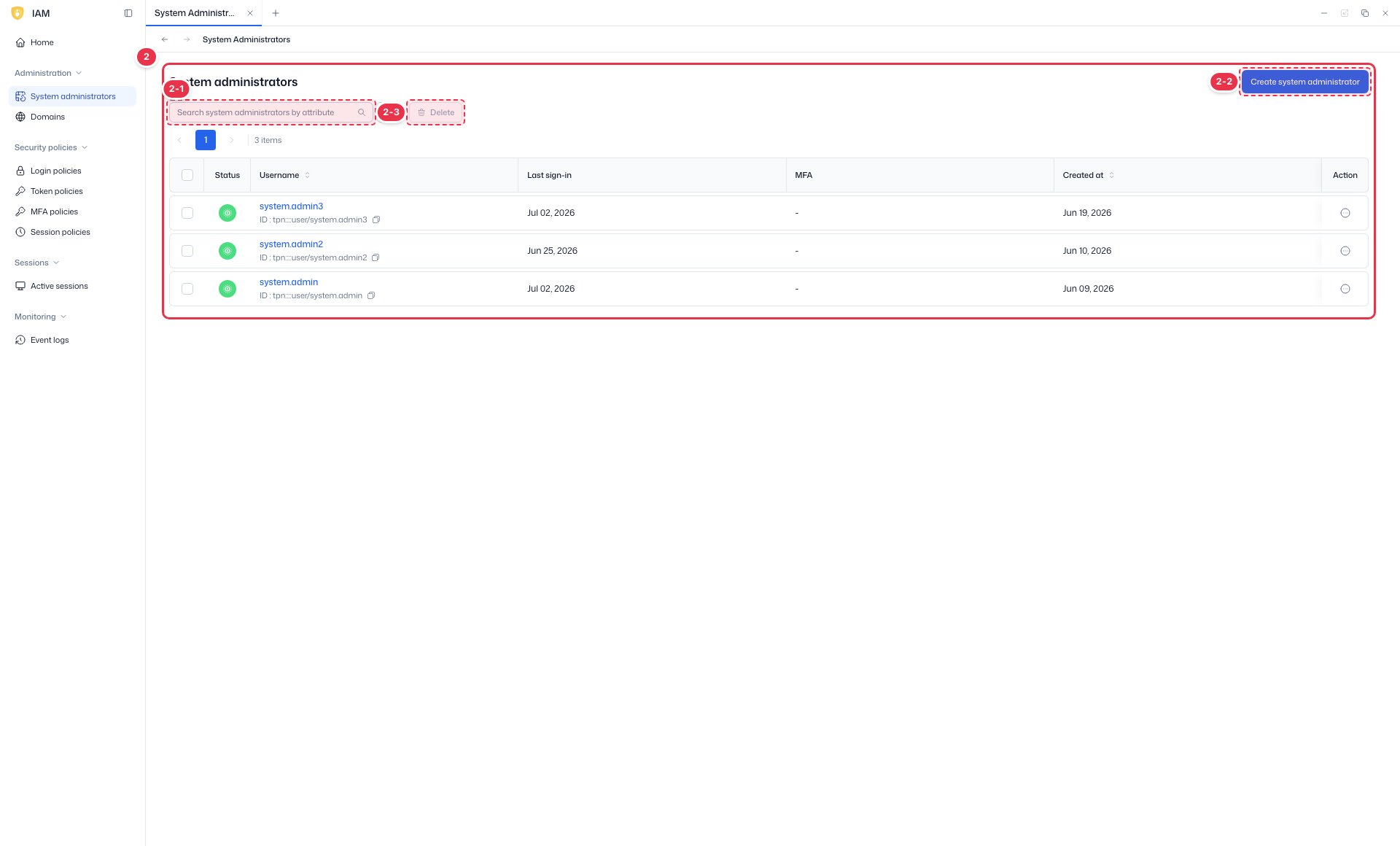
| No. | Feature | Item | Description |
|---|---|---|---|
| 2-1 | Search | Search | · Search by status, name, and other attributes. |
| 2-2 | Create | Create system administrator | · Open the new system administrator drawer. |
| 2-3 | Delete | Delete | · Delete the checked administrators. |
List table
List of system administrators (read-only).
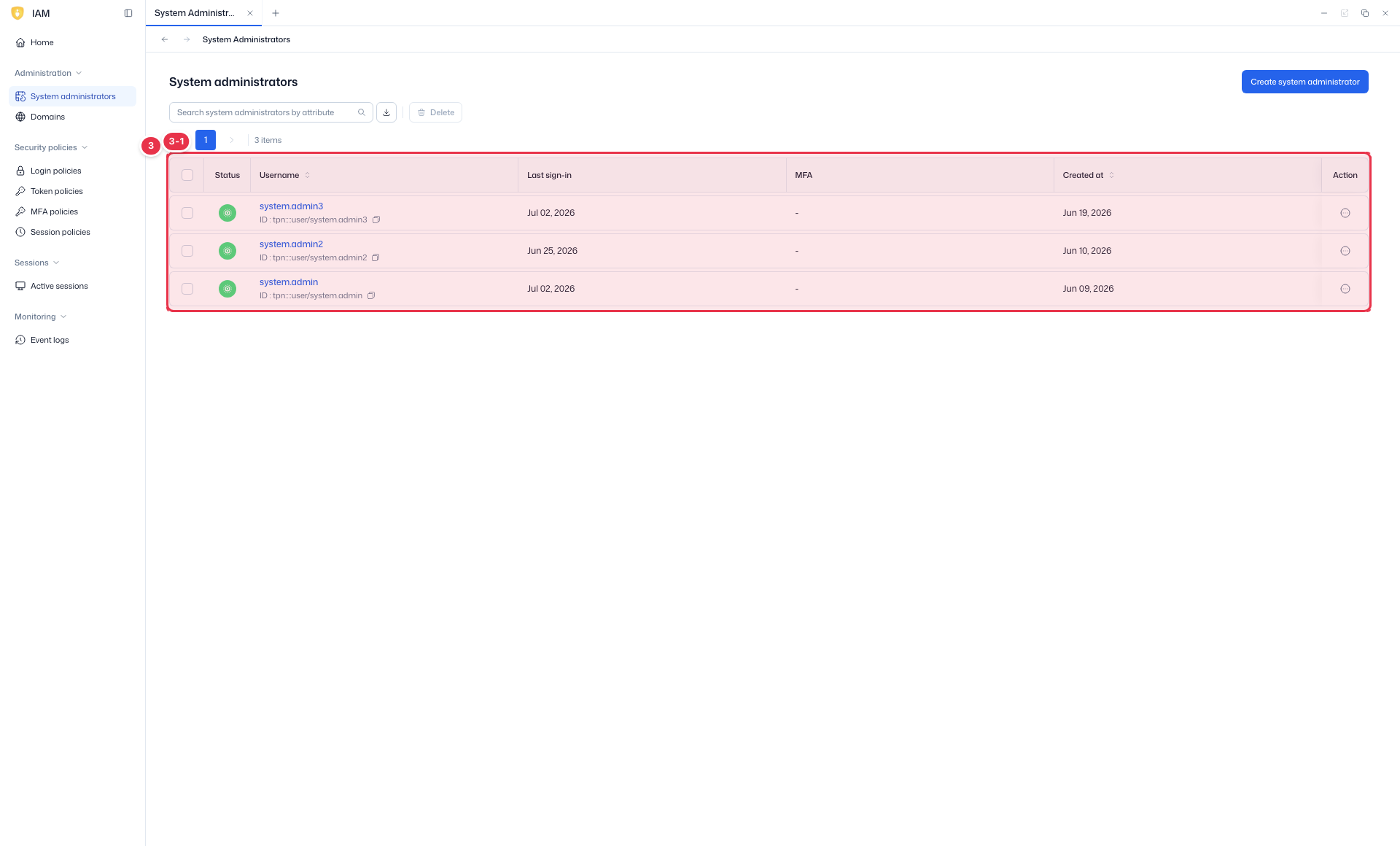
| No. | Feature | Item | Description |
|---|---|---|---|
| 3-1 | Columns | Status | Enabled/disabled. |
| Username | Administrator account name. | ||
| Last sign-in | Time of last sign-in. | ||
| MFA | Whether MFA is enabled. | ||
| Created at | Creation time. | ||
| Action | Per-row actions (edit, delete, etc.). |
Creating an administrator
Click Create system administrator (No. 2-2) to open the drawer and enter account details.
Create drawer (Create user)
Opened by Create system administrator. Enter account details to create an administrator.
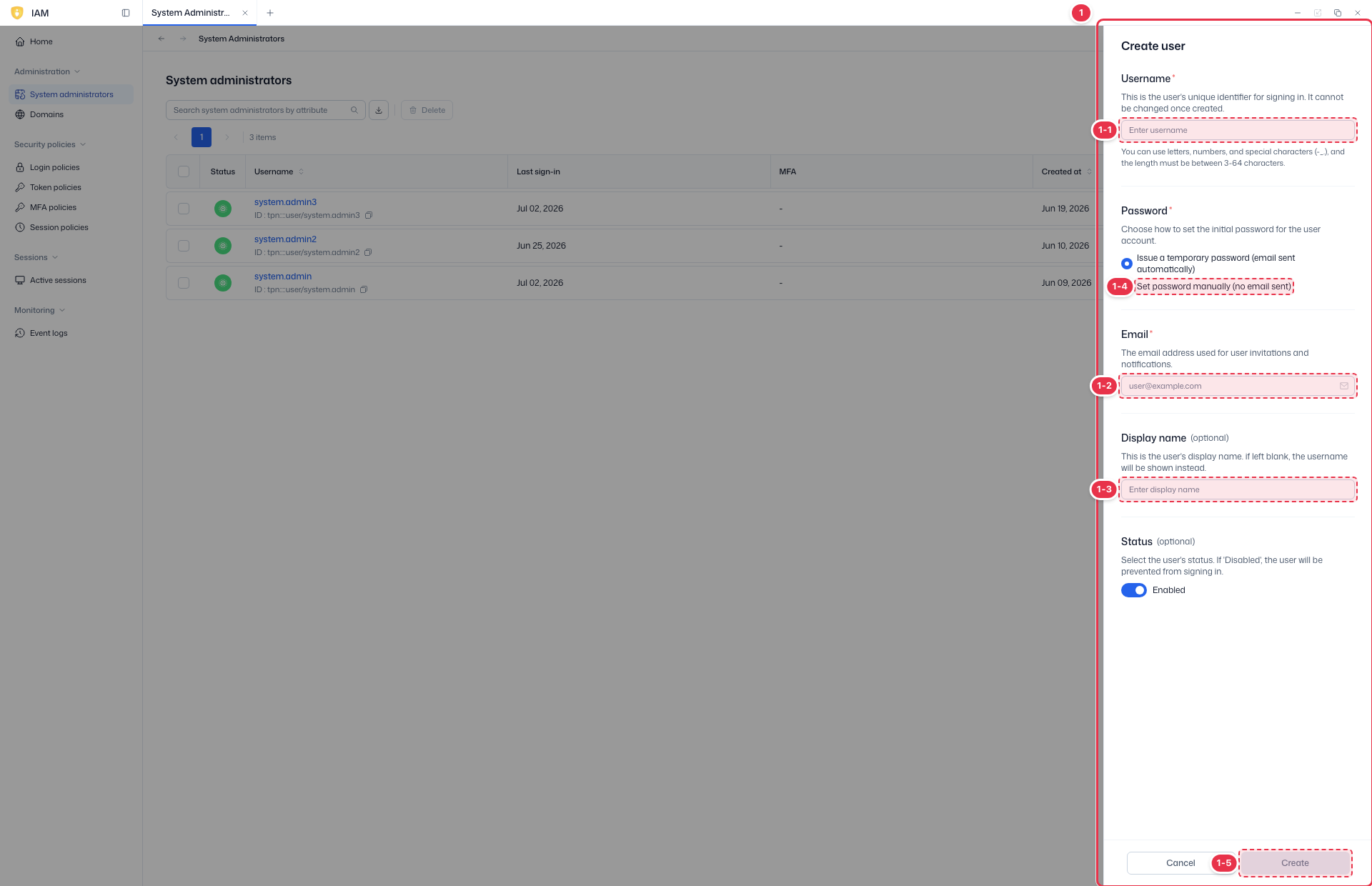
| No. | Feature | Item | Description |
|---|---|---|---|
| 1-1 | Username | Username | · Login account name. |
| 1-2 | · Email address (for the invitation email). | ||
| 1-3 | Display name | Display name | · Name shown in the UI. |
| 1-4 | Password setup | Set password manually / Enabled | · Set the password manually (no email sent) or set the account as Enabled. |
| 1-5 | Create / Cancel | Create / Cancel | · Create: create. Cancel: close. |
- Password setup: turning on Set password manually sets the password directly without an invitation email (shown only once on creation). Turning it off issues a temporary password by email and forces a new password on first sign-in. Use Enabled to decide whether the account is active on creation.
- Check administrators in the list and remove them with Delete (No. 2-3).
First sign-in · resend invitation
An empty Last sign-in in the list means first sign-in is not complete. You can resend the invitation email to such accounts (a new temporary password is issued); accounts created with a manual password are also eligible for resend.
Next steps
- Domains — manage domains
- Login policies — password/lockout policies