

Manage encryption keys
In Encryption Keys of System Mode KMS, view keys that encrypt internal and platform resources (volumes, kubeconfig, etc.) and rotate, archive, or destroy them.
System Mode only — Requires system administrator (SysAdmin) privileges. No domain-administrator KMS app is provided. Encryption keys for user resources (VM volumes, etc.) are also managed in the system KMS, because the encryption/decryption is performed by the infrastructure.
KMS does not issue keys
KMS is not the source-of-issuance system for security assets. The initial issuance of a key is handled by each app or integrated system; KMS is the management layer for storage, lookup, and state control. Key injection is done primarily by direct backend injection (the required path for initial setup); direct input/auto-generation through the system KMS UI is under review. This console focuses on viewing, rotating, and lifecycle management of stored keys.
Prerequisites
- Signum Engineering Mode (system administrator) access
- The target key must already exist on the platform
Step 1 — Browse the key list
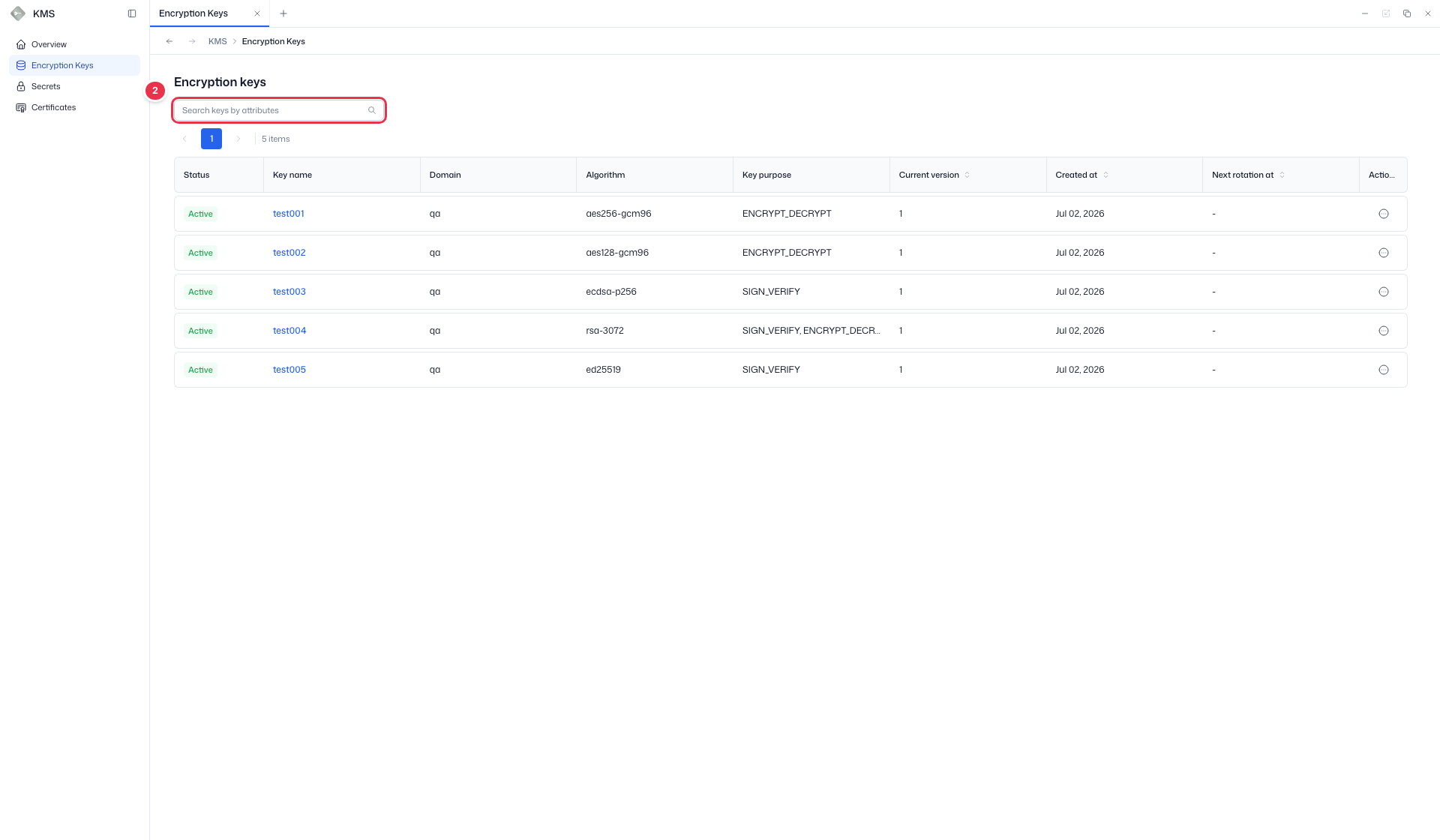
Go to KMS → Encryption Keys. Use the left sidebar (No. 1) to move between the four KMS screens, search (No. 2) for a key, and check status, algorithm, current version, and next rotation date in the list table (No. 3).
The Action menu on the right of each row provides Rotate now / Archive / Restore / Destroy.
1 Sidebar (SNB)
Use the left sidebar to move between the four KMS screens (Overview, Encryption Keys, Secrets, Certificates).
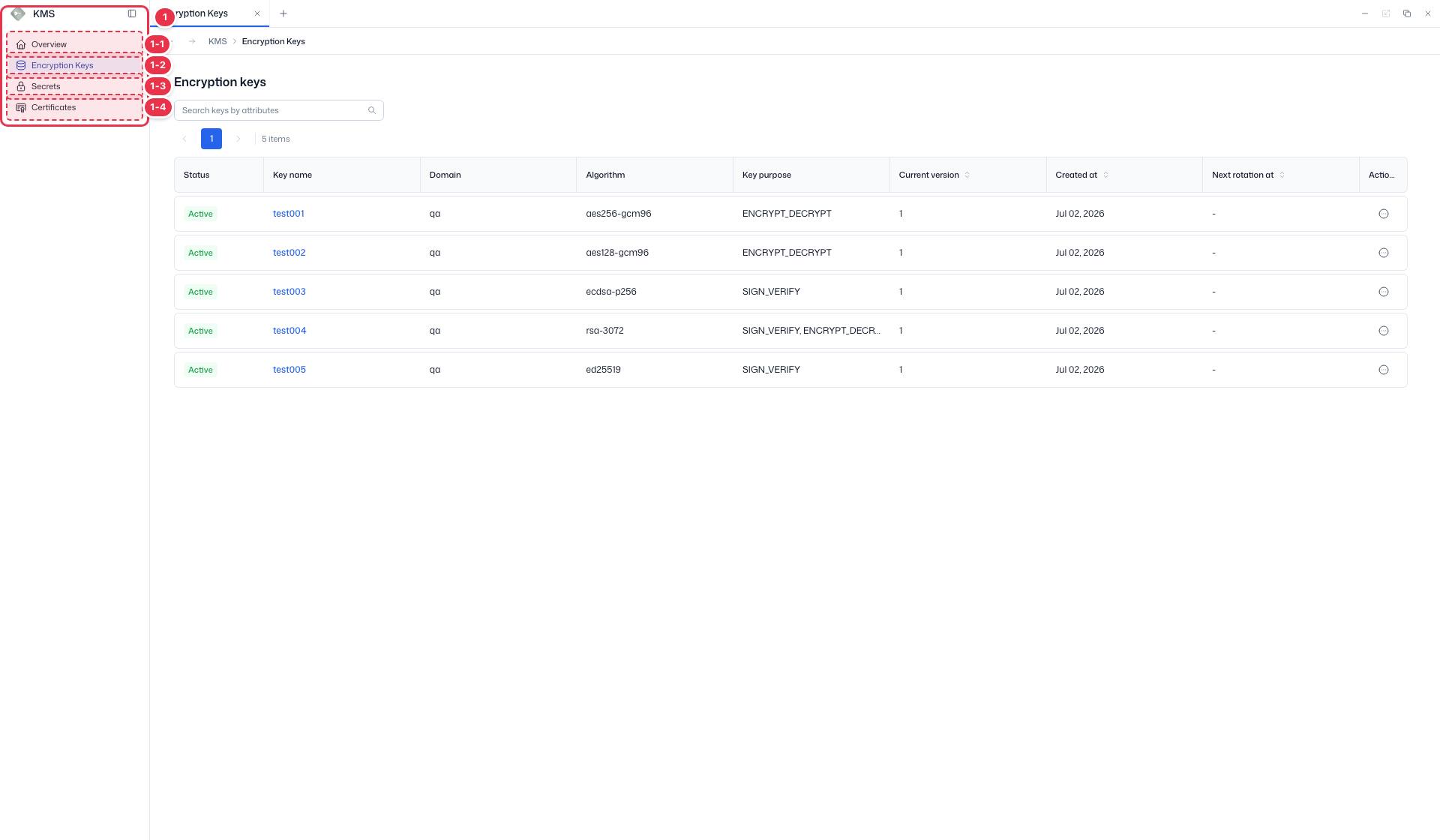
| No. | Feature | Item | Description |
|---|---|---|---|
| 1-1 | Overview | Overview | · Summary dashboard for keys, certificates, and secrets. |
| 1-2 | Encryption keys | Encryption Keys | · Encryption key list — rotate, archive, destroy. |
| 1-3 | Secrets | Secrets | · Manage secret values, versions, and expiration. |
| 1-4 | Certificates | Certificates | · View, renew, and revoke TLS certificates. |
2 Search
Search keys by attributes such as key name, domain, or algorithm.
3 Key list table
List of encryption keys. Click a key name to open its detail page.
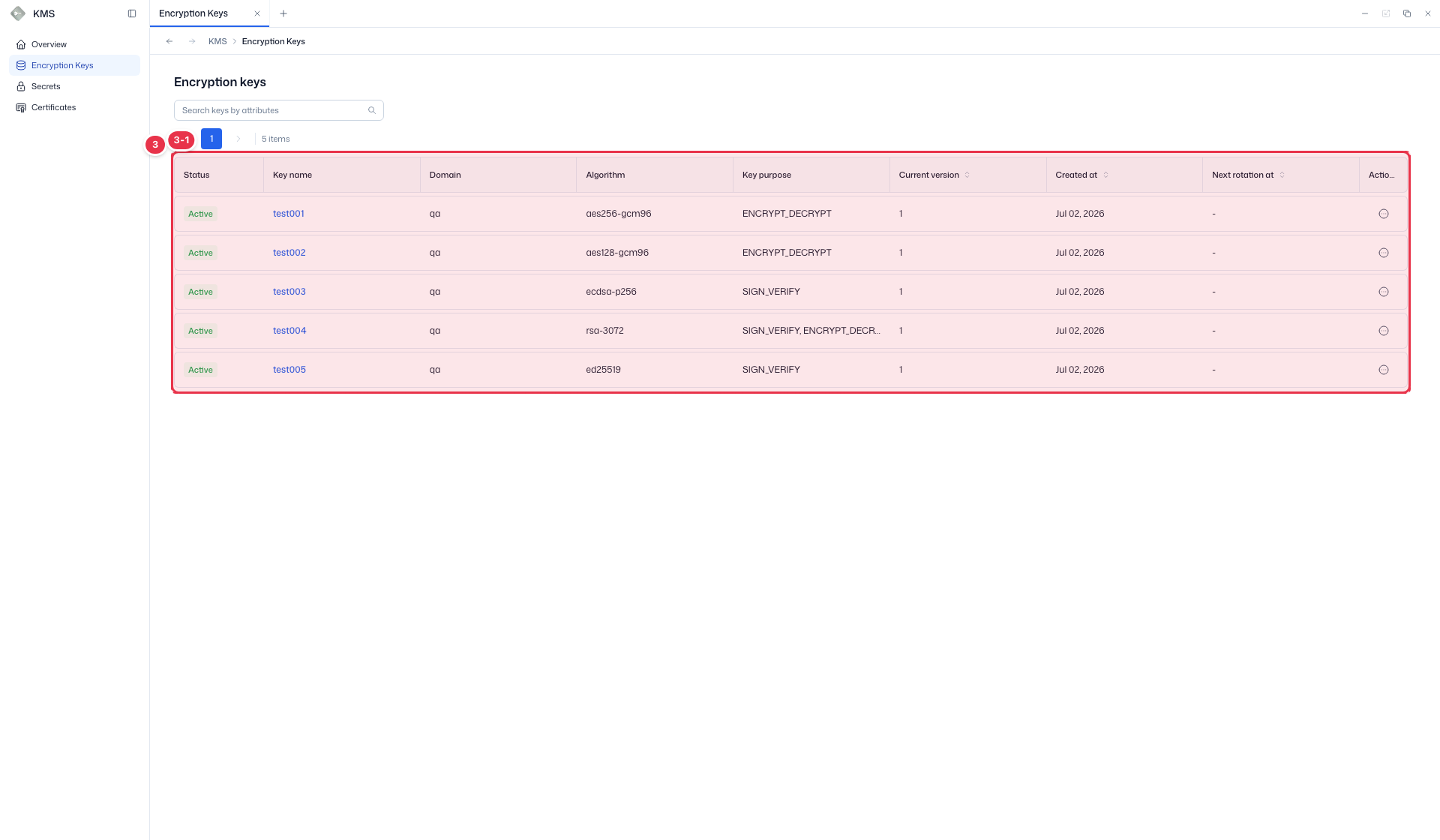
| No. | Feature | Item | Description |
|---|---|---|---|
| 3-1 | Columns | Status | Key status — Active / Archived, etc. |
| Key name | Key name (click to open detail). | ||
| Domain | Domain / keyring the key belongs to. | ||
| Algorithm | Encryption algorithm (e.g. aes256-gcm96). | ||
| Key purpose | Key purpose (e.g. ENCRYPT_DECRYPT). | ||
| Current version | Currently active version number. | ||
| Created at | Creation time. | ||
| Next rotation at | Next scheduled automatic rotation. | ||
| Action | Row menu — Rotate now / Archive / Restore / Destroy. |
Step 2 — Review key details
Click a Key name in the list to open the detail page. The summary card (No. 1) shows domain, status, algorithm, purpose, and current version. Review the rotation settings (No. 2) and rotation history (No. 3) on the Rotation tab. The History tab (No. 4) shows the change history of the key (creation, state transitions, etc.), as opposed to the rotation history.
1 Key summary
Basic information of the selected key (domain, status, algorithm, purpose, current version, creator, created time).
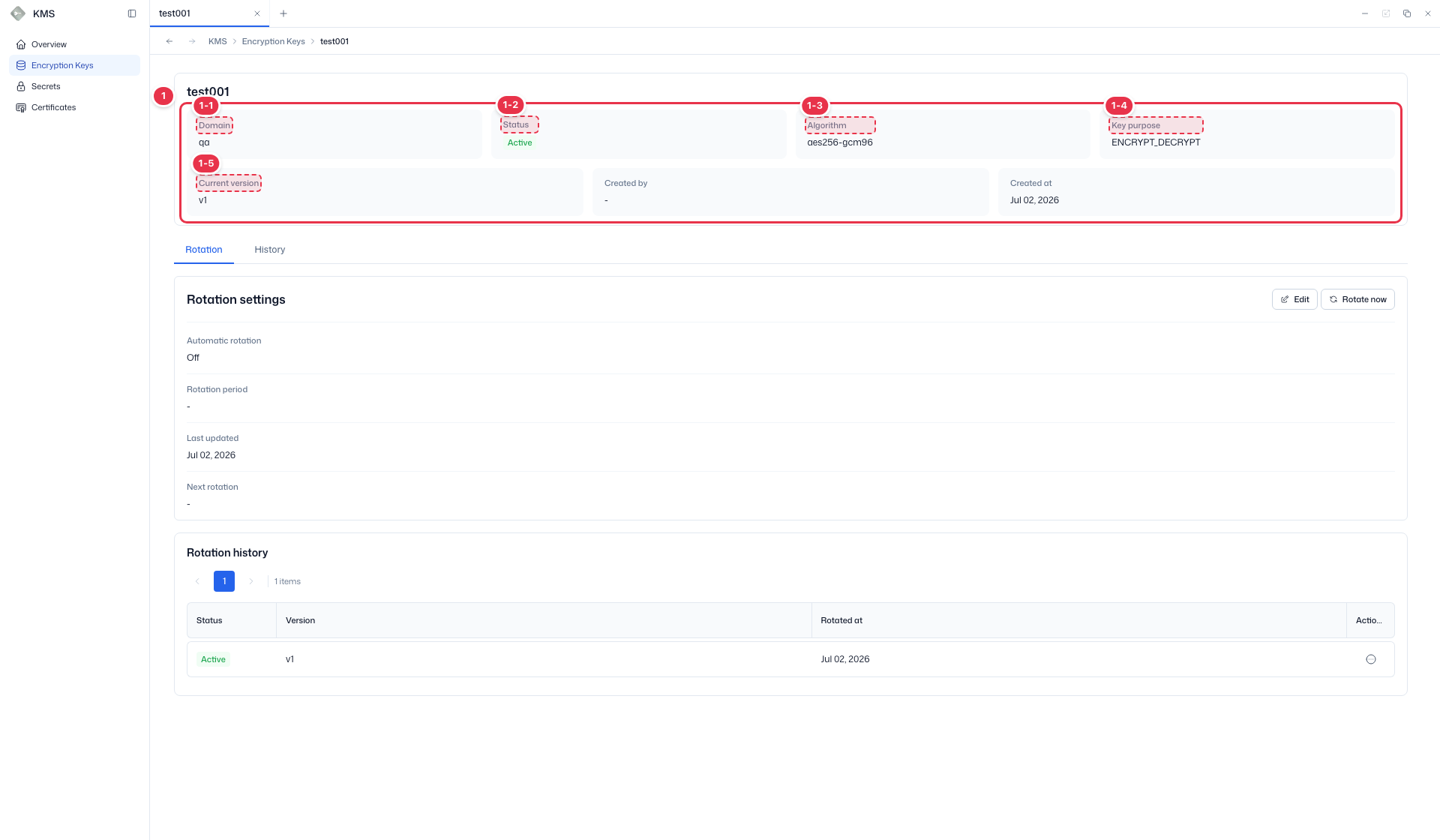
| No. | Feature | Item | Description |
|---|---|---|---|
| 1-1 | Domain | Domain | · Domain / keyring the key belongs to. |
| 1-2 | Status | Status | · Key active status. |
| 1-3 | Algorithm | Algorithm | · Encryption algorithm. |
| 1-4 | Purpose | Key purpose | · Key purpose (e.g. ENCRYPT_DECRYPT). |
| 1-5 | Current version | Current version | · Currently active version. |
2 Rotation settings
Review automatic rotation status and period, rotate immediately, or edit the settings.
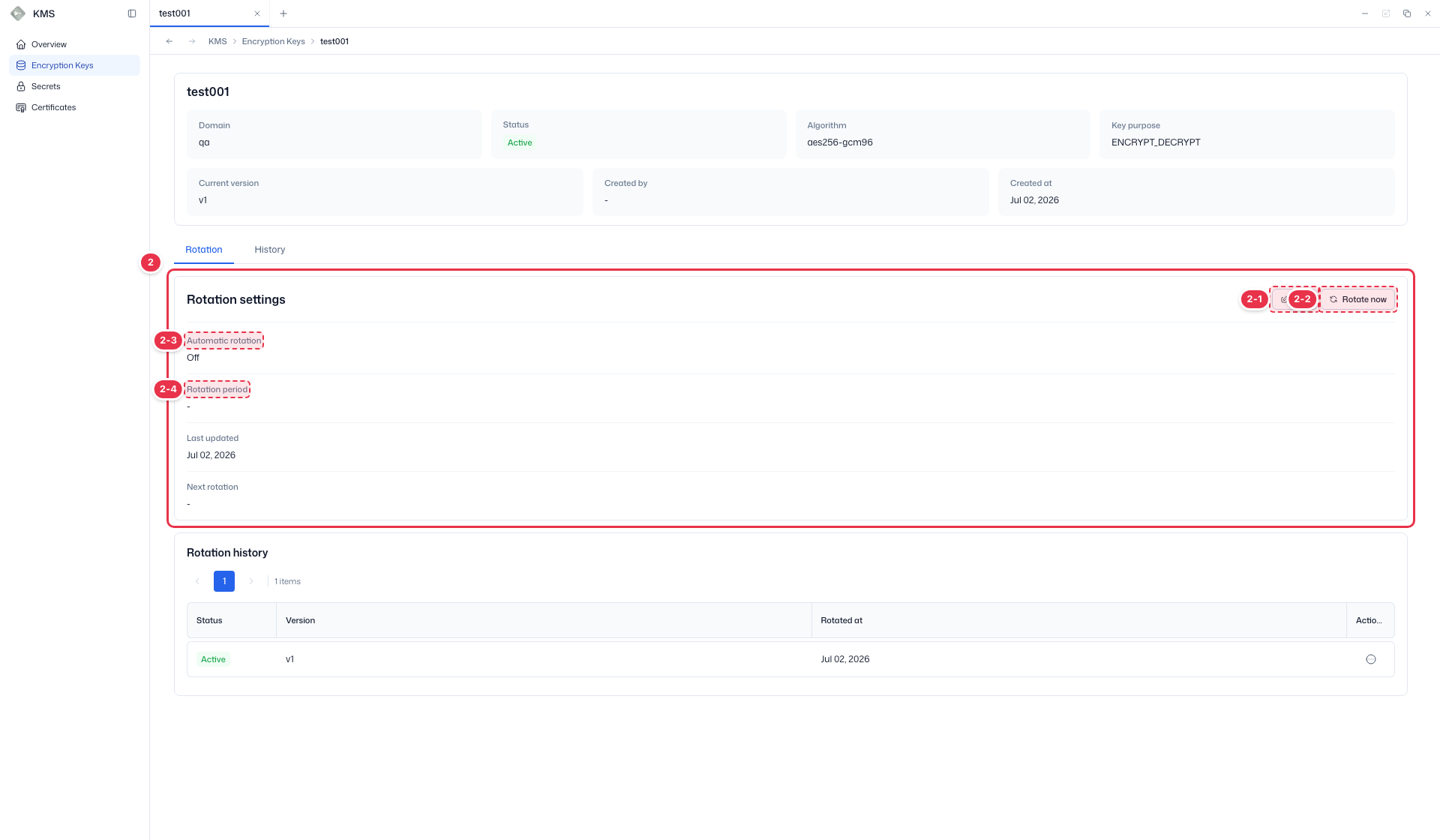
| No. | Feature | Item | Description |
|---|---|---|---|
| 2-1 | Edit settings | Edit | · Opens the drawer to edit automatic rotation and period. |
| 2-2 | Rotate immediately | Rotate now | · Creates a new version immediately. The previous version is kept for decryption. |
| 2-3 | Automatic rotation | Automatic rotation | · Automatic rotation On/Off. |
| 2-4 | Rotation period | Rotation period | · Automatic rotation period (e.g. 90 days) and next rotation date. |
3 Rotation history
Rotation history per version — status and rotation time of each version.
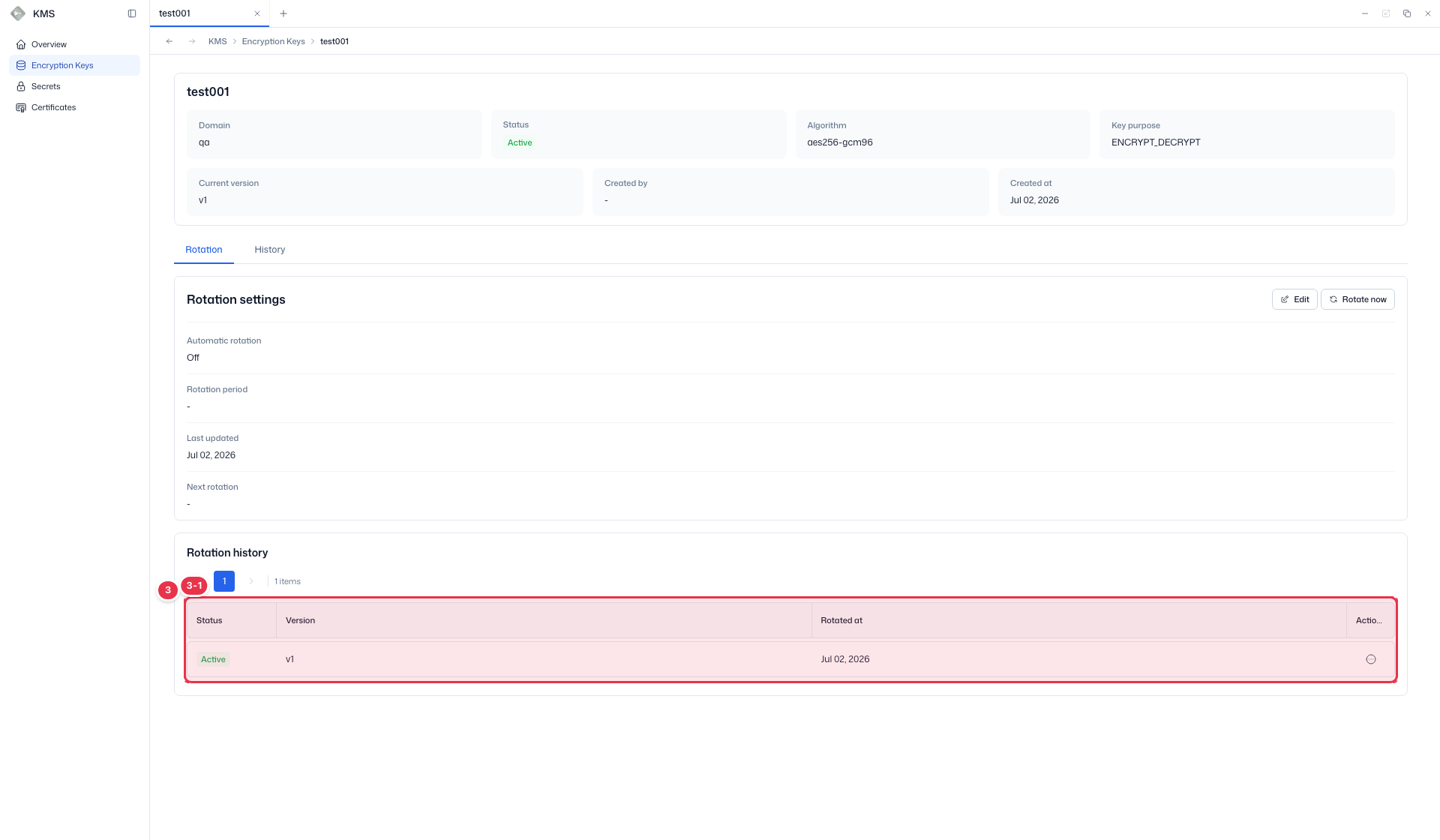
| No. | Feature | Item | Description |
|---|---|---|---|
| 3-1 | Columns | Status | Version status — Active / Deactivated. |
| Version | Key version number. | ||
| Rotated at | Time this version was rotated in. | ||
| Action | Per-version row menu. |
4 Change history (History tab)
View the change history of the key on the History tab. Unlike the rotation history on the Rotation tab, it records change events such as creation and state transitions.
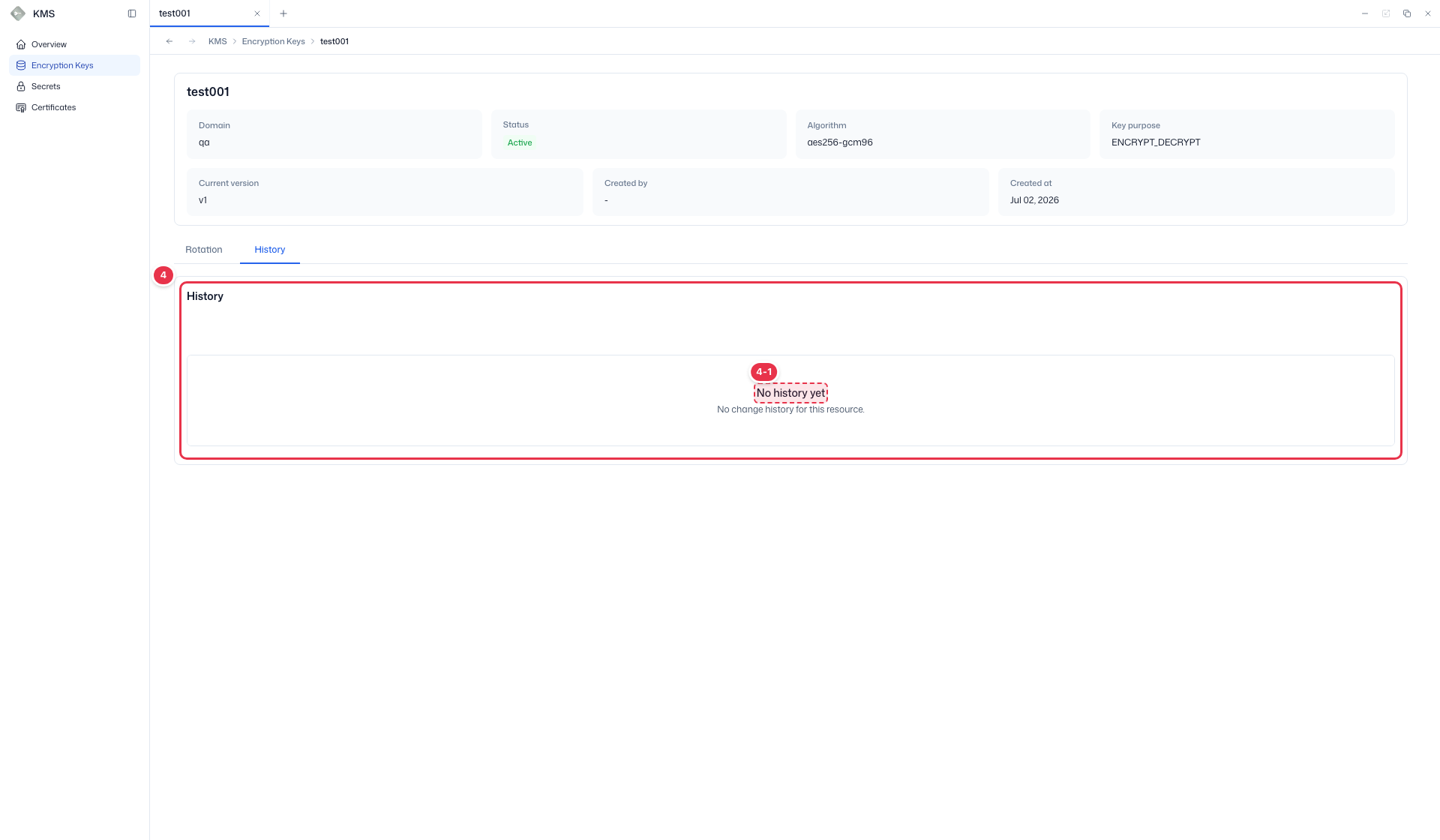
| No. | Feature | Item | Description |
|---|---|---|---|
| 4-1 | Change history | History | · Change events such as key creation and state transitions are recorded. Empty when there is no history yet. |
Step 3 — Edit rotation settings
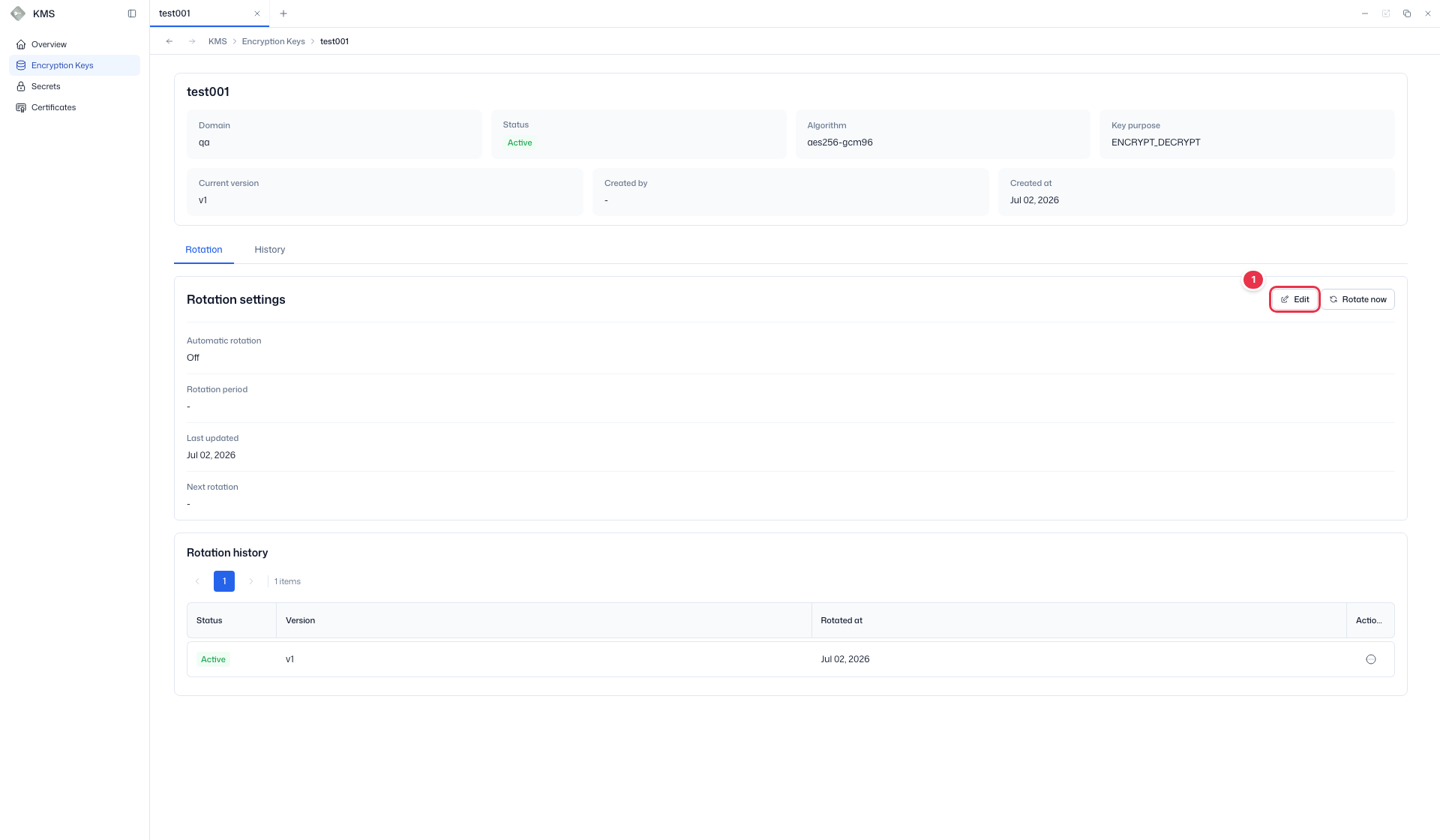
On the Rotation tab of the key detail, click Edit (No. 1) to open the rotation settings drawer (No. 2). Toggle Automatic rotation, set the Rotation period (days), and click Save. Saving recalculates the next rotation date.
For immediate rotation, use Rotate now on the detail. A new version is created immediately and the previous version is kept for decryption.
1 Open edit
Click Edit on the Rotation tab of the key detail.
2 Edit rotation settings drawer
Edit automatic rotation and period. Saving recalculates the next rotation date.
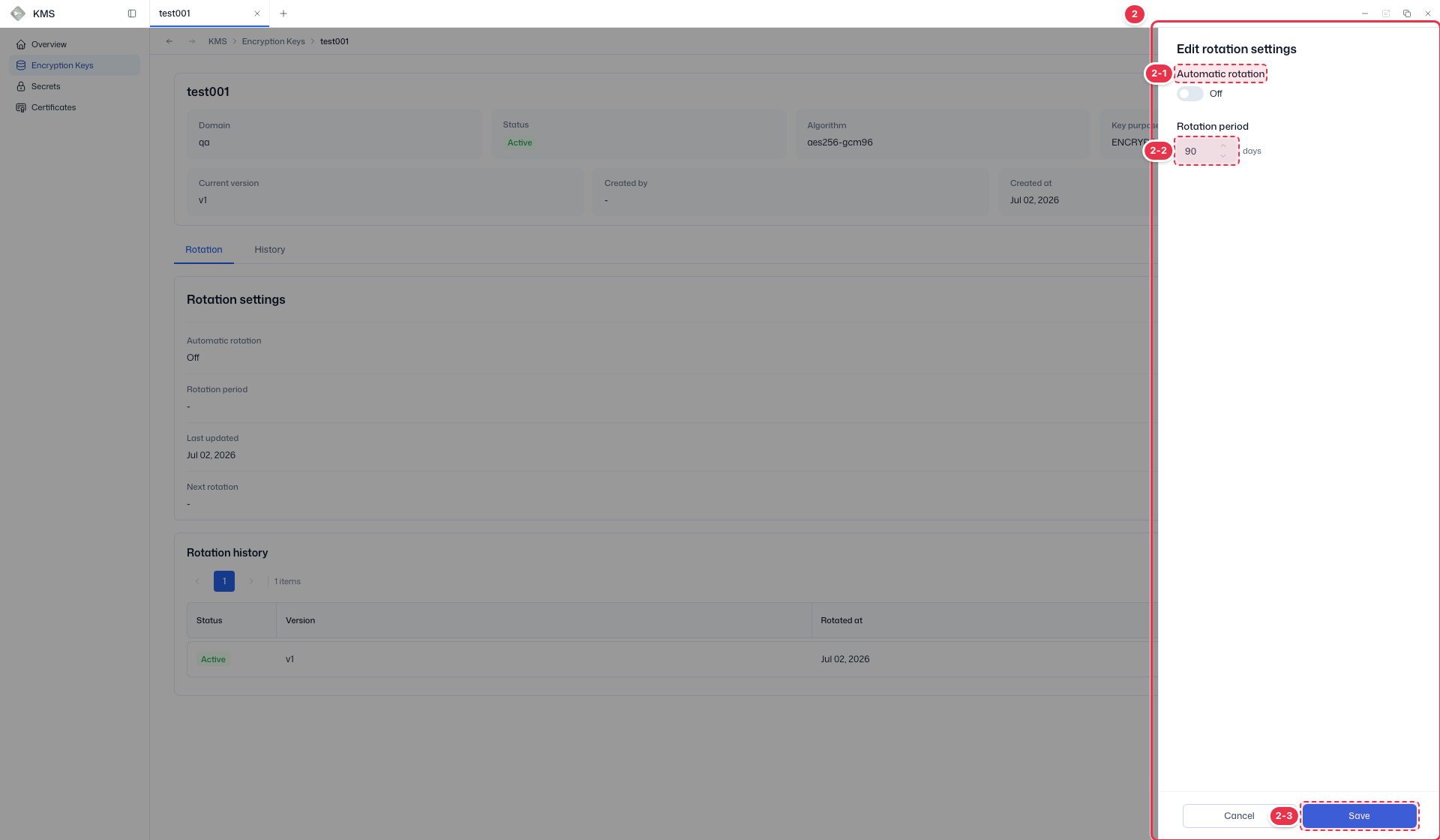
| No. | Feature | Item | Description |
|---|---|---|---|
| 2-1 | Automatic rotation | Automatic rotation | · Toggle automatic rotation on/off. |
| 2-2 | Rotation period | Rotation period | · Automatic rotation period (days). |
| 2-3 | Save / Cancel | Save / Cancel | · Save: store settings. Cancel: close. |
WARNING
Destroy permanently destroys a key. Data encrypted with a destroyed key cannot be decrypted. Always verify usage before destroying.
Key state model
Encryption key state is managed independently per version. Within a single key (UUID), at most one version is Active; when rotated, the new version becomes Active and the previous version automatically becomes Deactivated.
| State | Encrypt | Decrypt | Description |
|---|---|---|---|
| Active | O | O | Currently used version |
| Deactivated | X | O | Previous version replaced by rotation. Read kept for decrypting existing data |
| Archived | X | X | Archived (soft-delete). Both encrypt and decrypt blocked |
| Destroyed | X | X | Permanently deleted (unrecoverable) |
The row Action menu maps to these state transitions.
| Action | Transition | Description |
|---|---|---|
| Rotate now | Active → Deactivated (+ new Active) | Create a new version to rotate |
| Archive | Active/Deactivated → Archived | Archive. A suspected-compromise key can be archived directly from Active to block encrypt/decrypt (emergency response) |
| Restore | Archived → Deactivated | Unarchive. Issuing a new key is preferred over reuse |
| Destroy | → Destroyed | Permanent destruction |
Confirmation
State changes such as Archive, Restore, and Destroy require confirmation and a reason, and every transition is recorded in the audit log.
Verify the result
- Rotation setting changes are reflected in the detail's Rotation settings and the list's Next rotation at.
- Rotating adds a new version to the Rotation history and increments Current version.