

Delivery settings
The screen for managing delivery rules that decide which channel and recipients an alert is sent to.
- Path: Alert › Alerts › Delivery settings
Alert rules (Alert Rule) are predefined and provided by the product; you cannot create or edit them. You only create, edit, and delete delivery rules (Delivery Rule) based on the provided alert rules. When an alert fires, it is sent to every enabled delivery rule that matches, with no priority between rules.
Sidebar (SNB)
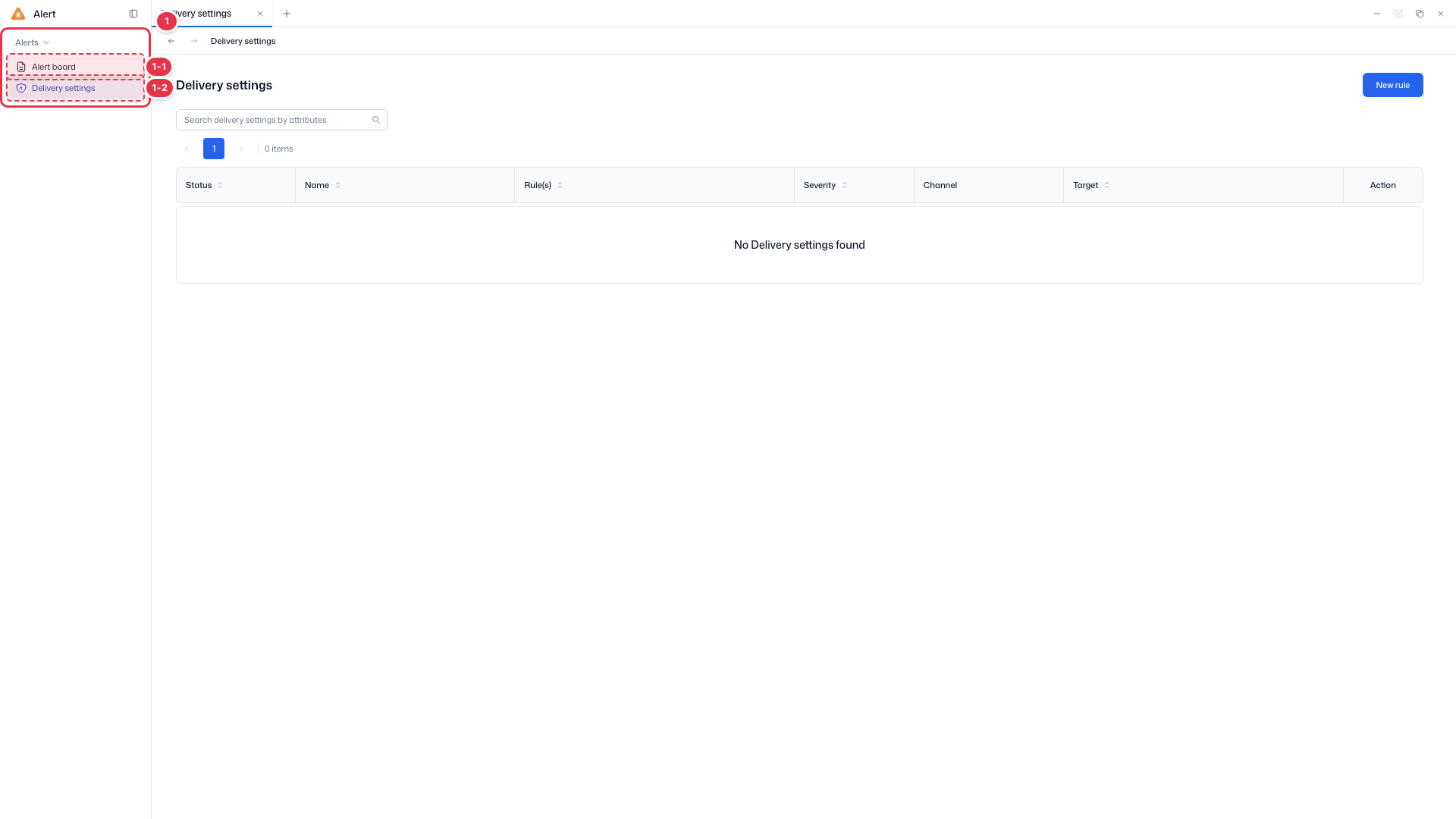
From the Alerts group in the left sidebar, move to Alert board (alert list) or Delivery settings (delivery rules).
| No. | Feature | Item | Description |
|---|---|---|---|
| 1-1 | Alert board | Alert board | · Review, check, and resolve fired alerts (Alert status board). |
| 1-2 | Delivery settings | Delivery settings | · Manage delivery rules that decide which channel and recipients an alert is sent to. |
Search · Create
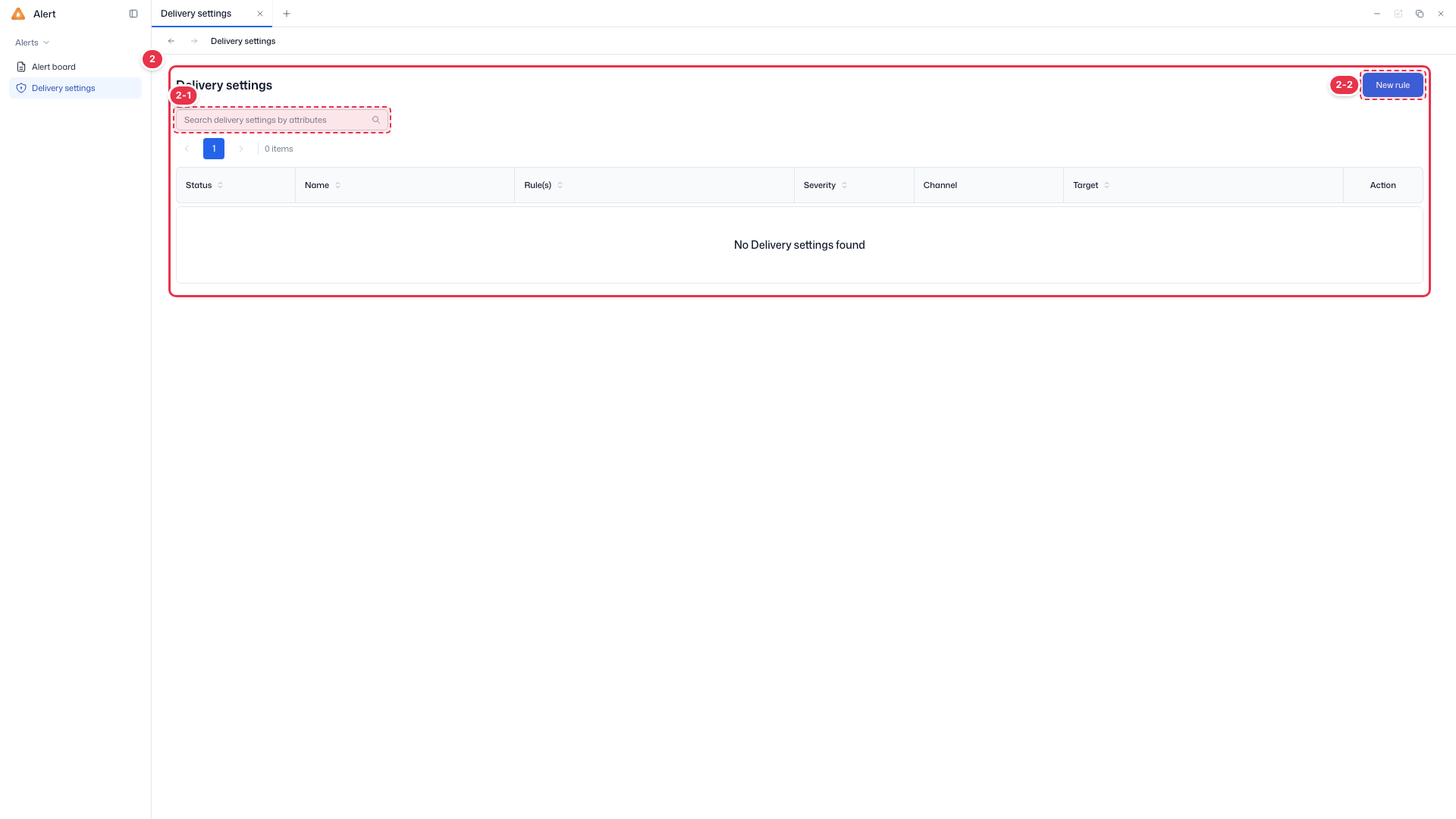
Search delivery rules or create a new one.
| No. | Feature | Item | Description |
|---|---|---|---|
| 2-1 | Search | Search | · Search by name, channel, etc. |
| 2-2 | Create | New rule | · Open the new delivery rule drawer. |
List table
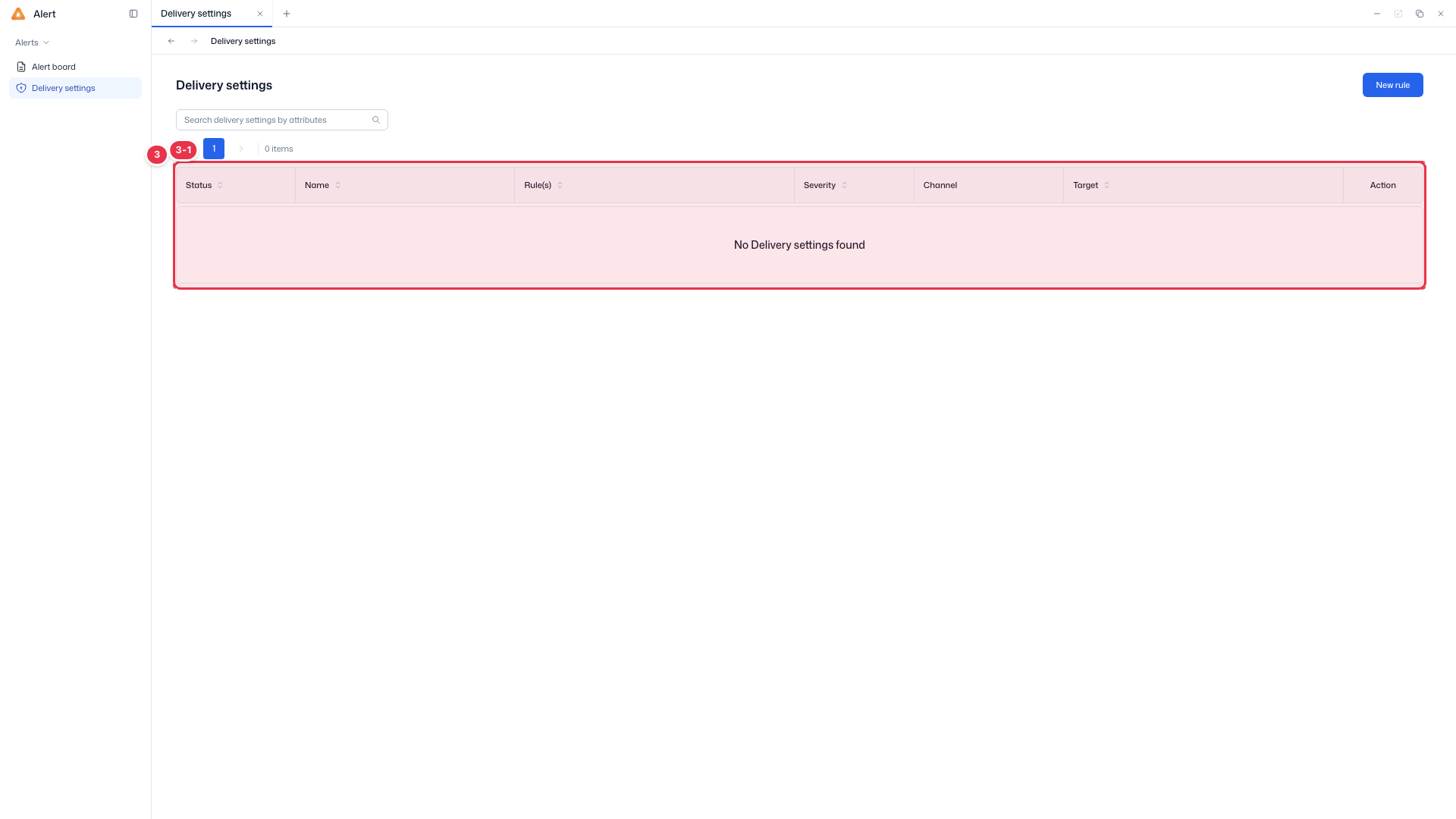
List of registered delivery rules (read-only).
| No. | Feature | Item | Description |
|---|---|---|---|
| 3-1 | Columns | Status | Whether the rule is enabled. |
| Name | Rule name. | ||
| Rule(s) | Matched alert rules. | ||
| Severity | Applied severity. | ||
| Channel | Delivery channel (Notification Center, Email, Slack, etc.). | ||
| Target | Recipients (users, groups). | ||
| Action | Per-row edit/delete menu. |
For each row, Status shows whether it is enabled (Enabled · Disabled) and Action provides Edit and Delete. Delivery rule names must be unique.
Creating a delivery rule
Click New rule (No. 2-2) to open the New delivery rule drawer and define the rule.
Create drawer (New delivery rule)
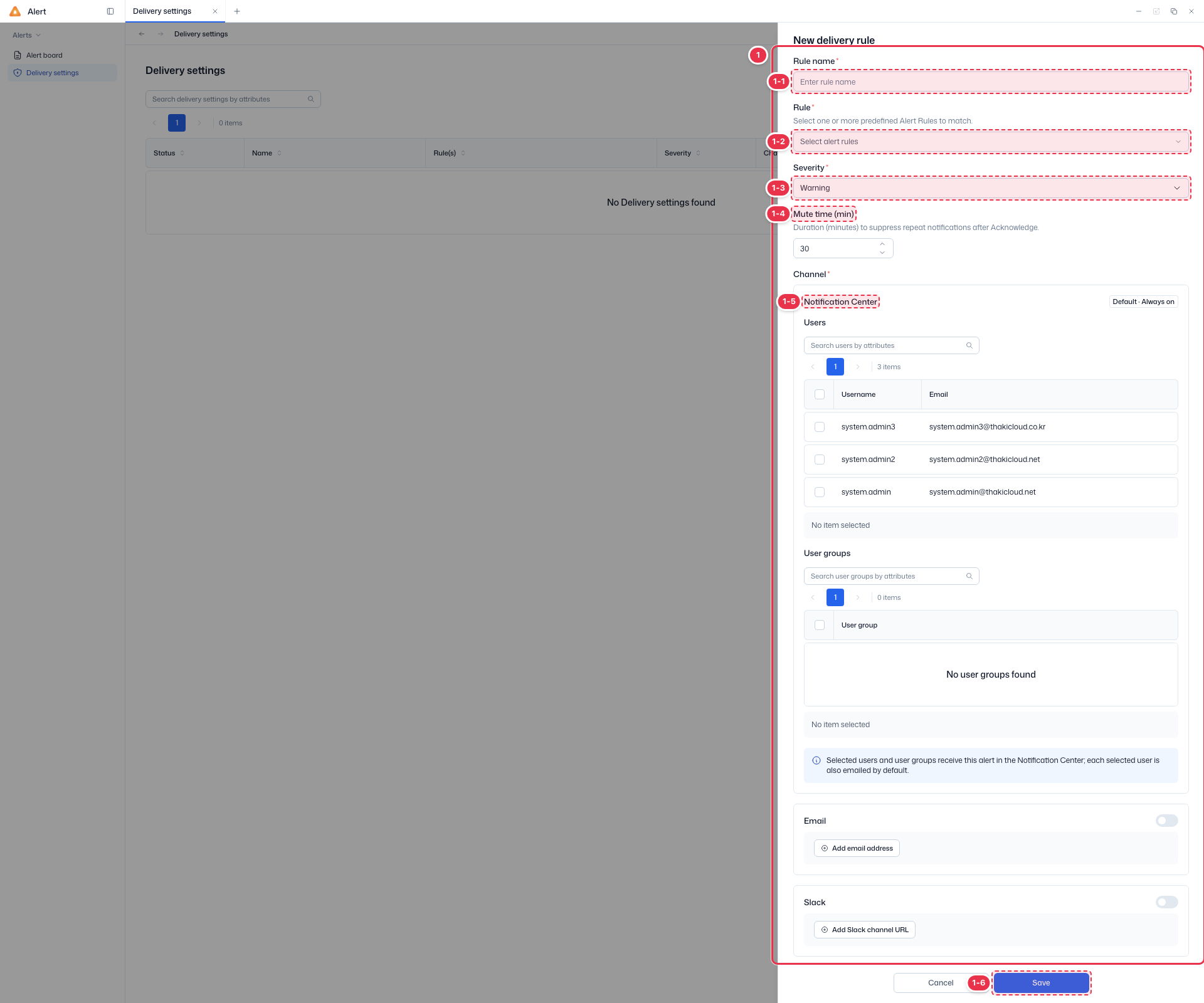
Opened by New rule. Define which alert (Rule), at which severity, and to whom (Channel) the notification is delivered.
| No. | Feature | Item | Description |
|---|---|---|---|
| 1-1 | Name | Rule name * | · Delivery rule name. |
| 1-2 | Target rules | Rule * | · Select one or more alert rules to match. |
| 1-3 | Severity | Severity * | · Severity this rule applies to (default Warning). |
| 1-4 | Mute time | Mute time (min) * | · Minutes to suppress repeat notifications after Acknowledge (default 30). |
| 1-5 | Channel | Channel * | · Notification Center (always on), Email (Add email address), Slack (Add Slack channel URL). Select Users and User groups as recipients. |
| 1-6 | Save / Cancel | Save / Cancel | · Save: create the rule. Cancel: close. |
Channels · recipients
- Notification Center — the default channel (always on). Select Users and User groups as recipients. Selected users and groups receive the alert in the Notification Center and are also emailed by default.
- Email — add recipient email addresses directly with Add email address. If an entered email matches a system user, it is mapped automatically.
- Slack — add a Slack channel Webhook URL with Add Slack channel URL.
Mute time (repeat notifications)
While an alert stays Firing and is neither acknowledged nor resolved, it is re-sent to the same channel at the configured interval (default 30 min). Acknowledging it stops repeat notifications immediately, and resolving it ends them. The interval applies per delivery rule; per-channel intervals are not supported.
Deleting a delivery rule
Click Delete in a row's Action to remove the rule after confirmation. A deleted rule no longer applies to future alerts.
Next steps
- Alert board — review fired alerts
- Alert detail — check delivery history