

Images (Admin)
Administrators can manage shared images across tenants.
Sidebar (SNB)
The Compute group in the left sidebar of Compute Admin. It manages the resources of all tenants in one place, and clicking an item opens that resource screen.
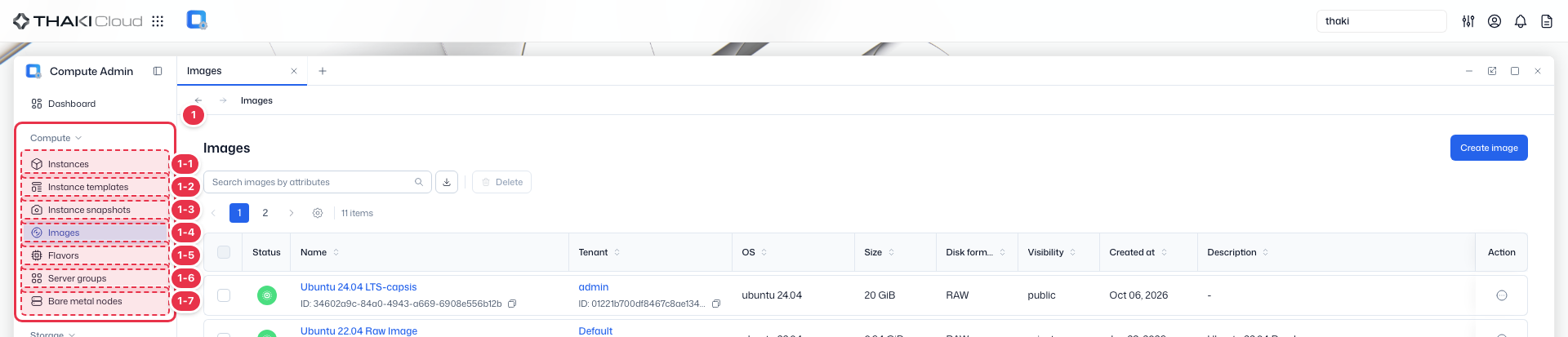
| No. | Feature | Item | Description |
|---|---|---|---|
| 1-1 | Compute | Instances | · Lists and operates the instances (VMs and bare metal) of all tenants in one place. |
| 1-2 | Compute | Instance Templates | · Manages instance creation templates across tenants. |
| 1-3 | Compute | Instance Snapshots | · Lists and manages instance snapshots (images). |
| 1-4 | Compute | Images | · Manages the OS images used to create instances. |
| 1-5 | Compute | Flavors | · Defines and manages the vCPU, memory, and disk specifications (flavors). |
| 1-6 | Compute | Server Groups | · Manages groups that apply an instance placement policy (affinity/anti-affinity). |
| 1-7 | Compute | Bare Metal nodes | · Manages the inventory and status of bare metal physical nodes. |
Title header
The content header that shows the title of the current screen (Images).

Search · Toolbar
The area for searching the list, exporting to CSV, and running bulk actions on the selected items. An administrator works on the resources of all tenants without selecting a tenant.

| No. | Feature | Item | Description |
|---|---|---|---|
| 3-1 | Search | Attribute search field | · Filters the list by attributes such as name, ID, tenant, and status. |
| 3-2 | Export | Download CSV | · Exports the current list as a CSV file. |
| 3-3 | Bulk action | Delete | · Deletes the selected items (a confirmation modal appears). |
Create image
Opens the screen for creating and uploading a new image.

List
A table that shows the OS images of all tenants and the public OS images with their status, owning tenant, OS, format, and visibility.
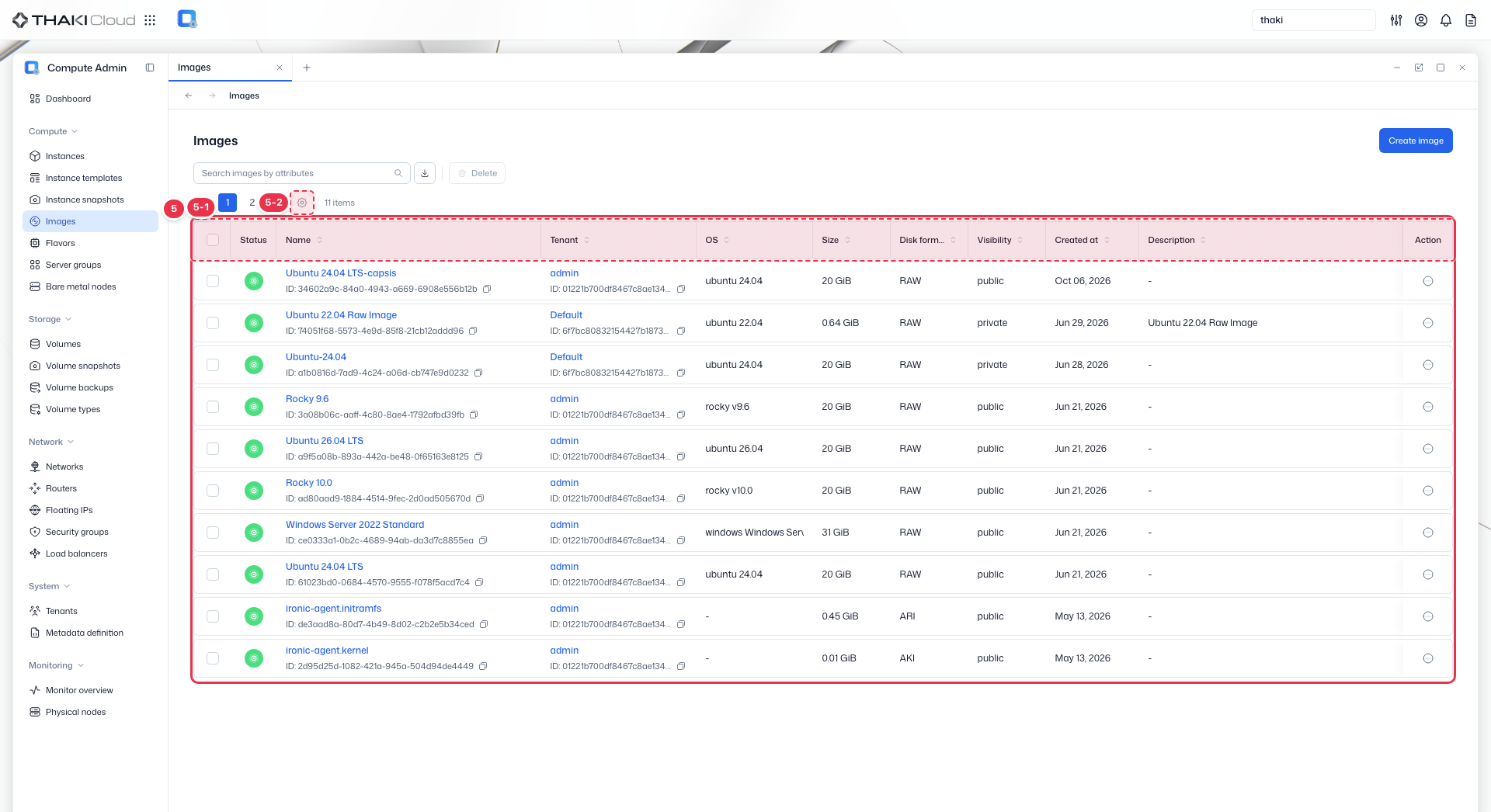
| No. | Feature | Item | Description |
|---|---|---|---|
| 5-1 | List columns | Status | The image status. |
| Name | The image name and ID. | ||
| Tenant | The owning tenant. | ||
| OS | The operating system (for example, ubuntu 24.04). | ||
| Size | The image size. | ||
| Disk format | The disk format (RAW, QCOW2, ARI, AKI, and so on). | ||
| Visibility | The visibility (public/private). | ||
| Created at | The creation date and time. | ||
| Description | The image description. | ||
| Action | The row menu: Edit, Manage metadata, Manage access, Delete. | ||
| 5-2 | View settings | View preferences button | · Opens the View Preferences drawer, where you choose which columns to show. |
Key features
- Cross-tenant view: View and manage images across all projects
- Search and filter: Find images by name, ID, or visibility
- Access control: Manage image sharing between projects
- Metadata: Configure image properties and metadata definitions
Available actions
Above the list are the Create image button and the bulk button Delete. Delete becomes active when you select rows. The actions below run from each row's Action menu.
| Action | Description |
|---|---|
| Edit | Update image name and properties |
| Manage metadata | Configure metadata definitions |
| Manage access | Share image with specific projects |
| Delete | Permanently remove image |
Protected images
Delete is disabled for protected images, so they cannot be deleted.