

Dashboard
The dashboard shows the status of the storage resources in your domain and the cluster performance at a glance. It is the first screen you see when you open the Storage Admin app, and you can reopen it at any time from Dashboard in the left sidebar.
Sidebar (SNB)
The left sidebar for navigating to each domain administrator storage screen.
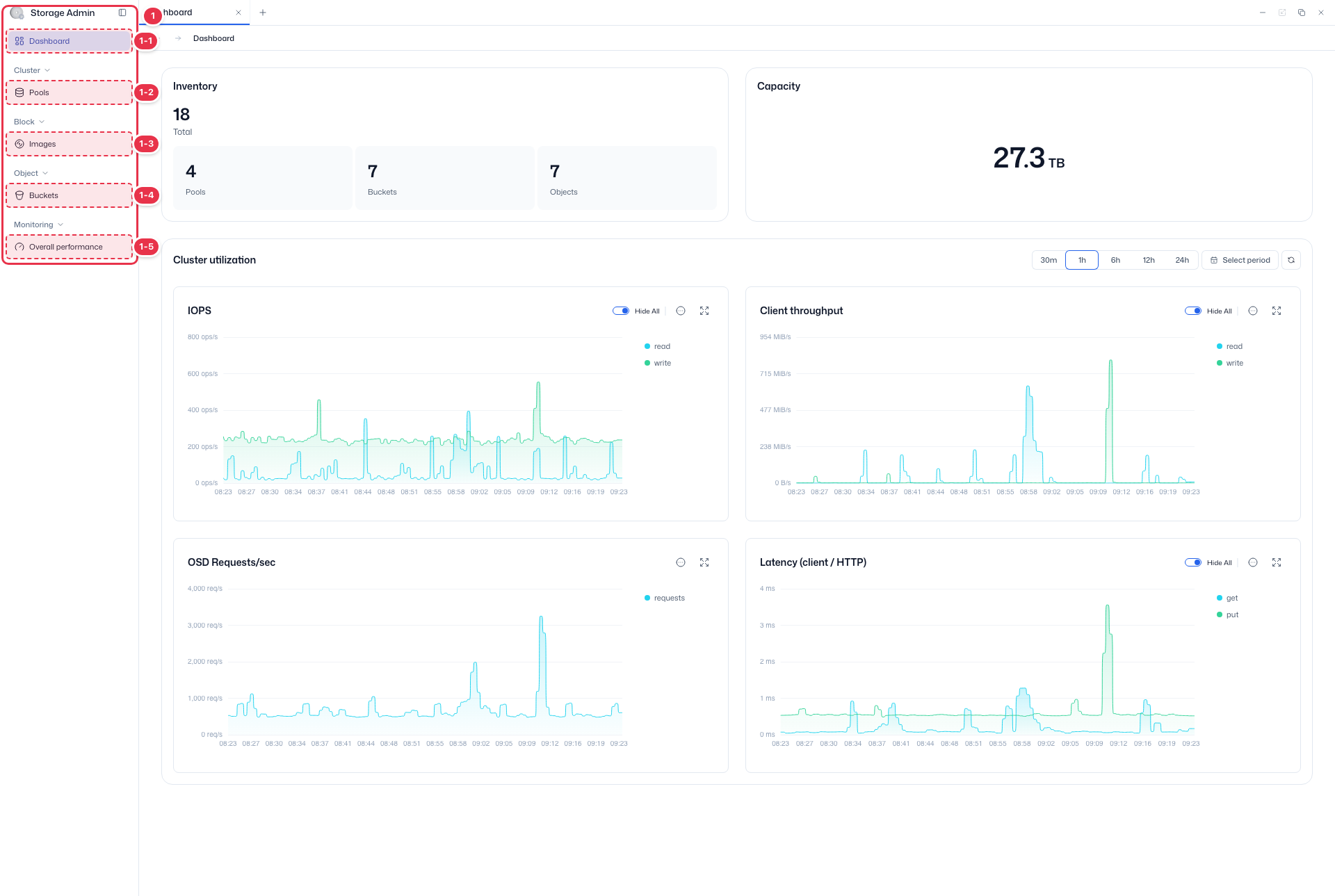
| No. | Feature | Item | Description |
|---|---|---|---|
| 1-1 | Dashboard | Dashboard | · Summarizes the domain's storage status and cluster performance. |
| 1-2 | Pools | Pools | · Lists the storage pools assigned to the domain and shows their performance. |
| 1-3 | Images | Images | · Lists the RBD images in the domain and manages their snapshots and settings. |
| 1-4 | Buckets | Buckets | · Lists all buckets in the domain and lets you create, edit, and delete them. |
| 1-5 | Overall performance | Overall performance | · Monitors the overall performance of pools and images. |
Resource summary
Shows the domain's resource counts (inventory) and used capacity at a glance.
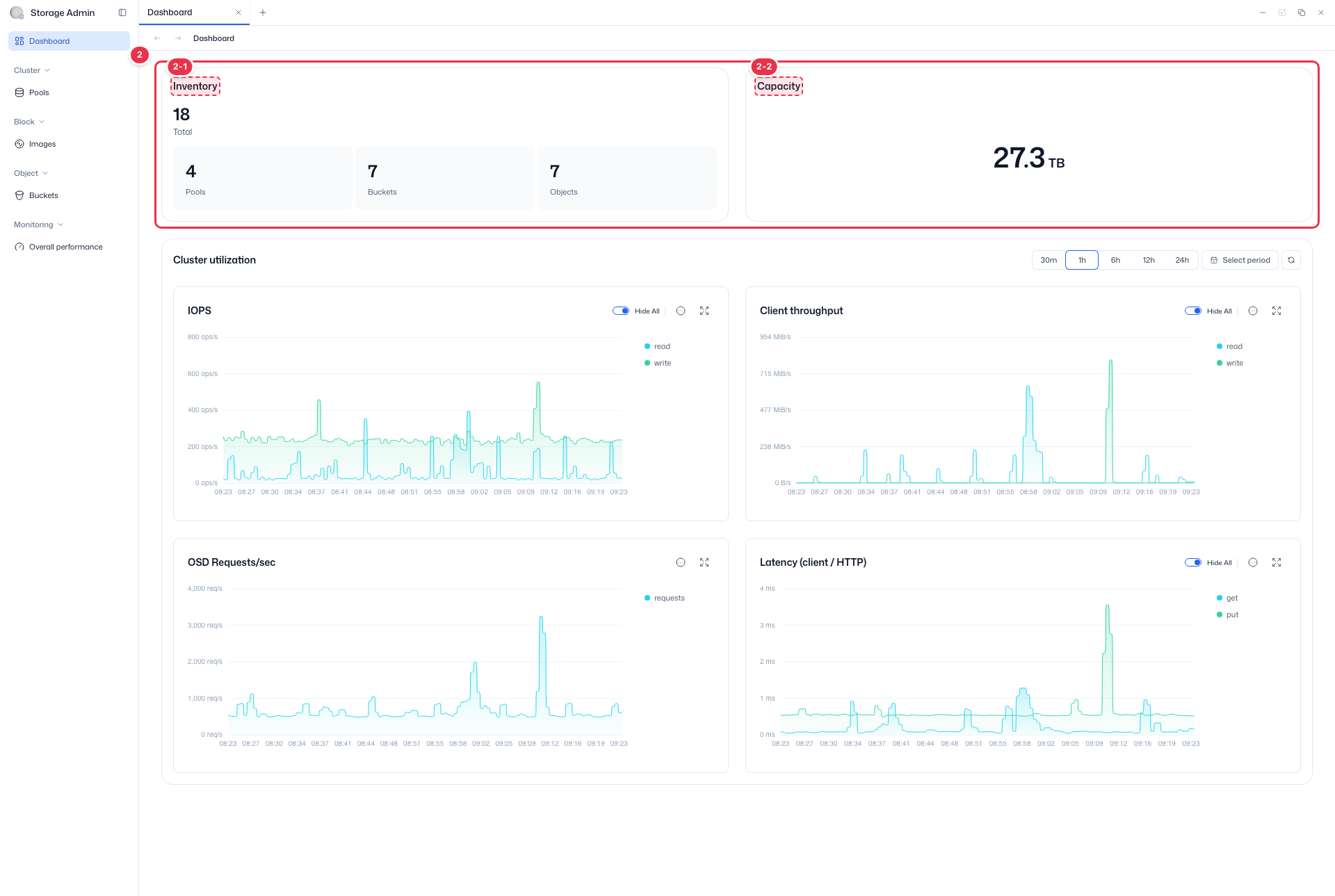
| No. | Feature | Item | Description |
|---|---|---|---|
| 2-1 | Inventory | Inventory | · Shows the total number of pools, buckets, and objects in the domain. Click the pool or bucket count to go to that screen. |
| 2-2 | Used capacity | Capacity | · Shows the total used capacity of the domain's storage. |
Cluster usage
Shows cluster performance metrics for the selected period in several charts.
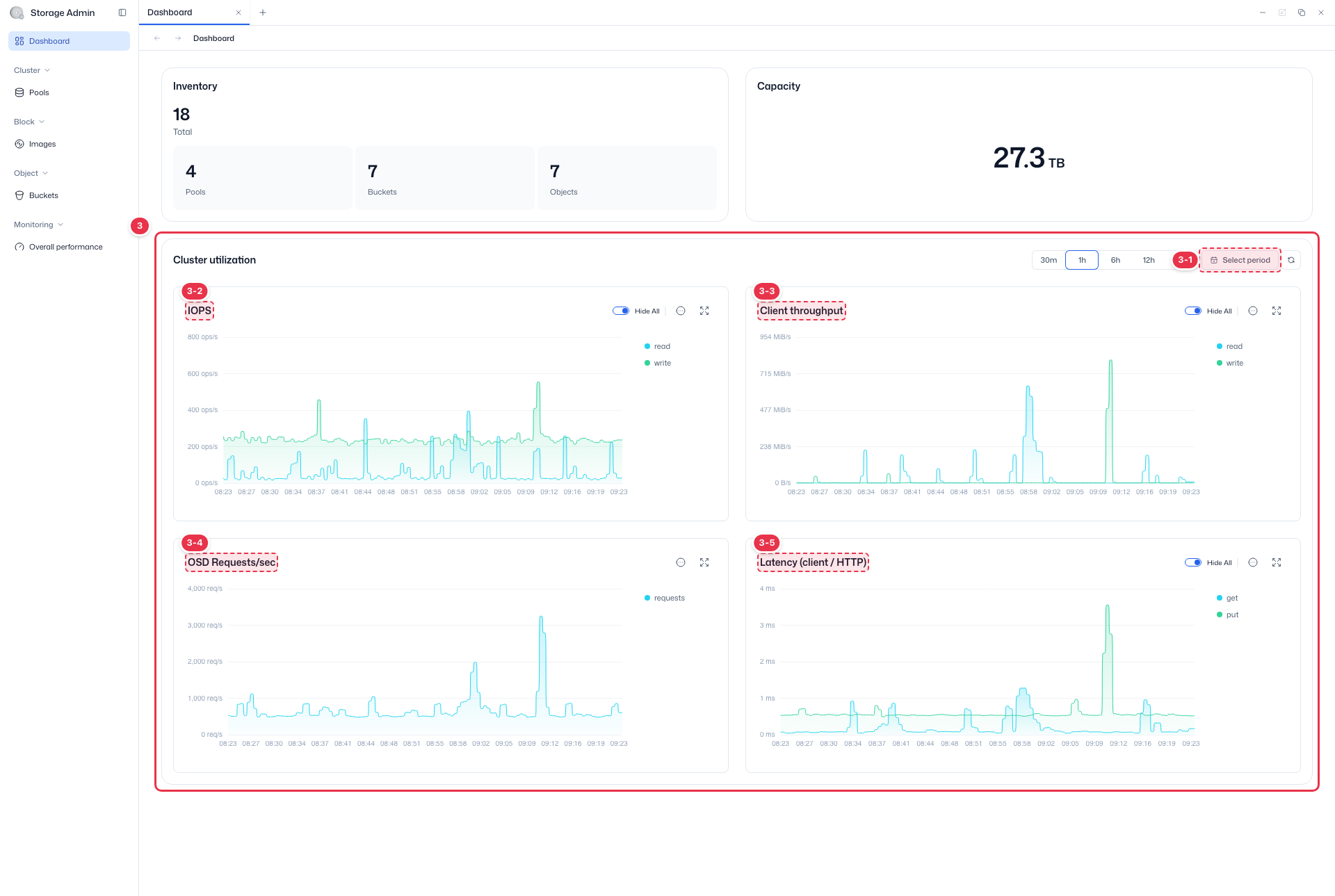
| No. | Feature | Item | Description |
|---|---|---|---|
| 3-1 | Period selection | 30m~24h · Select period | · Choose 30 minutes, 1 hour, 6 hours, 12 hours, or 24 hours, or set a custom period with Select period. |
| 3-2 | IOPS | IOPS | · Shows the trend of client read/write IOPS across the cluster. |
| 3-3 | Client throughput | Client throughput | · Shows the trend of client read/write throughput (bandwidth). |
| 3-4 | Requests per second | OSD Requests/sec | · Shows the trend of requests handled per second (RPS). |
| 3-5 | Latency | Latency (client / HTTP) | · Shows the trend of response latency for get and put requests. |
Cluster utilization charts
Depending on how the environment is configured, additional charts such as OSD Latencies and Recovery Throughput may be displayed besides the four above.
Chart actions
Click the more button (⋯) on a chart to do the following.
| Action | Description |
|---|---|
| Download image | Saves the chart as a PNG image. ({chart name}_{YYYYMMDD}_{HHMM}.png) |
| Download CSV | Exports the time-series data as CSV. ({chart name}_{YYYYMMDD}_{HHMM}.csv) |
| View data | Opens a drawer that shows the chart data as a table. |
Click the expand button (⤢) on a chart to open an enlarged chart modal. Changing the period inside the modal does not affect the original screen.
Next steps
- Pools — Pool management
- Images — Image management
- Buckets — Bucket management
- Overall Performance — Overall performance monitoring