

Dashboard (Admin)
The system administrator dashboard is a screen that lets you grasp the resource status, capacity, and performance of the entire storage cluster at a glance.
- Navigation path: Storage Admin › Dashboard
Sidebar (SNB)
Use the left sidebar to move to each Storage Admin screen (Cluster·Block·File·Object·Monitoring).
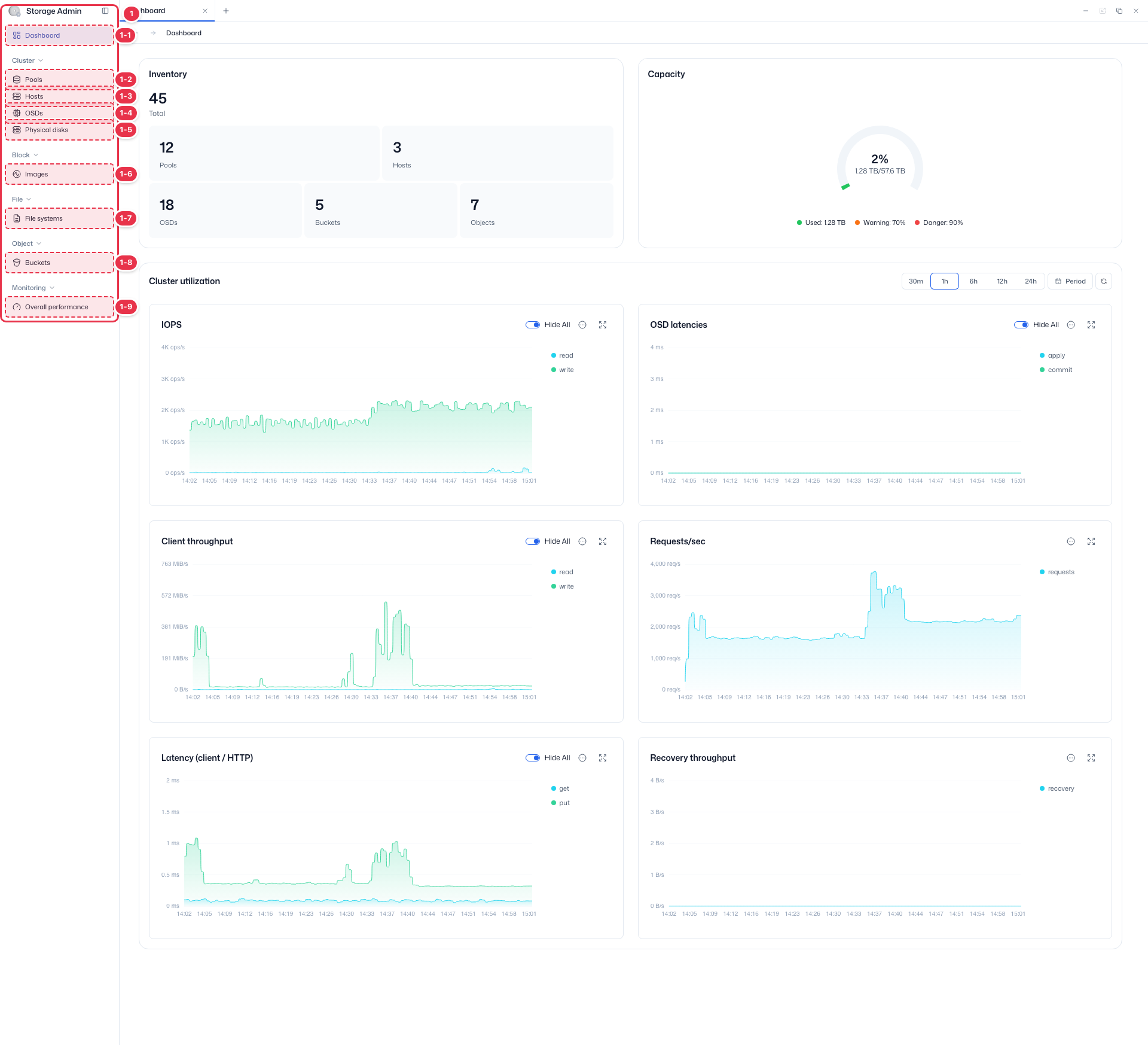
| No. | Feature | Item | Description |
|---|---|---|---|
| 1-1 | Dashboard | Dashboard | · Inventory·Capacity·Cluster utilization summary. |
| 1-2 | Pools | Pools | · View Ceph storage pools·PGs. |
| 1-3 | Hosts | Hosts | · Storage node hardware·OSD configuration. |
| 1-4 | OSDs | OSDs | · Object Storage Daemon status·capacity. |
| 1-5 | Physical disks | Physical disks | · View physical disks·Identify. |
| 1-6 | Images | Images | · RBD block images. |
| 1-7 | File systems | File systems | · CephFS file systems. |
| 1-8 | Buckets | Buckets | · System-wide S3 buckets. |
| 1-9 | Overall performance | Overall performance | · Pools·OSDs·Hosts·Images performance metrics. |
Summary (Inventory · Capacity)
Summarizes cluster resource counts and total capacity at a glance.
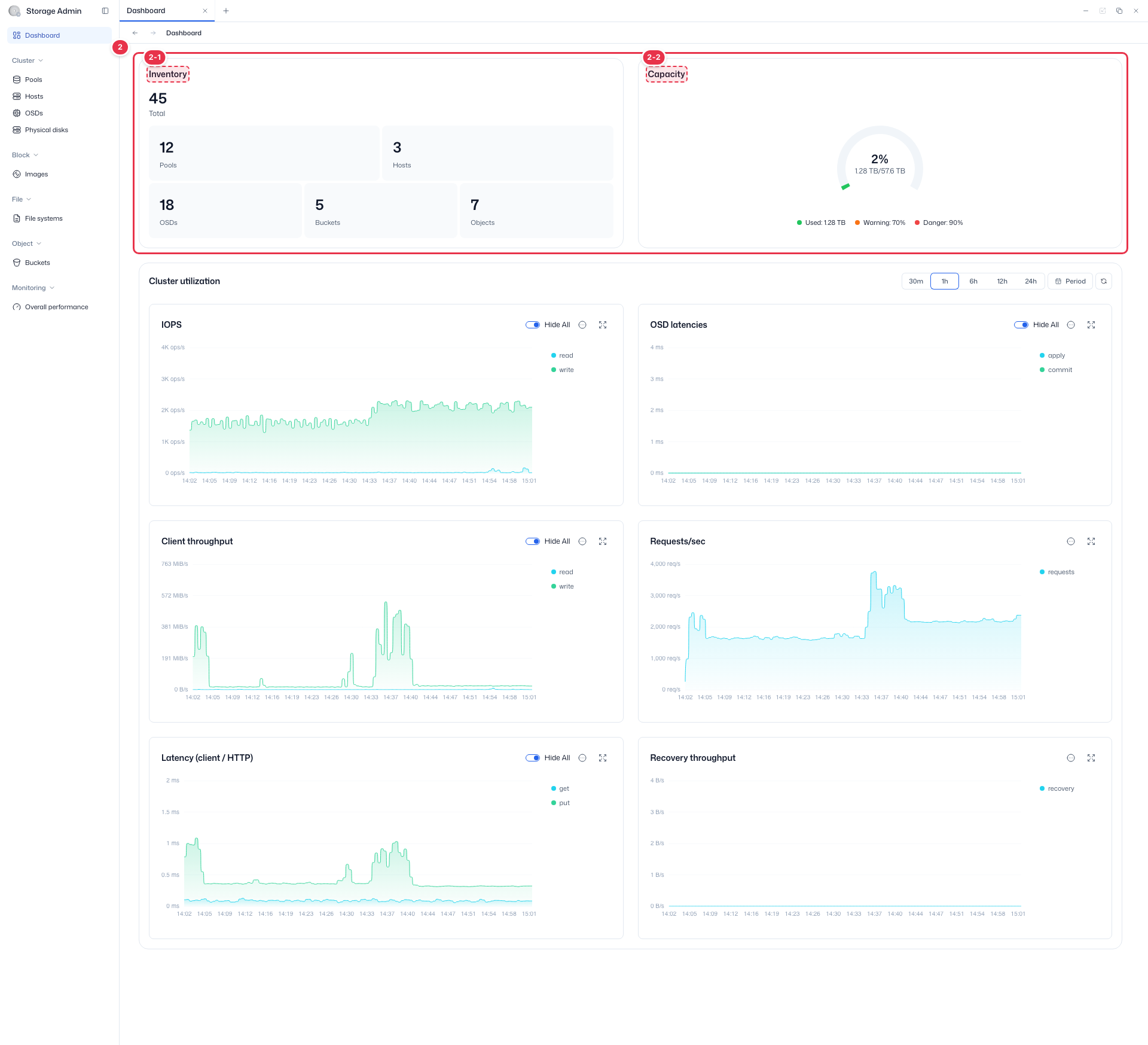
| No. | Feature | Item | Description |
|---|---|---|---|
| 2-1 | Inventory | Inventory | · Total count of Pools·Hosts·OSDs·Buckets·Objects. Click a number to go to that screen. |
| 2-2 | Capacity | Capacity | · Usage against total RAW capacity (gauge). Shows Warning 70%·Danger 90% thresholds. |
Cluster utilization
Shows cluster performance trends over the selected period as charts.
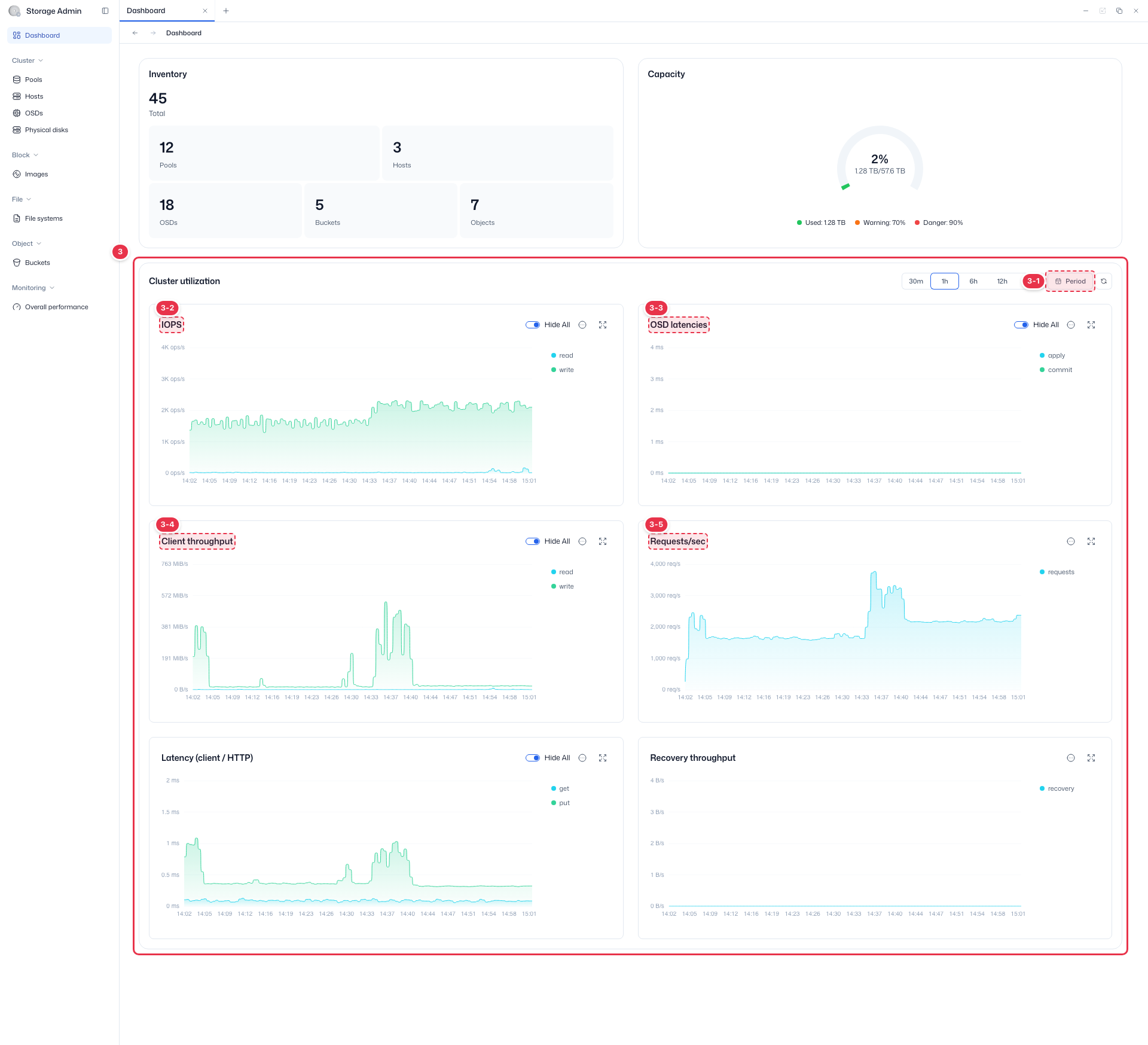
| No. | Feature | Item | Description |
|---|---|---|---|
| 3-1 | Period selection | 30m~24h · Period | · Choose from 30 min·1 hour·6 hours·12 hours·24 hours, or set directly with Period. |
| 3-2 | IOPS | IOPS | · Client read/write IOPS trend. |
| 3-3 | OSD latencies | OSD latencies | · OSD apply/commit latency trend. |
| 3-4 | Client throughput | Client throughput | · Client read/write throughput (bandwidth) trend. |
| 3-5 | Requests/sec | Requests/sec | · Requests per second (RPS) trend. |
Below is a detailed description of each area.
Inventory
Displays the total count of resources in the cluster as cards.
| Item | Description | Target screen |
|---|---|---|
| Pools | Number of storage pools | Pools |
| Hosts | Number of host servers | Hosts |
| OSDs | Number of OSDs | OSDs |
| Buckets | Number of buckets | Buckets |
| Objects | Total number of objects | — |
Clicking each card navigates to the list screen for the corresponding resource.
Capacity
Displays the usage ratio against total RAW capacity as a Usage chart.
| Range | Bounds | Meaning |
|---|---|---|
| Safe | 0–69% | Normal |
| Warning | 70–89% | Capacity caution |
| Danger | 90%+ | Capacity shortage warning |
Warning
When usage exceeds 70% the legend color changes to Warning, and when it exceeds 90% it changes to Danger.
Cluster Utilization
All charts are displayed as time-series line charts. Use the monitoring toolbar at the top to set the data query range for all charts.
| Chart | Description | Series | Unit |
|---|---|---|---|
| OPS | Client IOPS | Reads, Writes | ops/s |
| Client Throughput | Read/write throughput | Reads, Writes | B/s (auto-converted) |
| OSD Latencies | OSD Apply/Commit latency | Apply, Commit | ms |
| Requests/sec | Requests per second | Requests/sec | req/s |
| Recovery Throughput | Recovery and rebalancing throughput | Recovery Throughput | B/s (auto-converted) |
| Latency (Client/HTTP) | Client response latency | GET, PUT | ms |
Chart features
The more (⋮) button on each chart provides the following features.
| Feature | Description |
|---|---|
| Download image | Save the chart as a PNG image (file name: {chart_name}_{YYYYMMDD}_{HHMM}.png) |
| Download CSV | Export the time-series data as CSV (based on the monitoring toolbar time range) |
| View data | Open a drawer that shows the chart data as a table |
Clicking a chart opens an expanded modal, where you can adjust the time range separately.
Next steps
- Pools — Pool list and management
- Overall Performance — Overall performance monitoring