

Buckets
An administrator screen for viewing the S3 bucket status of the entire system (all domains) in System Mode. Creating individual buckets, managing objects, and configuring policies are performed in the domain user's / Domain Admin's Object Storage.
- Navigation path: Storage Admin › Object › Buckets
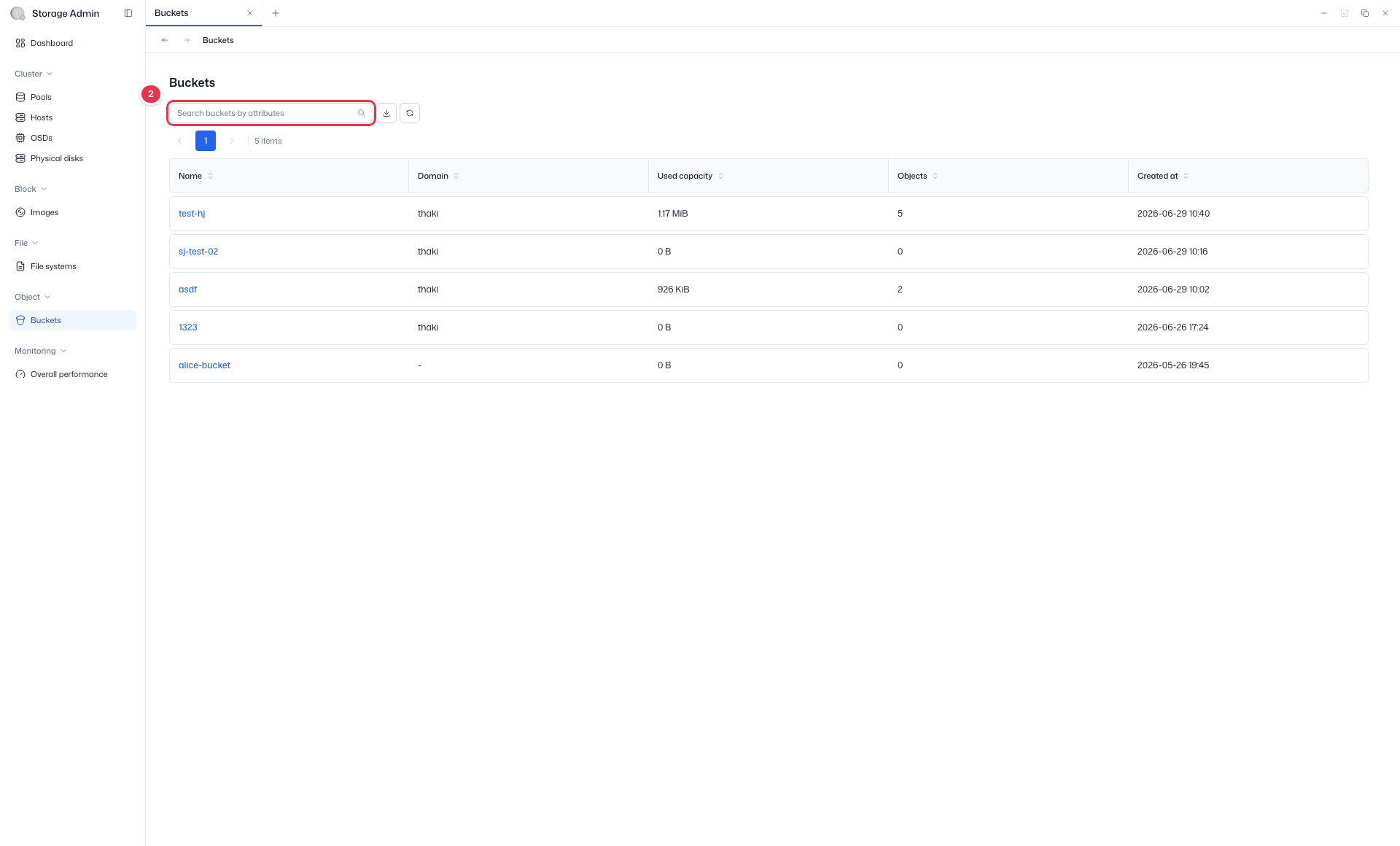
- Search:
Search buckets by attributes· Read-only
Sidebar (SNB)
Use the left sidebar to move to each Storage Admin screen (Cluster·Block·File·Object·Monitoring).
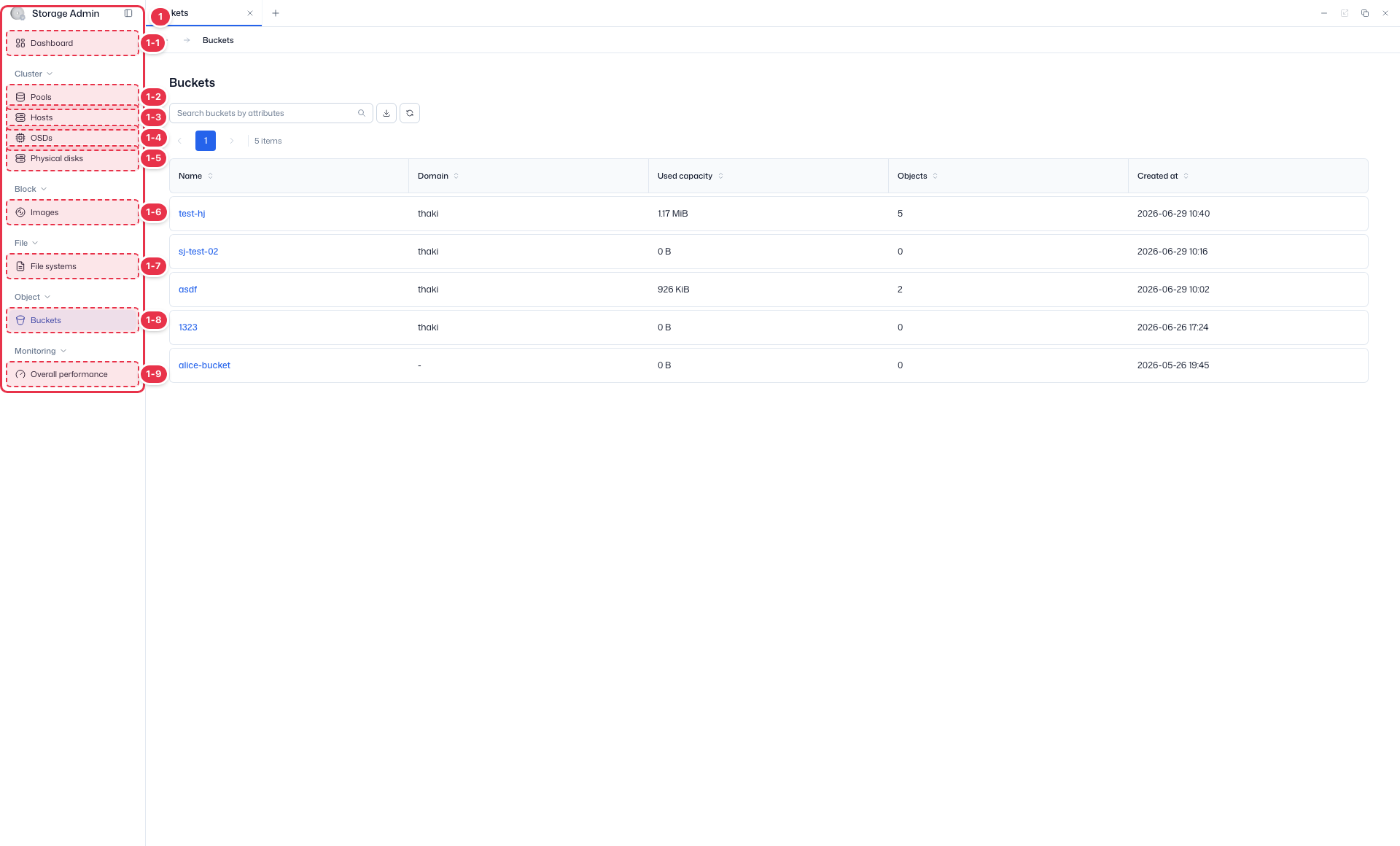
| No. | Feature | Item | Description |
|---|---|---|---|
| 1-1 | Dashboard | Dashboard | · Inventory·Capacity·Cluster utilization summary. |
| 1-2 | Pools | Pools | · View Ceph storage pools·PGs. |
| 1-3 | Hosts | Hosts | · Storage node hardware·OSD configuration. |
| 1-4 | OSDs | OSDs | · Object Storage Daemon status·capacity. |
| 1-5 | Physical disks | Physical disks | · View physical disks·Identify. |
| 1-6 | Images | Images | · RBD block images. |
| 1-7 | File systems | File systems | · CephFS file systems. |
| 1-8 | Buckets | Buckets | · System-wide S3 buckets. |
| 1-9 | Overall performance | Overall performance | · Pools·OSDs·Hosts·Images performance metrics. |
Search
Search the list by attribute.
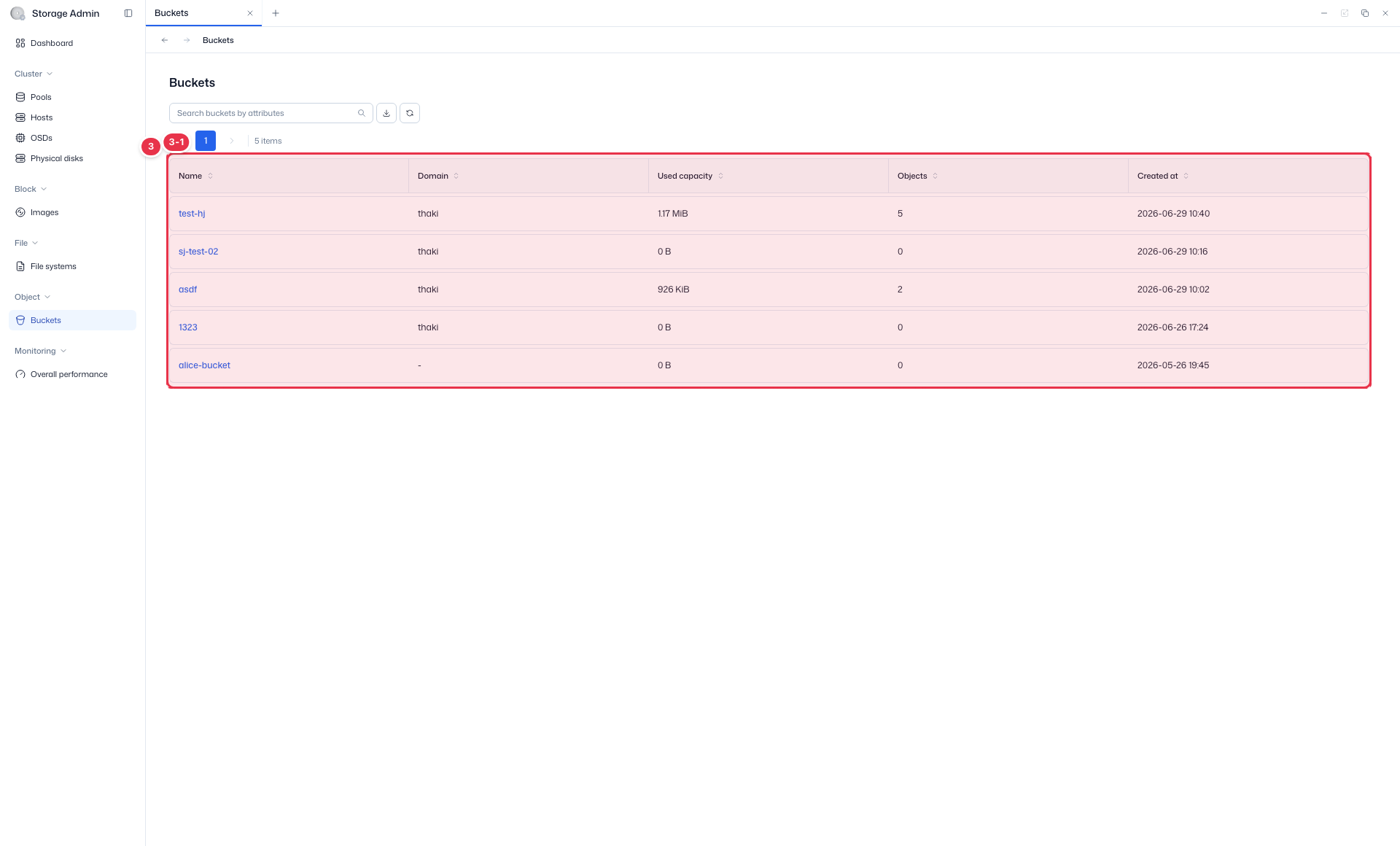
List table
System-wide (all domains) S3 bucket list (view).
| No. | Feature | Item | Description |
|---|---|---|---|
| 3-1 | Columns | Name / Domain | Bucket name / owning domain. |
| Used capacity / Objects | Used capacity / object count. | ||
| Created at | Creation time. |
Bucket Detail
Clicking a bucket Name navigates to the detail screen. The header displays Name, Owner, Region, Used Capacity, and Objects cards.
| Tab | Content |
|---|---|
| Details | Name · Owner · Region · Versioning · Object Locking · MFA Delete · Encryption · Placement Target · Tags · Created At |
| Policies | Bucket Policy(JSON) · ACL(Grantee/Permission) · Lifecycle Rules |
System Mode Restriction
In System Mode (system administrator), the Objects tab is hidden in the bucket detail, so you cannot view the object list or contents (object access is restricted). Object management is performed in the domain user's / Domain Admin's Object Storage.
Related documents
- Object Storage (domain user) — Bucket creation, objects, policies
- Pools
- Overall Performance