

Manage Instance Snapshots
Create, browse, and delete Instance Snapshots.
Create an instance snapshot
The Instance Snapshots list has no create button. Instance snapshots are created from the Instance. Use More actions → Storage & snapshot → Create Instance Snapshot on the Instance. For the full procedure, see Manage Storage — Create a Snapshot.
Search and toolbar
The area for searching the list, exporting CSV, and running bulk actions on selected rows.

| No. | Feature | Item | Description |
|---|---|---|---|
| 2-1 | Search | Attribute search box | · Filters the list by attributes such as name, ID, and status. |
| 2-2 | Export | Download CSV | · Exports the current list as a CSV file. |
| 2-3 | Bulk action | Delete | · Deletes the selected items (a confirmation modal appears). |
List
A table that shows instance snapshots with their status, size, and source instance.
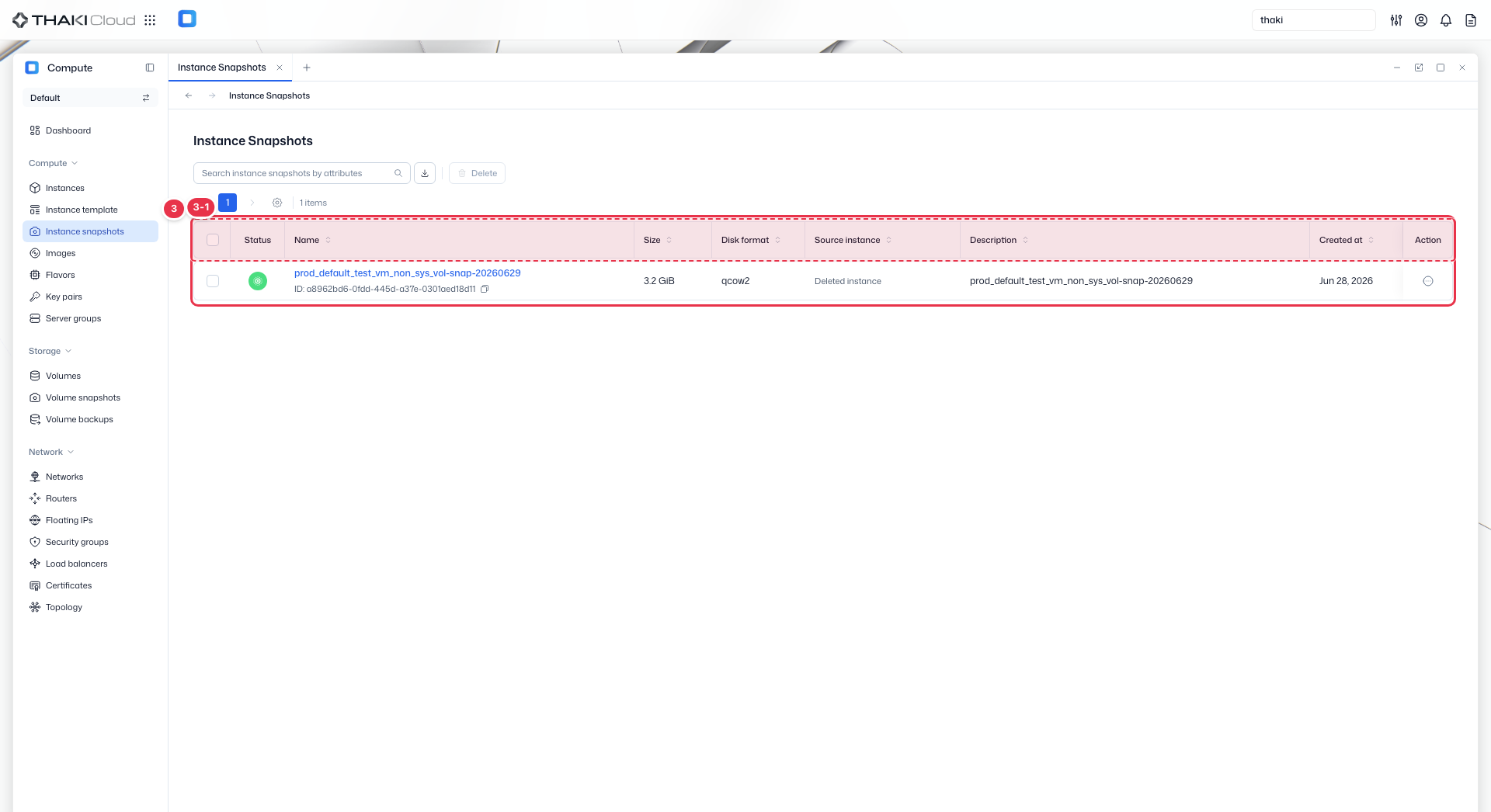
| No. | Feature | Item | Description |
|---|---|---|---|
| 3-1 | List columns | Status | The snapshot status (Active and so on). |
| Name | The snapshot name and ID. | ||
| Size | The snapshot size. | ||
| Disk format | The disk format (qcow2 and so on). | ||
| Source instance | The instance the snapshot was taken from. | ||
| Description | The description. | ||
| Created at | The creation date and time. | ||
| Action | The menu that opens from the button at the end of the row: Create instance (create an instance from the snapshot) · Create volume (create a volume from the snapshot) · Edit (change name and description) · Delete. |
More actions
Click the Action button at the end of a snapshot row in the list to see the four actions below. On the detail page, Create instance and Delete are buttons at the top, while Create volume and Edit are under More actions.
| Action | Description | Related docs |
|---|---|---|
| Create instance | Opens the instance creation screen with this snapshot selected as the source. Use it to create an Instance with the same environment as at the time of the snapshot. | Create an Instance |
| Create volume | Creates a new volume containing the same data as the snapshot's system disk. | Manage Volumes |
| Edit | Changes the snapshot name and description. | — |
| Delete | Deletes the snapshot. A protected snapshot cannot be deleted. | — |
Snapshot details
Click a snapshot name in the list to open its detail page. The top has the Create instance · Delete buttons and More actions (Create volume · Edit), and below them is a summary of the status, snapshot ID, size, and creation time. A snapshot that has not finished creating shows only a notice that the snapshot is being created.
| Tab | Content |
|---|---|
| Details | Basic information: snapshot name · description (edit button on the right) Source: the source Instance. Empty if the Instance has been deleted. Specification: size · OS · min disk / min RAM · disk format / container format Security: owner · access · protected or not · file name · checksum |
| Metadata | The metadata keys and values set on the snapshot |