

Manage Routers
Routers connect networks and provide external connectivity.
Key features
- List view: View all routers with status and connected networks
- Search: Find routers by name or ID
- Detail view: Review router settings, attached ports, and static routes
- Gateway management: Configure external network connections
- Static routes: Define custom routing rules
Search and toolbar
The area for searching the list, exporting CSV, and running bulk actions on selected rows.

| No. | Feature | Item | Description |
|---|---|---|---|
| 2-1 | Search | Attribute search box | · Filters the list by attributes such as name, ID, and status. |
| 2-2 | Export | Download CSV | · Exports the current list as a CSV file. |
| 2-3 | Bulk action | Delete | · Deletes the selected items (a confirmation modal appears). |
Create a router
Creates a new router and connects an external gateway.

- Click Create router at the top right of the Routers list.
- Enter a router name and, optionally, a description.
- Leave Admin State at its default value, Up.
- Turn on External Gateway, select an External Network, and create the router. If you leave it off, the connected subnets can only communicate with each other and cannot reach the outside. You can check the router quota on the right.
- From the action menu of the router you created, use Connect subnet to select a network and subnet and attach them.
List
A table that shows routers with their external gateway, external network, and admin state.
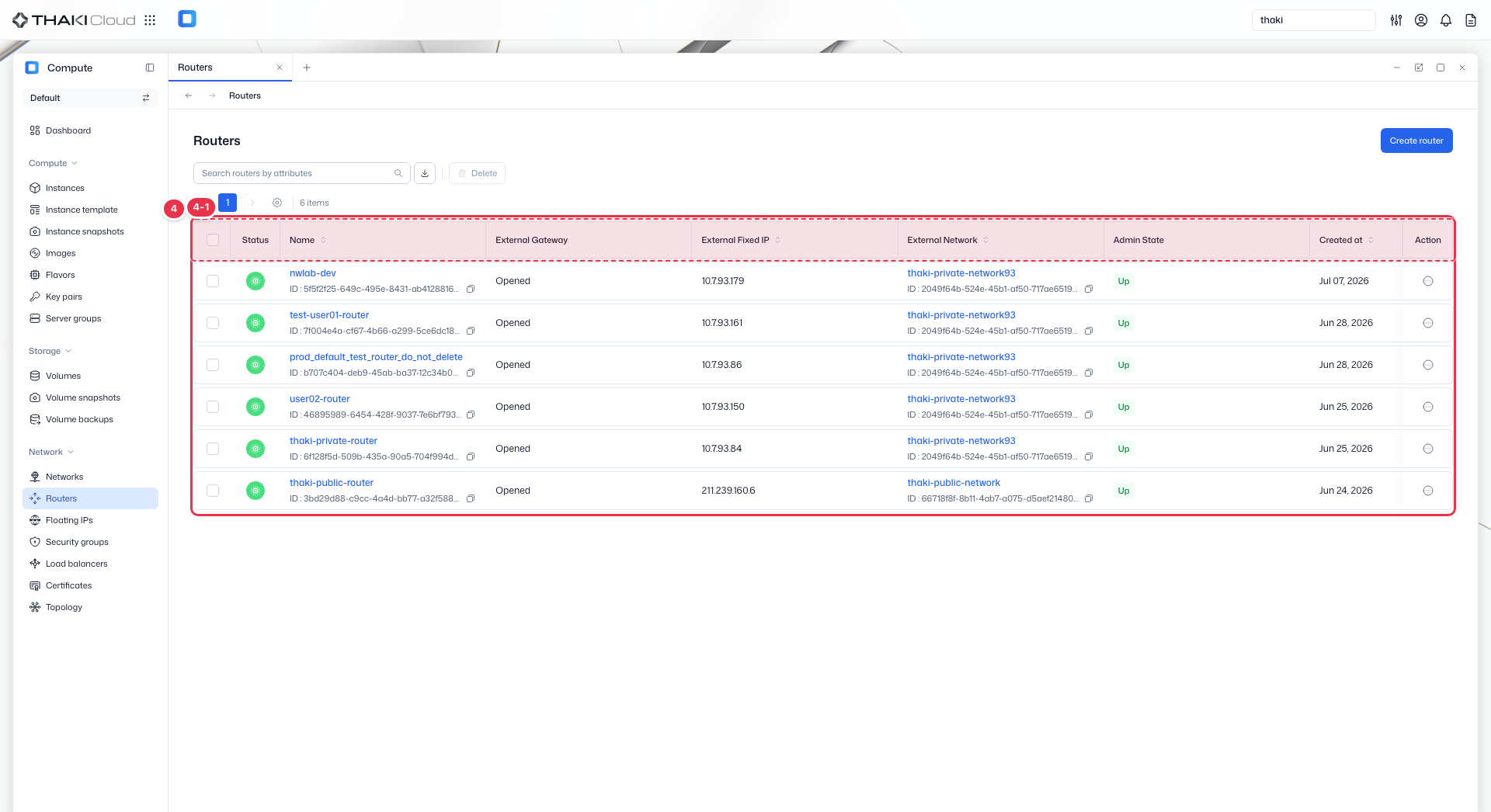
| No. | Feature | Item | Description |
|---|---|---|---|
| 4-1 | List columns | Status | The router status (Active and so on). |
| Name | The router name and ID. | ||
| External Gateway | The external gateway connection status (Opened and so on). | ||
| External Fixed IP | The fixed IP of the external gateway. | ||
| External Network | The connected external network. | ||
| Admin State | The admin state (Up/Down). | ||
| Created at | The creation date and time. | ||
| Action | The menu that opens from the button at the end of the row: Connect subnet · Disconnect subnet · Manage External Gateway (configure the external gateway) · Edit · Delete. |
More router actions
In the list, run these from the Action button at the end of each row. On the detail page, Connect subnet, Edit, and Delete are buttons at the top, and the rest are under More action.
| Action | List row menu | Detail page | What you enter |
|---|---|---|---|
| Connect subnet | Yes | Top button | Choose a network, then select one of its subnets. Once connected, the subnet communicates with other networks through this router. |
| Disconnect subnet | Yes | More action | Select which connected subnet to detach. As soon as it is disconnected, traffic from that subnet no longer goes through this router. |
| Manage External Gateway | Yes | More action | Turn the external gateway on or off and select the external network to use. |
| Create static route | No | More action, Static routes tab | Enter a destination CIDR and a next hop. Use it to specify a route that leads outside the connected subnets. The next hop must be an address inside a subnet connected to this router; otherwise the route is not saved. |
| Edit | Yes | Top button | Router name, description, admin state |
| Delete | Yes | Top button | Deletes the router. You must disconnect all connected subnets first. |
External gateway
For instances in connected subnets to reach the outside, the router's external gateway must be on. To reach an instance from the outside, also associate a Floating IP.
Router details
Click a router name in the list to open its detail page. The top summarizes the status, ID, admin state, external gateway state (Opened / Closed), and creation time.
| Tab | Contents |
|---|---|
| Details | Basic information: router name, description, admin state. The edit button on the right opens the edit router dialog. External network: network, SNAT, subnet, gateway IP. The edit button on the right opens the external gateway setting dialog. |
| Ports | The ports attached to the router. Shows status, name, fixed IP, MAC address, type (External Gateway / Internal interface), and creation time. Each subnet you connect adds one Internal interface row. |
| Static routes | The static routes created on this router. The columns are Destination CIDR, Next hop, and Action. The Action button at the end of a row opens Delete (delete the static route); deletion cannot be undone. A static route cannot be edited, so to change one, delete it and create a new one. The top of the tab has a Create static route button, a search box, and a delete button that removes the selected items. If there are none, it shows "No Static routes found". |
SNAT can only be viewed on the Details tab, where it shows the current value (for example, Enabled). The external gateway setting dialog has no SNAT item.
Detaching a subnet from the Ports tab
The Ports tab has a Disconnect button at the top, but in the current version it stays disabled even after you select a port. To detach a subnet, use More action → Disconnect subnet.