

Update a Deployment
Change the image version, replica count, or environment variables of a running Deployment. All changes are applied as a rolling update with no service downtime.
Step 1. Open the action menu
- In the left menu, select Workloads → Deployments.
- Click the action button (⋮) at the right end of the target Deployment row.
The action menu includes:
| Menu item | Description |
|---|---|
| Execute shell | Shell (exec) access to a Pod container |
| Pause orchestration | Pause the rollout |
| Redeploy | Redeploy with the current spec (restarts Pods) |
| Rollback | Revert to the previous revision |
| Edit config | Open the config edit form |
| Edit YAML | Open the YAML editor |
| Download YAML | Download the current spec as YAML |
| Delete | Delete the Deployment |
Edit config (form)
Edit config opens a full edit form — the same layout as the create form — with three tabs (Deployment / Pod / Container) and a section for every part of the spec. Click Edit config from the action menu, change values across the tabs, then click Save in the Summary panel. To edit the raw manifest instead, use Edit YAML (a separate screen).
Edit Config: Deployment
Deployment-level settings — replica count and selector labels, plus the scaling/upgrade policy at the bottom of the tab.
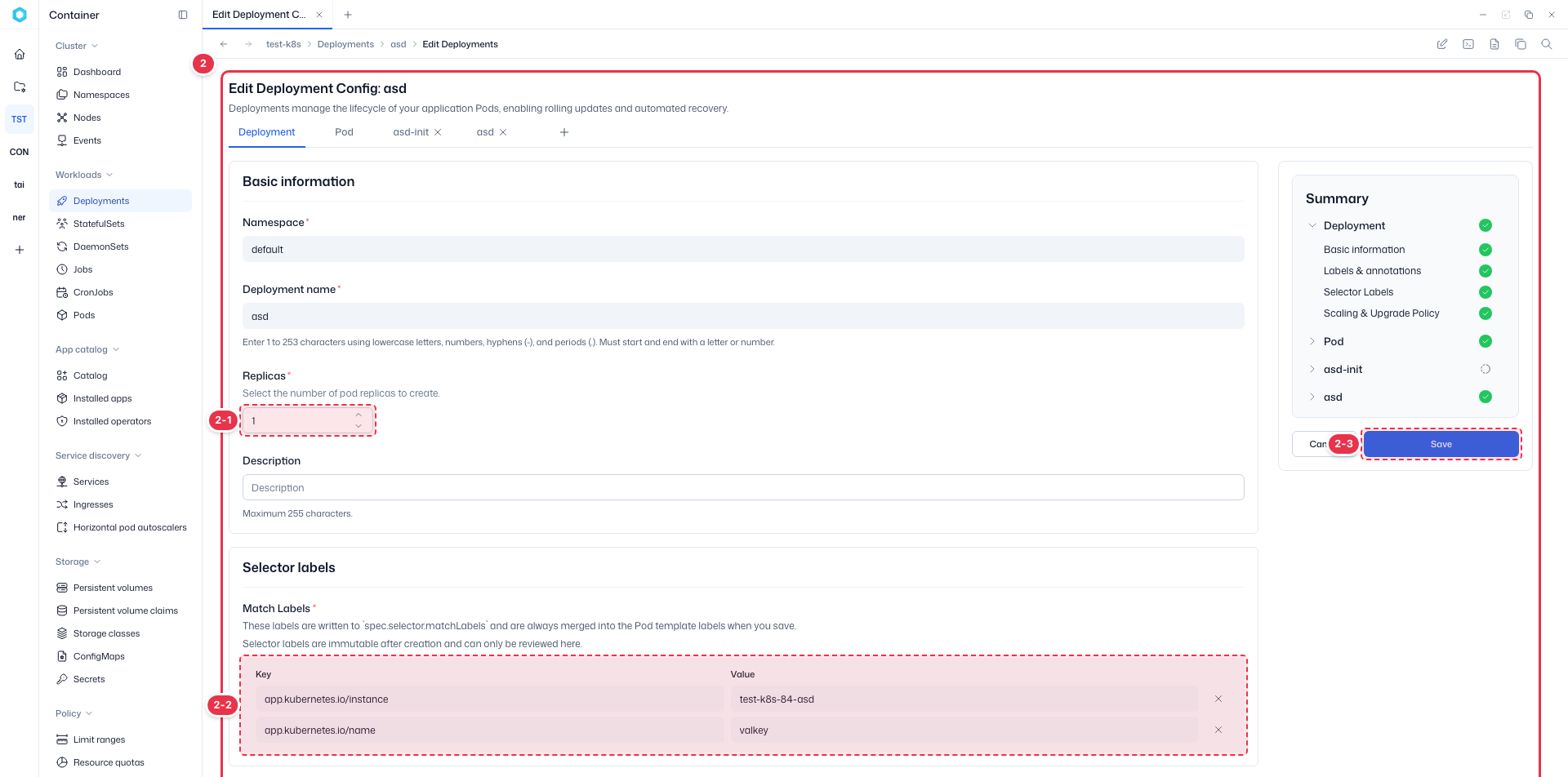
| # | Field | Description |
|---|---|---|
| 2-1 | Replicas | Number of Pod replicas to run (integer ≥ 0), in Basic information. |
| 2-2 | Selector labels | Pod-selector Match Labels (immutable after creation). |
| 2-3 | Save | Save changes; applied as a rolling update. |
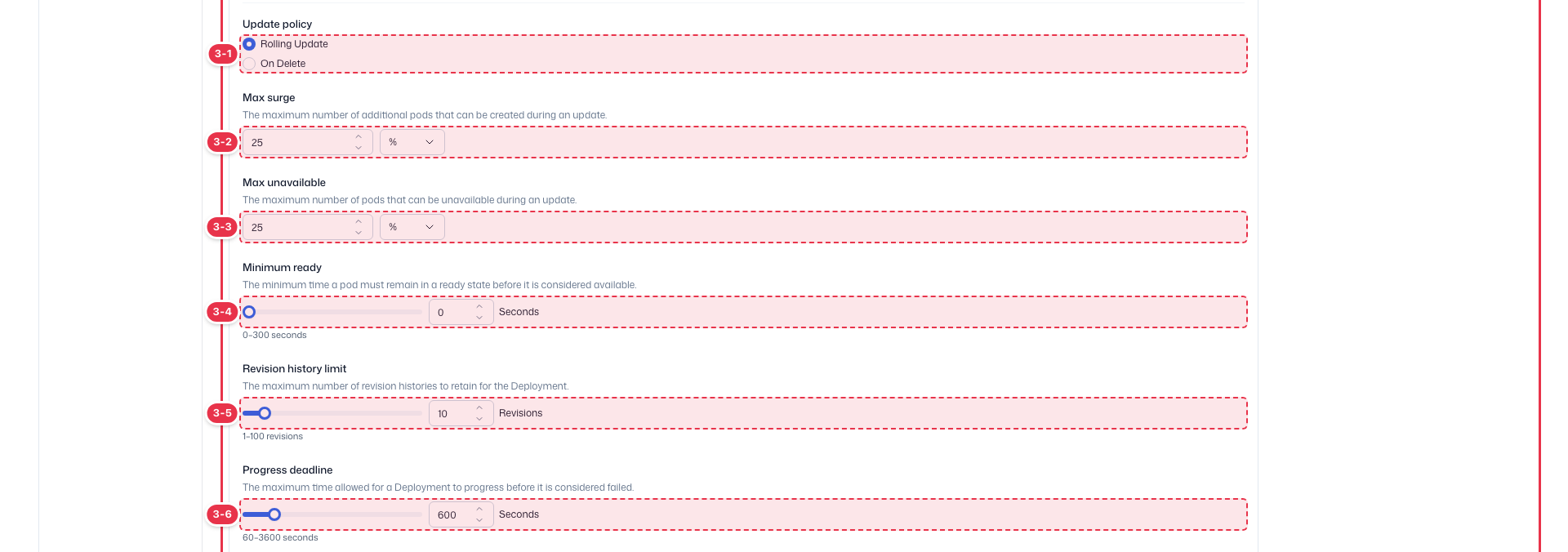
| # | Field | Description | Zero-downtime |
|---|---|---|---|
| 3-1 | Update policy | Rolling Update (zero-downtime) or On Delete. | Rolling Update |
| 3-2 | Max surge | Max extra Pods created during an update (count or %). | 1 |
| 3-3 | Max unavailable | Max existing Pods unavailable during an update (count or %). | 0 |
| 3-4 | Minimum ready | Min seconds a new Pod must stay Ready to count as available. | — |
| 3-5 | Revision history limit | Number of past revisions kept for rollback. | — |
| 3-6 | Progress deadline | Max seconds allowed before the rollout is marked failed. | — |
Zero-downtime
With Update policy = Rolling Update, Max unavailable = 0, and Max surge = 1, an old Pod is terminated only after the new Pod is Ready, so there is no service interruption.
Edit Config: Pod
Pod-template settings shared by all containers.
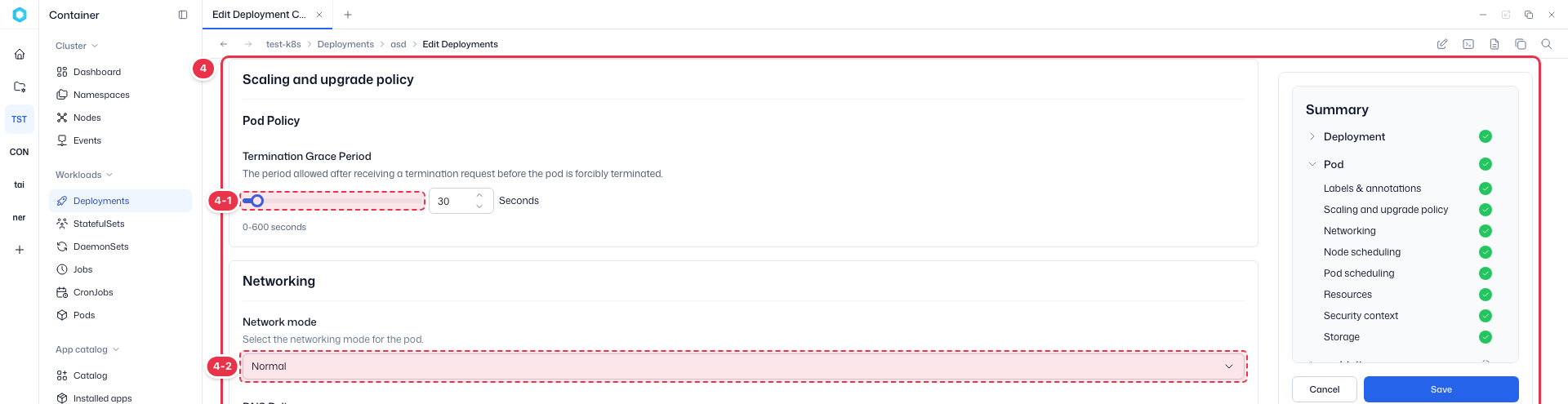

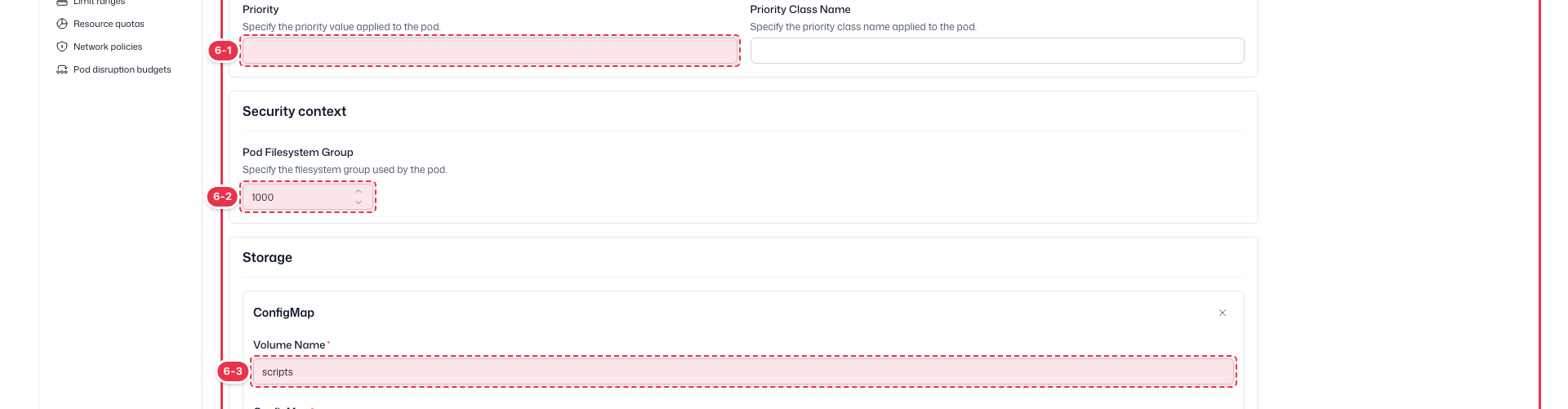
| # | Section | Description |
|---|---|---|
| 4-1 | Termination | Pod termination grace period. |
| 4-2 | Networking | Network mode, DNS policy, hostname, etc. |
| 5-1 | Node scheduling | Node placement rules (nodeSelector / affinity). |
| 5-2 | Pod scheduling | Priority, tolerations, and scheduling options. |
| 6-1 | Resources | Pod-level resource settings. |
| 6-2 | Security context | Pod security context (runAsUser, fsGroup, …). |
| 6-3 | Storage | Pod-level volumes / storage. |
Edit Config: Container
Select the container-name tab to edit that container's spec.
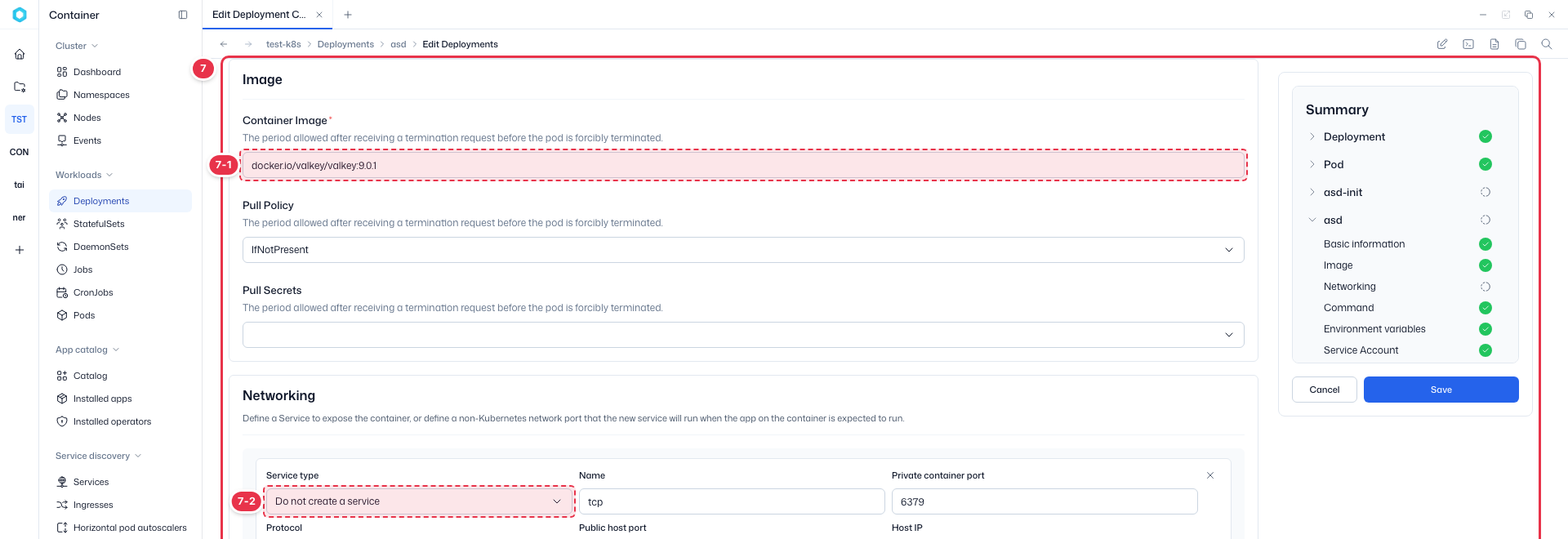
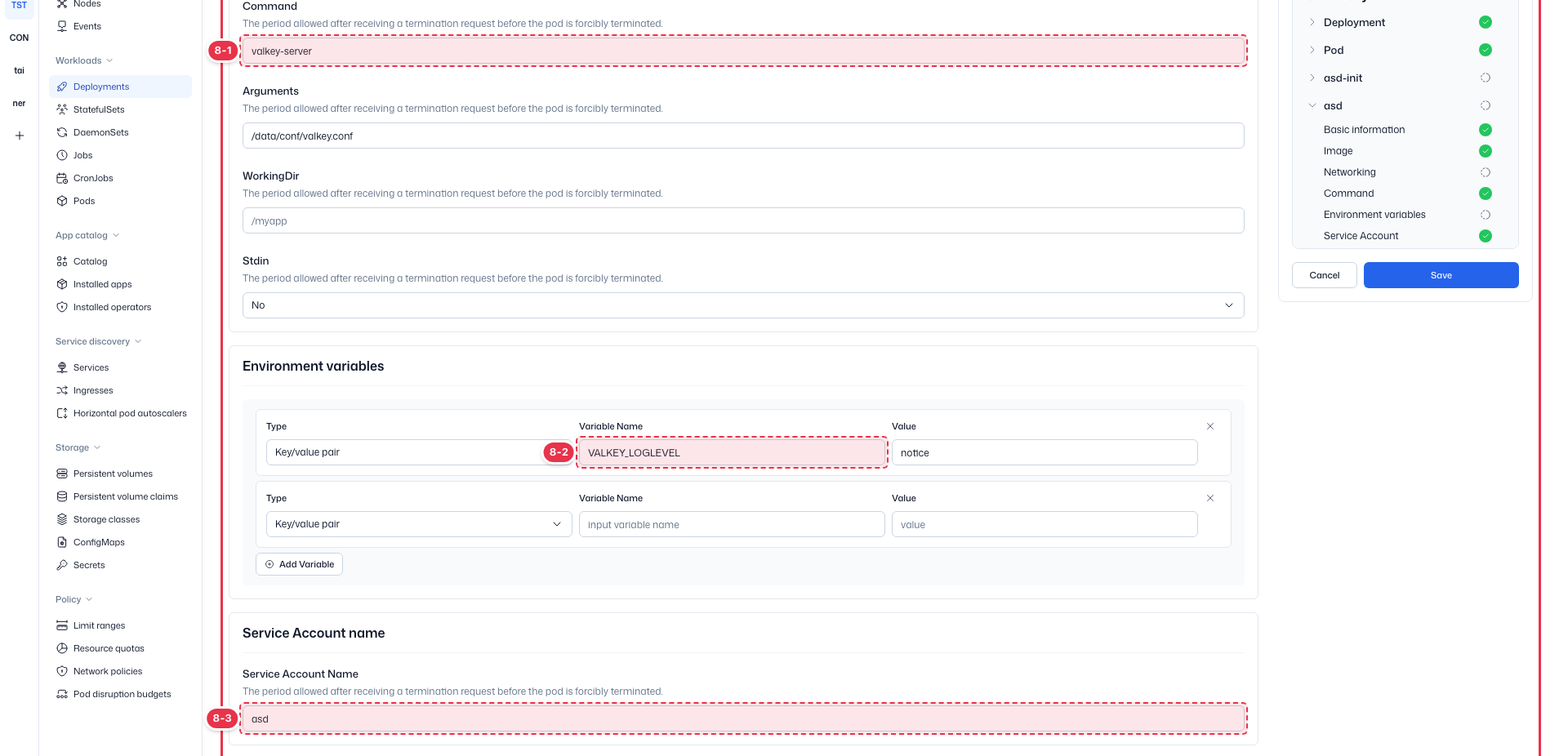

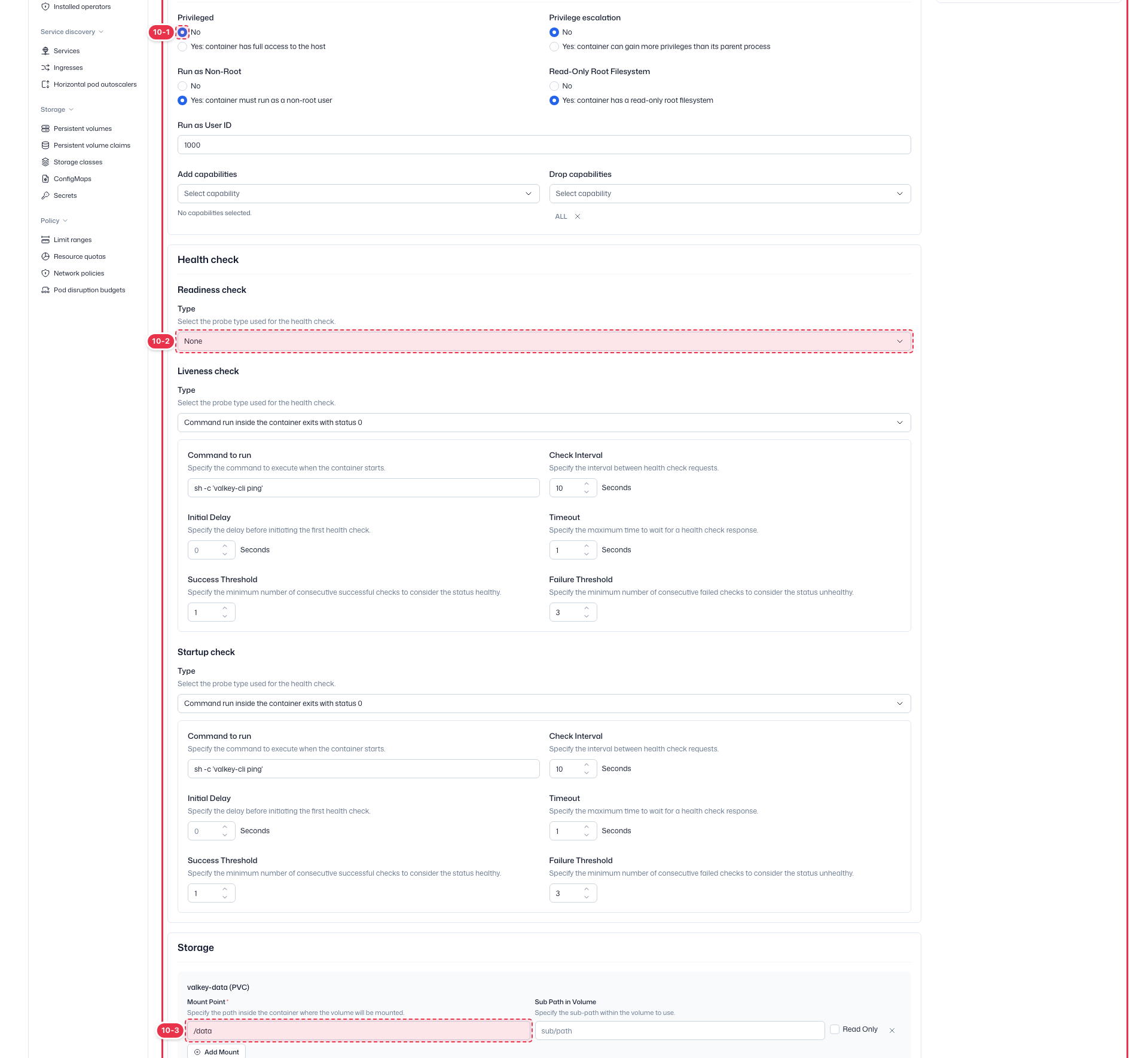
| # | Section | Description |
|---|---|---|
| 7-1 | Image | Container image, Pull Policy, Pull Secrets. Changing the image triggers a rolling update. |
| 7-2 | Networking | Service and ports the container exposes. |
| 8-1 | Command | Override container Command / Args. |
| 8-2 | Environment variables | Add / edit / remove env vars. |
| 8-3 | Service Account | Service Account used by the container. |
| 9-1 | Lifecycle hooks | postStart / preStop hooks. |
| 9-2 | Resources | CPU / Memory reservations and limits. |
| 10-1 | Security context | Container security context (privileges, capabilities). |
| 10-2 | Health check | Liveness / Readiness / Startup probes. |
| 10-3 | Storage | Volume mounts and container storage. |
Rollback to a previous version
- Click Rollback from the action menu.
- Confirm in the dialog by clicking Confirm.
The previous ReplicaSet is restored immediately.
Redeploy (force restart)
Restart all Pods without changing the spec (e.g., to refresh cached images).
- Click Redeploy from the action menu.
- Confirm in the dialog.
WARNING
Redeploy replaces all Pods. When used with imagePullPolicy: Always, it forces a fresh image pull.