

Pools
A screen for viewing storage pools, the logical data containers of the Ceph cluster. In System Mode you view system-wide (all-domain) pools.
- Navigation path: Storage Admin › Cluster › Pools
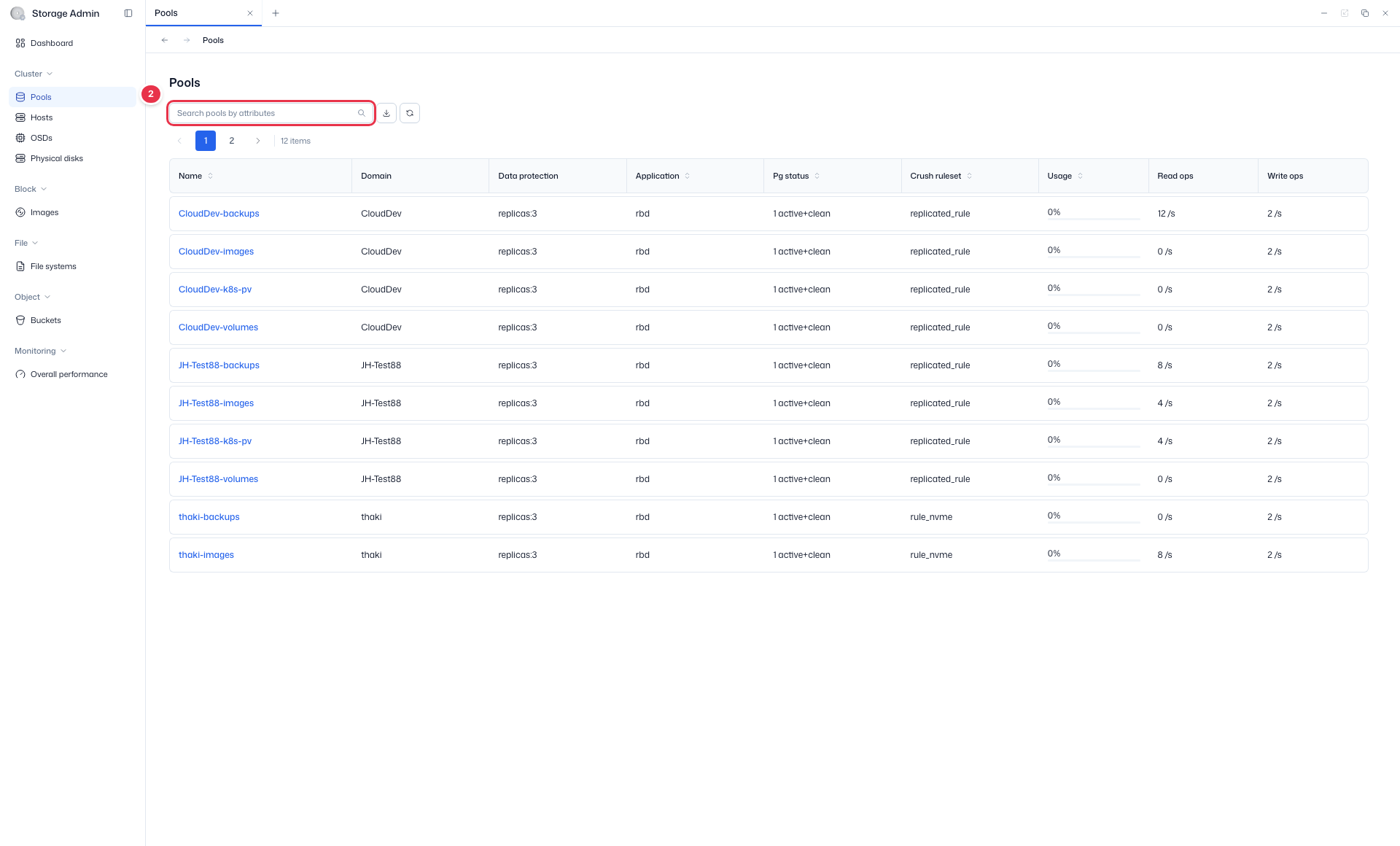
- Search:
Search pools by attributes· CSV export supported · Read-only
Sidebar (SNB)
Use the left sidebar to move to each Storage Admin screen (Cluster·Block·File·Object·Monitoring).
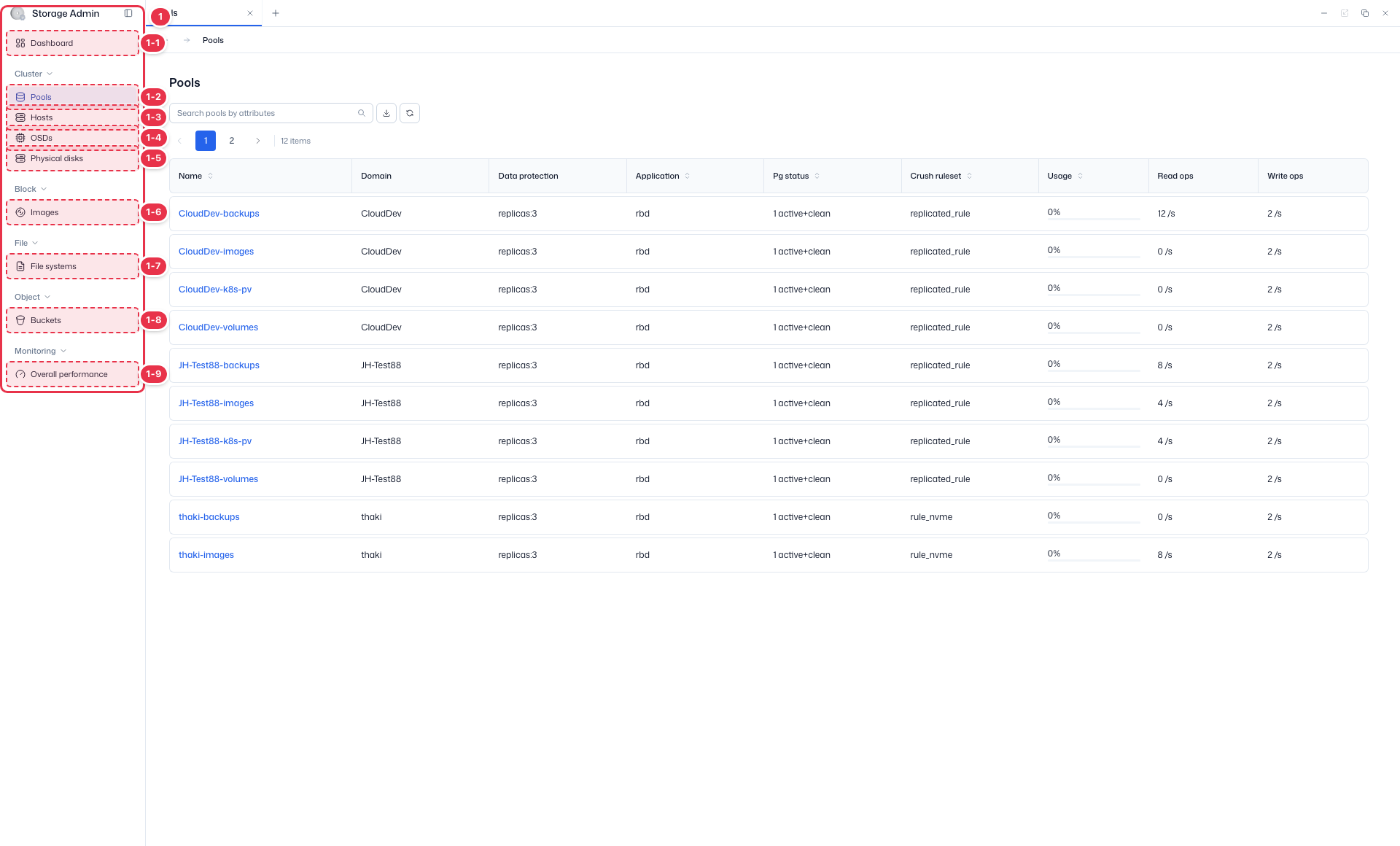
| No. | Feature | Item | Description |
|---|---|---|---|
| 1-1 | Dashboard | Dashboard | · Inventory·Capacity·Cluster utilization summary. |
| 1-2 | Pools | Pools | · View Ceph storage pools·PGs. |
| 1-3 | Hosts | Hosts | · Storage node hardware·OSD configuration. |
| 1-4 | OSDs | OSDs | · Object Storage Daemon status·capacity. |
| 1-5 | Physical disks | Physical disks | · View physical disks·Identify. |
| 1-6 | Images | Images | · RBD block images. |
| 1-7 | File systems | File systems | · CephFS file systems. |
| 1-8 | Buckets | Buckets | · System-wide S3 buckets. |
| 1-9 | Overall performance | Overall performance | · Pools·OSDs·Hosts·Images performance metrics. |
Search
Search the list by attribute.
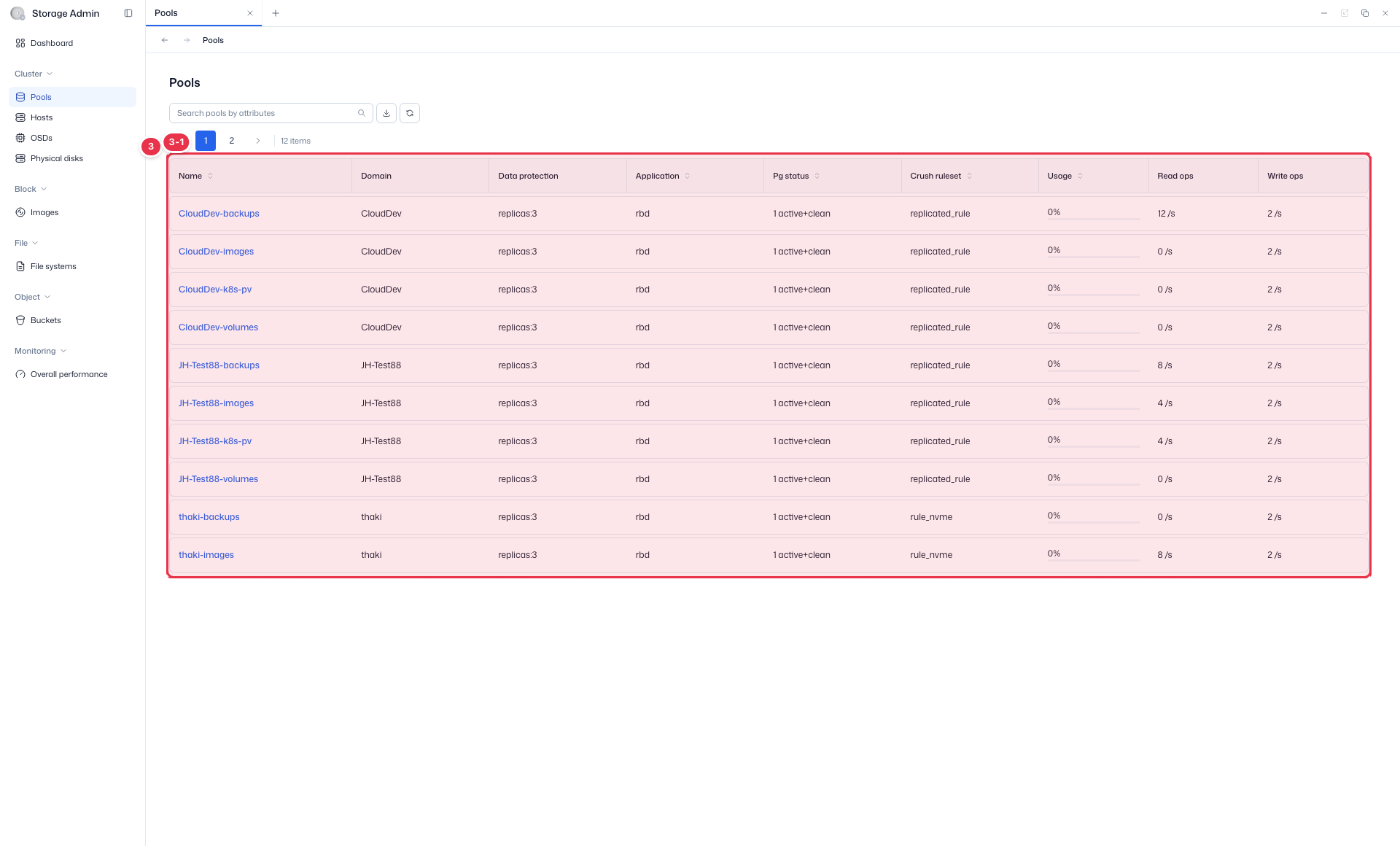
List table
Ceph storage pool list (view).
| No. | Feature | Item | Description |
|---|---|---|---|
| 3-1 | Columns | Name / Domain | Pool name / owning domain. |
| Data protection | Replicated or Erasure method. | ||
| Application / Crush ruleset | Purpose (rbd/cephfs, etc.) / CRUSH rule. | ||
| Pg status | Placement Group status. | ||
| Usage | Used capacity. | ||
| Read ops / Write ops | Read·write IOPS. |
Detail (Pool Detail)
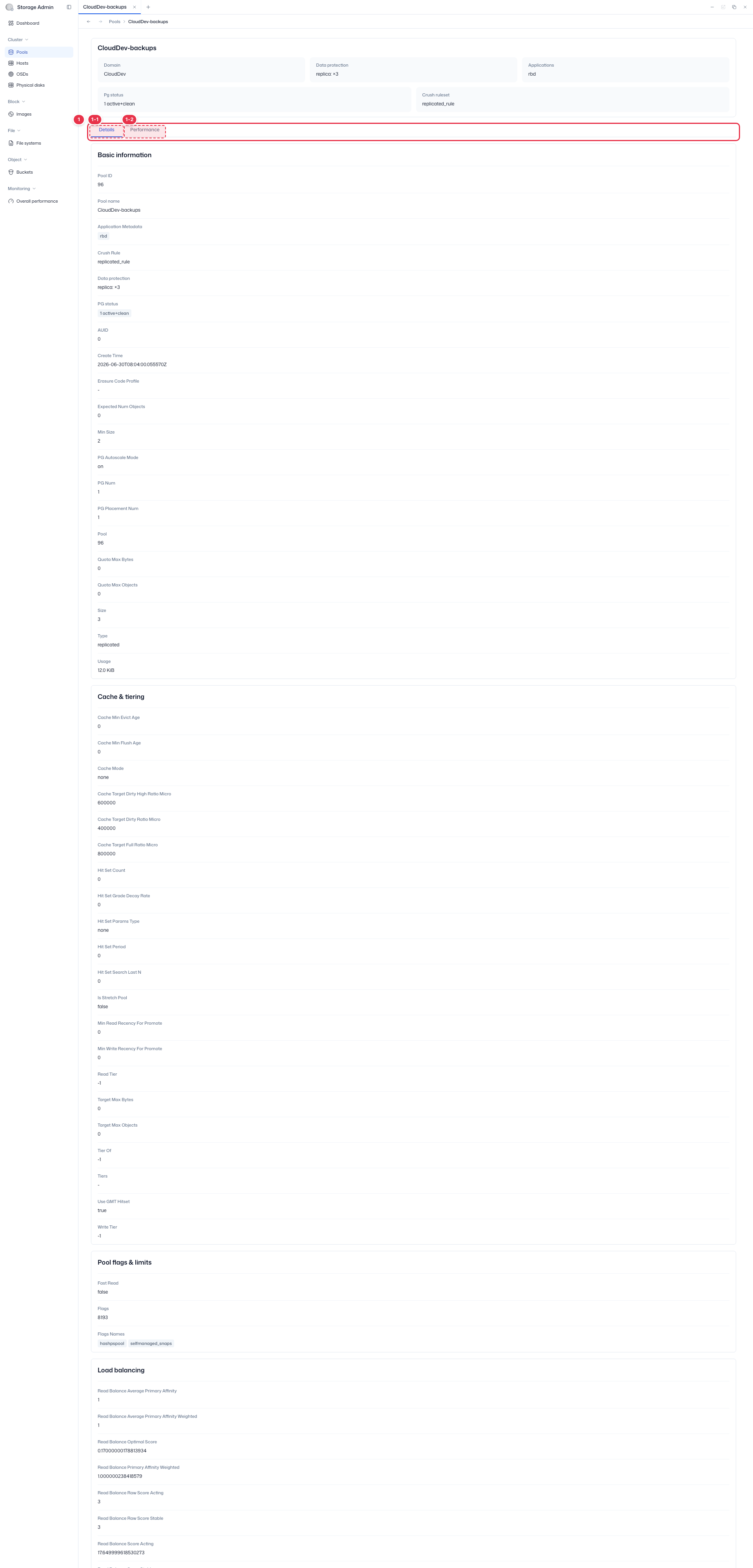
Clicking a pool Name navigates to the detail screen. It consists of 2 tabs: Details · Performance.
Click the pool name to go to the detail view. It has 2 tabs.
| No. | Feature | Item | Description |
|---|---|---|---|
| 1-1 | Details | Details | · Pool ID·Type·Application·PG status/num·autoscale·Size·Min size·Crush rule·Data protection·Usage·Quota·Create time. |
| 1-2 | Performance | Performance | · Capacity Used (gauge)·Time till full·Object Ingress/Egress·Client IOPS·Client Throughput·Objects. |