

Manage buckets (domain administrator)
A domain administrator can view, create, edit, and delete all buckets in the domain, regardless of who owns them. The screens are the same as in the regular user Storage app, except that the list has an additional Owner column and you specify the Owner when creating a bucket.
Bucket list
Sidebar (SNB)
The left sidebar for navigating to each domain administrator storage screen.
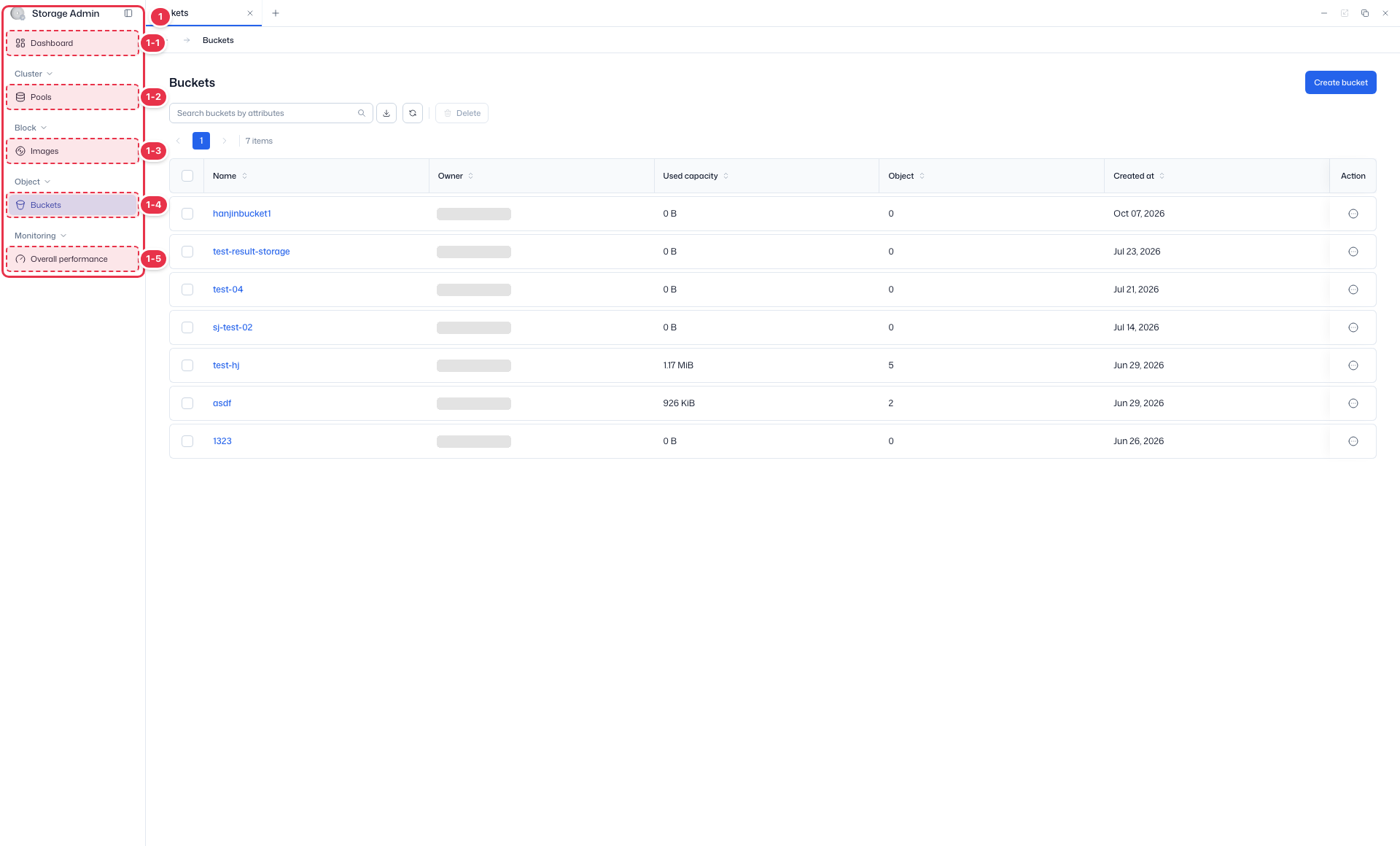
| No. | Feature | Item | Description |
|---|---|---|---|
| 1-1 | Dashboard | Dashboard | · Summarizes the domain's storage status and cluster performance. |
| 1-2 | Pools | Pools | · Lists the storage pools assigned to the domain and shows their performance. |
| 1-3 | Images | Images | · Lists the RBD images in the domain and manages their snapshots and settings. |
| 1-4 | Buckets | Buckets | · Lists all buckets in the domain and lets you create, edit, and delete them. |
| 1-5 | Overall performance | Overall performance | · Monitors the overall performance of pools and images. |
Search · actions
Search for buckets, delete the selected ones, or create a new bucket.
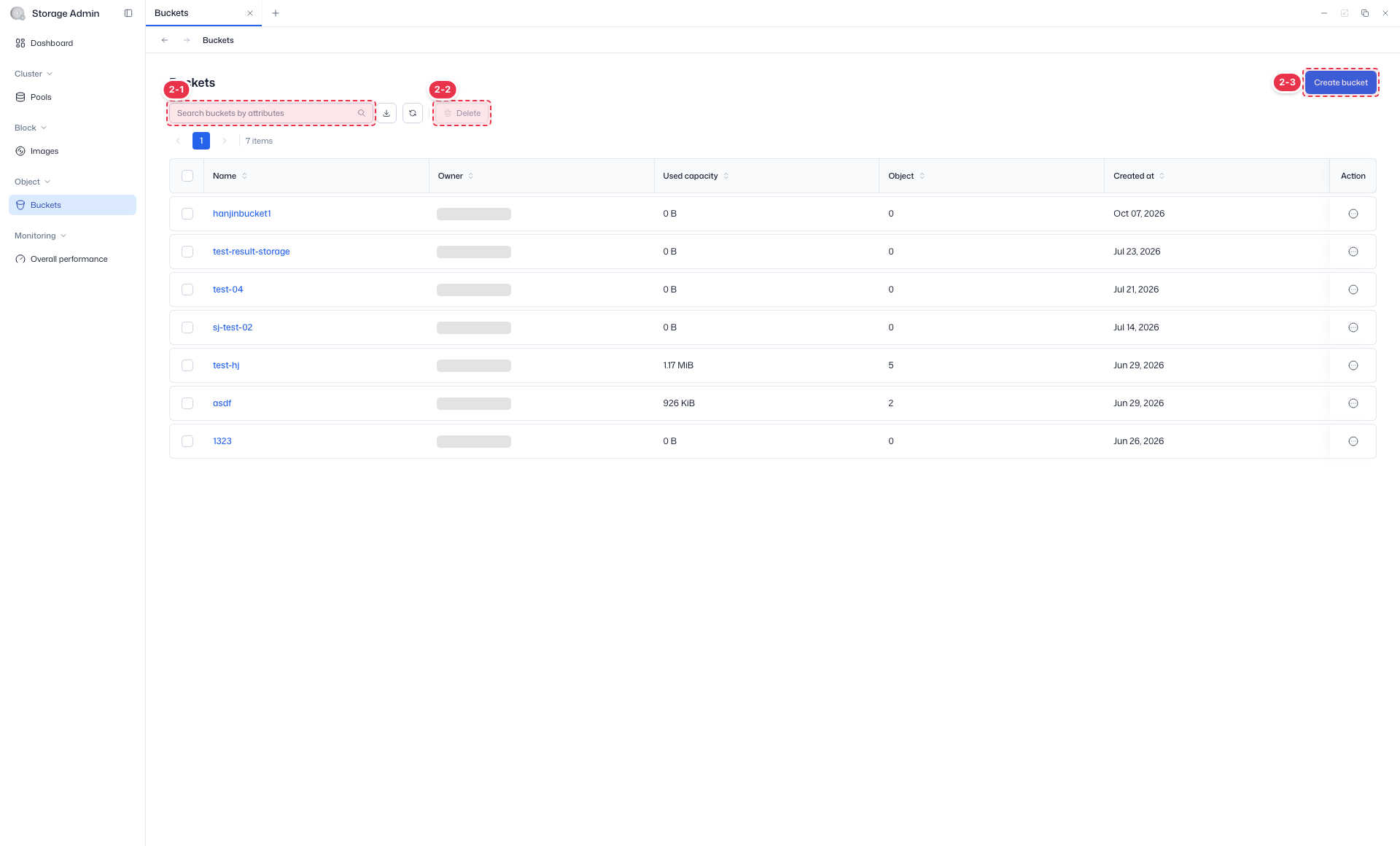
| No. | Feature | Item | Description |
|---|---|---|---|
| 2-1 | Search | Search buckets by attributes | · Filters buckets by attributes such as name. |
| 2-2 | Delete selected | Delete | · Deletes the buckets selected with the checkboxes (disabled when nothing is selected). |
| 2-3 | Create bucket | Create bucket | · Opens the page for creating a new bucket. |
Bucket list table
The list of all buckets in the domain. A domain administrator sees every bucket regardless of its owner.
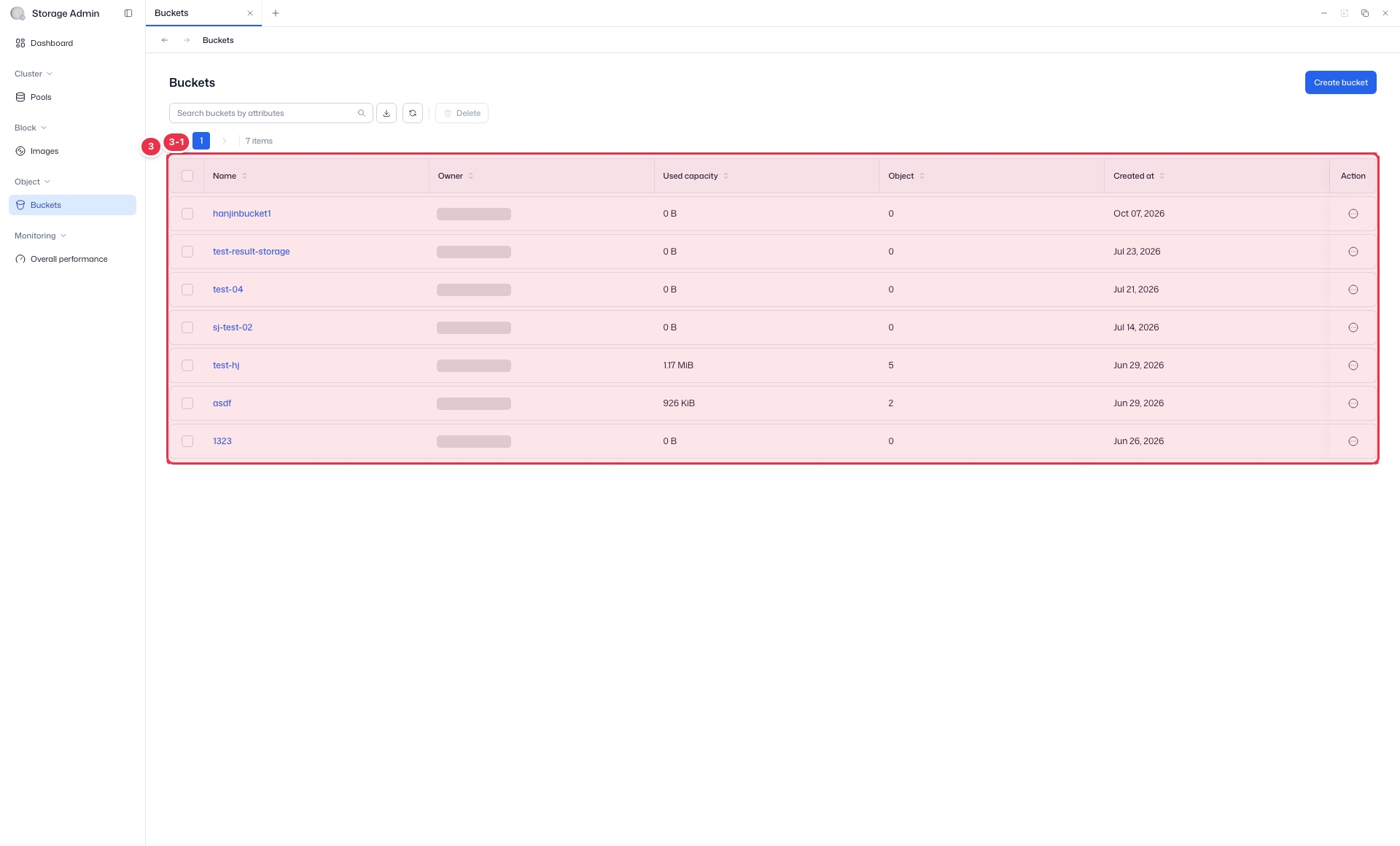
| No. | Feature | Item | Description |
|---|---|---|---|
| 3-1 | List columns | Name | The bucket name (click it to open the details). |
| Owner | The bucket owner. A column only for domain administrators, not shown on the regular user screen. | ||
| Used capacity | The capacity the bucket is using. | ||
| Object | The number of objects stored. | ||
| Created at | The date and time the bucket was created. | ||
| Action | The row menu — Edit / Delete. |
Create a bucket
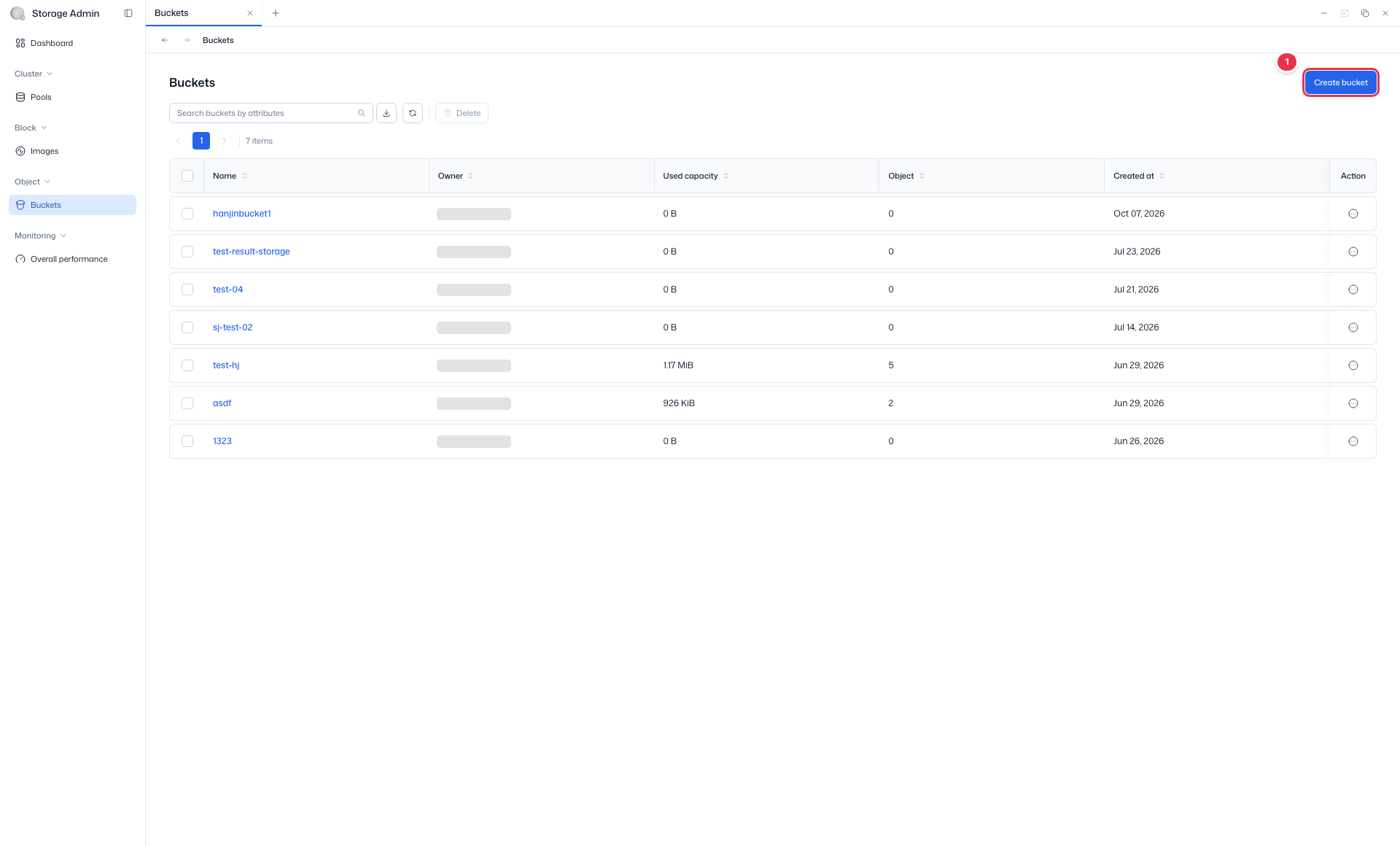
- In the list, click the Create bucket (number 2-3) button.
- In the Basic information step, specify the bucket name, region, and Owner, then click Next.
- In the Settings and Policy steps, set object locking, tags, the placement target, the bucket policy, and the ACL. Versioning and MFA delete are set from Edit after the bucket is created.
- Review the Summary on the right, then click Create.
Create button
Click it to open the bucket creation page.
Bucket creation form
Fill in the steps in the order Basic information → Settings → Policy, clicking Next after each. The Summary on the right shows the completed steps, and the Create button becomes available only after you pass all three steps.
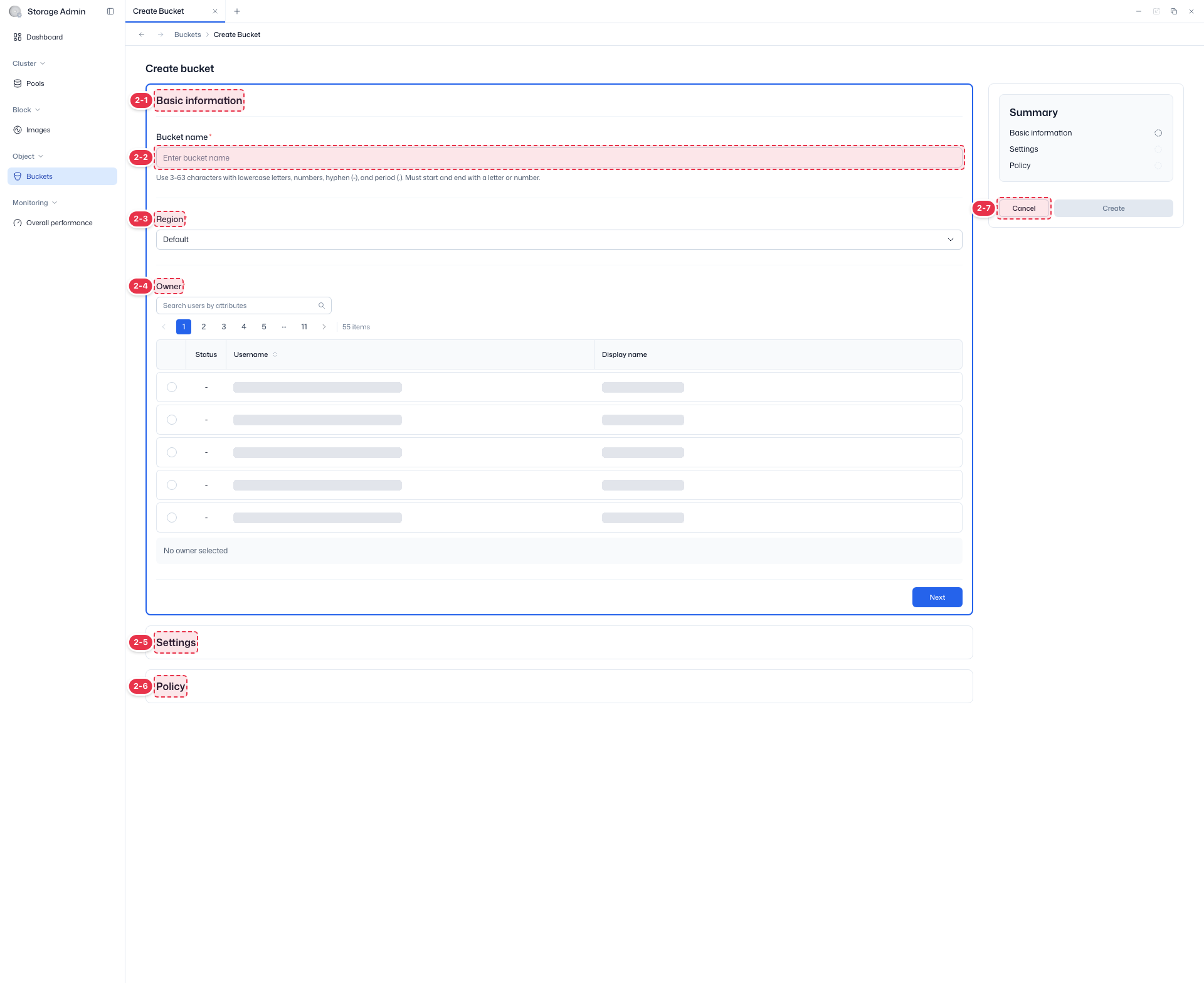
| No. | Feature | Item | Description |
|---|---|---|---|
| 2-1 | Basic information | Basic information | · The step for entering required information such as the bucket name and region. |
| 2-2 | Bucket name | Bucket name * | · 3 to 63 characters using only lowercase letters, numbers, hyphens (-), and periods (.). Must start and end with a lowercase letter or number. Cannot be changed after creation. |
| 2-3 | Region | Region * | · The region where the bucket is placed (currently fixed to default). |
| 2-4 | Owner | Owner * | · Sets the bucket owner. A field only for domain administrators, not shown on the regular user screen. |
| 2-5 | Settings | Settings | · Sets object locking, tags, and the placement target (expands when you click Next in the previous step). |
| 2-6 | Policy | Policy | · The step for access policies such as the bucket policy (JSON) and ACL. |
| 2-7 | Cancel / Create | Cancel / Create | · Create: creates the bucket. Cancel: returns to the list. |
Caution
A bucket name must be unique within the domain and cannot be changed after creation.
Bucket details
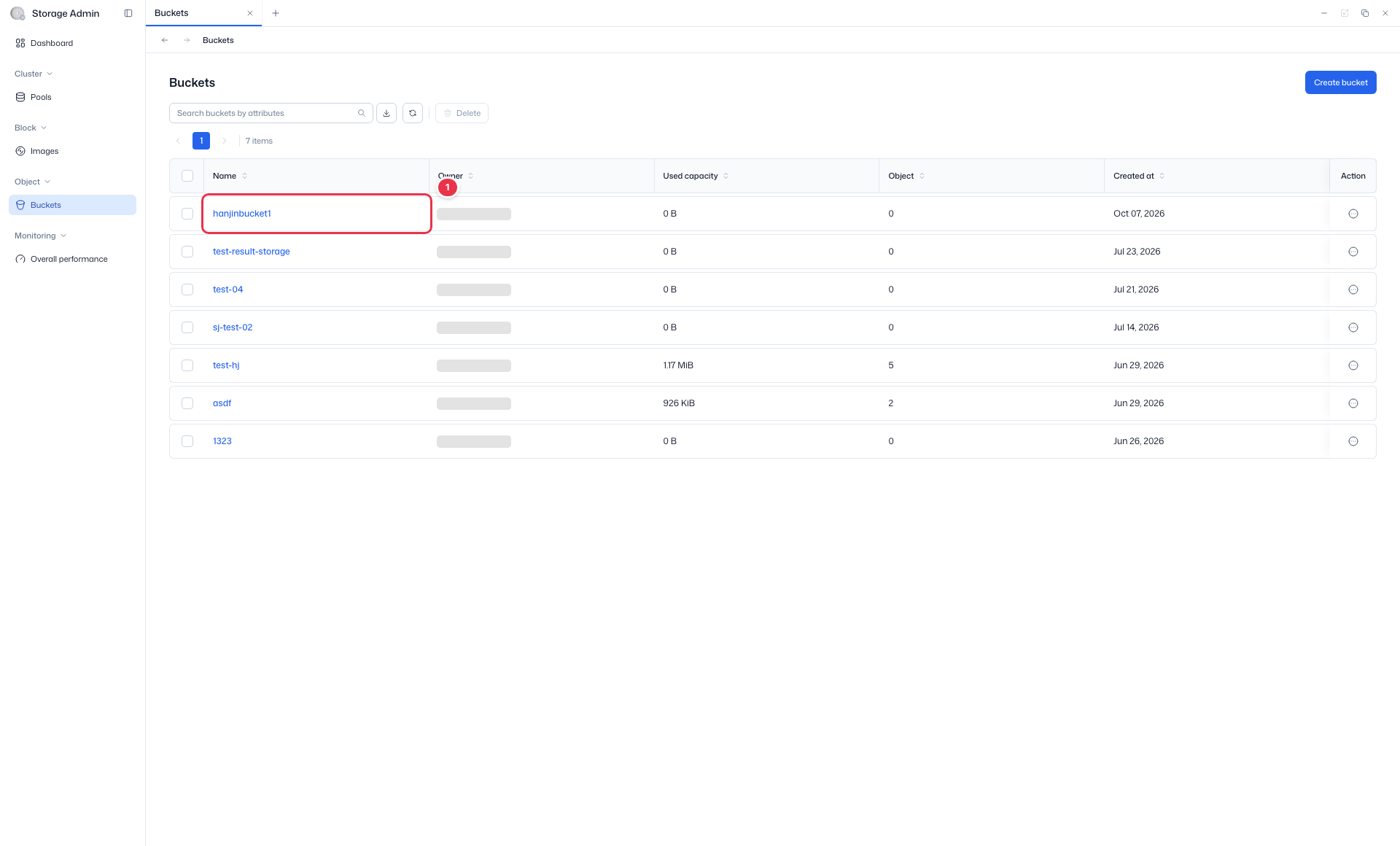
Click a bucket name in the list to go to its detail screen. The screen consists of a summary at the top, the Edit and Delete buttons, and three tabs: Details / Policies / Objects.
Open details (click the name)
Click a bucket name in the list to open its details screen.
Bucket details (tabs)
View and manage the bucket's summary, details, policies, and objects.
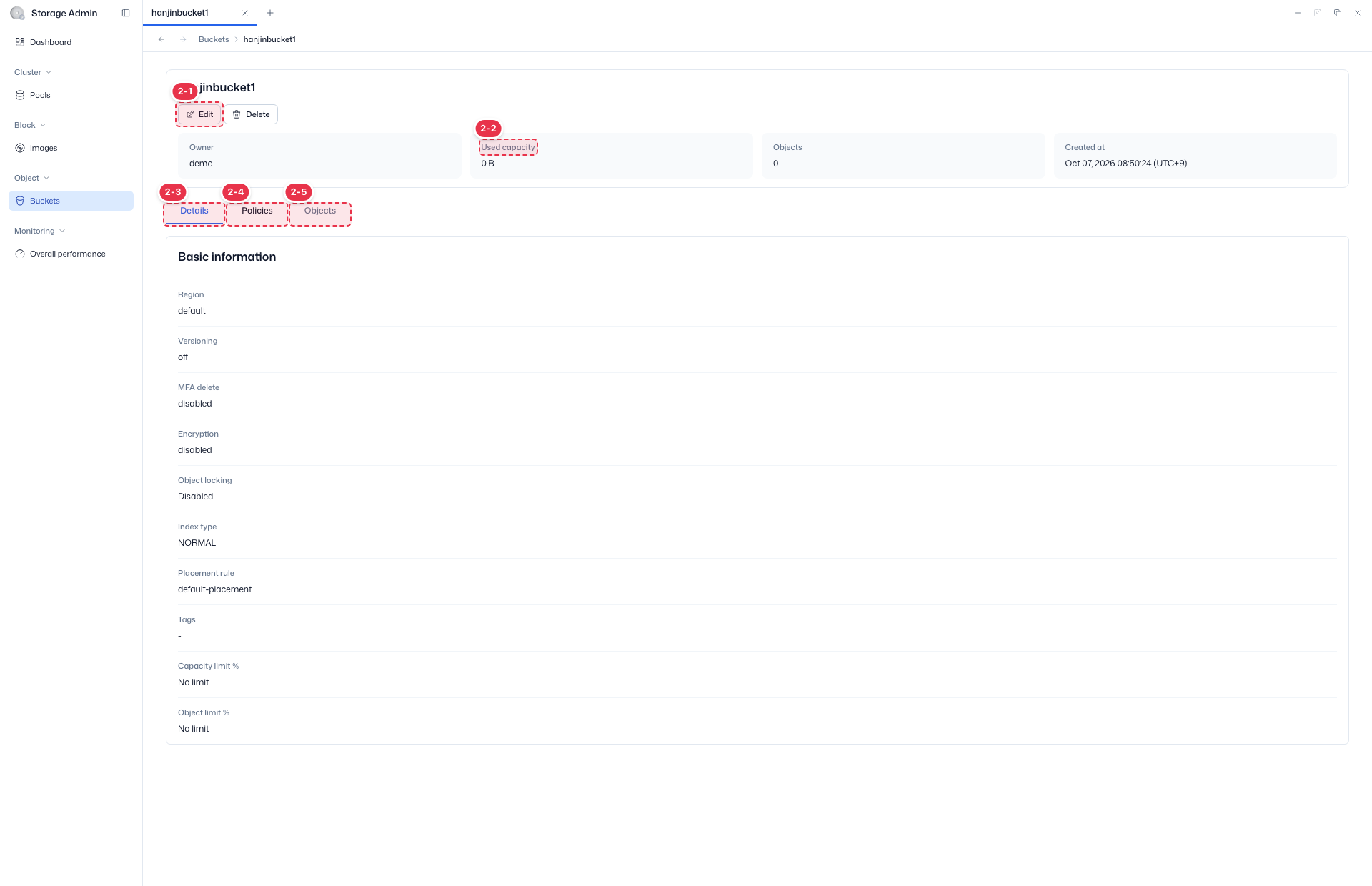
| No. | Feature | Item | Description |
|---|---|---|---|
| 2-1 | Edit / Delete | Edit / Delete | · Edit: changes the bucket settings. Delete: opens the bucket deletion modal. |
| 2-2 | Summary cards | Owner · Used capacity · Objects · Created at | · A summary of the bucket owner, usage, object count, and creation time. |
| 2-3 | Details tab | Details | · Basic information such as the region, versioning, object locking, MFA delete, encryption, index type, placement rule, tags, and capacity/object limits. |
| 2-4 | Policies tab | Policies | · Shows the bucket policy (JSON), lifecycle, replication policy, and ACL (grantee/permissions). |
| 2-5 | Objects tab | Objects | · Create, upload, download, move, and delete objects (files) and folders in the bucket. |
Policies tab in detail
On the Policies (number 2-4) tab, you view and manage the following policies.
| Policy type | Description |
|---|---|
| Bucket Policy | Access control policy in JSON format |
| Lifecycle | Rules for automatically deleting and transitioning objects |
| Replication Policy | Cross-region replication policy |
| ACL | Access control list (Grantee / Permission) |
Objects tab in detail
The Objects (number 2-5) tab is a file browser. Use Upload and Create Folder at the top, and perform the following actions on each row.
| Target | Actions |
|---|---|
| File | Download · Edit file · Copy S3 URI · Copy URL · Move · Delete |
| Folder | Edit folder · Move · Download · Delete |
Delete a bucket
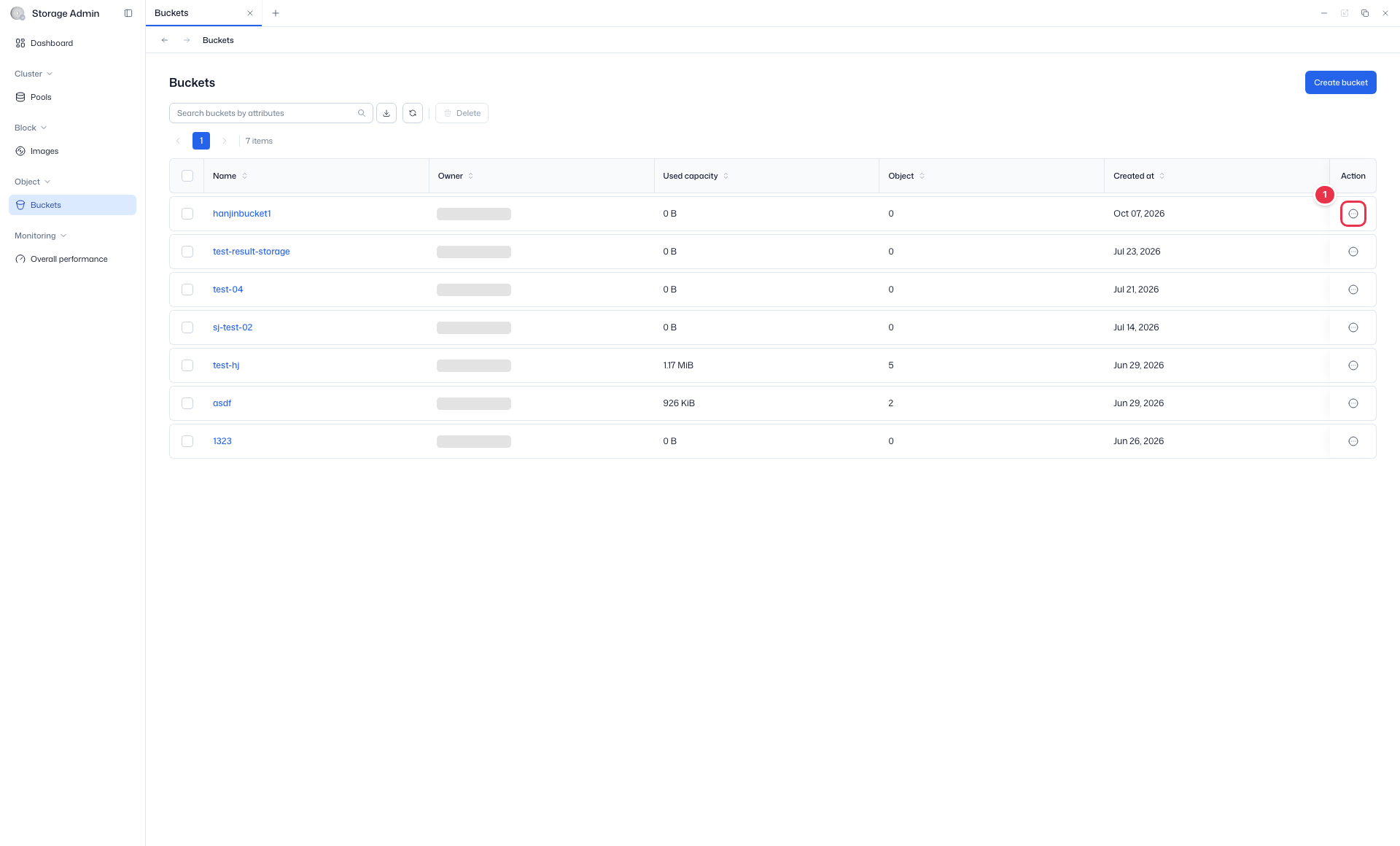
- In the list, open the Actions (⋯) menu on the row of the target bucket and select Delete. (Or use the Delete button on the detail screen.)
- In the confirmation modal, check the target bucket, then click Delete.
Open delete (row action)
Select Delete from the row actions (⋯) menu (menu: Edit / Delete).
Delete confirmation modal
Deletes the bucket and all objects stored in it. This cannot be undone.
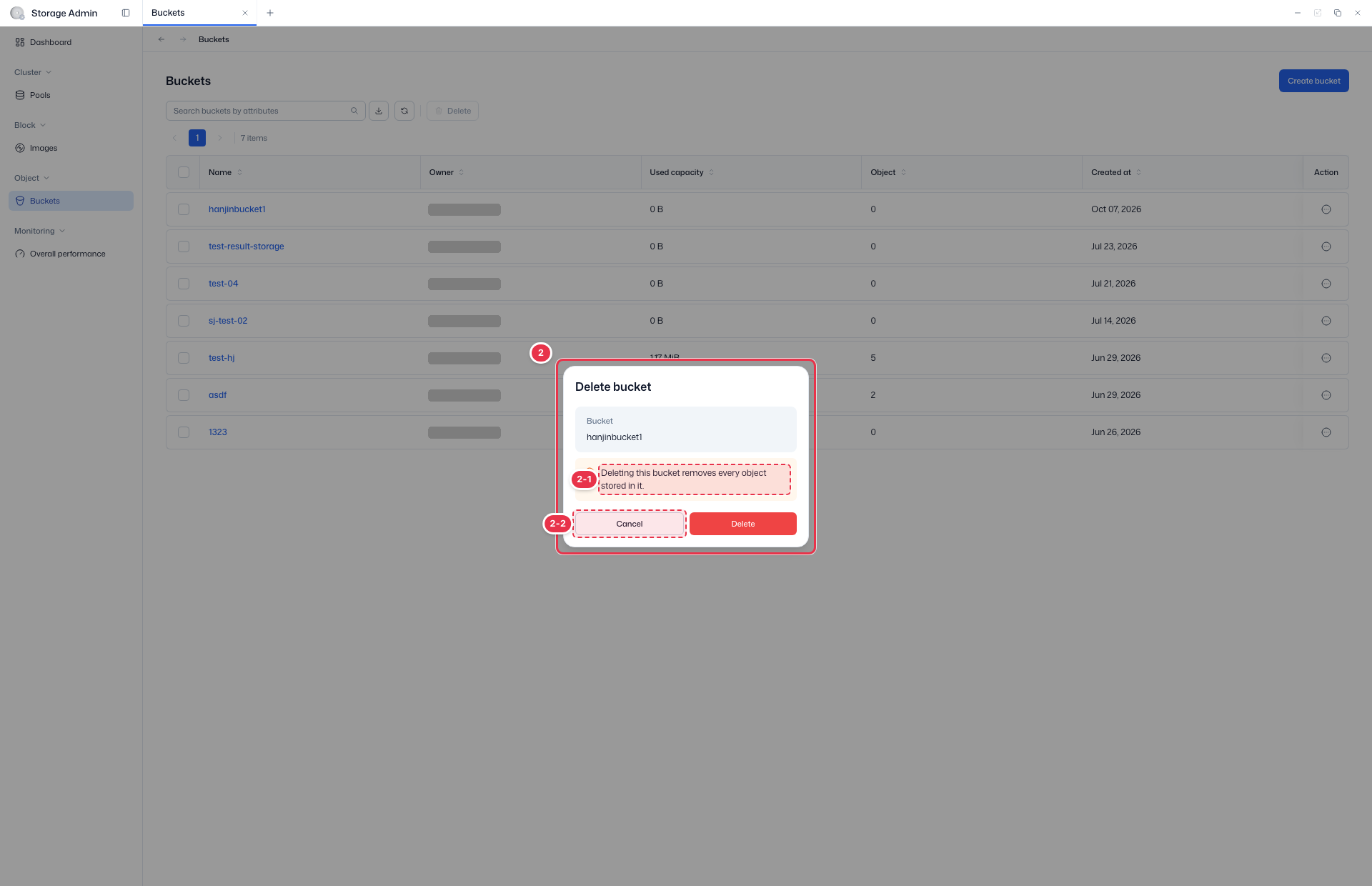
| No. | Feature | Item | Description |
|---|---|---|---|
| 2-1 | Deletion notice | Target bucket · warning | · Shows the bucket to be deleted and a warning that its objects are deleted with it. |
| 2-2 | Cancel / Delete | Cancel / Delete | · Delete: permanently deletes the bucket. Cancel: closes the modal. |
Danger
Deleting a bucket also deletes all objects stored in it, and this cannot be undone.
Related documentation
- Domain administrator overview — Summary of domain administrator features
- Object Storage overview — Bucket management for regular users
- System administrator Buckets — Bucket management for system administrators