

Physical Disks
A screen for viewing physical disks connected to the cluster and identifying their physical location in the data center using the Identify feature.
- Navigation path: Storage Admin › Cluster › Physical disks
- Search:
Search physical disks by attributes
Sidebar (SNB)
Use the left sidebar to move to each Storage Admin screen (Cluster·Block·File·Object·Monitoring).
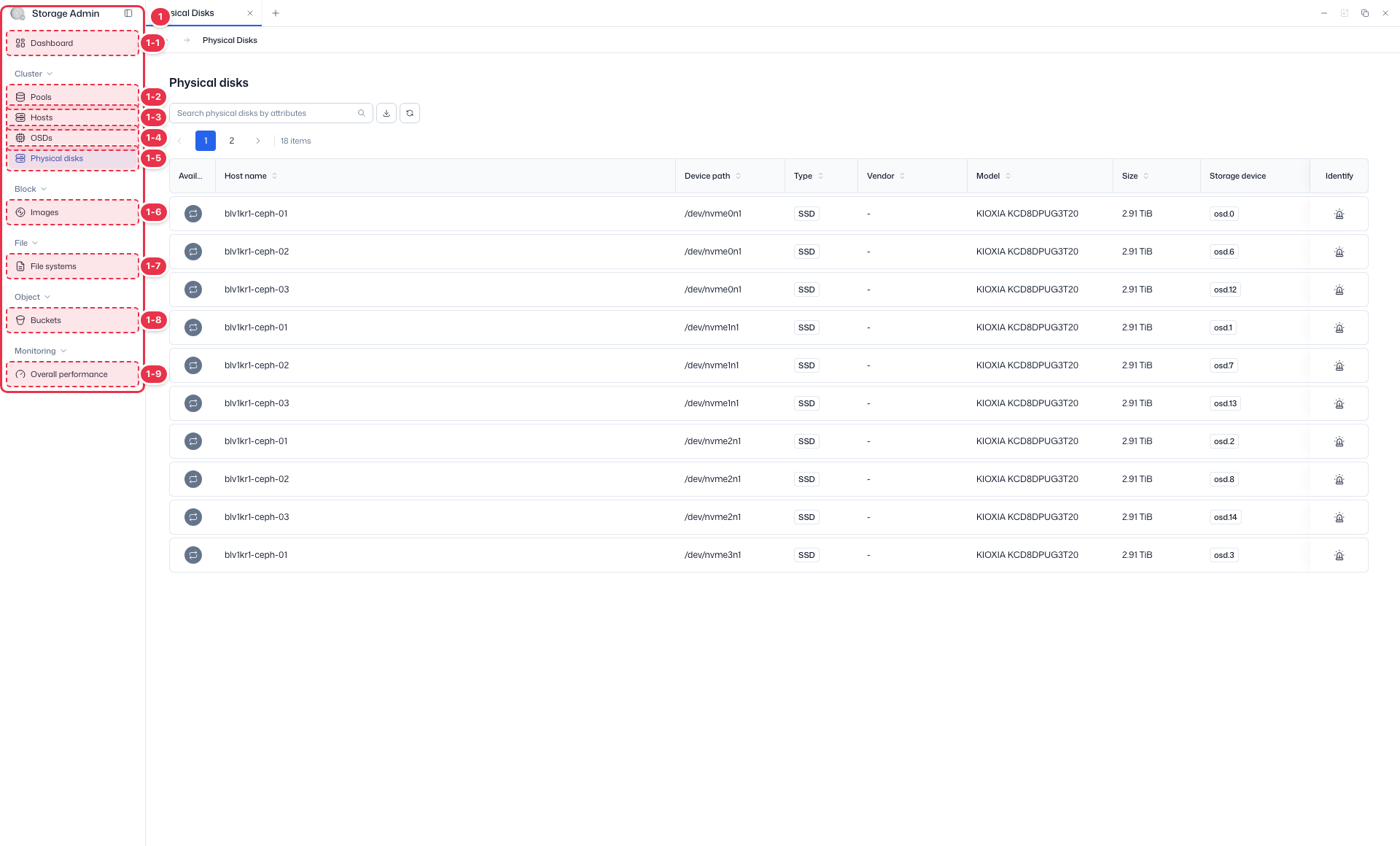
| No. | Feature | Item | Description |
|---|---|---|---|
| 1-1 | Dashboard | Dashboard | · Inventory·Capacity·Cluster utilization summary. |
| 1-2 | Pools | Pools | · View Ceph storage pools·PGs. |
| 1-3 | Hosts | Hosts | · Storage node hardware·OSD configuration. |
| 1-4 | OSDs | OSDs | · Object Storage Daemon status·capacity. |
| 1-5 | Physical disks | Physical disks | · View physical disks·Identify. |
| 1-6 | Images | Images | · RBD block images. |
| 1-7 | File systems | File systems | · CephFS file systems. |
| 1-8 | Buckets | Buckets | · System-wide S3 buckets. |
| 1-9 | Overall performance | Overall performance | · Pools·OSDs·Hosts·Images performance metrics. |
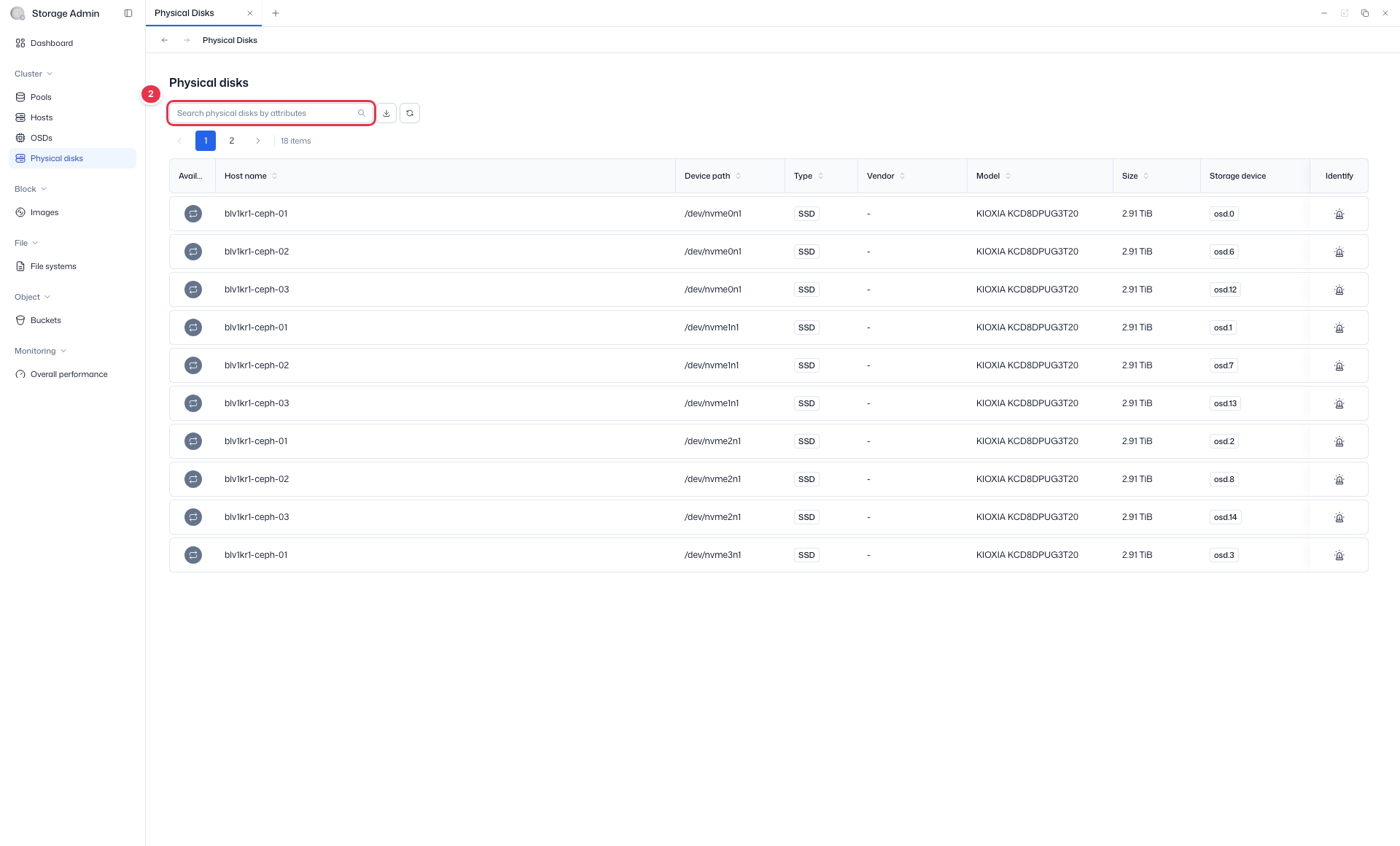
Search
Search the list by attribute.
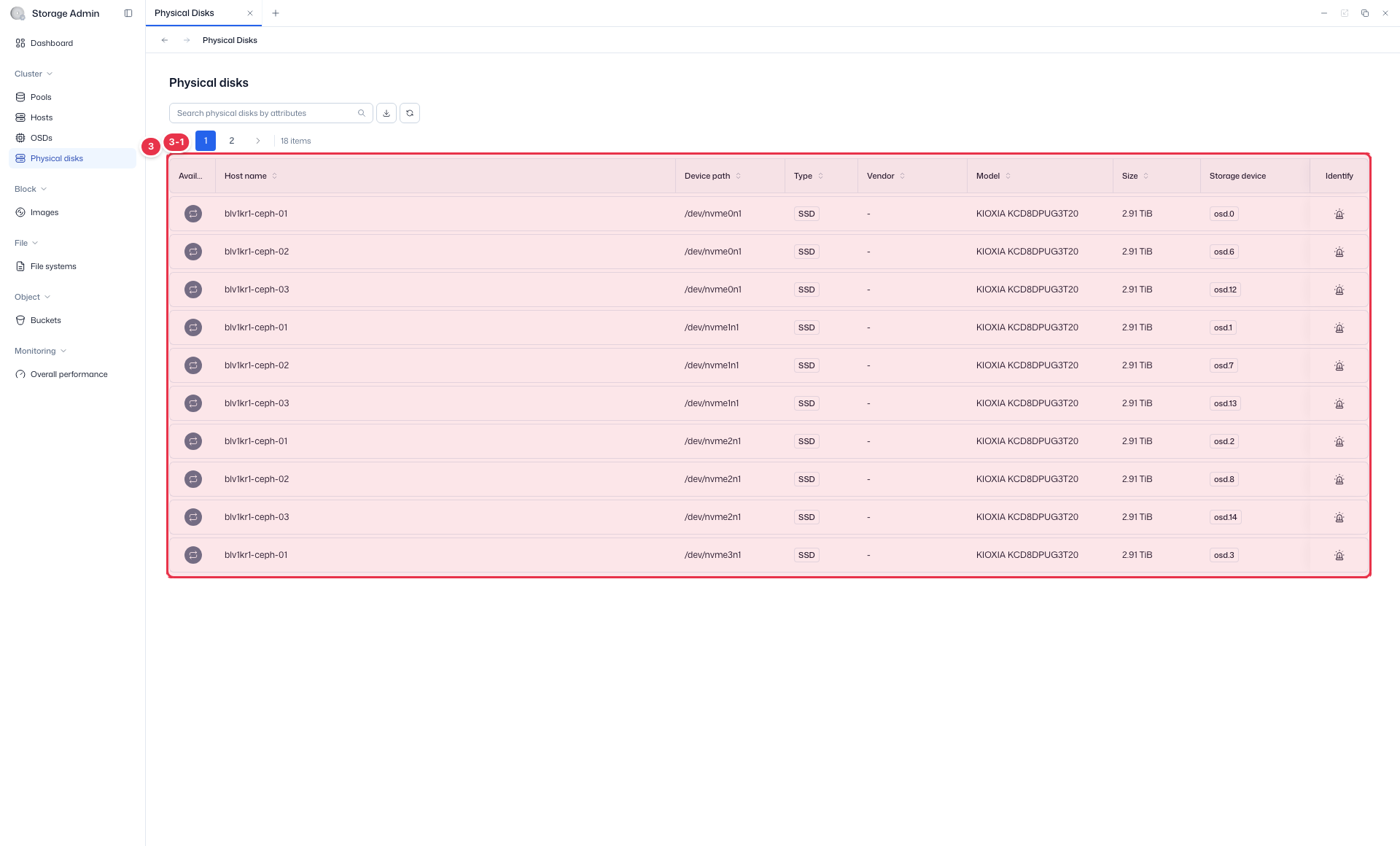
List table
Physical disk list. Use Identify to mark the device location (LED).
| No. | Feature | Item | Description |
|---|---|---|---|
| 3-1 | Columns | Available / Host name | Availability / owning host. |
| Device path / Type | Device path / disk type (HDD/SSD). | ||
| Vendor / Model / Size | Vendor·model·capacity. | ||
| Storage device | Attached storage device (OSD, etc.). | ||
| Identify | Turn on the Identify LED for the disk to locate it physically. |
Search filters
You can filter by Hostname · Device path · Type (select) · Status (available/unavailable, select) · Vendor · Model · Size · Storage device.
Identify Device
The Identify feature is used to turn on a physical disk's LED so you can confirm its physical location in the data center.
How to use
- On the Physical Disks list, click the Identify icon for the target disk.
- The Identify device modal appears.
- Select a Duration.
| Duration | Description |
|---|---|
| 1 minute | Minimum duration |
| 2 minutes | |
| 5 minutes | Default |
| 10 minutes | |
| 15 minutes | Maximum duration |
- Click the Execute button.
Behavior
- When set, the disk's LED icon color changes.
- A countdown for the selected Duration is displayed starting from the moment of success.
- When the countdown ends, the LED turns off automatically.
Usage
Running Identify during disk replacement lets you visually confirm the physical location, preventing mistakes on the wrong drive.