

Manage Instance Templates
Create, edit, and delete Instance Templates.
This guide walks through the screen below.
Type tabs
Tabs that split the Instance Templates list by type.

| No. | Feature | Item | Description |
|---|---|---|---|
| 2-1 | Type tab | Current tenant | · Templates owned by the current tenant. |
| 2-2 | Type tab | Public | · Public templates available to all tenants. |
Search and toolbar
The area for searching the list, exporting CSV, and running bulk actions on selected rows.

| No. | Feature | Item | Description |
|---|---|---|---|
| 3-1 | Search | Attribute search box | · Filters the list by attributes such as name, ID, and status. |
| 3-2 | Export | Download CSV | · Exports the current list as a CSV file. |
| 3-3 | Bulk action | Delete | · Deletes the selected items (a confirmation modal appears). |
Create a template
Goes to the page for creating a new instance template.

An instance template is a saved set of Instance settings you use often. When you pick a template on the instance creation screen, the saved values are filled in for you.
Click Create template at the top right of the Instance Template list.
The areas below appear in order on a single screen. Enter values in each area and click Next to open the area below it.
Area What you enter Template information Template name (required) · description · Mark as favorite Basic information Instance defaults such as the availability zone Source The image to boot from, plus the system disk and data disks Flavor Specifications such as vCPU and RAM Network Network · security group · port Advanced Tags · User data. Filled in automatically; click Edit to change it. The only required field is the template name; everything else is optional. The fields for each area are listed in the Instance Template reference.
Review what you entered in the Summary on the right, then click Create.
Templates created on this screen are Private templates used only in the current tenant. The public templates shown on the Public tab of the list are created by administrators in the Compute Admin app and cannot be created on this screen.
If you click Create instance template from the Action menu in the Images list or the Flavors list, this screen opens with that image or Flavor already selected.
List
A table that shows the instance templates you created with their name, description, and creation date.
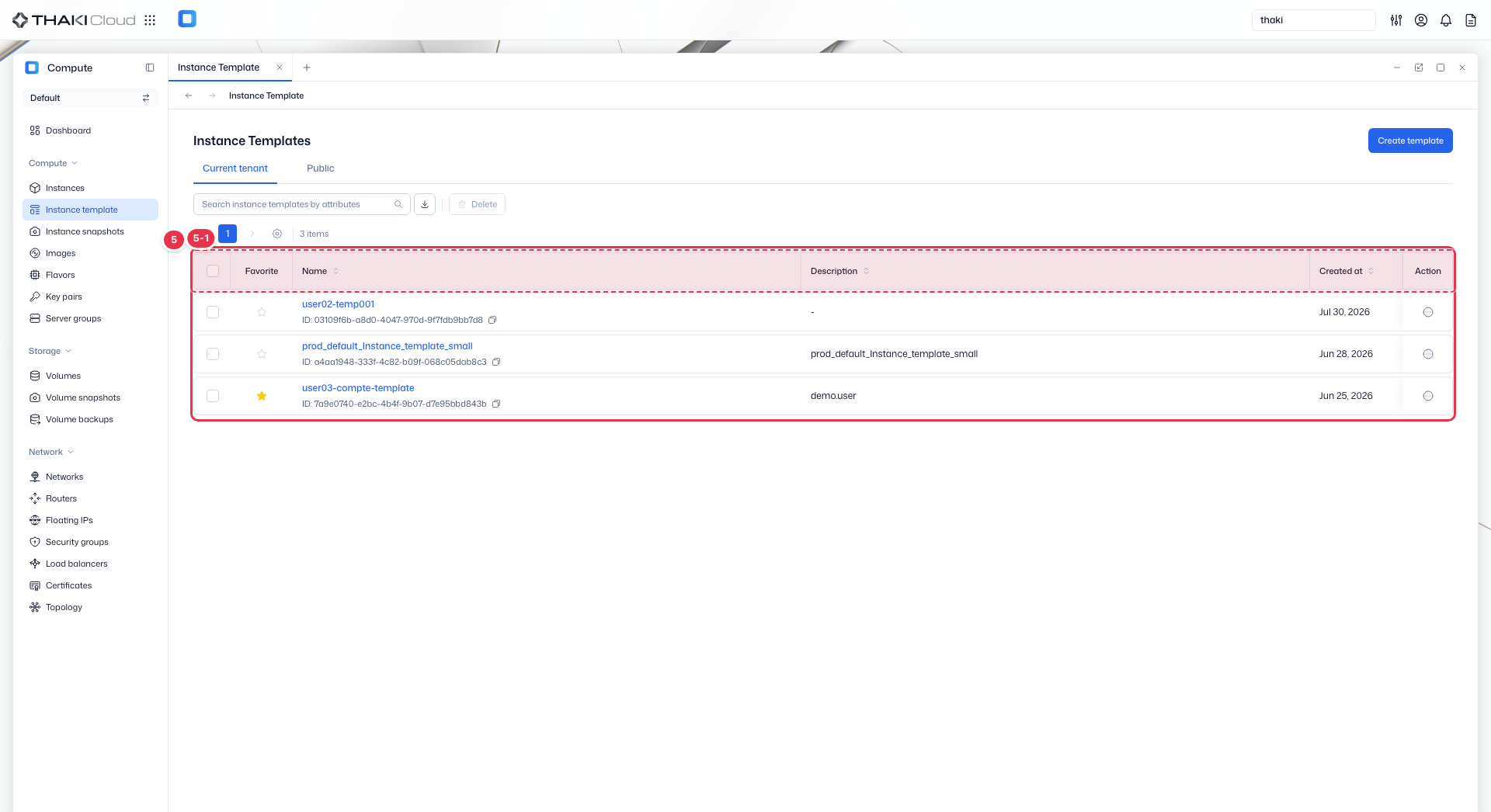
| No. | Feature | Item | Description |
|---|---|---|---|
| 5-1 | List columns | Favorite | The favorite (star) marker. |
| Name | The template name and ID. | ||
| Description | A description of what the template is for. | ||
| Created at | The creation date and time. | ||
| Action | The menu that opens from the button at the end of the row: Create instance (create an instance from this template) · Edit · Duplicate · Delete. |
Template actions
Run these from the Action button at the end of each row in the list. If you click a template name to open its detail page, Create instance is a button at the top, while Edit, Duplicate, and Delete are under More actions.
| Action | Description |
|---|---|
| Create instance | Opens the instance creation screen with this template's values filled in. |
| Edit | Changes the template contents. |
| Duplicate | Opens the template creation screen with the original's values filled in. The name is prefilled as original name-copy; open only the areas you want to change with Edit, then click Create to actually create the new template. The favorite mark is not copied. |
| Delete | Deletes the template. Instances already created from this template are not affected. |
Turn a favorite on or off with the star icon in the Favorite column at the front of the list.
On the Details tab of the detail page, you can check the template information (name · description · visibility · tenant), basic information (availability zone), source (source type · name · OS), flavor, and network (network · security group · port).