

Manage Volume Backups
Volume backups are used to restore volumes. A backup is stored separately from the volume, so it remains after the source volume is deleted.
Key features
- List view: View all volume backups with status and source volume information
- Search: Find backups by name, ID, and other attributes
- Detail view: Review backup information and the source volume
- Recovery: Restore a backup to its source volume or create a new volume from it
Search and toolbar
The area for searching the list, exporting CSV, and running bulk actions on selected rows.

| No. | Feature | Item | Description |
|---|---|---|---|
| 2-1 | Search | Attribute search box | · Filters the list by attributes such as name, ID, and status. |
| 2-2 | Export | Download CSV | · Exports the current list as a CSV file. |
| 2-3 | Bulk action | Delete | · Deletes the selected items (a confirmation modal appears). |
Create a volume backup
Creates a new backup of a volume.

Click Create Volume Backup at the top right of the Volume Backups list.
Choose the volume to back up in the Volume list. The list also shows the size, attached instance, and disk type (Data disk / OS disk).
Choose a Backup mode.
Backup mode Description Full backup Backs up the whole volume. The first backup must be a full backup. Increment backup Backs up only what changed since the previous backup. Faster and uses less space. Enter a volume backup name (required, up to 255 characters) and, optionally, a description.
Check the backup count and capacity quotas at the bottom of the dialog and click Create.
You can also create one from the volume. Using Data protection → Create Volume Backup in the action menu of the Volumes list, or the Volume Backups tab of the volume details, starts right away without the step of choosing a volume.
List
A table that shows volume backups with their status, backup mode, size, and source volume.
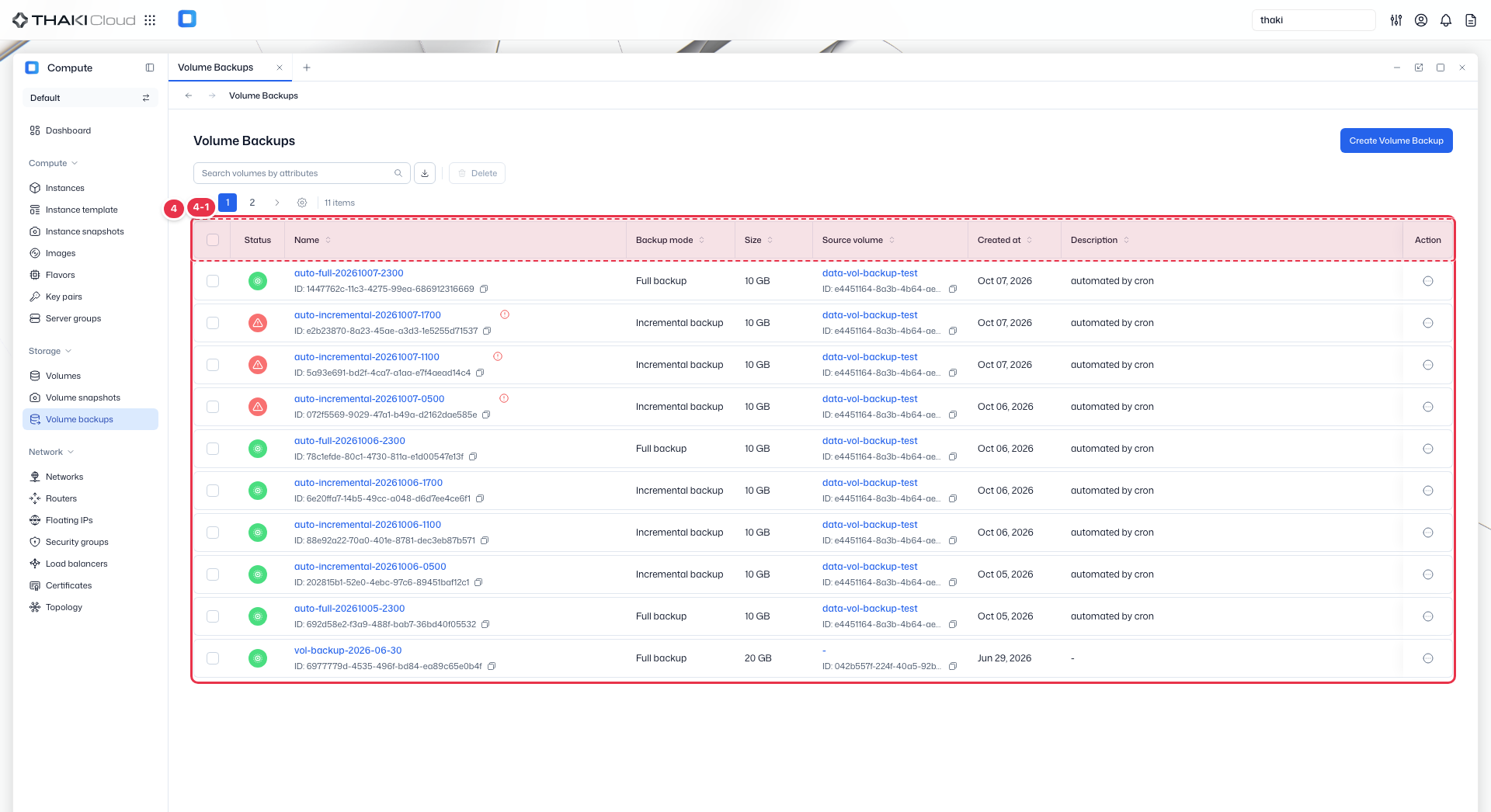
| No. | Feature | Item | Description |
|---|---|---|---|
| 4-1 | List columns | Status | The backup status (Available and so on). |
| Name | The backup name and ID. | ||
| Backup mode | The backup method (Full backup and so on). | ||
| Size | The backup size. | ||
| Source volume | The volume the backup was taken from. If the source has been deleted, "-" is shown. | ||
| Created at | The creation date and time. | ||
| Description | The description. | ||
| Action | The menu that opens from the button at the end of the row: Create volume (create a new volume from the backup) · Restore backup (restore to the source volume) · Edit (change name and description) · Delete. Items you cannot use appear disabled, and hovering over them shows the reason. |
More volume backup actions
The same actions are available from the Action menu at the end of each row and from the buttons at the top of the detail page. All four actions always appear in the menu; ones you cannot use are shown disabled. Hover over a disabled item to see the reason.
| Action | Description | What you enter | Availability |
|---|---|---|---|
| Create volume | Creates a new volume containing the backup data. It can be used even after the source volume is deleted. | Volume name, description, capacity (at least the backup size). The volume type is shown but cannot be changed. | Backup is Available |
| Restore backup | Overwrites the source volume with the data from the time of the backup. The source volume's current data is lost. | Confirmation | Backup is Available and the source volume still exists |
| Edit | Changes the backup name and description. | Volume backup name, description | Available, Error |
| Delete | Permanently deletes the backup. This cannot be undone. | Confirmation | Available, Error |
To delete several at once, select them with the checkboxes and use the Delete button at the top of the list.
Difference between Restore backup and Create volume
- Restore backup: Overwrites the source volume with the backup data. It cannot be used when the source volume has been deleted; the list then shows "-" under Source volume.
- Create volume: Creates a new, independent volume from the backup. The source volume is not touched.
Volume backup details
Click a backup name in the list to open its detail page. The top has Create volume, Restore backup, Edit, and Delete buttons, followed by a summary of the status, volume backup ID, creation time, and size. There is a single Details tab.
| Section | Items |
|---|---|
| Basic information | Volume backup name, description |
| Source | The source volume. Click the name to open the volume details. |
| Specifications | Backup mode, size |