

Quick start
This guide explains how to create a virtual machine (Instance) in Aegis Compute and connect to it over SSH.
Prerequisites
- An Aegis account and project must be ready
- A Key Pair for SSH access must be registered
- A network to connect the Instance to and a security group that allows SSH must be configured
Open the Compute app
Double-click the Compute icon on the desktop to open the app.
Click Instances in the left sidebar to display the instance list, with the Create instance button at the top right.
On the left side of the app is a sidebar for moving between resource screens, and at the very top of it is a selector for choosing the tenant to work in.
Sidebar (SNB)
The left sidebar for navigating to resource screens in the Compute, Storage, and Network groups.
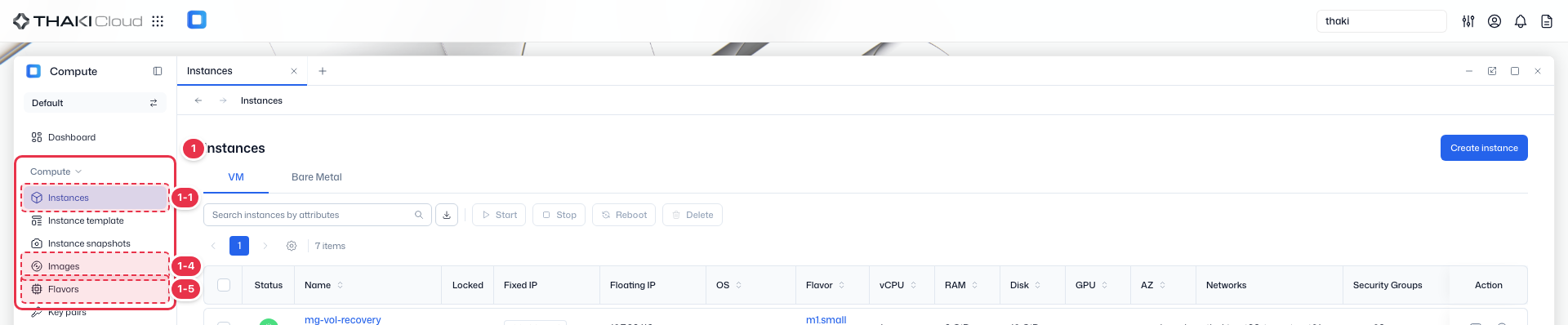
| No. | Feature | Item | Description |
|---|---|---|---|
| 1-1 | Compute | Instances | · The list of instances (VMs and bare metal). |
| 1-2 | Compute | Instance Template | · Manages reusable templates for creating instances. |
| 1-3 | Compute | Instance Snapshots | · Lists and manages instance snapshots (images). |
| 1-4 | Compute | Images | · Manages the OS images used to create instances. |
| 1-5 | Compute | Flavors | · Lists the vCPU, memory, and disk specifications (flavors). |
| 1-6 | Compute | Key Pairs | · Manages key pairs for SSH access. |
| 1-7 | Compute | Server Groups | · Manages groups that apply an instance placement policy (affinity/anti-affinity). |
Tenant selector
Shows and switches the tenant (project) you are working in. All resources and quotas are scoped to this tenant. In the demo environment the default is "Default" — other environments show the actual tenant name.

Create an Instance
Click the Create instance button to open the creation wizard. Fill in each step and click Next to continue.
- Resource type — Select Virtual Machine or Bare Metal (physical server) (for a VM, selecting an instance template as well fills in the later steps automatically)
- Basic information — Enter the Instance name and availability zone
- Source — Select Image as the boot source and specify an OS Image
- Flavor — Select a Flavor that fits the vCPU and memory you need
- Network — Select a network and security group (for Bare Metal, select only a network)
- Authentication — Select a Key Pair (for SSH access)
- Advanced configuration — Tags, server group, and user data. Filled in automatically; change them only when needed
Check the completion status of each step and the quota in the Summary panel on the right, then click the Create button. Creation is complete when the Instance status becomes Active.
Creating an Instance usually takes 1–2 minutes.
Connect over SSH
Once the Instance is in the Active state, you can connect to it over SSH.
- Check or associate a Floating IP on the Floating IPs tab of the Instance detail page
- Connect from a terminal with the command below
ssh -i <key-pair-file.pem> <username>@<Floating IP>TIP
Use the username ubuntu for Ubuntu Images, and centos or rocky for CentOS/Rocky.