

Manage Certificates
Certificates are used for TLS termination on load balancers. Register a certificate issued by an external certificate authority, then select it on a load balancer listener.
Key features
- List view: View all registered certificates with expiration status
- Search: Find certificates by name and other attributes
- Detail view: Review the certificate name and metadata such as issuer and validity period
- Certificate types: Server certificates, CA certificates
Certificate types
| Type | Usage | What you provide when registering |
|---|---|---|
| Server certificate | The primary certificate for TLS termination on HTTPS listeners | Certificate body, private key, and (if any) certificate chain |
| CA certificate | The certificate authority certificate used to validate client certificates | Certificate body |
SNI certificates
SNI is not a separate certificate type. A registered server certificate is assigned on the listener for additional domains.
Type tabs
Tabs that split the Certificates list by type.

| No. | Feature | Item | Description |
|---|---|---|---|
| 2-1 | Type tab | Server | · The list of server certificates. This tab is shown when you first open the screen. |
| 2-2 | Type tab | CA | · The list of certificate authority (CA) certificates. |
Search and toolbar
The area for searching the list, exporting CSV, and running bulk actions on selected rows.

| No. | Feature | Item | Description |
|---|---|---|---|
| 3-1 | Search | Attribute search box | · Filters the list by attributes such as name, ID, and status. |
| 3-2 | Export | Download CSV | · Exports the current list as a CSV file. |
| 3-3 | Bulk action | Delete | · Deletes the selected items (a confirmation modal appears). |
Register a certificate
Registers a certificate issued externally.

- Click Register certificate at the top right of the Certificates list.
- Under Type, choose Server certificate or CA certificate. The fields below depend on the type you choose.
- Enter the fields below.
| Field | Description | Server certificate | CA certificate |
|---|---|---|---|
| Certificate name | The name that identifies it in the list. Up to 255 characters; it cannot start or end with a space. | Required | Required |
| Certificate body | Paste the full contents of the certificate file, including the BEGIN/END lines, or upload it with Choose file. Server certificates use .crt, .cer, or .pem files; CA certificates use .crt or .pem files. Up to 64 KB | Required | Required |
| Private key | Paste the contents of the private key file (.pem, .key) that matches the certificate, or upload it as a file. Up to 64 KB | Required | Not shown |
| Certificate chain | Enter it if you have intermediate certificates. | Optional | Not shown |
- Click Create. The registered certificate appears on the Server or CA tab of the list, depending on its type. The CA tab differs only in having no Domain column.
List
A table that shows TLS certificates with their domain, listeners, and expiration date.
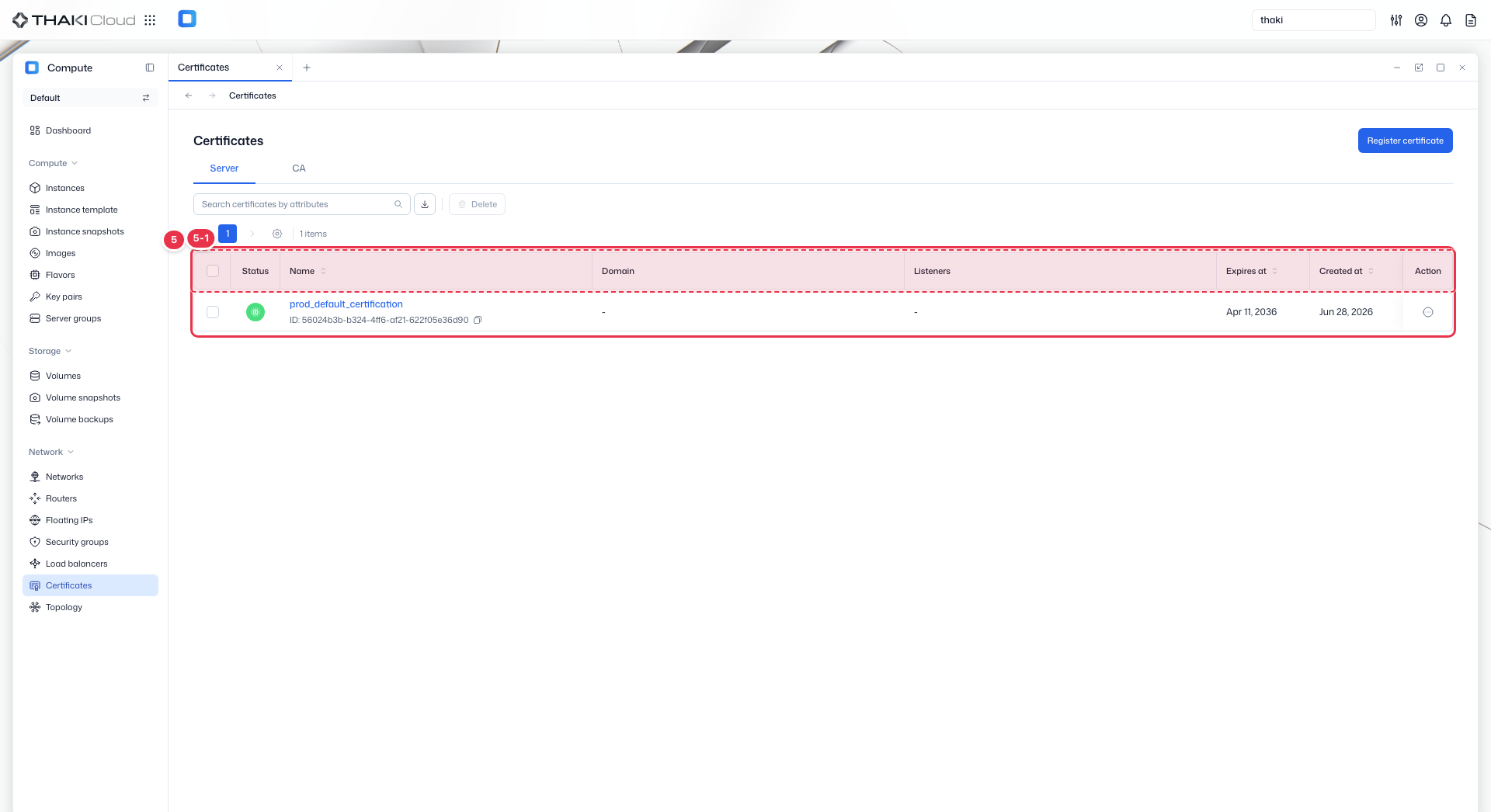
| No. | Feature | Item | Description |
|---|---|---|---|
| 5-1 | List columns | Status | Shows the certificate status as an icon: Valid · Expiring Soon (7 days or fewer until expiration) · Expired. Hover over the icon to see the status name. |
| Name | The certificate name and ID. | ||
| Domain | The domains (SAN) contained in the certificate. If there are none, "-" is shown. The CA tab does not have this column. | ||
| Listeners | The listeners that use this certificate. If there are none, "-" is shown. | ||
| Expires at | The expiration date. Expired certificates are shown in red. | ||
| Created at | The creation date and time. | ||
| Action | The menu that opens from the button at the end of the row: Download (download the certificate file) · Delete. Delete is disabled for a certificate that a listener is using. |
More certificate actions
The same actions are available from the Action menu at the end of each row and from the buttons at the top of the detail page.
| Action | Description | Availability |
|---|---|---|
| Download | Downloads the certificate as a file. | All certificates |
| Delete | Deletes the certificate. This cannot be undone. | Not used by a listener. If a listener uses it, Delete in the row menu is disabled, so change the listener's certificate first. |
To delete several at once, select them with the checkboxes and use the Delete button at the top of the list.
The name and contents of a registered certificate cannot be changed. To renew, register a new certificate, change the listener's certificate to it, and delete the old one.
Certificate status
Shown as the Status icon in the list and at the top of the detail page. It is determined by the expiration date.
| Status | Meaning |
|---|---|
| Valid | Valid, with more than 7 days until expiration. |
| Expiring Soon | 7 days or fewer until expiration. |
| Expired | Expired. The expiration date in the list is shown in red. |
Expiration monitoring
A listener using an expired certificate may stop accepting connections. When the status changes to Expiring Soon, renew with a new certificate.
Certificate details
Click a name in the list to open its detail page. The top summarizes the status, ID, type, expiration date, and creation time, with Download and Delete buttons. There is a single Details tab.
| Section | Items |
|---|---|
| Basic information | Certificate name |
| Certificate metadata | Classification (server / CA), issuer, type, CN, SAN, signature type, and validity period (from ~ to) |
To change the certificate applied to a listener, use the Certificates tab of the listener details. For where to find it, see Manage Load Balancers.