

Images (domain administrator)
View and manage the RBD (RADOS Block Device) images in your domain. Open this screen from Block → Images in the left sidebar.
Image list
Sidebar (SNB)
The left sidebar for navigating to each domain administrator storage screen.
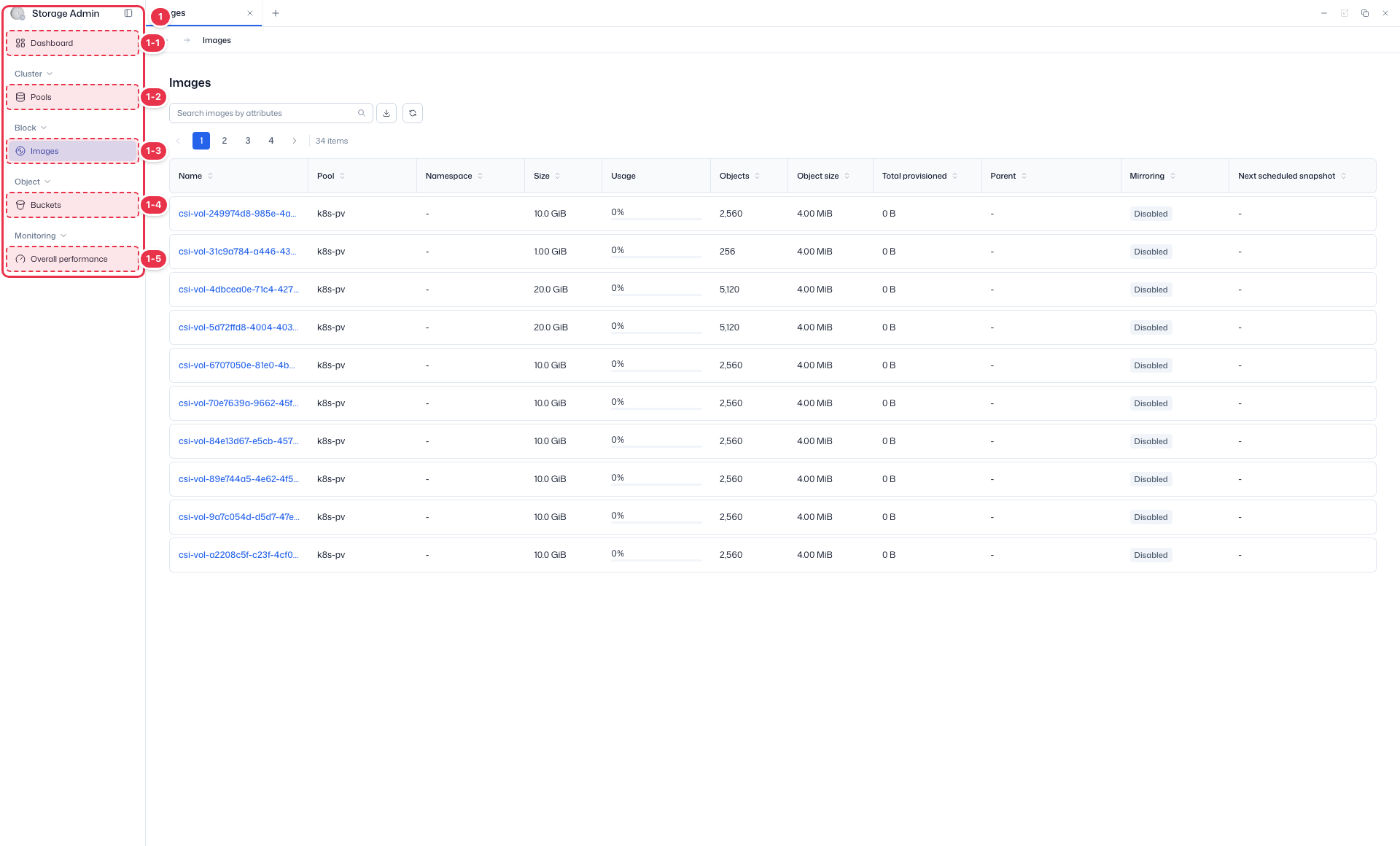
| No. | Feature | Item | Description |
|---|---|---|---|
| 1-1 | Dashboard | Dashboard | · Summarizes the domain's storage status and cluster performance. |
| 1-2 | Pools | Pools | · Lists the storage pools assigned to the domain and shows their performance. |
| 1-3 | Images | Images | · Lists the RBD images in the domain and manages their snapshots and settings. |
| 1-4 | Buckets | Buckets | · Lists all buckets in the domain and lets you create, edit, and delete them. |
| 1-5 | Overall performance | Overall performance | · Monitors the overall performance of pools and images. |
Search
Filters RBD images by attributes such as name. The icons on the right download a CSV file and refresh the list.
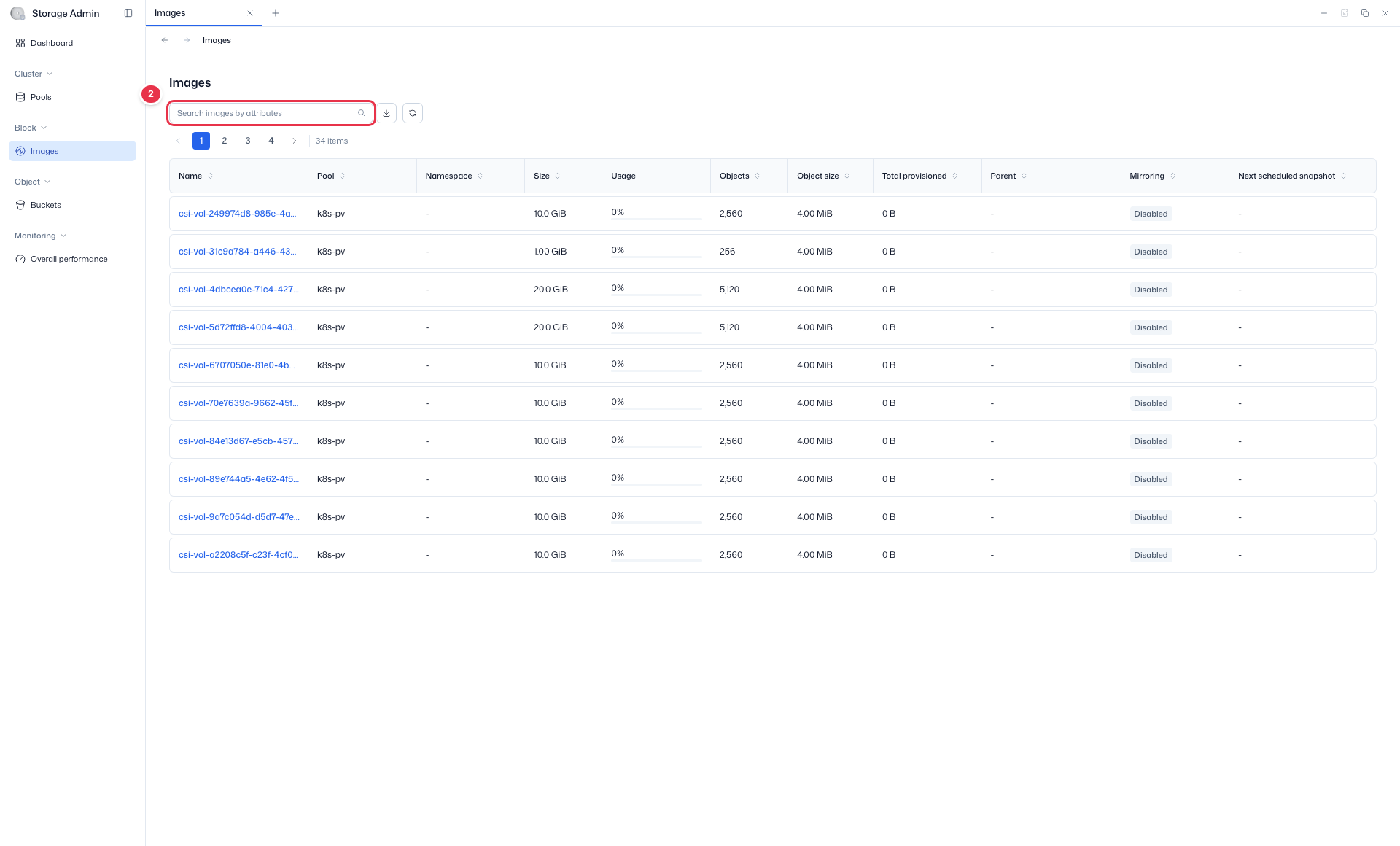
Image list table
The list of RBD block images in the domain. If there are no images, "No images found" is shown.
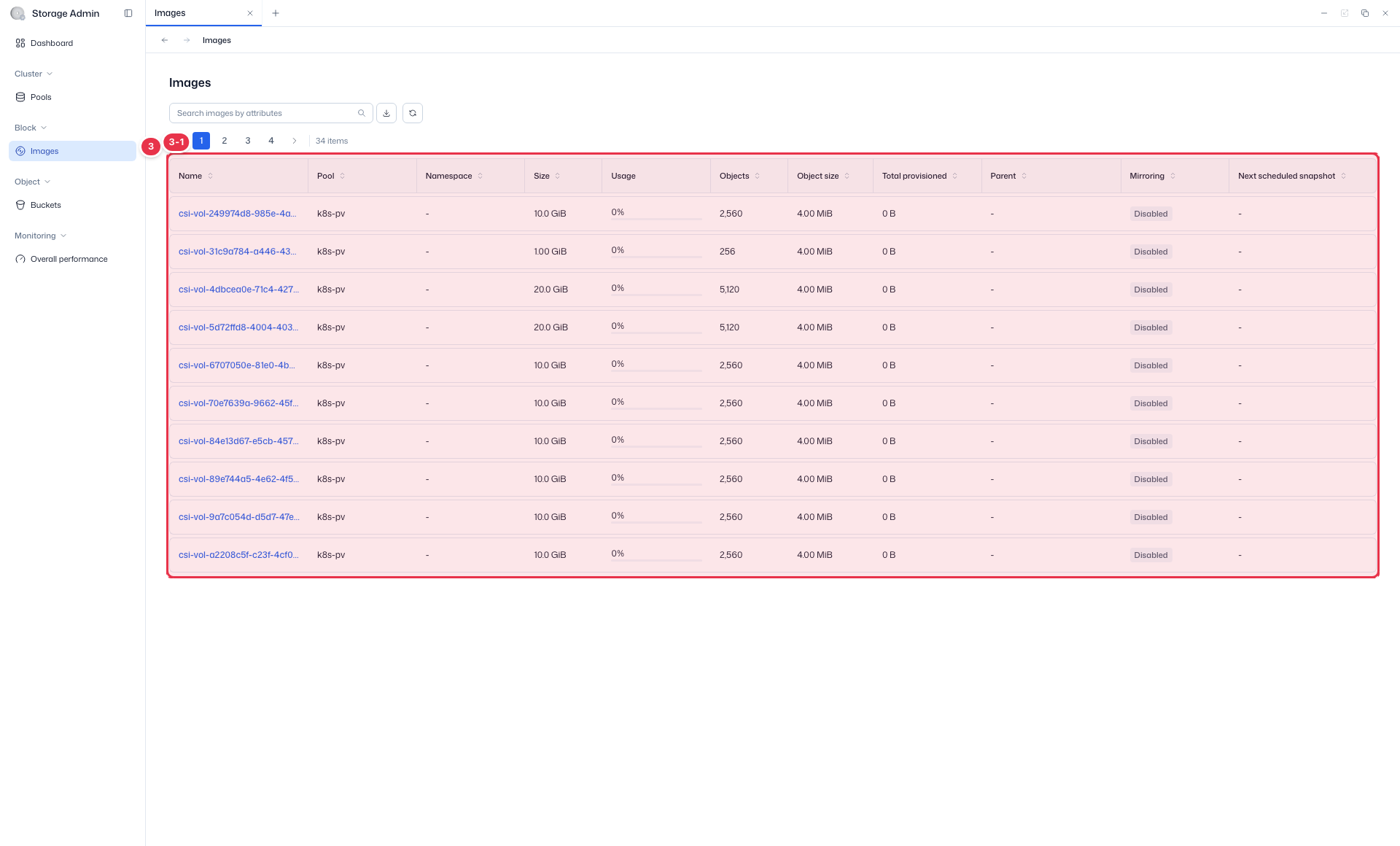
| No. | Feature | Item | Description |
|---|---|---|---|
| 3-1 | List columns | Name | The RBD image name. Click it to open the details. |
| Data pool | The data pool the image belongs to. | ||
| Namespace | The image namespace. | ||
| Size | The provisioned size of the image. | ||
| Usage | The capacity actually used. | ||
| Objects / Object size | The number of objects and the size of each object. | ||
| Total provisioned | The total provisioned capacity, including snapshots. | ||
| Parent | The parent image (the source of the clone). | ||
| Mirroring | Whether mirroring is enabled. | ||
| Next scheduled snapshot | The time of the next scheduled snapshot. |
Empty list / domain filtering
This screen shows only the images that belong to your domain, and the domain prefix is hidden from pool names. If there are no images at all, the table shows "No images found".
Search filters
In the search box (number 2), you can select a filter key to narrow your search, and if you do not select a key, the Name filter is applied automatically.
| Filter key | Type |
|---|---|
| Name / Pool / Objects / Object size / Total provisioned / Parent | Text |
| Mirroring | Selection (Enabled / Disabled) |
| Next scheduled snapshot | Date range |
Use the icons to the right of the search box for Download CSV and Refresh.
Image details
Click an image name to go to its detail screen. The detail screen has three tabs: Snapshots · Configuration · Performance.
Snapshots tab
View the snapshots of the image.
| Column | Description |
|---|---|
| Name | Snapshot name |
| Protected | Whether the snapshot is protected (Yes / No) |
| Size | Snapshot size |
| Used | Usage |
| Created at | Creation date and time |
The default sort order is newest first by creation date, and 10 rows are shown per page.
Configuration tab
View the configuration of the image.
| Column | Description |
|---|---|
| Name | Configuration name |
| Description | Description |
| Key | Configuration key |
| Source | Source badge (Global / Pool / Image) |
| Value | Configuration value |
Performance tab
Monitor the image's real-time performance metrics as charts. Set the time range with the monitoring toolbar, and use Download image, Download CSV, and View data from the more button (⋯) on each chart.
Next steps
- Dashboard — Dashboard
- Pools — Pool management
- Overall Performance — Overall performance monitoring