

Overall Performance (domain administrator)
Monitor the overall performance of the pools and images in your domain. Open this screen from Monitoring → Overall performance in the left sidebar, and switch the target with the Pools / Images tabs at the top.
Domain scope
All values on this screen are filtered to show only the resources that belong to your domain. The domain prefix is hidden from pool and image names.
Pool performance
Sidebar (SNB)
The left sidebar for navigating to each domain administrator storage screen.
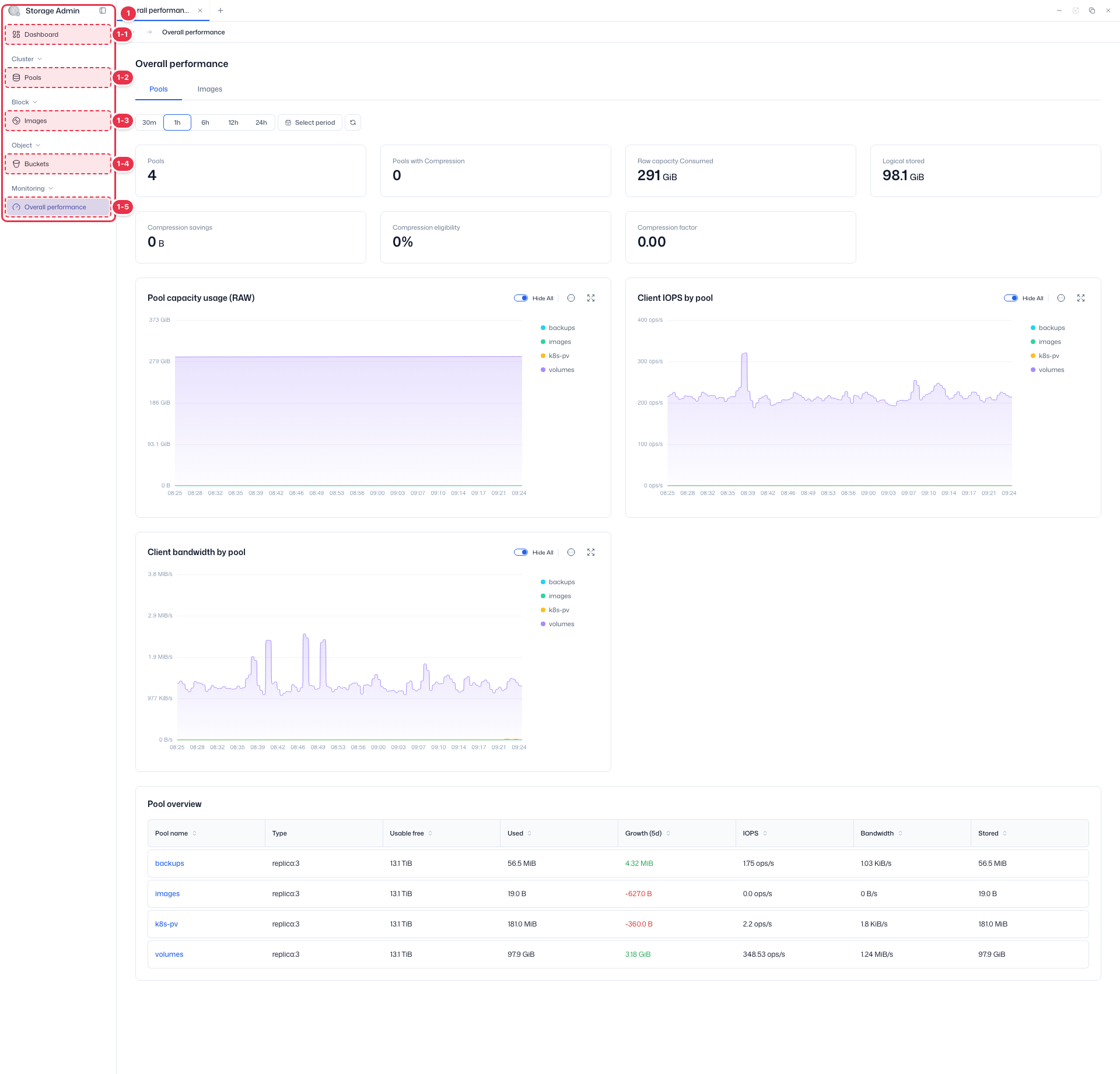
| No. | Feature | Item | Description |
|---|---|---|---|
| 1-1 | Dashboard | Dashboard | · Summarizes the domain's storage status and cluster performance. |
| 1-2 | Pools | Pools | · Lists the storage pools assigned to the domain and shows their performance. |
| 1-3 | Images | Images | · Lists the RBD images in the domain and manages their snapshots and settings. |
| 1-4 | Buckets | Buckets | · Lists all buckets in the domain and lets you create, edit, and delete them. |
| 1-5 | Overall performance | Overall performance | · Monitors the overall performance of pools and images. |
Tabs · period
Switch the target with the Pools and Images tabs, and select a period to change the time range shown.
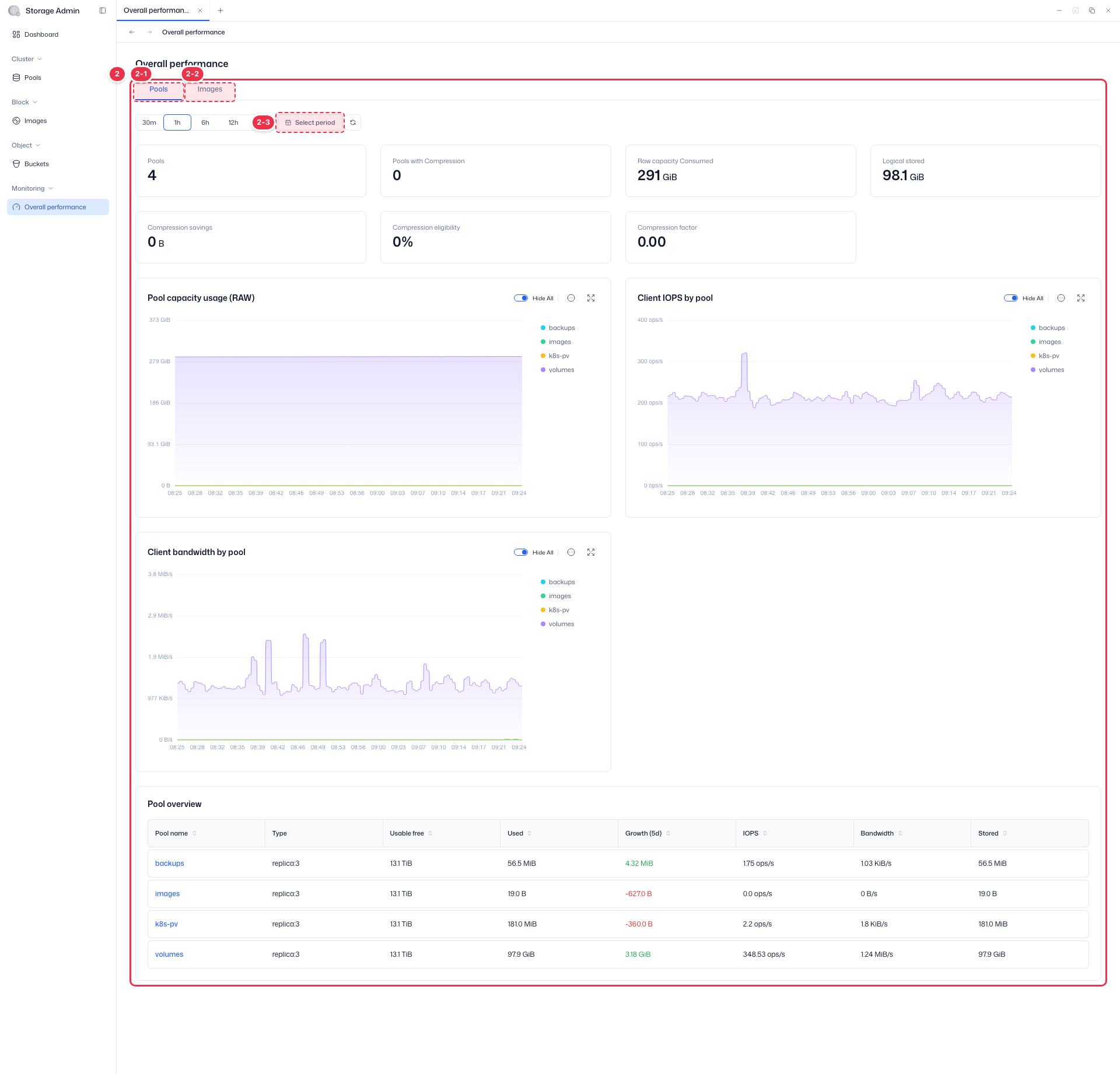
| No. | Feature | Item | Description |
|---|---|---|---|
| 2-1 | Pools tab | Pools | · Shows a performance and capacity summary for all pools in the domain. |
| 2-2 | Images tab | Images | · Shows a performance summary for all images in the domain. |
| 2-3 | Period selection | 30m~24h · Select period | · Choose from 30 minutes to 24 hours, or set a custom period with Select period. |
Summary cards
Summarizes the number of pools, raw and logical capacity, and compression metrics in cards.
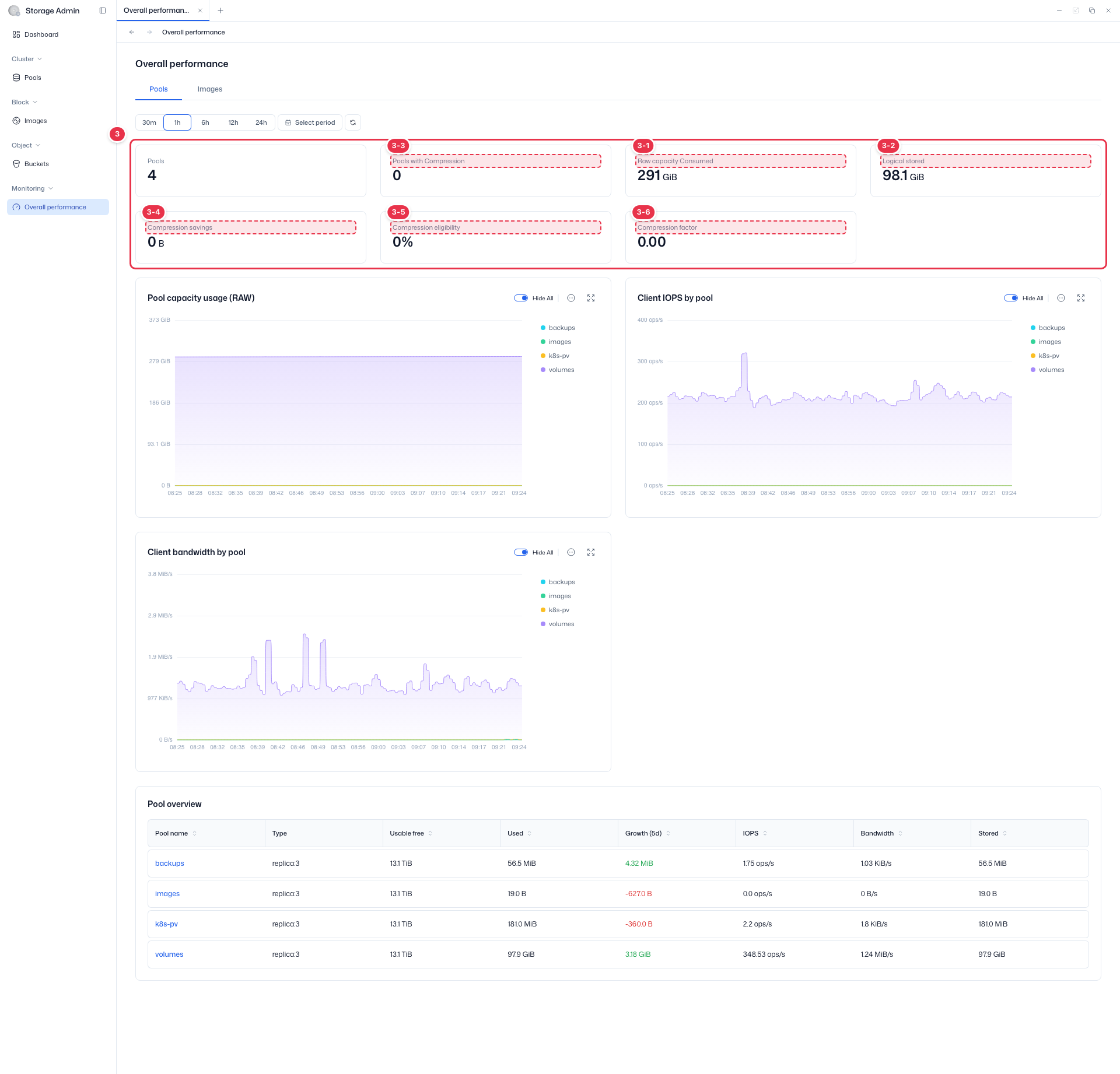
| No. | Feature | Item | Description |
|---|---|---|---|
| 3-1 | Raw capacity consumed | Raw capacity Consumed | · The actual raw capacity used, including replication and EC. |
| 3-2 | Logical stored capacity | Logical stored | · The logical data capacity before replication. |
| 3-3 | Pools with compression | Pools with Compression | · The number of pools with compression enabled. |
| 3-4 | Compression savings | Compression savings | · The capacity saved by compression. |
| 3-5 | Compression eligibility | Compression eligibility | · The share of the total to which compression is applied. |
| 3-6 | Compression factor | Compression factor | · The compression efficiency factor. |
Performance charts · details by pool
Shows capacity, IOPS, and bandwidth charts by pool for the selected period, with a details-by-pool table below them.
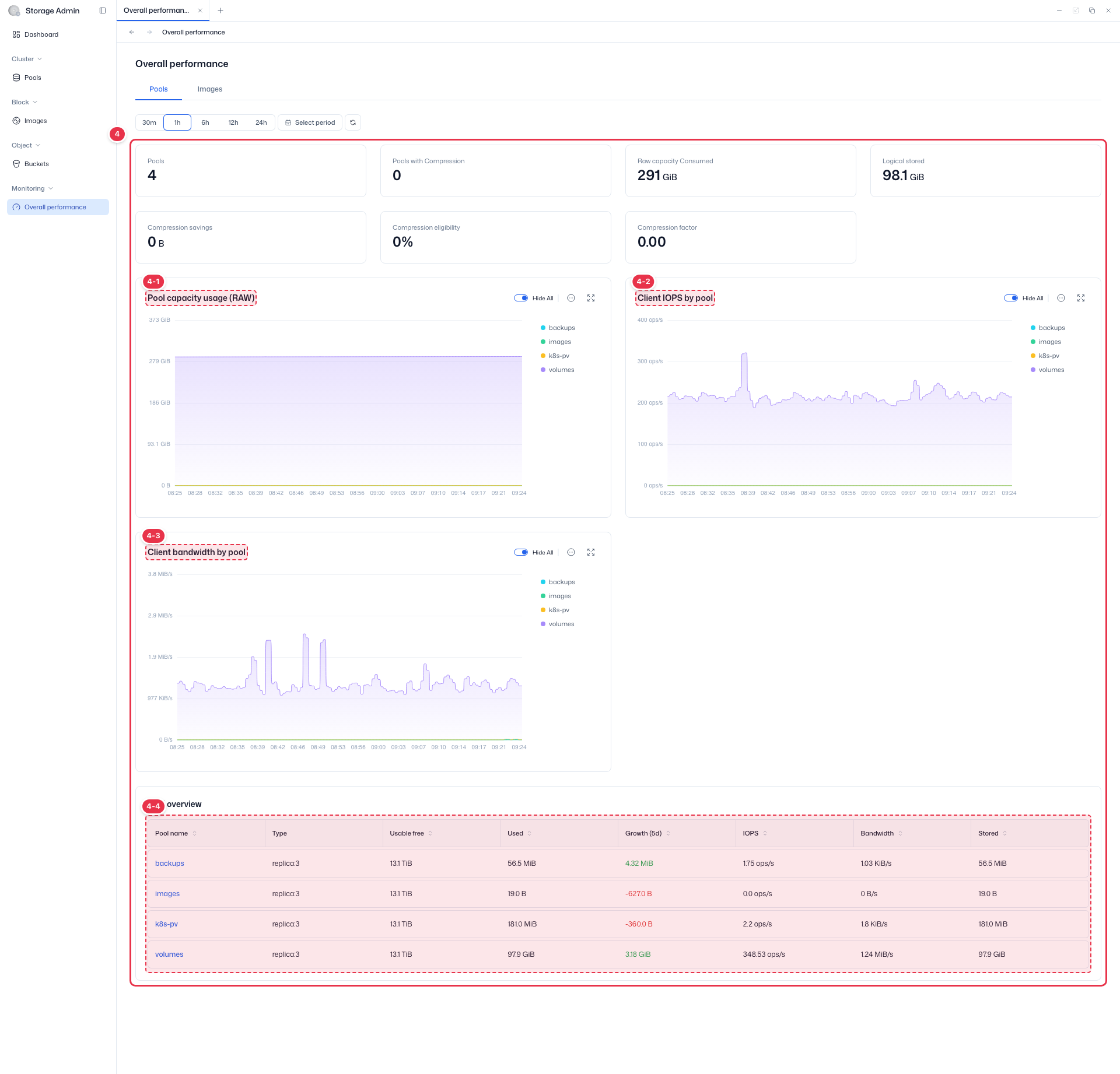
| No. | Feature | Item | Description |
|---|---|---|---|
| 4-1 | Pool capacity usage (RAW) | Pool capacity usage (RAW) | · The trend of raw capacity usage by pool. |
| 4-2 | Client IOPS by pool | Client IOPS by pool | · The trend of client IOPS by pool. |
| 4-3 | Client bandwidth by pool | Client bandwidth by pool | · The trend of client bandwidth by pool. |
| 4-4 | Details-by-pool table | Pool name | The pool name. Click it to open the Performance tab of the pool details (the domain prefix is hidden). |
| Type | The pool type. | ||
| Usable free / Used / Stored | The usable free capacity, used capacity, and stored data capacity. | ||
| Growth (5d) | The change over the last 5 days (green when positive, red when zero or negative). | ||
| IOPS / Bandwidth | The IOPS and bandwidth per pool. |
Image performance
On the Images tab, you see the lists of top images by throughput and latency, and the performance charts. The layout is similar to the Pools tab, and if the domain has no images, the lists and charts are shown empty.
Images tab
The Images tab shows top lists for highest throughput and highest latency, along with IOPS, throughput, and latency charts. If the domain has no images, "No images found" and "No data available" are shown.
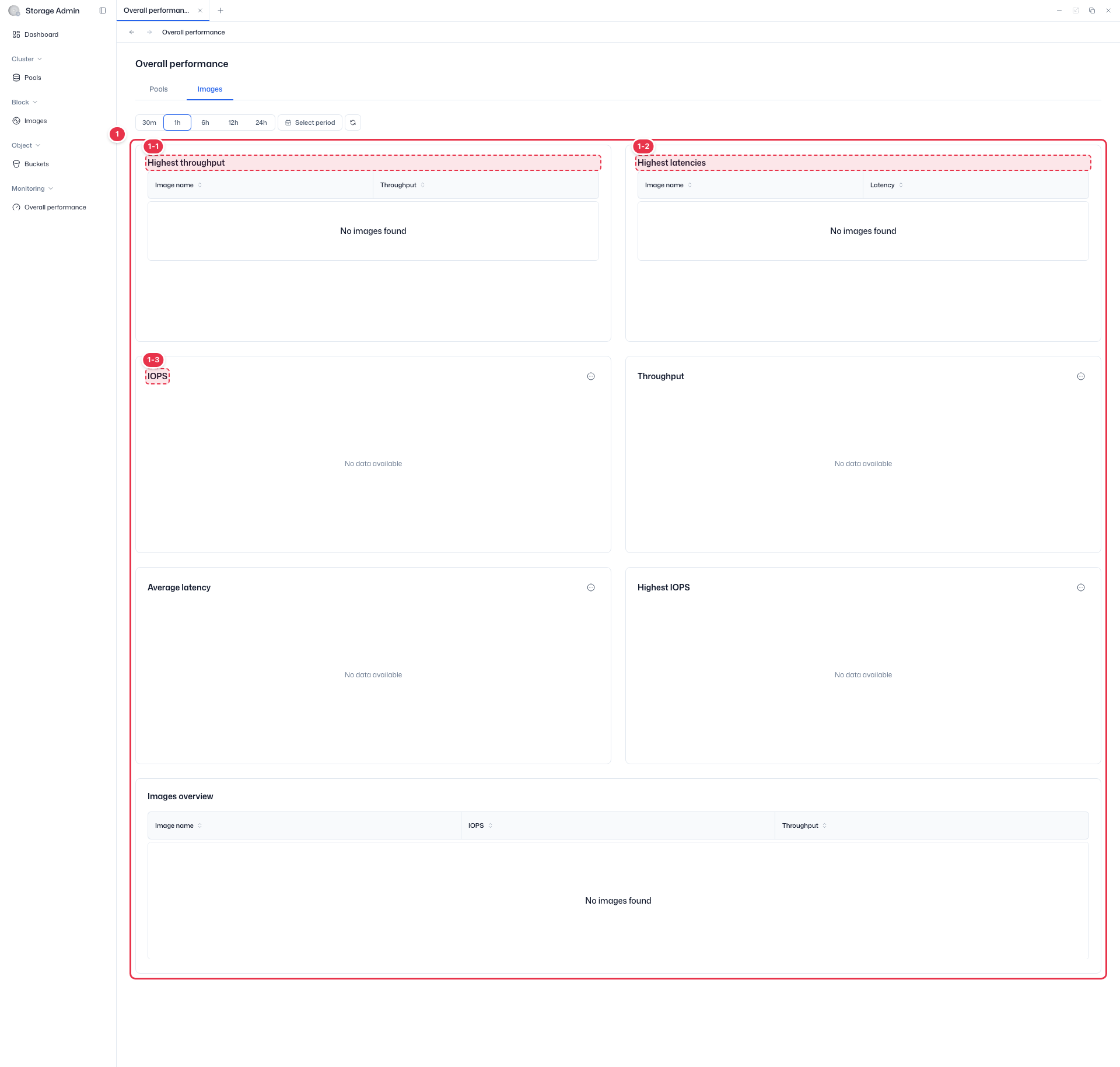
| No. | Feature | Item | Description |
|---|---|---|---|
| 1-1 | Highest throughput | Highest throughput | · The top list of images with the highest throughput (image name and throughput). |
| 1-2 | Highest latency | Highest latencies | · The top list of images with the highest latency (image name and latency). |
| 1-3 | Performance charts | IOPS · Throughput · Average latency · Highest IOPS | · Charts for image IOPS, throughput, average latency, and highest IOPS follow ("No data available" when there is no data). |
Chart actions
From the more button (⋯) on each chart, you can use Download image (PNG), Download CSV, and View data (data table), and you can enlarge a chart with the expand button (⤢). Changing the period in the expanded modal does not affect the original screen.