

Manage Volume Snapshots
Volume snapshots save a volume at a specific point in time. You can create a new volume from a snapshot or return the source volume to that point in time.
Key features
- List view: View all volume snapshots with status and source volume information
- Search: Find snapshots by name, ID, and other attributes
- Detail view: Review snapshot information and the source volume
- Create volume: Create a new volume from a snapshot
Search and toolbar
The area for searching the list, exporting CSV, and running bulk actions on selected rows.

| No. | Feature | Item | Description |
|---|---|---|---|
| 2-1 | Search | Attribute search box | · Filters the list by attributes such as name, ID, and status. |
| 2-2 | Export | Download CSV | · Exports the current list as a CSV file. |
| 2-3 | Bulk action | Delete | · Deletes the selected items (a confirmation modal appears). |
Create a volume snapshot
This screen has no create button. Volume snapshots are created from a volume.
- In the Volumes list, click Action → Data protection → Create Volume Snapshot on the volume row. You can also click Create Snapshot on the Volume Snapshots tab of the volume details.
- Enter a snapshot name (required, up to 255 characters) and, optionally, a description. You can check the remaining snapshot quota at the bottom of the dialog.
- Click Create. A snapshot can be created while the volume is Available or In-use.
List
A table that shows volume snapshots with their status, size, and source volume.
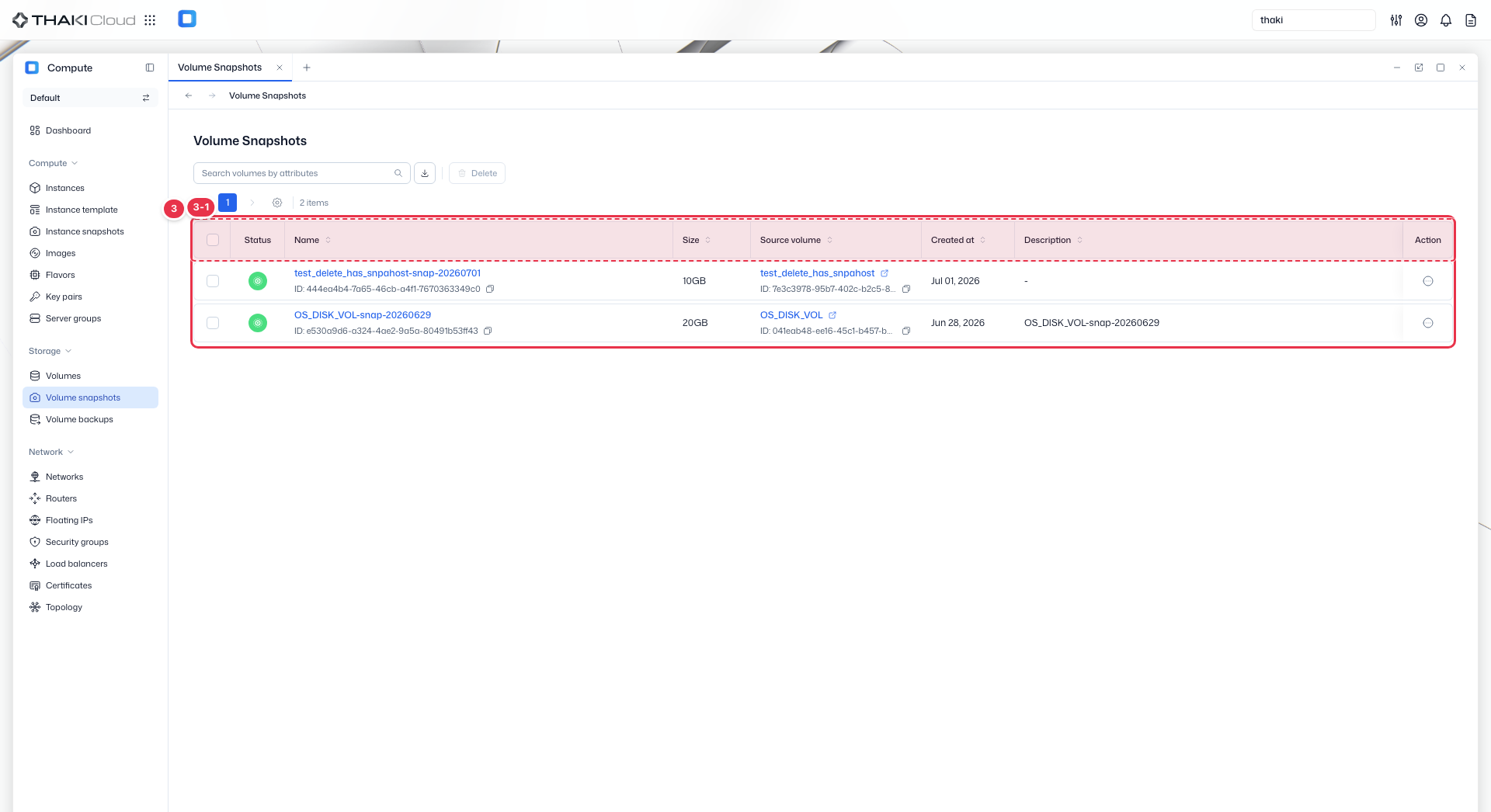
| No. | Feature | Item | Description |
|---|---|---|---|
| 3-1 | List columns | Status | The snapshot status (Available and so on). |
| Name | The snapshot name and ID. | ||
| Size | The snapshot size. | ||
| Source volume | The volume the snapshot was taken from. | ||
| Created at | The creation date and time. | ||
| Description | The description. | ||
| Action | The menu that opens from the button at the end of the row: Create volume (create a new volume from the snapshot) · Edit (change name and description) · Delete. |
More volume snapshot actions
The same actions are available from the Action menu at the end of each row and from the buttons at the top of the detail page.
| Action | Description | What you enter | Availability |
|---|---|---|---|
| Create volume | Creates a new volume containing the data from the time of the snapshot. The source volume is left as is. | Volume name, description, capacity (at least the snapshot size). The volume type is shown but cannot be changed. | Available |
| Edit | Changes the snapshot name and description. | Volume snapshot name, description | Available, Error |
| Delete | Permanently deletes the snapshot. This cannot be undone. | Confirmation | Available, Error |
To delete several at once, select them with the checkboxes and use the Delete button at the top of the list.
The create volume dialog also shows the volume count and capacity quotas.
To roll back the source volume
To return the source volume itself to the time of the snapshot instead of creating a new volume, use Data protection → Restore from snapshot in the volume's action menu. The volume must be Available.
Volume snapshot details
Click a snapshot name in the list to open its detail page. The top has Create volume, Edit, and Delete buttons, followed by a summary of the status, volume snapshot ID, size, and creation time. There is a single Details tab.
| Section | Items |
|---|---|
| Basic information | Snapshot name, description. Edit with Edit on the right. |
| Source | The source volume. Click the name to open the volume details. |
| Specifications | Size |