

Manage Floating IPs
Floating IPs are public IP addresses that can be associated with instances.
Key Features
- List view: View all allocated floating IPs with association status
- Search: Find floating IPs by address and other attributes
- Detail view: Review IP details and the associated resource
- Flexible association: Associate with instances, load balancers, or virtual adapters (ports)
Search and toolbar
The area for searching the list, exporting CSV, and running bulk actions on selected rows.

| No. | Feature | Item | Description |
|---|---|---|---|
| 2-1 | Search | Attribute search box | · Filters the list by attributes such as name, ID, and status. |
| 2-2 | Export | Download CSV | · Exports the current list as a CSV file. |
| 2-3 | Bulk action | Release | · Releases the selected Floating IPs. Disassociate any that are associated with a resource first. |
Create (allocate) a Floating IP
Allocates a new Floating IP from an external network.

A Floating IP is not "created"; it is allocated from an external network.
Click Allocate Floating IP at the top right of the Floating IPs list.
Enter a Description if needed (up to 255 characters).
Select an External Network. It is required; the Allocate button stays disabled until you choose one.
To receive several addresses or specify one yourself, expand Allocation mode and choose a mode. If you leave it collapsed, you receive one address automatically.
Allocation mode Description Automatic (Single) Receives one available address automatically. This is the default. Manual (Single) Enter the address you want in Manual floating IP address. After you choose an external network, the available range of each subnet is shown; the address must be within it. Automatic (Batch) Enter a Count to receive several at once. Check the remaining quota under Floating IP quota and click Allocate.
List
A table of the Floating IPs allocated to the project, with the associated resource, fixed IP, and network.
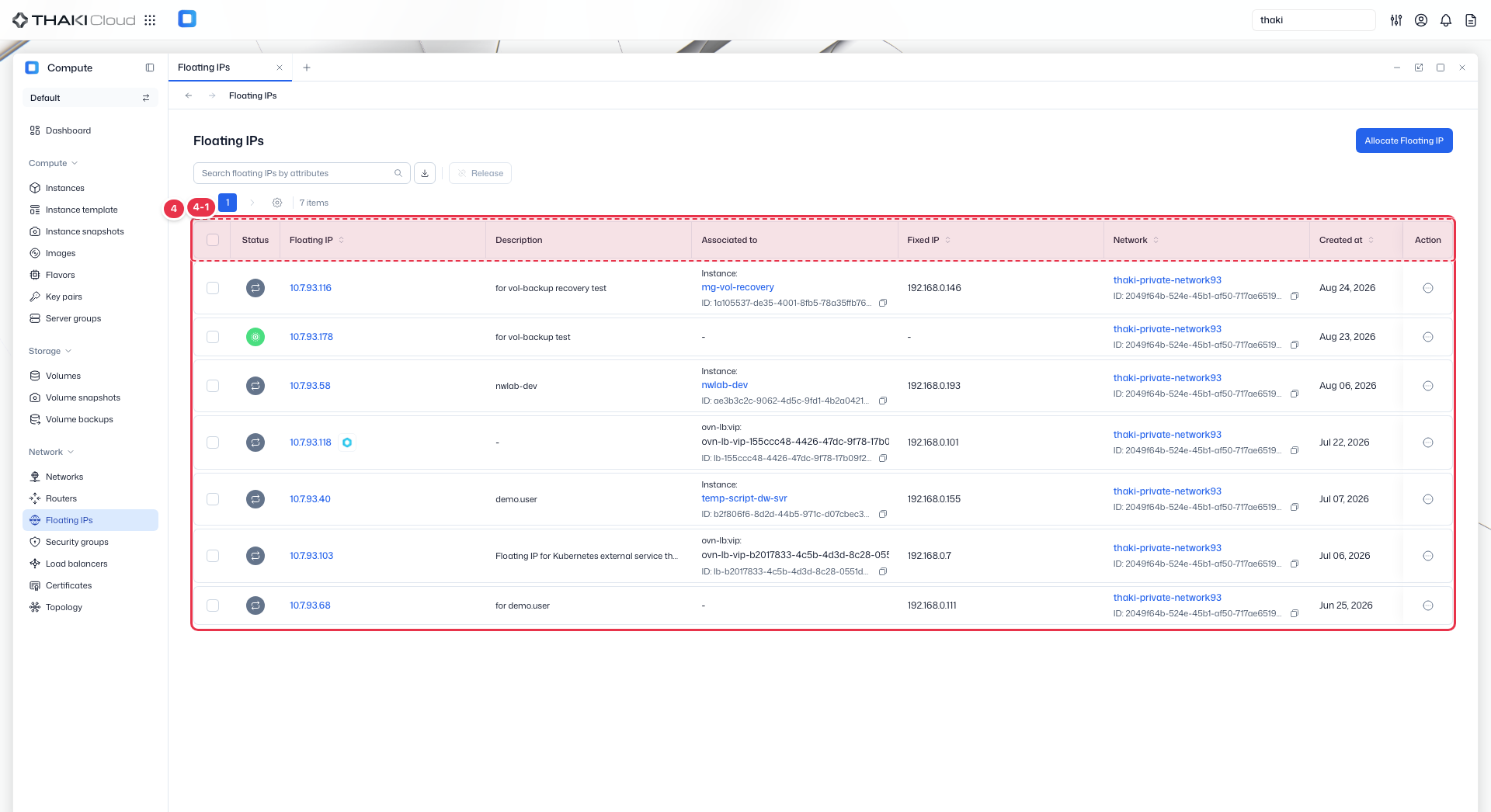
| No. | Feature | Item | Description |
|---|---|---|---|
| 4-1 | List columns | Status | In use when associated with a resource, Available otherwise. Shown as an icon. |
| Floating IP | The allocated public IP address. | ||
| Description | Description. | ||
| Associated to | The associated resource (instance, load balancer VIP, and so on). Shows "-" when not associated. | ||
| Fixed IP | The mapped internal fixed IP. | ||
| Network | The external network the address was allocated from. | ||
| Created at | Creation date. | ||
| Action | Menu opened by the button at the end of the row: Associate (attach to a resource) before association or Disassociate after it, along with Edit (change the description) and Release. |
Available Actions
The same actions are available from the Action menu at the end of each row and from the buttons at the top of the detail page.
| Action | Description | Availability |
|---|---|---|
| Allocate Floating IP | Receive a new floating IP from an external network. | Button at the top of the list |
| Associate | Associate the floating IP with an instance, load balancer, or virtual adapter (port). | Shown only when not associated |
| Disassociate | Detach the floating IP from the resource. External access to that resource may be limited. | Shown only when associated |
| Edit | Update the description. The address cannot be changed. | All floating IPs |
| Release | Remove the floating IP from the project. This cannot be undone. | Not associated (disabled while associated) |
To release several at once, select them with the checkboxes and use the Release button at the top of the list.
Release Restriction
Floating IPs that are currently associated cannot be released. Disassociate the IP first.
Disassociate vs. release
Disassociate only detaches the Floating IP from the resource and leaves it in the project. Release removes the Floating IP itself, and there is no guarantee you will get the same address again.
Associate a Floating IP
In the list, click Action → Associate on the row of an unassociated Floating IP.
Under Resource type, choose the target.
Target What you select Instance Choose an instance, then select that instance's fixed IP in the Fixed IP list below. Load Balancer Choose a load balancer; the Floating IP is associated with its VIP address. No fixed IP is selected separately. Virtual adapter Choose a port, then select a fixed IP in the Fixed IP list below. Click Associate.
Floating IP details
Click a Floating IP address in the list to open its detail page. The top shows Status, ID, Origin, and the creation date, with Associate or Disassociate (depending on the association state), Edit, and Release buttons. Status is In use when associated with a resource and Available otherwise.
There is a single Details tab.
| Section | Contents |
|---|---|
| Basic information | Floating IP address, description, and the external network it was allocated from. Use Edit to change the description. |
| Association | The associated resource, the mapped fixed IP, and the router it passes through. Shows "-" when not associated. |
| QoS policy | Policy name and the egress and ingress bandwidth limits. Shown only for Floating IPs with a policy applied. |