

Manage Security Groups
Security groups define inbound and outbound traffic rules.
Key Features
- List view: View all security groups with description
- Search: Find groups by name and other attributes
- Detail view: Review and manage ingress/egress rules
Search and toolbar
The area for searching the list, exporting CSV, and running bulk actions on selected rows.

| No. | Feature | Item | Description |
|---|---|---|---|
| 2-1 | Search | Attribute search box | · Filters the list by attributes such as name, ID, and status. |
| 2-2 | Export | Download CSV | · Exports the current list as a CSV file. |
| 2-3 | Bulk action | Delete | · Deletes the selected security groups (a confirmation dialog appears). |
Create a security group
Creates a new security group.

- Click Create Security Group at the top right of the Security Groups list.
- Enter a Security Group name. It is required, can be up to 255 characters, and cannot start or end with a space.
- Enter a Description if needed (up to 255 characters).
- Check the remaining quota under Security Group quota and click Create.
- Continue with Create a rule below to add the rules you need.
List
A table of security groups with their description and the number of ingress and egress rules.
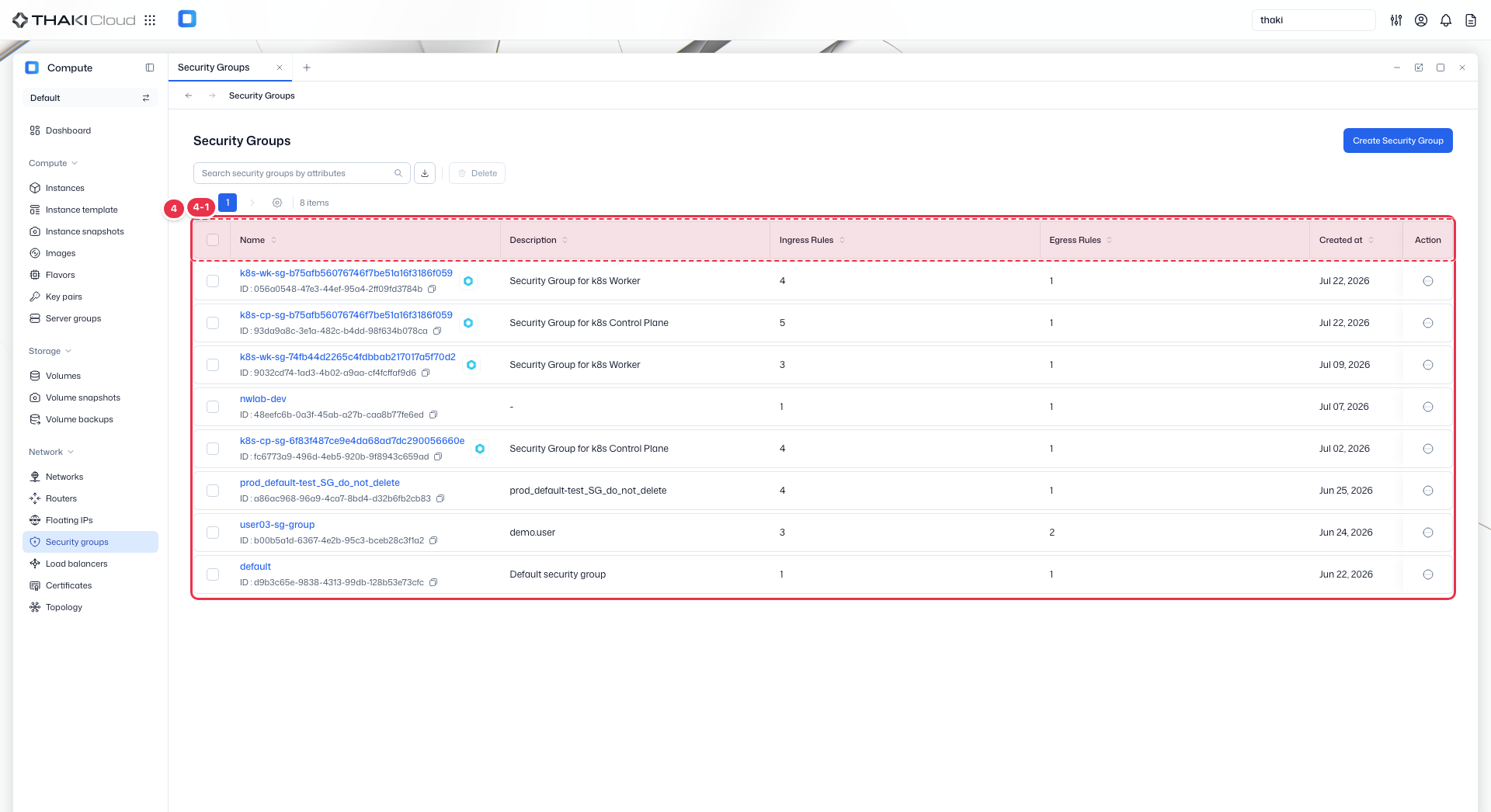
| No. | Feature | Item | Description |
|---|---|---|---|
| 4-1 | List columns | Name | Security group name and ID. |
| Description | Description. | ||
| Ingress Rules | Number of ingress rules. | ||
| Egress Rules | Number of egress rules. | ||
| Created at | Creation date. | ||
| Action | Menu opened by the button at the end of the row: Create rule, Edit (name and description), and Delete. Create rule and Edit are disabled on security groups created by Container; Edit and Delete are disabled on the default security group. |
More security group actions
The same actions are available from the Action menu at the end of each row and from the buttons at the top of the detail page.
| Action | Description | Availability |
|---|---|---|
| Create rule | Adds an ingress or egress rule. See Create a rule for the fields. | Disabled on security groups created by Container |
| Edit | Changes the security group name and description. Rules are not changed here. | Disabled on security groups created by Container and on the default security group |
| Delete | Deletes the security group. This cannot be undone and may affect network access for resources that depend on it. | Disabled on the default security group |
To delete several at once, select them with the checkboxes and use the Delete button at the top of the list.
To attach a security group to an instance, see Manage Networks.
Security groups created by Container
A security group whose Origin is Container is managed by the Container cluster. The create rule and edit buttons are disabled, and its rules cannot be deleted.
Default security group
Each project has a default security group named default. You can add rules to it, but the security group itself cannot be edited or deleted.
Security group details
Click a name in the list to open its detail page. The top has Create rule, Edit, and Delete buttons, and below them is a summary of the ID, description, Origin, and creation time.
There is a single tab, Rules, where ingress and egress rules appear together in one table. Above the table are a Create rule button and a Delete button that removes the rules selected with the checkboxes.
| Item | Description |
|---|---|
| Direction | Ingress (inbound) or Egress (outbound) |
| Protocol | TCP · UDP · ICMP · ANY, and so on |
| Port range | The allowed port or range. ANY when all ports are allowed |
| Remote | Who is allowed: a CIDR after IP :, or a security group name after Security Group : |
| ICMP type/code | The type and code of an ICMP rule. ANY/ANY when not specified |
| Action | The button at the end of the row opens Delete (delete the rule). |
Create a rule
- Click Create rule at the top of the security group detail page or above the rules table. You can also open it from the row action menu in the list.
- Set the fields below and click Create. The fields that appear depend on the protocol you choose.
| Field | Description | Appears when |
|---|---|---|
| Direction | Ingress (inbound) or Egress (outbound). The default is Ingress. | Always |
| Protocol | Choose from Custom TCP, Custom UDP, Custom ICMP, All TCP, All UDP, All ICMP, All protocol, or Other protocol. The default is Custom TCP. | Always |
| Port range | With Custom, enter a single port (for example, 80) or a range (for example, 7000-7005). With All port, every port is covered. | Custom TCP, Custom UDP |
| ICMP type / ICMP code | Each is 0–255. They can be left empty. | Custom ICMP |
| IP protocol | A protocol number from 0–255. Required. | Other protocol |
| Remote | Enter who to allow as a CIDR (for example, 192.168.0.0/24), or choose Security Group and pick a security group from the list. | Custom TCP, Custom UDP, Custom ICMP, Other protocol |
With All TCP, All UDP, All ICMP, or All protocol, you do not set a port or a remote. You can check the rule quota under Security Group rule quota at the bottom of the dialog.
Rules cannot be edited. To change one, delete it from the rule's row action menu and create a new rule.
Commonly used rule
To allow SSH access, set the direction to Ingress, the protocol to Custom TCP, the port to 22, and the remote CIDR to the IP range of the PC you connect from. Setting the remote to 0.0.0.0/0 allows access from anywhere, so narrow it to the range you need.