

View Topology
Topology provides a visual view of network connections.
Key Features
- Layout at a glance: Shows how resources are connected as a diagram, in the order external network → router → internal network and subnet → load balancer.
- Summary: The number of subnets, networks, and load balancers is shown under the title.
- Search: Find and highlight resources by name or ID.
- Quick navigation: Click a node to check the resource information and its connected resources.
Title and summary
The screen title, the refresh button, and a summary of how many resources are drawn.

| No. | Feature | Item | Description |
|---|---|---|---|
| 1-1 | Title | Network Topology | · The screen title. |
| 1-2 | Refresh | Refresh button | · Reloads the topology data. |
| 1-3 | Summary | Resource counts | · The number of subnets, internal networks (VPCs), and load balancers. If any subnet is in an error state, that count is shown too. |
The summary looks like "12 subnets across 9 VPCs • 11 LBs". VPC here means an internal network.
Search
Enter a name or ID and choose the resource type shown below; matching nodes are highlighted in the diagram.

- Enter a name or ID in the search box.
- In the list that appears below, choose the resource type to search (External network, Router, Internal network, Subnet, Load Balancer).
- Matching nodes are highlighted in the diagram, and the number of matches (for example, "3 matches") is shown under the title. If nothing matches, "No matches" is shown.
Zoom and display level
Shows the current zoom and its display level (Compact, Medium, Full). It is an indicator, not a button; it changes as you zoom with the mouse wheel.

The amount of information in the diagram depends on the zoom. The level changes automatically with the zoom; you do not choose it.
| Level | Zoom | What is shown |
|---|---|---|
| Compact | Below 60% | Nodes are shown as dots only. Use it to see the whole layout. |
| Medium | 60% to below 100% | Node names and status indicators (a small dot next to the node) are shown. |
| Full | 100% and above | Extra information such as the subnet CIDR and load balancer VIP appears under the name. |
Topology diagram
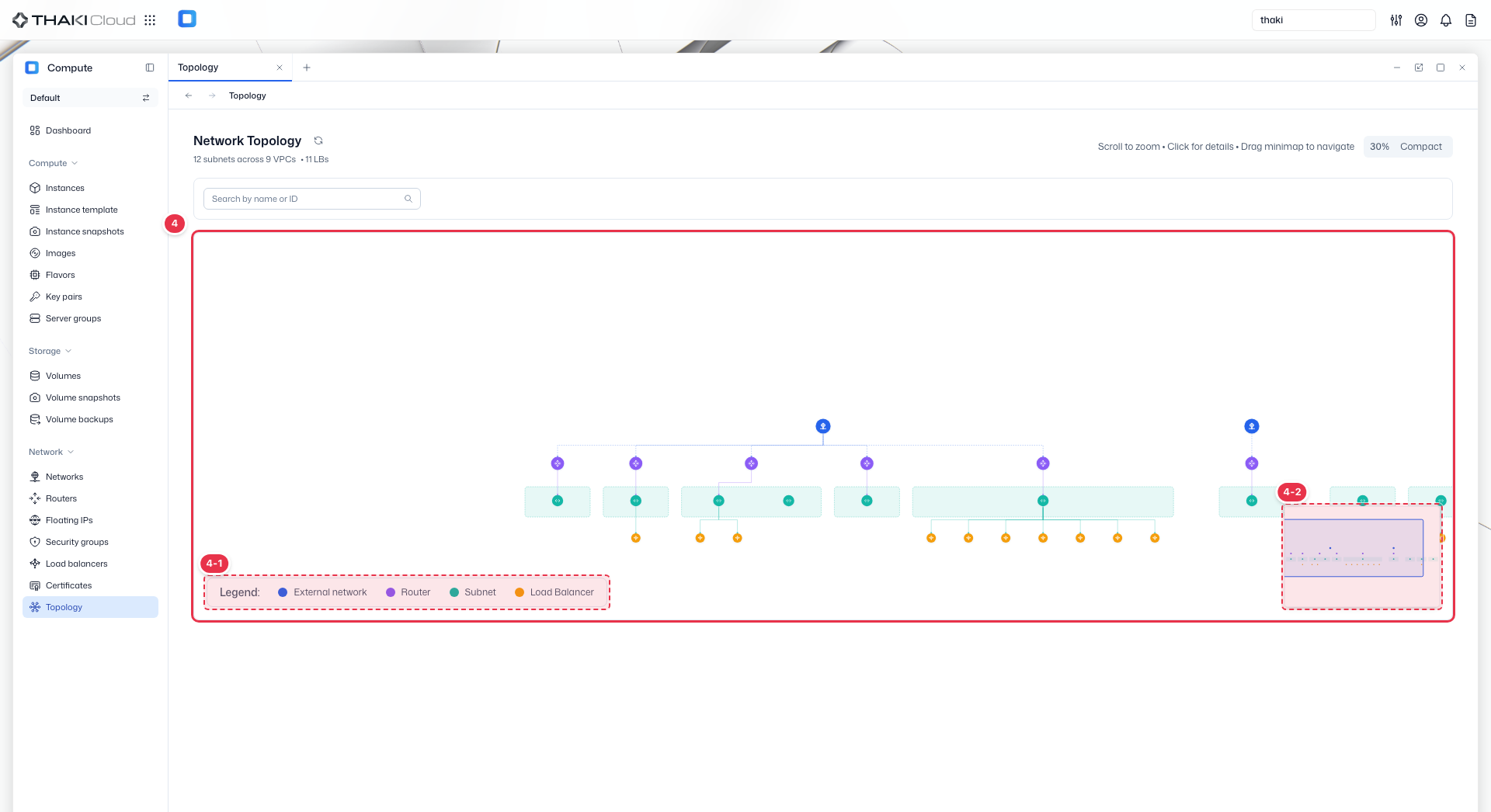
Draws the connections from top to bottom: external network → router → internal network (shaded box) and subnet → load balancer.
| No. | Feature | Item | Description |
|---|---|---|---|
| 4-1 | Legend | Legend | · The resource type each node color stands for (External network, Router, Subnet, Load Balancer). |
| 4-2 | Minimap | Overview | · A miniature of the whole diagram. Drag the inner rectangle to move the visible area. |
The legend colors distinguish the node types.
| Element | Description |
|---|---|
| External network | The network that provides external connectivity. Placed at the top. |
| Router | The router that connects the external network and subnets |
| Internal network | The lightly shaded box around subnets. It is not in the legend, but each box is one network. |
| Subnet | A subnet inside a network |
| Load Balancer | A load balancer attached to a subnet |
Move around the diagram as follows.
| Action | How |
|---|---|
| Zoom | Scroll the mouse wheel over the diagram. |
| Pan | Drag the rectangle in the minimap. |
| View details | Click a node. |
Node information card
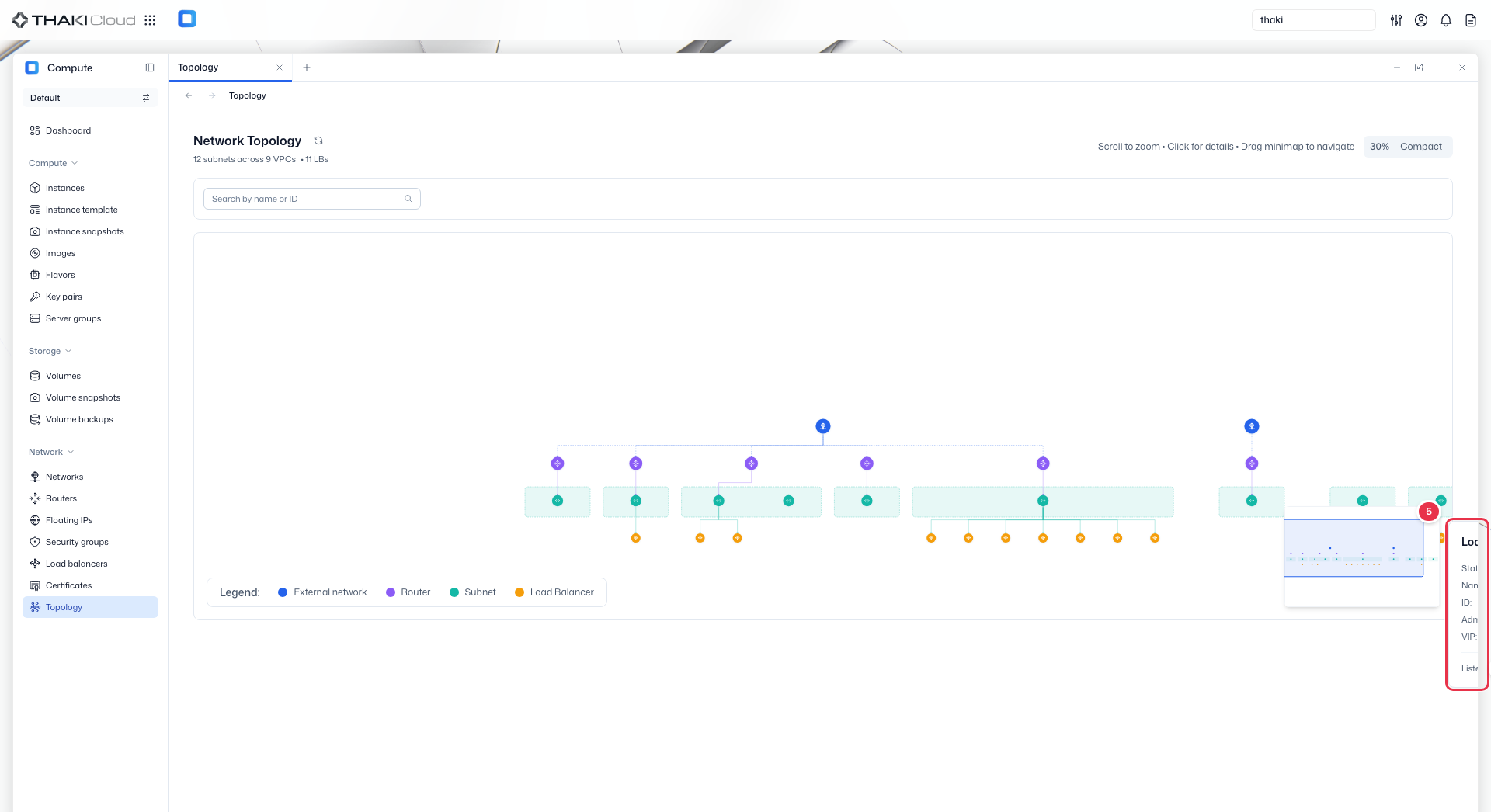
The card that opens where you click a node. The example is a load balancer node.
| No. | Feature | Item | Description |
|---|---|---|---|
| 5-1 | Name | Resource name | · Click to go to the detail page of the resource. |
| 5-2 | Connected resources | View detail | · Opens the list of connected resources (listeners in the example). |
Values such as the ID can be copied with the copy button next to them. The bottom of the card shows the number of connected resources; which ones you can see depends on the node type.
| Node | Connected resources shown in the card |
|---|---|
| External network | Connected routers |
| Router | Connected subnets |
| Internal network | Connected subnets |
| Subnet | Connected instances, routers, and load balancers |
| Load Balancer | Listeners. The card also shows the status, admin state, and VIP. |