

Instances (Admin)
Administrators can manage the instances of all tenants in one place.
Sidebar (SNB)
The left sidebar for switching between administrator resource screens in four groups: Compute, Storage, Network, and System. Unlike the self-service console, it lets you view and operate the resources of all tenants (projects) in one place, and it additionally provides Bare Metal nodes · Volume Types · System (Tenants · Metadata definition) · Monitoring (Monitor overview · Physical nodes).
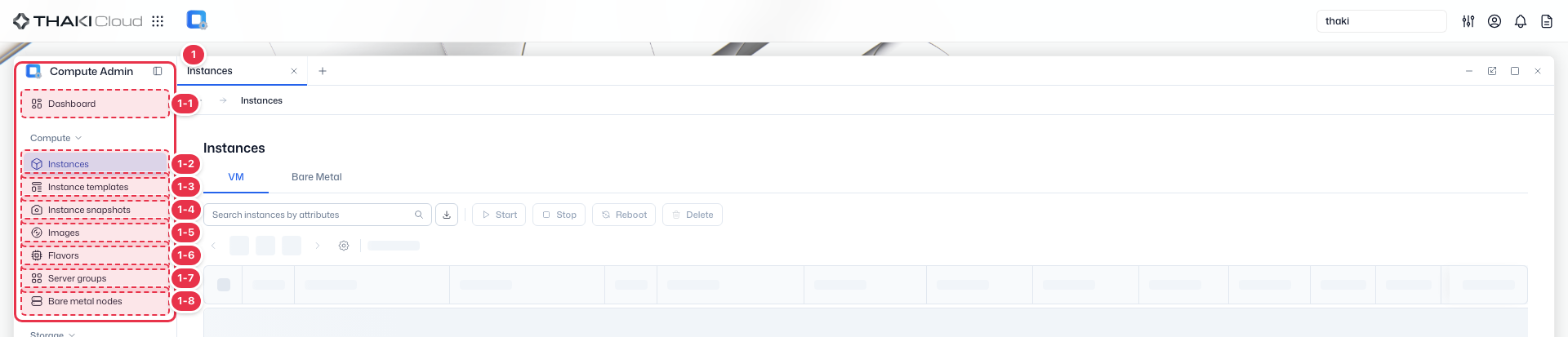
| No. | Feature | Item | Description |
|---|---|---|---|
| 1-1 | Compute | Dashboard | · The administrator dashboard that summarizes total capacity, instances, and usage by tenant. |
| 1-2 | Compute | Instances | · Lists and operates the instances (VMs and bare metal) of all tenants in one place. |
| 1-3 | Compute | Instance Templates | · Manages instance creation templates across tenants. |
| 1-4 | Compute | Instance Snapshots | · Lists and manages instance snapshots (images). |
| 1-5 | Compute | Images | · Manages the OS images used to create instances. |
| 1-6 | Compute | Flavors | · Defines and manages the vCPU, memory, and disk specifications (flavors). |
| 1-7 | Compute | Server Groups | · Manages groups that apply an instance placement policy (affinity/anti-affinity). |
| 1-8 | Compute | Bare Metal nodes | · Manages the inventory and status of bare metal physical nodes (admin only). |
Title header
The content header that shows the title of the current screen (Instances).

Instance type tabs
Capsule tabs that separate virtual machine (VM) and bare metal instances by type.

| No. | Feature | Item | Description |
|---|---|---|---|
| 3-1 | Type tab | VM | · The list of virtual machine instances. |
| 3-2 | Type tab | Bare Metal | · The list of bare metal (physical server) instances. |
Search · Toolbar
The area for searching instances, exporting to CSV, and running bulk power and delete actions on the selected instances. An administrator works on the instances of all tenants without selecting a tenant.

| No. | Feature | Item | Description |
|---|---|---|---|
| 4-1 | Search | Attribute search field | · Filters the instance list by attributes such as name, ID, tenant, and status. |
| 4-2 | Export | Download CSV | · Exports the current list as a CSV file. |
| 4-3 | Bulk action | Start | · Starts the selected stopped instances (disabled when nothing is selected). |
| 4-4 | Bulk action | Stop | · Shuts down the selected running instances gracefully. |
| 4-5 | Bulk action | Reboot | · Restarts the selected instances. |
| 4-6 | Bulk action | Delete | · Deletes the selected instances (a confirmation modal appears). |
Instance list
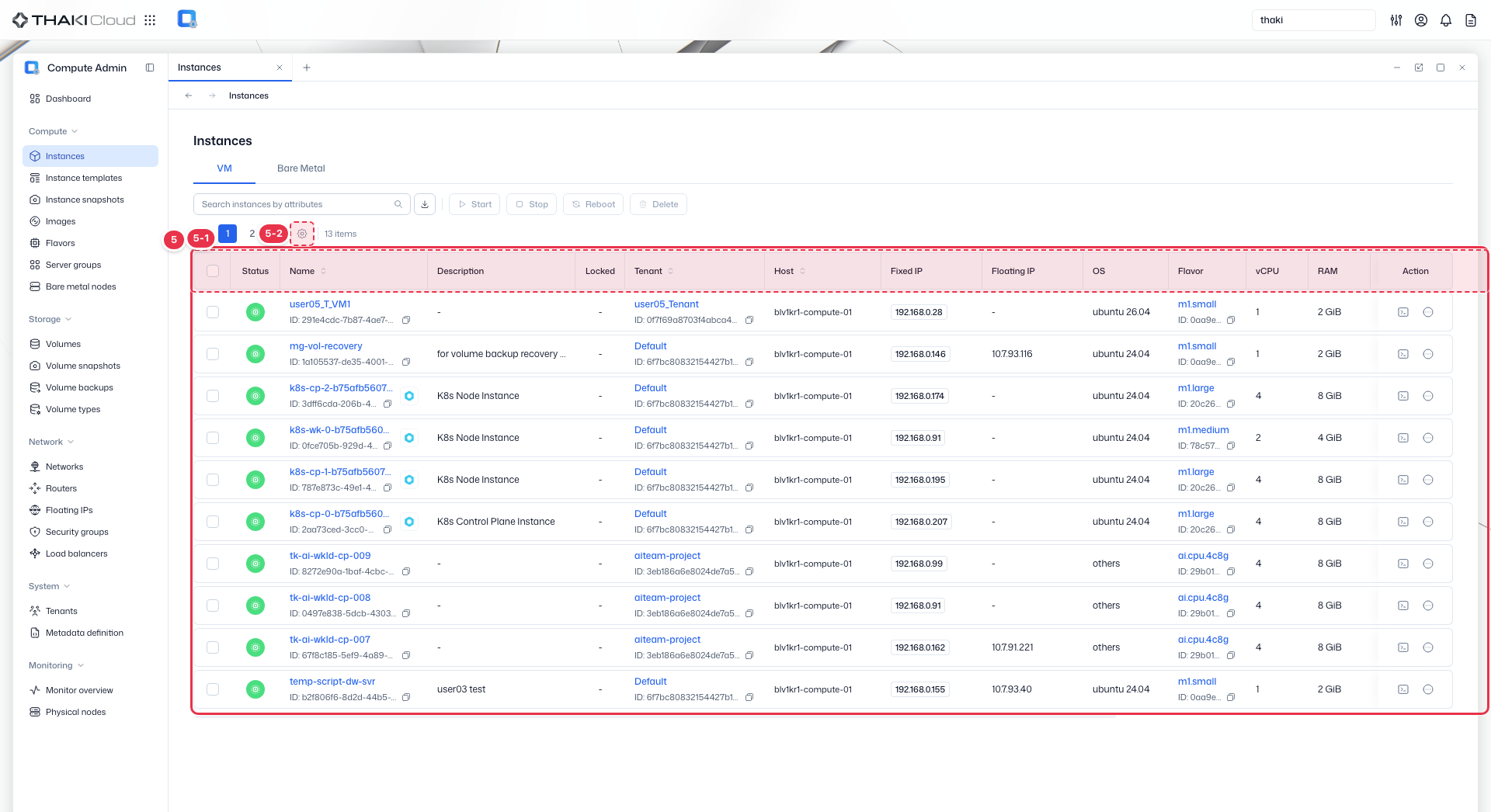
A table that shows the instances of all tenants with their status, name, owning tenant, physical host, and IP.
| No. | Feature | Item | Description |
|---|---|---|---|
| 5-1 | List columns | Status / Name | The power status (Active, Shutoff, and so on) and the instance name and ID. |
| Description | A description of what the instance is for (for example, K8s Node Instance). | ||
| Locked | Whether the lock that prevents deletion and changes is on. | ||
| Tenant | The project (tenant) that owns the instance, and its ID — an admin-only column. | ||
| Host | The physical compute host the instance actually runs on — an admin-only column. | ||
| Fixed IP / Floating IP | The internal fixed IP and the Floating IP for external access. | ||
| OS / Flavor | The operating system (for example, ubuntu 24.04) and the specification (Flavor, for example m1.large). | ||
| vCPU / RAM / Disk / GPU | The allocated cores, memory, disk size, and number of GPUs. | ||
| AZ | The availability zone the instance is placed in. | ||
| Networks / Security Groups | The connected networks and the applied security groups. | ||
| Action | The console button and the row menu: Instance status, Configuration, Migrate, Live migrate, Delete. | ||
| 5-2 | View settings | View preferences button | · Opens the View Preferences drawer, where you choose which columns to show. |
Key features
- Cross-tenant view: View and manage instances across all projects
- Search and filter: Find instances by name, ID, tenant, or status
- Administrator controls: Migrate, live migrate, and status management
- Detail view: Review instance specifications, networks, and volumes
Available actions
Above the list are the VM / Bare Metal switch and the bulk buttons Start, Stop, Reboot, and Delete. The bulk buttons become active when you select rows. The actions below run from each row's Action menu, which shows only the items that apply to the instance's current state.
Instance status (submenu)
| Action | Description |
|---|---|
| Start | Power on instance |
| Stop | Power off instance |
| Reboot | Hard reboot |
| Soft reboot | Graceful reboot |
| Pause | Pause instance in memory |
| Unpause | Resume paused instance |
| Suspend | Suspend to disk |
| Resume | Resume suspended instance |
| Shelve | Shelve instance to free resources |
| Unshelve | Restore shelved instance |
| Rescue | Boot from rescue image |
| Unrescue | Exit rescue mode |
Configuration (submenu)
| Action | Description |
|---|---|
| Lock / Unlock | Lock or unlock the instance. A locked instance shows Unlock instead |
| Edit | Update instance name and description |
Top-level menu
| Action | Description |
|---|---|
| Migrate | Cold migrate to another host |
| Live migrate | Live migrate without downtime |
| Confirm resize | Confirm a resize. Shown only while the instance is waiting for resize confirmation (VERIFY_RESIZE) |
| Revert resize | Revert a resize. Shown only while the instance is waiting for resize confirmation (VERIFY_RESIZE) |
| Delete | Permanently remove instance |
Migration restrictions
Migrate and Live migrate are only available for VM instances. Bare metal instances cannot be migrated.