

Physical Nodes (Admin)
Physical nodes are the physical servers that make up compute resources.
Sidebar (SNB)
The Monitoring group in the left sidebar of Compute Admin. It manages the resources of all tenants in one place, and clicking an item opens that resource screen.
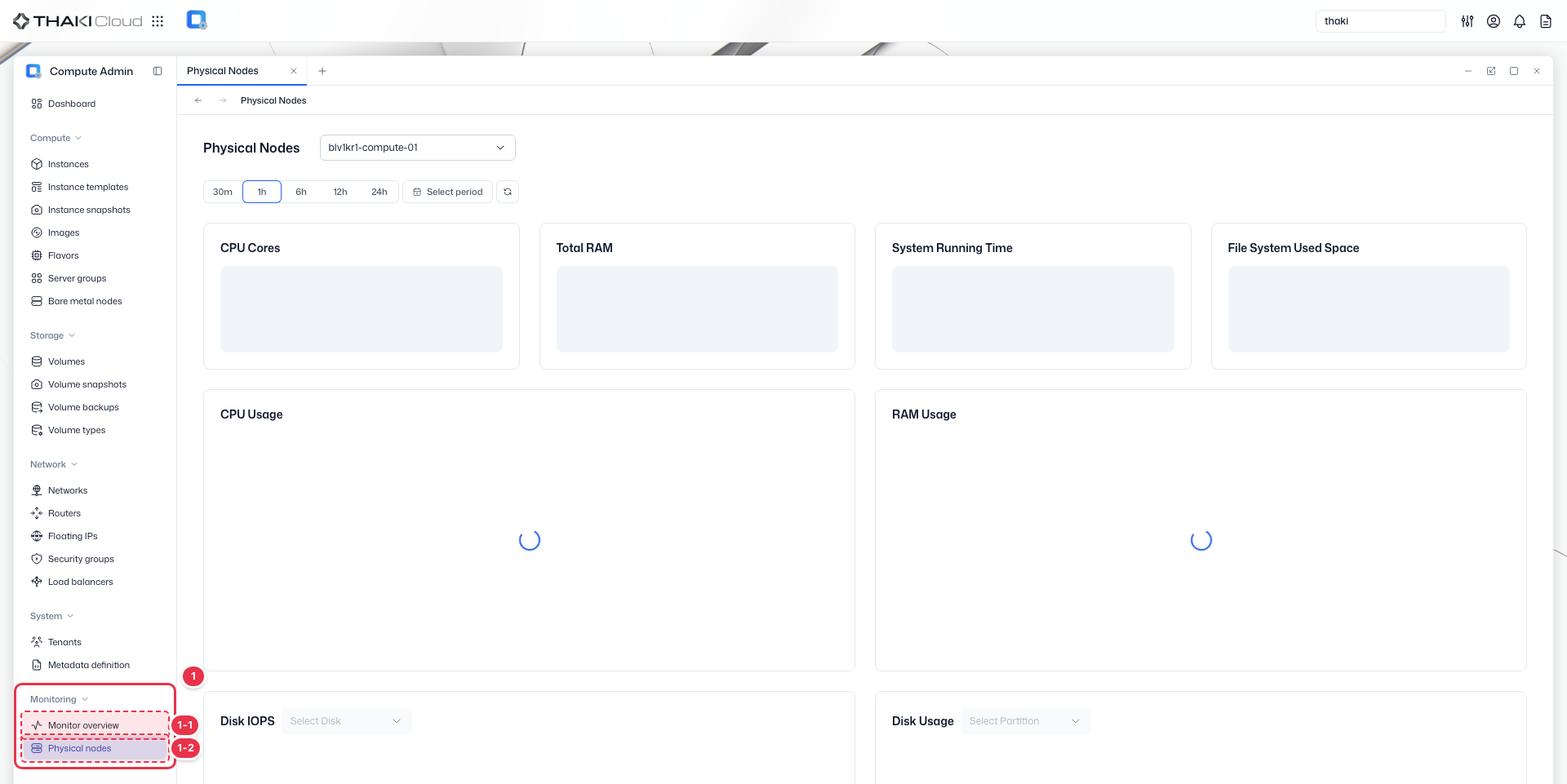
| No. | Feature | Item | Description |
|---|---|---|---|
| 1-1 | Monitoring | Monitor overview | · Shows a monitoring overview of overall resource usage and status. |
| 1-2 | Monitoring | Physical nodes | · Shows the status of the physical compute nodes. |
Title header
The content header that shows the title of the current screen (Physical Nodes).

Node · Time range selection
Controls for selecting the physical node whose detailed metrics you want to view and setting the time range.

| No. | Feature | Item | Description |
|---|---|---|---|
| 3-1 | Node selection | Node dropdown | · Selects the physical compute node whose metrics you want to check. |
| 3-2 | Time range | 30m / 1h / 6h / 12h / 24h | · Quickly selects a range from the last 30 minutes to the last 24 hours. |
| 3-3 | Time range | Select period | · Sets the start and end times of the query directly. |
Summary cards
Cards that summarize the CPU and memory specifications, system uptime, and file system usage of the selected node.

| No. | Feature | Item | Description |
|---|---|---|---|
| 4-1 | CPU | CPU Cores | · The total number of CPU cores on the node. |
| 4-2 | Memory | Total RAM | · The total memory capacity of the node. |
| 4-3 | Uptime | System Running Time | · The uptime since the node booted. |
| 4-4 | File system | File System Used Space | · The file system usage per mount. |
Resource charts
Detail charts that show the CPU and memory usage of the selected node and the trends in disk IOPS and usage.
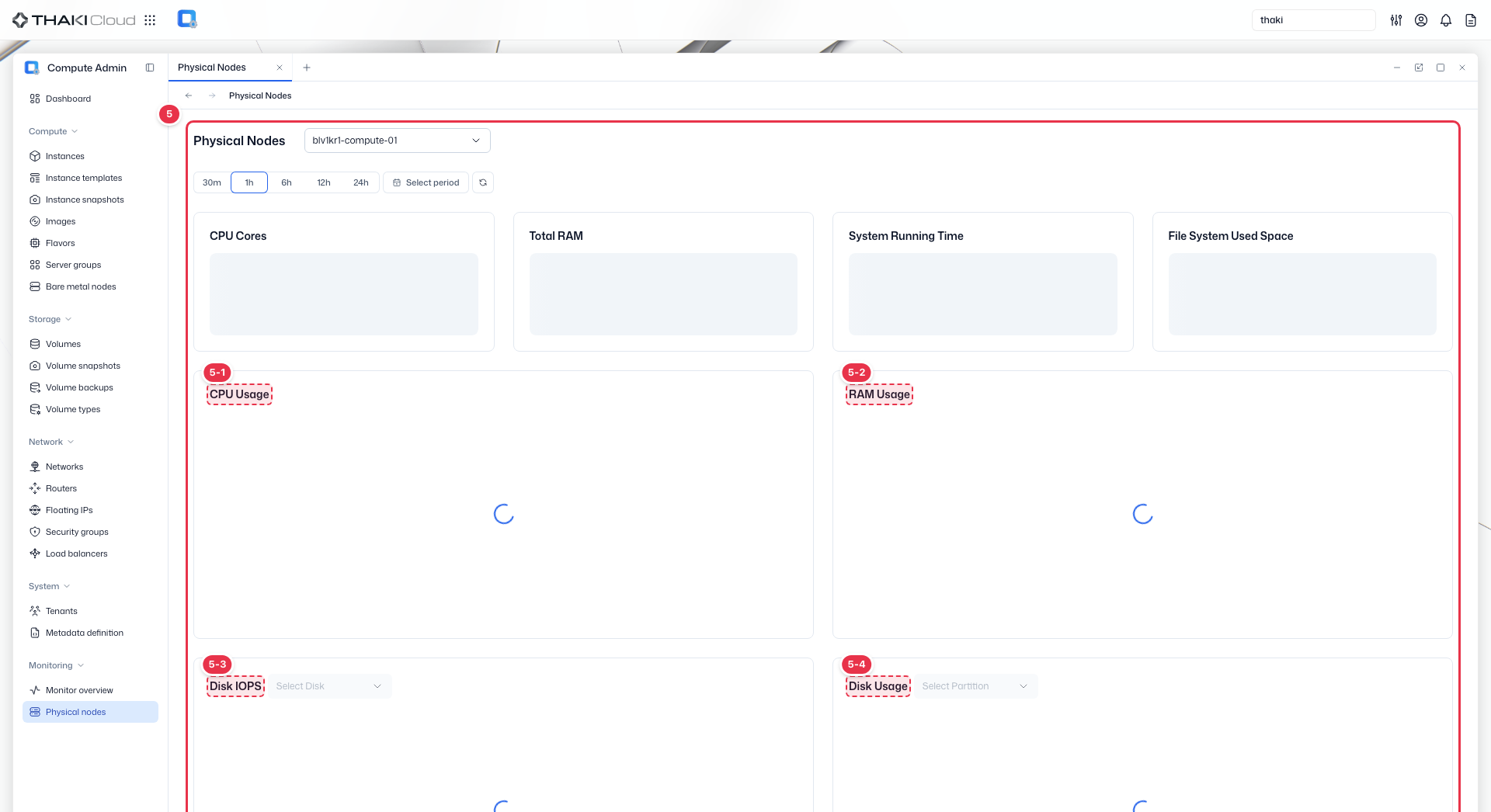
| No. | Feature | Item | Description |
|---|---|---|---|
| 5-1 | CPU | CPU Usage | · The CPU usage (idle/iowait/system/user). |
| 5-2 | Memory | RAM Usage | · The memory usage (Used/Free). |
| 5-3 | Disk | Disk IOPS | · The IOPS per disk (Read/Write). |
| 5-4 | Disk | Disk Usage | · The usage per disk. |
Key features
- Node monitoring: View physical compute node status and capacity
- Resource tracking: Monitor CPU, memory, and disk utilization
Available information
| Item | Description |
|---|---|
| CPU Cores | Number of CPU cores on the selected node |
| Total RAM | Total RAM of the selected node |
| System Running Time | System uptime |
| File System Used Space | Used space and utilization per file system |
| CPU Usage | CPU utilization over time |
| RAM Usage | RAM utilization over time |
| Disk IOPS | Read/Write IOPS of the selected disk |
| Disk Usage | Disk utilization of the selected partition (Select Partition) |
| System Load | System load (Load 1, Load 5, Load 15) |
| Network Traffic | Network traffic over time |
| Network Errors | Network errors of the selected interface (Select Interface) |
| Network Dropped Packets | Dropped packets of the selected interface (Select Interface) |
Available actions
This page is a view-only screen for physical compute nodes. At the top, select the node to display, choose a time range (30m / 1h / 6h / 12h / 24h or Select period), then use Refresh to reload or Expand to enlarge a chart.
Infrastructure management
Physical node power control and maintenance mode are managed through the infrastructure layer, not the compute administrator interface.