

Manage Images
Browse and create Compute images, use the action menu, and delete images.
This guide walks through the screen below.
Type tabs
Tabs that split the Images list by type.

| No. | Feature | Item | Description |
|---|---|---|---|
| 2-1 | Type tab | Current tenant | · Images owned by the current tenant. |
| 2-2 | Type tab | Shared | · Images shared by other tenants. |
| 2-3 | Type tab | Public | · Public images available to all tenants. |
| 2-4 | Type tab | All | · All images you can access. |
Search and toolbar
The area for searching the list, exporting CSV, and running bulk actions on selected rows.

| No. | Feature | Item | Description |
|---|---|---|---|
| 3-1 | Search | Attribute search box | · Filters the list by attributes such as name, ID, and status. |
| 3-2 | Export | Download CSV | · Exports the current list as a CSV file. |
| 3-3 | Bulk action | Delete | · Deletes the selected items (a confirmation modal appears). |
Create an image
Goes to the page for uploading and registering a new image.

Register an OS image file you have prepared yourself. Registered images appear on the Current tenant tab.
- Click Create image at the top right of the Images list.
- Enter values in the order below, moving forward with Next.
| Step | Field | Description |
|---|---|---|
| Basic information | Name · description | The name can be up to 255 characters and cannot start or end with a space. |
| Protected | When turned on, the image cannot be deleted. This prevents accidental deletion. | |
| Source | Upload type | Upload a file from your PC with Upload file, or enter an address with File URL. |
| Specification | Disk format | Must match the actual format of the uploaded file. |
| OS · OS version | The operating system and its version. Used to categorize images in the list. | |
| OS admin | The default administrator account of Instances created from this image (for example, ubuntu or administrator). | |
| Advanced fields within Specification (optional) | Boot requirements such as the minimum system disk and minimum RAM | |
| Advanced | QEMU guest agent · CPU policy · CPU thread policy | You can leave the default values as they are. |
- Check the input status of each step in the Summary on the right, then click Create. The image is ready to use once the upload finishes and its status becomes Active.
Default images
Thaki Cloud provides the following OS images by default. You can select them directly when creating an instance without creating an image yourself, and you can find them on the Public tab of the Images list.
| Family | Image | Versions provided by default | Can be added |
|---|---|---|---|
| Debian family | Ubuntu | 24.04, 26.04 | 22.04 |
| RHEL family | Rocky Linux | 9.6, 10.0 | 8.10 |
| Windows Server family | Windows Server | 2022 Standard | — |
Registering your own image
You can also register an image you built yourself. To use instance monitoring (CPU, memory, and network usage) with it, install and configure the monitoring agent before you register the image. → Install the monitoring agent
When the default images do not include the OS you need
If you need an OS or version that is not in the table above, register it yourself with Create an image.
List
A table that shows the OS images used to create instances with their status, OS, size, and visibility.
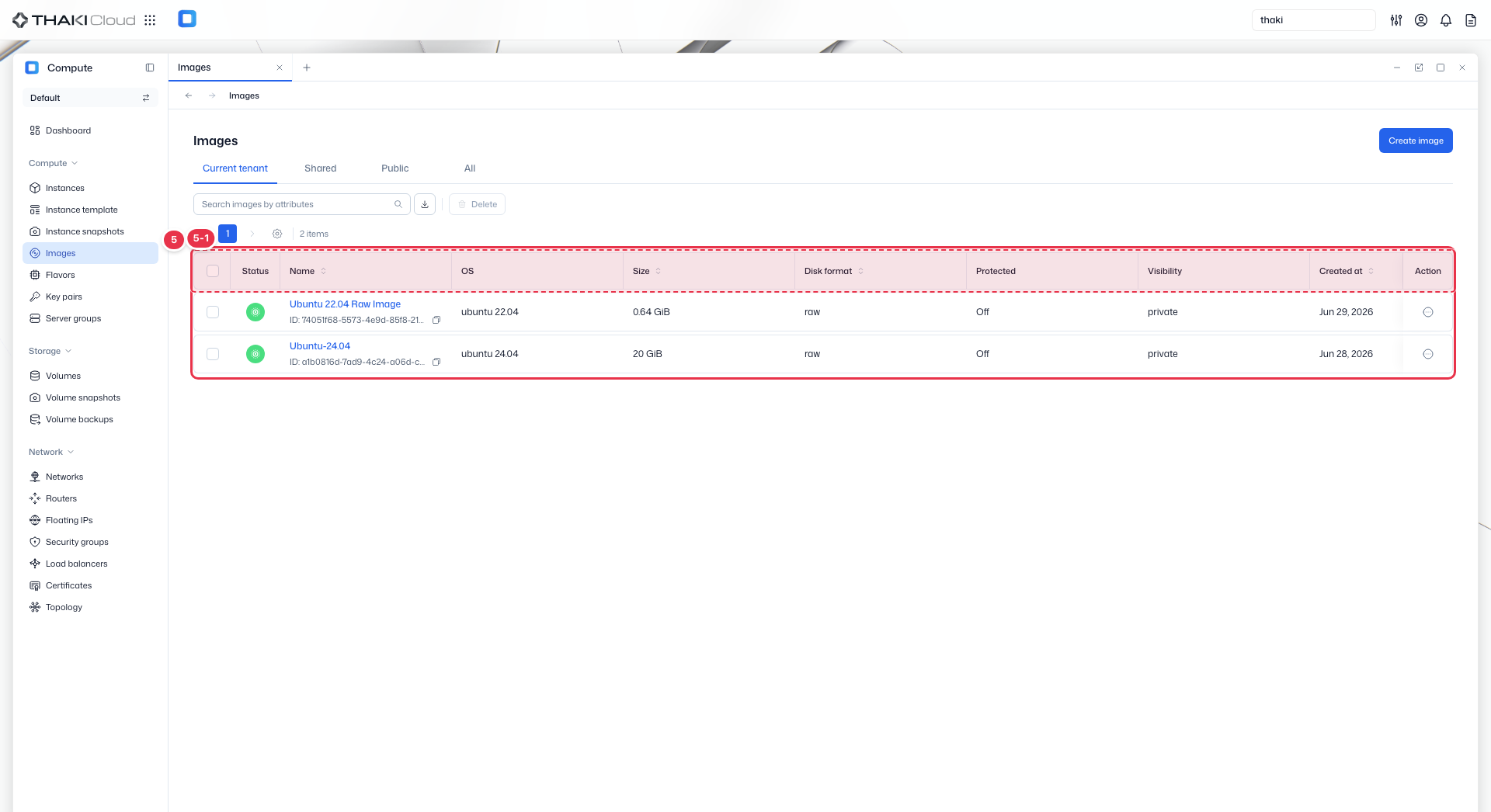
| No. | Feature | Item | Description |
|---|---|---|---|
| 5-1 | List columns | Status | The image status (Active and so on). |
| Name | The image name and ID. | ||
| OS | The operating system type. | ||
| Size | The image size. | ||
| Disk format | The disk format (qcow2, raw, and so on). | ||
| Protected | Whether delete protection is on. | ||
| Visibility | The visibility (Private, Shared, or Public). | ||
| Created at | The creation date and time. | ||
| Action | The menu that opens from the button at the end of the row: Create instance · Create Instance Template · Create volume (create an instance, template, or volume from this image) · Edit · Delete. |
Image action menu
Click the Action button at the end of an image row in the list to run the actions below. If you click the image name to open its detail page, the same actions are available from the buttons at the top and from More action.
| Action | Description | Condition | Related docs |
|---|---|---|---|
| Create instance | Opens the instance creation screen with this image selected as the source. | Active status, ISO excluded | Create an Instance |
| Create Instance Template | Creates an instance template that uses this image as the source. | Active status, ISO excluded | Manage Instance Templates |
| Create volume | Creates a new volume containing the contents of this image. The volume size must be at least the image's minimum disk. | Active status | Manage Volumes |
| Edit | Changes image information such as the name and description. | Image owned by the current tenant | — |
| Delete | Deletes the image. | Image owned by the current tenant with Protected turned off | — |
Image details
Click an image name to open its detail page. The top has the Create instance · Edit · Delete buttons and More action (Create Instance Template · Create volume), and below them is a summary of the status, image ID, visibility, protected state, and creation time.
| Tab | Content |
|---|---|
| Details | Basic information: image name · description (edit button on the right) Specification: size · OS · OS admin · disk format / container format · min disk / min RAM Security: owner · visibility · protected or not · file name · checksum Advanced information: QEMU guest agent · CPU policy · CPU thread policy |
| Metadata | The metadata keys and values set on the image |