

Manage Load Balancers
Load balancers distribute traffic across multiple instances.
Key features
- List view: View all load balancers with status and VIP information
- Search: Find by name, ID, VIP address, and other attributes
- Detail view: Manage listeners, pools, members, and health monitors
- Provider choice: OVN or Amphora
- Multi-protocol support: TCP and UDP, plus HTTP and HTTPS on Amphora
- TLS termination: Apply certificates to TERMINATED_HTTPS listeners on Amphora
Load balancer components
| Component | Description |
|---|---|
| Listener | The entry point that receives client requests. It defines the protocol and port. |
| Pool | The group of servers that share the requests. Each listener has one default pool. |
| Member | An individual server (IP + port) in a pool. |
| Health Monitor | The setting that periodically checks whether members are alive. Each pool has one. |
| L7 Policy | A rule that sends a request to another pool or redirects it to another URL based on the content of the HTTP request. Used only on HTTP and TERMINATED_HTTPS listeners. |
Search and toolbar
The area for searching the list, exporting CSV, and running bulk actions on selected rows.

| No. | Feature | Item | Description |
|---|---|---|---|
| 2-1 | Search | Attribute search box | · Filters the list by attributes such as name, ID, and status. |
| 2-2 | Export | Download CSV | · Exports the current list as a CSV file. |
| 2-3 | Bulk action | Delete | · Deletes the selected items (a confirmation modal appears). |
Create a load balancer
Creates a new load balancer.

- Click Create Load Balancer at the top right of the Load Balancers list.
- Fill in the five steps below in order, moving on with Next.
| Step | What you enter |
|---|---|
| Basic information | Load balancer name (required), description, Provider, Owned network, VIP address (choose a subnet; the address is auto-allocated or entered manually), admin state |
| Listener | Listener name (required), description, listener protocol, protocol port (1–65535), connection limit (Unlimited / Limited), admin state. Expand Advanced to set timeouts and allowed CIDRs. When the protocol is TERMINATED_HTTPS, you also select certificates. |
| Pool | When Create pool is on, enter the pool name (required), description, pool algorithm, pool protocol, and admin state. Under Advanced you can set session persistence (None, Source IP, HTTP Cookie, APP Cookie). Turn it off to create without a pool and add one later. |
| Member | In the port list, click Add member on the row of the instance IP that should receive traffic. Use Add external member for a server that is not in the list. This step can be skipped with Skip. |
| Health Monitor | When Create Health Monitor is on, enter the name, type, interval (1–3,600 seconds), timeout (shorter than the interval), max retries (1–10), and admin state. This step can be skipped with Skip. |
You must choose the provider first for the network list to appear. The network list is split into Current tenant and Shared tabs. The provider determines which values you can choose in the later steps.
| Item | OVN | Amphora |
|---|---|---|
| How it works | Runs in the virtual network layer without an extra VM. | Uses a dedicated load-balancing VM. |
| Listener protocol | TCP, UDP | HTTP, HTTPS, TERMINATED_HTTPS, TCP, UDP |
| Pool algorithm | Fixed to Source IP Port (cannot be changed) | Round Robin, Least Connections, Source IP |
| Health monitor type | TCP. UDP-CONNECT or TCP when the pool protocol is UDP | HTTP, HTTPS, PING, TCP, TLS-HELLO. UDP-CONNECT, HTTP, or TCP when the pool protocol is UDP |
The default health monitor type is the same type as the pool protocol. On OVN, health checks use TCP even when the pool protocol is HTTP.
- Review through the last step and create. To make it reachable from outside, associate a Floating IP with the VIP after creation.
List
A table that shows load balancers with their status, VIP, owned network, and listeners.
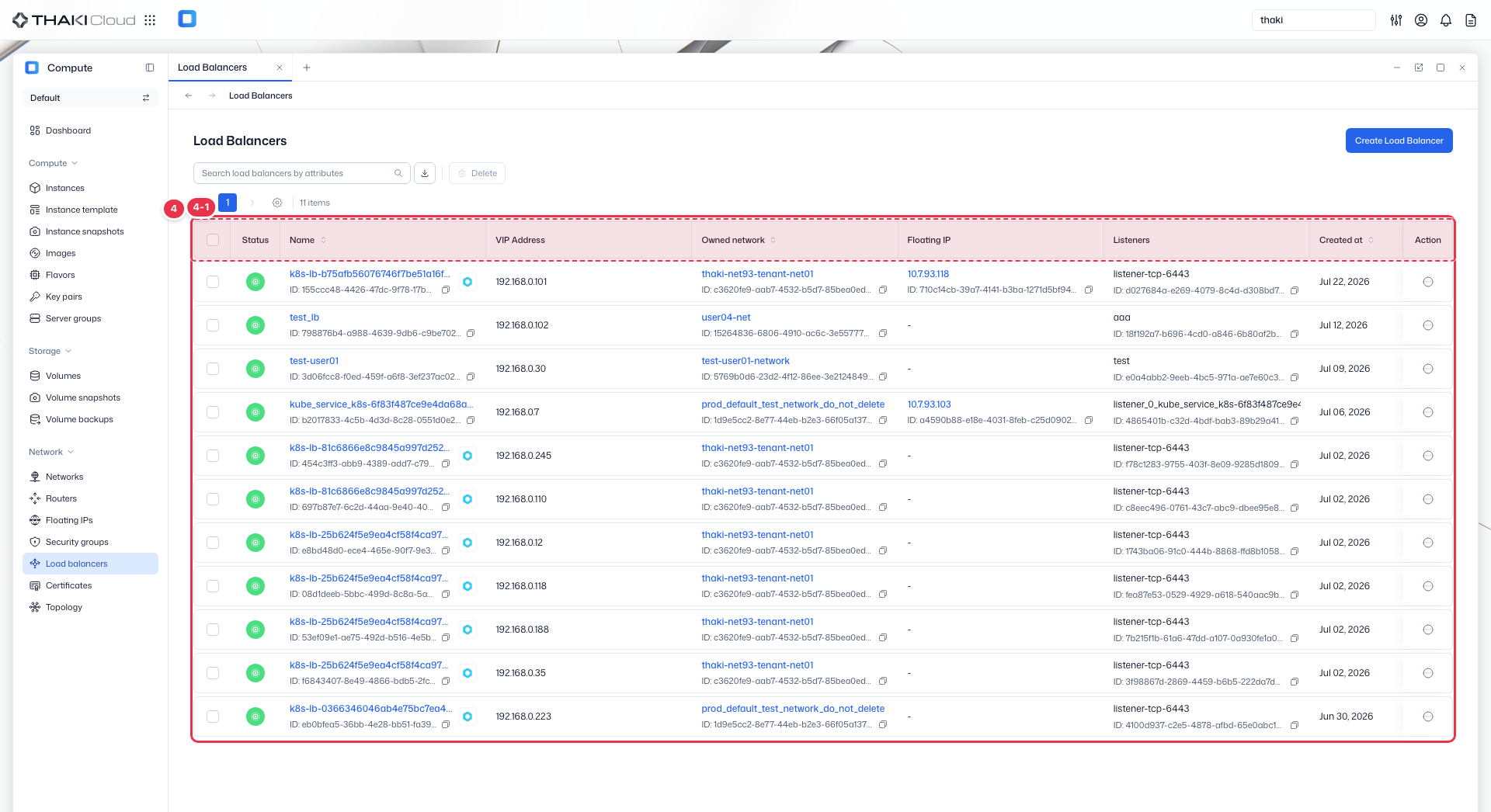
| No. | Feature | Item | Description |
|---|---|---|---|
| 4-1 | List columns | Status | The load balancer status. It is Online when healthy and is shown as an icon. |
| Name | The name and ID. | ||
| VIP Address | The virtual IP address that clients connect to. | ||
| Owned network | The network the VIP belongs to. | ||
| Floating IP | The Floating IP associated with the VIP. If there is none, "-" is shown. | ||
| Listeners | The list of listeners and their IDs. | ||
| Created at | The creation date and time. | ||
| Action | The menu that opens from the button at the end of the row: Associate Floating IP · Disassociate Floating IP (associate/disassociate a Floating IP with the VIP; only one of the two is enabled, depending on whether one is associated) · Create listener (add a listener) · Edit (change name, description, and admin state) · Delete. |
More load balancer actions
These are available from the Action menu at the end of each row and from the top of the detail page. The top of the detail page has Associate (or Disassociate) and Delete buttons, and More actions contains Edit and Create listener.
| Action | List row menu | Detail page | Description |
|---|---|---|---|
| Associate Floating IP | Yes | Top button | Choose one of your Floating IPs and associate it with the VIP. Disabled when one is already associated. |
| Disassociate Floating IP | Yes | Top button | Disassociates the Floating IP from the VIP. Disabled when none is associated. |
| Create listener | Yes | More actions, Listeners tab | Opens a creation screen with the steps Listener → Pool → Member → Health Monitor. The fields are the same as the matching steps of load balancer creation. |
| Edit | Yes | More actions, Edit in Basic information | Changes the name, description, and admin state. |
| Delete | Yes | Top button | Deletes the load balancer together with everything that belongs to it, such as listeners and pools. This cannot be undone. |
To delete several at once, select them with the checkboxes and use the Delete button at the top of the list.
While a load balancer, listener, or pool is changing state, some actions are disabled. Try again once the state has settled.
Load balancer details
Click a name in the list to open its detail page. The top shows Status, ID, VIP address, admin state, Origin, and the creation date.
| Tab | Contents | What you can do |
|---|---|---|
| Details | Basic information: name, description, admin state, provider Network: VIP address, owned network, subnet, Floating IP | Edit with Edit at the right of Basic information. Follow the network and Floating IP links to their detail pages. |
| Listeners | Listener list. Columns: status, name, protocol, port, connection limit, admin state | Add with Create Listener; Edit and Delete from the row menu; bulk delete with the checkboxes |
| Pools | Pool list. Columns: status, name, protocol, algorithm, listener, member count, admin state | Edit and Delete from the row menu; bulk delete with the checkboxes |
The Pools tab has no create button. A pool is created together with a listener, or from the Default pool tab of the listener details below.
Listener details
Click a name in the Listeners tab to open it. The top has Edit and Delete buttons and More actions.
| Tab | Contents | What you can do |
|---|---|---|
| Details | Name, description, protocol, port, connection limit, custom headers, four timeouts (client data, member connect, member data, TCP inspect), allowed CIDRs, admin state | Edit with Edit |
| Default pool | Name, algorithm, protocol, session persistence, and admin state of the pool attached to this listener | Create pool when there is none; Edit and Delete when there is one |
| L7 Policies | The L7 policies of this listener. Appears only on listeners whose protocol is HTTP or TERMINATED_HTTPS. | Add an L7 policy |
| Certificates | The server, CA, and SNI certificates applied to the listener. Appears only on listeners whose protocol is TERMINATED_HTTPS. | Change certificates |
More actions shows Create default pool when there is no pool, and Edit default pool and Delete default pool when there is one. HTTP and TERMINATED_HTTPS listeners also show Add L7 Policy, and TERMINATED_HTTPS listeners also show the certificate change items.
Pool details
Click a pool name in the Pools tab or in a listener's Default pool tab to open it. The top has Edit, Manage members, and Delete buttons, and More actions (Edit Health Monitor, Delete Health Monitor).
| Tab | Contents | What you can do |
|---|---|---|
| Details | Name, description, algorithm, protocol, session persistence, admin state, associated listener | Edit with Edit |
| Members | Member list. Columns: status, IP address, port, Weight, Backup, admin state | Add or remove members with Manage members; Edit and Remove from the row menu |
| Health Monitor | Name, type, interval, timeout, max retries, admin state | Edit and Delete |
Manage members opens the same dialog as the Member step of load balancer creation, where you add servers from the port list with Add member.