

Manage Volumes
Volumes are block storage that you attach to instances.
Key features
- List view: View all volumes with status, size, and attachment information
- Search and filter: Find volumes by name, ID, status, and other attributes
- Detail view: Review volume metadata, snapshots, and backups
- Transfer support: Transfer volume ownership between projects
Search and toolbar
The area for searching the list, exporting CSV, and running bulk actions on selected rows.

| No. | Feature | Item | Description |
|---|---|---|---|
| 2-1 | Search | Attribute search box | · Filters the list by attributes such as name, ID, and status. |
| 2-2 | Export | Download CSV | · Exports the current list as a CSV file. |
| 2-3 | Bulk action | Delete | · Deletes the selected items (a confirmation modal appears). |
Create a volume
Creates a new block storage volume.

- Click Create volume at the top right of the Volumes list.
- Enter values in the order below, moving on with Next.
| Step | What you enter |
|---|---|
| Basic information | Volume name (required, up to 255 characters), description (optional) |
| Source | Choose Blank volume, Image, or Volume Snapshot. If you choose an image or snapshot, the volume is created with its contents. |
| Configuration | Choose a Volume Type from the list and enter the capacity (GiB). The allowed capacity range is shown under the field. If you need encryption, choose an encrypted volume type. When creating from an image or snapshot, the capacity must be at least the minimum the source requires. |
- Check the volume count and capacity quotas in the summary on the right, then click Create. Once the status becomes Available, the volume can be attached to an instance.
Accept a volume transfer
Accepts a volume transferred by another tenant, using the transfer ID and key.

This feature lets you receive a volume handed over by another tenant. You need the transfer ID and auth key that are issued when the sender creates the transfer.
Sender
- From the action menu or the detail page of the volume to send (in Available status), click Create transfer.
- Enter a transfer name and create the transfer. The transfer ID and auth key are displayed; pass both values to the recipient.
- Until it is accepted, the volume is in the Awaiting transfer state. In this state Cancel transfer replaces Create transfer in the action menu, and the only actions you can use are Cancel transfer and Boot setting. Snapshot, backup, clone, edit, extend, change type, and delete are disabled, and Create image, Attach instance, and Restore from snapshot do not appear in the menu.
Recipient
- Click Accept volume transfer at the top right of the Volumes list.
- Enter the Transfer ID and Auth key you received, then click Accept.
This cannot be undone
Once accepted, the volume moves to the recipient's tenant and ownership cannot be reverted.
List
A table that shows block storage volumes with their status, size, type, and attachment target.
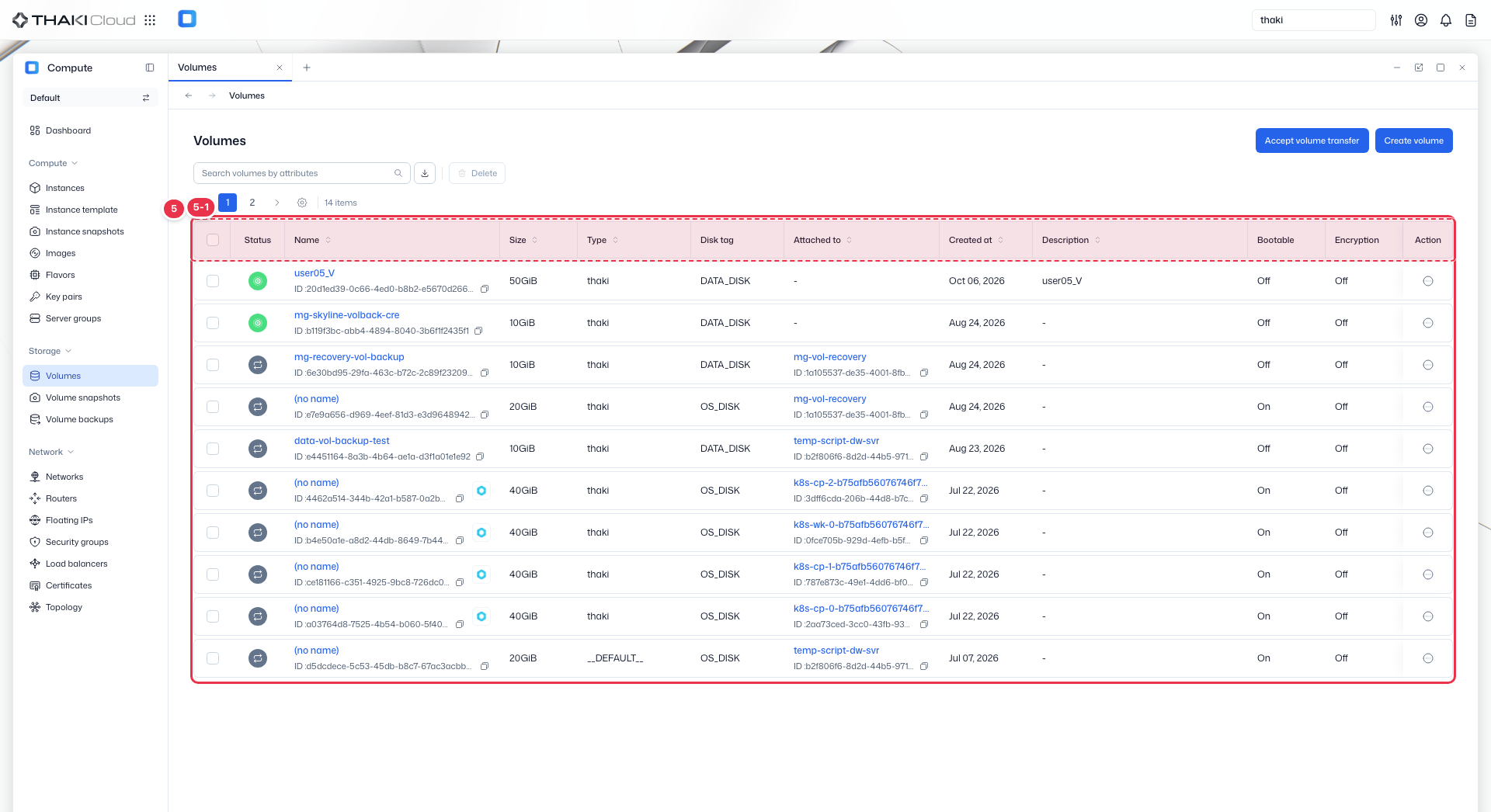
| No. | Feature | Item | Description |
|---|---|---|---|
| 5-1 | List columns | Status | The volume status (Available, In-use, and so on). |
| Name | The volume name and ID. | ||
| Size | The volume size. | ||
| Type | The volume type (DEFAULT and so on). | ||
| Disk tag | The disk tag (OS_DISK or DATA_DISK). | ||
| Attached to | The instance the volume is attached to. | ||
| Created at | The creation date and time. | ||
| Description | The description. | ||
| Bootable | Whether the volume is bootable. | ||
| Encryption | Whether the volume is encrypted. | ||
| Action | The menu that opens from the button at the end of the row: the groups Data protection (create a snapshot or backup, clone, restore from snapshot) · Operate (create instance, create image, attach to/detach from an instance, boot setting) · Configuration (edit, extend, change type), plus Delete · Create transfer (transfer to another tenant). |
More volume actions
In the list, click the Action button at the end of a volume row to see the actions by group. Hover over a group to open its actions. More actions on the detail page has the same groups.
The menu depends on the volume status. Actions you cannot use are shown disabled or do not appear in the menu at all.
| Group | Action | What it does and what you enter | Availability |
|---|---|---|---|
| Data protection | Create Volume Snapshot | Saves the volume's current state as a snapshot. Snapshot name, description | Available, In-use |
| Create Volume Backup | Stores the volume in the backup service. Backup name, description, backup mode (Full backup / Increment backup) | Available, In-use | |
| Clone volume | Creates a new volume with the same contents. New volume name, description, capacity (at least the source size) | Available, In-use | |
| Restore from snapshot | Choose one of this volume's snapshots to return the volume contents to that point in time. | Available | |
| Operate | Create instance | Goes to the creation screen for an instance that boots from this volume. | Available and bootable |
| Create image | Registers the volume contents as an image. Image name, disk format (default RAW) | Available | |
| Attach instance | Choose an instance from the list to attach the volume to. Once attached, it appears as an additional disk inside the instance. | Available | |
| Detach | Detaches the volume from the instance. Services using this volume may be interrupted. | In-use (except OS disks) | |
| Boot setting | Changes whether the volume is bootable. A volume set to non-bootable cannot be used as the boot source of a new instance. | Available, Error, Awaiting transfer (except OS disks) | |
| Configuration | Edit | Volume name, description | Available, In-use, Error |
| Extend volume | New capacity (GiB). It can only be increased, not reduced. | Available | |
| Change Volume Type | Choose the new volume type. It may take some time, and it is safer to stop writes on the instance before the change. | Available | |
| (no group) | Delete | Permanently deletes the volume. This cannot be undone. | Available, Error (disabled for In-use and Awaiting transfer) |
| (no group) | Create transfer | Hands the volume over to another tenant. See Accept a volume transfer. | Available |
| (no group) | Cancel transfer | Cancels the transfer you created and returns the volume to Available. | Awaiting transfer |
The volume snapshot, backup, clone, and extend dialogs also show the remaining quota.
OS disk restriction
A volume used as an instance's OS disk (Disk tag OS_DISK) has no Operate group in its action menu, and Delete is disabled. To detach or delete it, delete the instance first. Snapshot, backup, clone, and edit are still available.
Volume details
Click a volume name in the list to open its detail page. The top has a Delete button and More actions (plus Create transfer when the volume is Available), followed by a summary of the status, ID, size, Origin, and creation time.
| Tab | Contents | What you can do |
|---|---|---|
| Details | Basic information: volume name, description, availability zone, bootable Attachments: the attached instance Specifications: size, volume type, encryption, IOPS, bandwidth | Edit the name and description with Edit at the right of Basic information; click the instance name to open its details |
| Volume Snapshots | Snapshots created from this volume. Columns: status, name, size, creation time | Create with Create Snapshot; create volume, edit, and delete from the row menu |
| Volume Backups | Backups created from this volume. Columns: status, name, backup mode, size, creation time | Create with Create Volume Backup; Create volume, Restore backup, edit, and delete from the row menu. Create volume and Restore backup are available only while the backup is Available. |
For the difference between snapshots and backups and the details of each action, see Manage Volume Snapshots and Manage Volume Backups.