

Installed apps
Installed apps lists the apps (Helm releases) you installed from the Catalog. Check each release's status, version, and location, and use the row menu to download its manifest or delete it.
Prerequisites
- Access to the Container app
- The target cluster is selected
- At least one app installed from the Catalog (Catalog →)
Click the target cluster's icon at the far left to enter the cluster, then go to App catalog → Installed apps.
Installed apps list
Apps (Helm releases) installed from the Catalog appear in a list. Click an App name to open its detail.
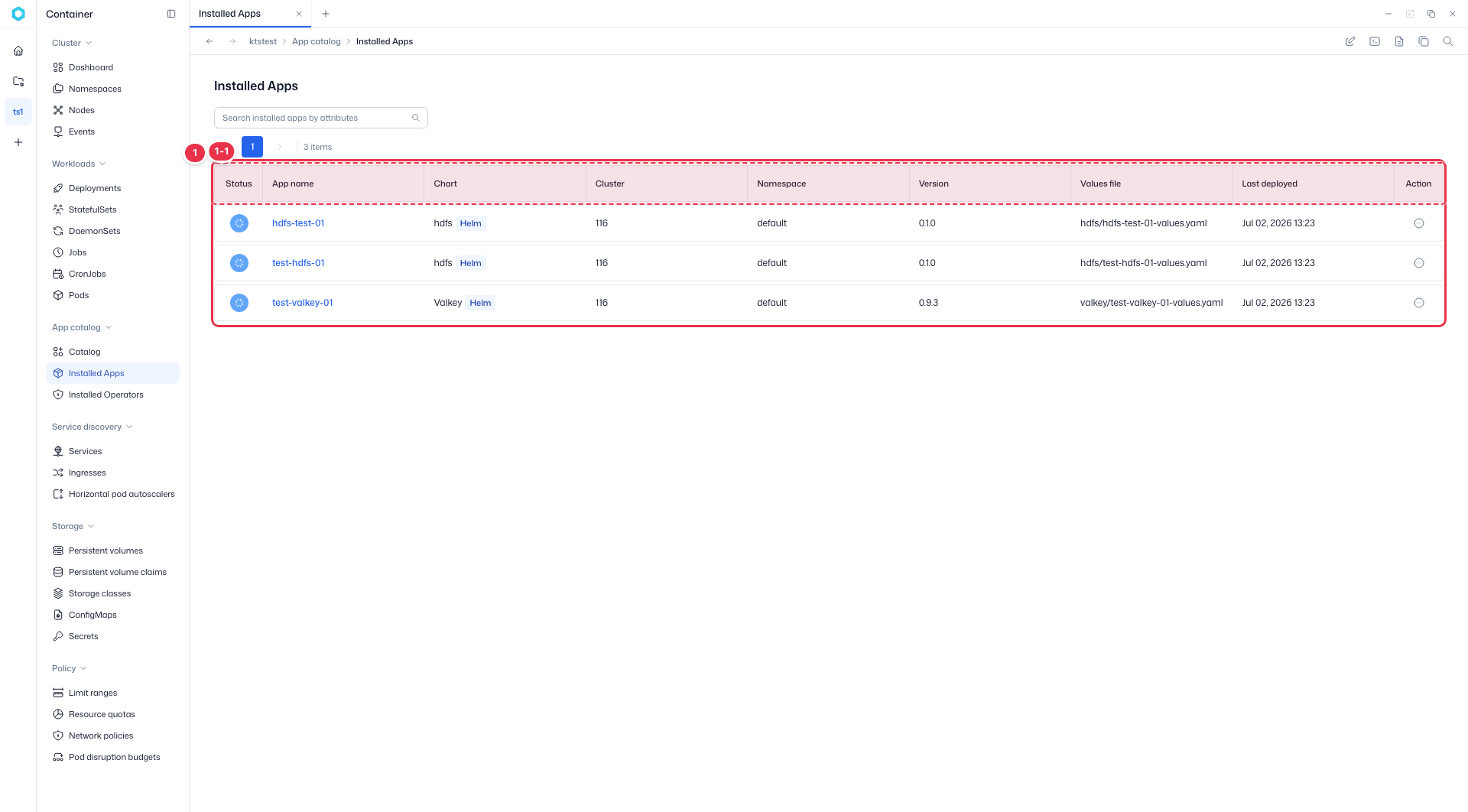
| Column | Description |
|---|---|
| Status | Release status (deployed, warning, failed — shown as an icon). |
| App name | The release name. Click to open its detail. |
| Chart | Chart name with the delivery-type (Helm) tag. |
| Cluster / Namespace | The cluster and namespace it is deployed to. |
| Version | Installed chart version. |
| Values file | Path of the values file used for the install. |
| Last deployed | When it was last deployed. |
| Action | Row menu — Download YAML, Delete. |
Row Action menu

| No. | Action | Description |
|---|---|---|
| 2-1 | Download YAML | Download the release manifest as a YAML file. |
| 2-2 | Delete | Uninstall the release. |
App detail
Click an App name in the list to open its detail view.

| No. | Feature | Description |
|---|---|---|
| 1-1 | Delete | Uninstall this release. |
| 1-2 | Summary cards | Status, App name, Chart name, Version, Namespace, and Last deployed. |
| 1-3 | Tabs | Review the applied Values (YAML), connection info, and credentials in the Values.yaml / Connection Info / Credentials tabs. |
| 1-4 | Copy · Download | Copy the current tab's content or download it as a file. |
A deleted release disappears from the list. Resources with a
Retain policy (such as PVCs) may remain — clean them up separately under Storage if needed.