

Mount a Volume
Mount a PVC, ConfigMap, or Secret into a container, or inject ConfigMap/Secret values as environment variables.
Prerequisites
- Access to the Container app
- The volume to mount (PVC, ConfigMap, or Secret) exists in the same namespace
- The target Deployment exists
- Click the target cluster's icon at the far left to enter the cluster, then go to Workloads → Deployments.
- On the target Deployment row, open the Action (
...) menu at the far right and select Edit Config.
Open the edit form (row Action menu)
Click the Action button on the Deployment row to open the actions menu.
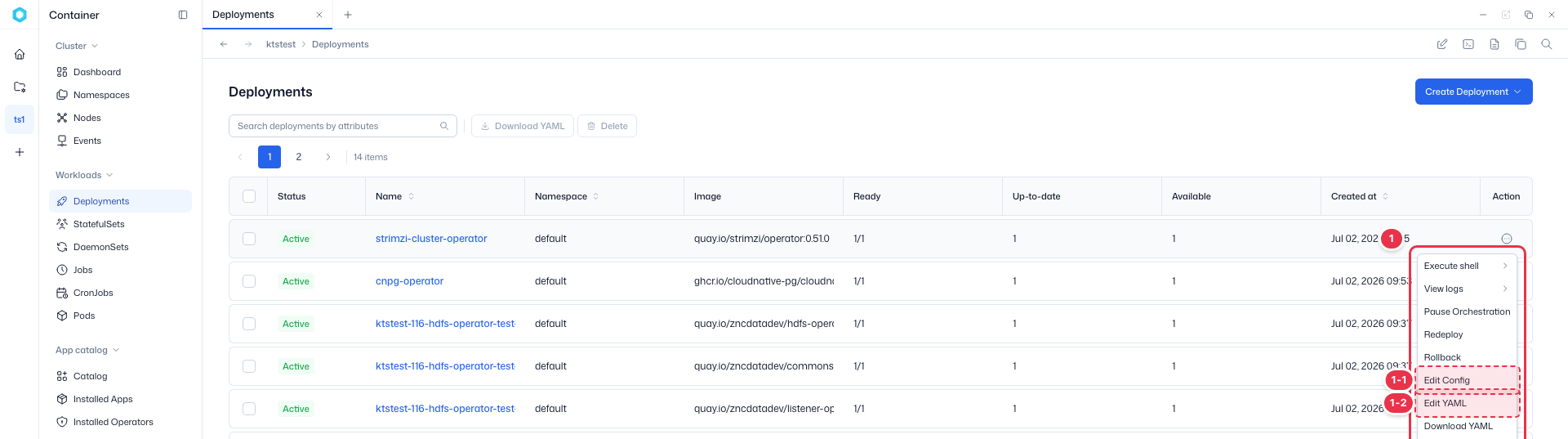
| No. | Action | Description |
|---|---|---|
| 1-1 | Edit Config | Opens the form editor. Edit the Storage (volume mount) and Environment variables sections under the container tab. |
| 1-2 | Edit YAML | Write volumes and volumeMounts directly in YAML. |
Mount a volume (container Storage section)
Select the container tab at the top of the Edit Config form to reveal the Storage section. Choose an existing volume (PVC, ConfigMap, Secret, Empty Dir, etc.) to mount into the container. Create the volume resource itself first on the Persistent volume claims, ConfigMaps, or Secrets pages.

| No. | Field | Description |
|---|---|---|
| 2-1 | Select Volume | Choose the volume to mount. PVCs, ConfigMaps, Secrets, etc. in the same namespace appear in the list. |
| 2-2 | Mount Point | Enter the path inside the container where the volume is mounted. (required) Optionally set Sub Path and Read Only. |
| 2-3 | Add Mount | Add another mount path for the same volume. |
Inject environment variables (Environment variables section)
In the Environment variables section of the same container tab, inject environment variables into the container. Each row has Type, Variable Name, and Value; use Add Variable at the bottom to add rows.

| No. | Field | Description |
|---|---|---|
| 3-1 | Type | Besides Key/value pair (a direct value), you can reference a value from a ConfigMap or Secret. |
| 3-2 | Variable Name | Enter the environment variable name passed to the container, and set the value (or referenced Key) in Value on the right. |
TIP
To mount a PVC, ConfigMap, or Secret, create the volume resource first on the Persistent volume claims, ConfigMaps, or Secrets page, then pick it from Select Volume in the Storage section above.
WARNING
When you mount a Secret as files, it is stored in plaintext at the mount path. Configure your application to read it and keep it only in memory.
For fine-grained edits, you can write volumes and volumeMounts directly via Edit YAML in the Action menu.