

Dashboard
The Dashboard is the first screen shown when you open the Storage app. You can reopen it anytime from Dashboard in the left sidebar. It gives an at-a-glance view of your storage usage and object performance trends.
Sidebar (SNB)
Use the left sidebar to move to the Dashboard and Buckets screens.
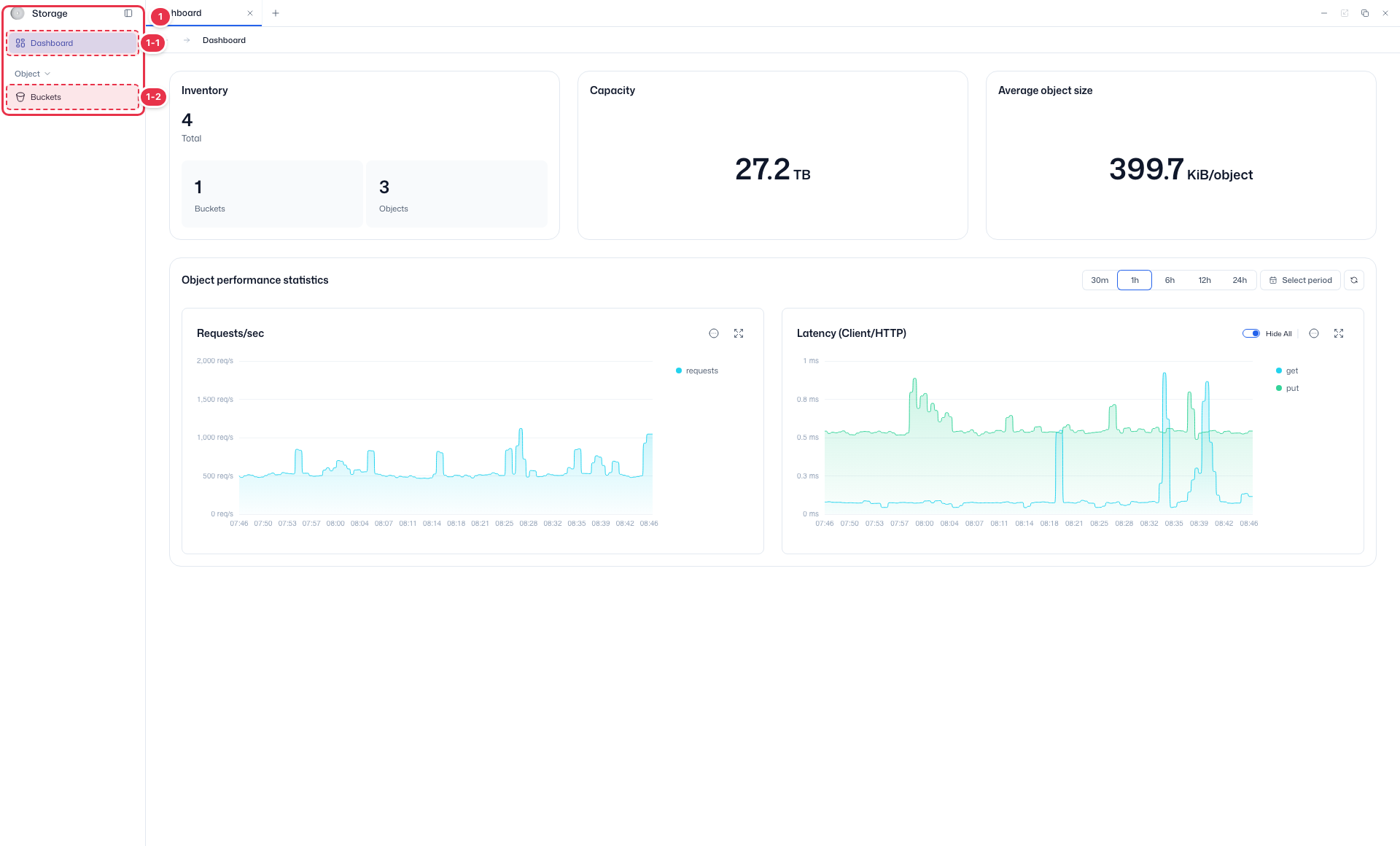
| No. | Feature | Item | Description |
|---|---|---|---|
| 1-1 | Dashboard | Dashboard | · A summary of storage inventory, capacity, and object performance statistics. |
| 1-2 | Buckets | Buckets | · List, create, view, and delete Object Storage buckets. |
Storage summary
See the inventory, used capacity, and average object size at a glance.
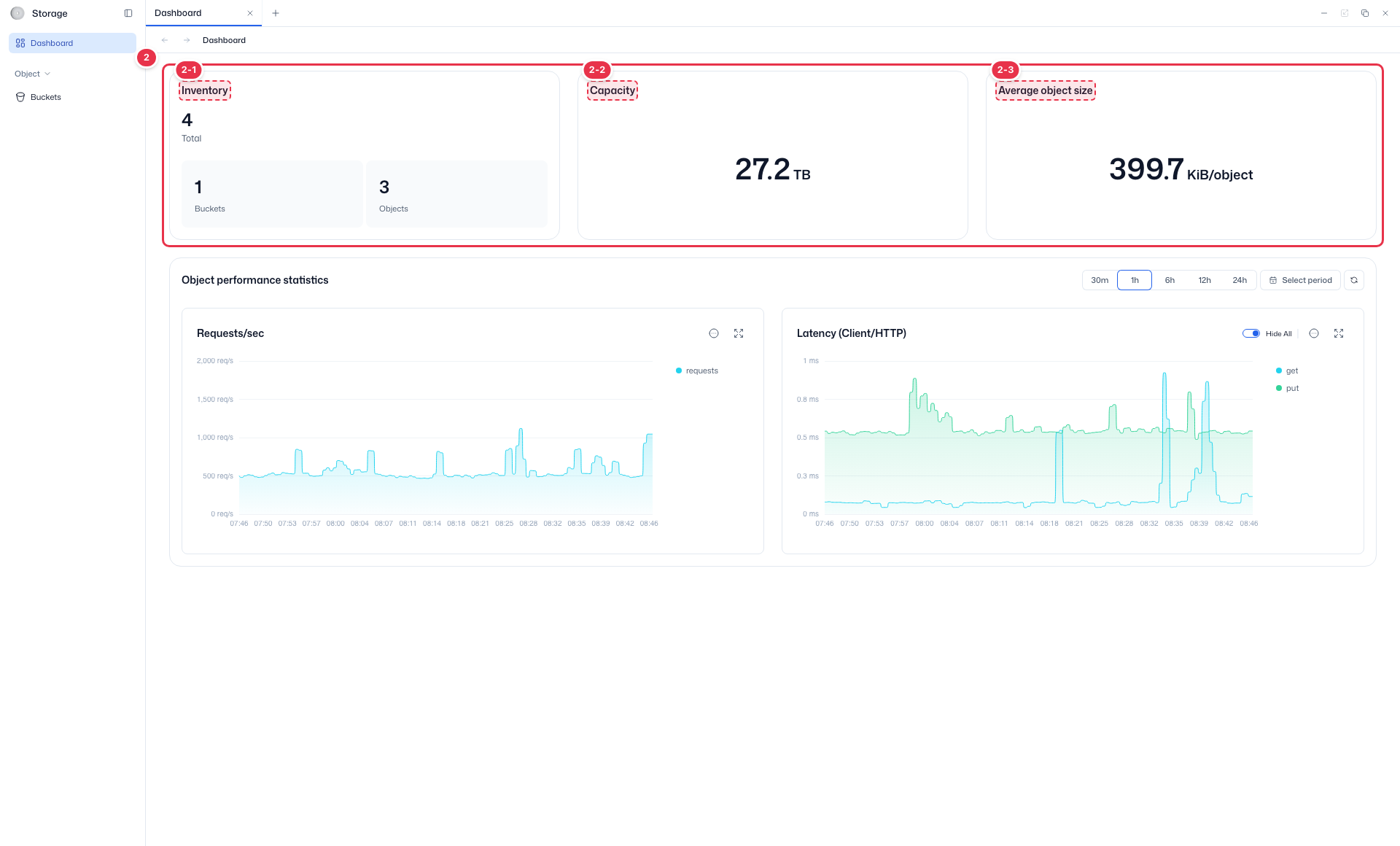
| No. | Feature | Item | Description |
|---|---|---|---|
| 2-1 | Inventory | Inventory | · Shows the total number of buckets and objects you have. |
| 2-2 | Used capacity | Capacity | · Shows the total capacity used in storage. |
| 2-3 | Average object size | Average object size | · Shows the average size per object. |
Object performance statistics
Shows how object requests and latency changed over the selected period.
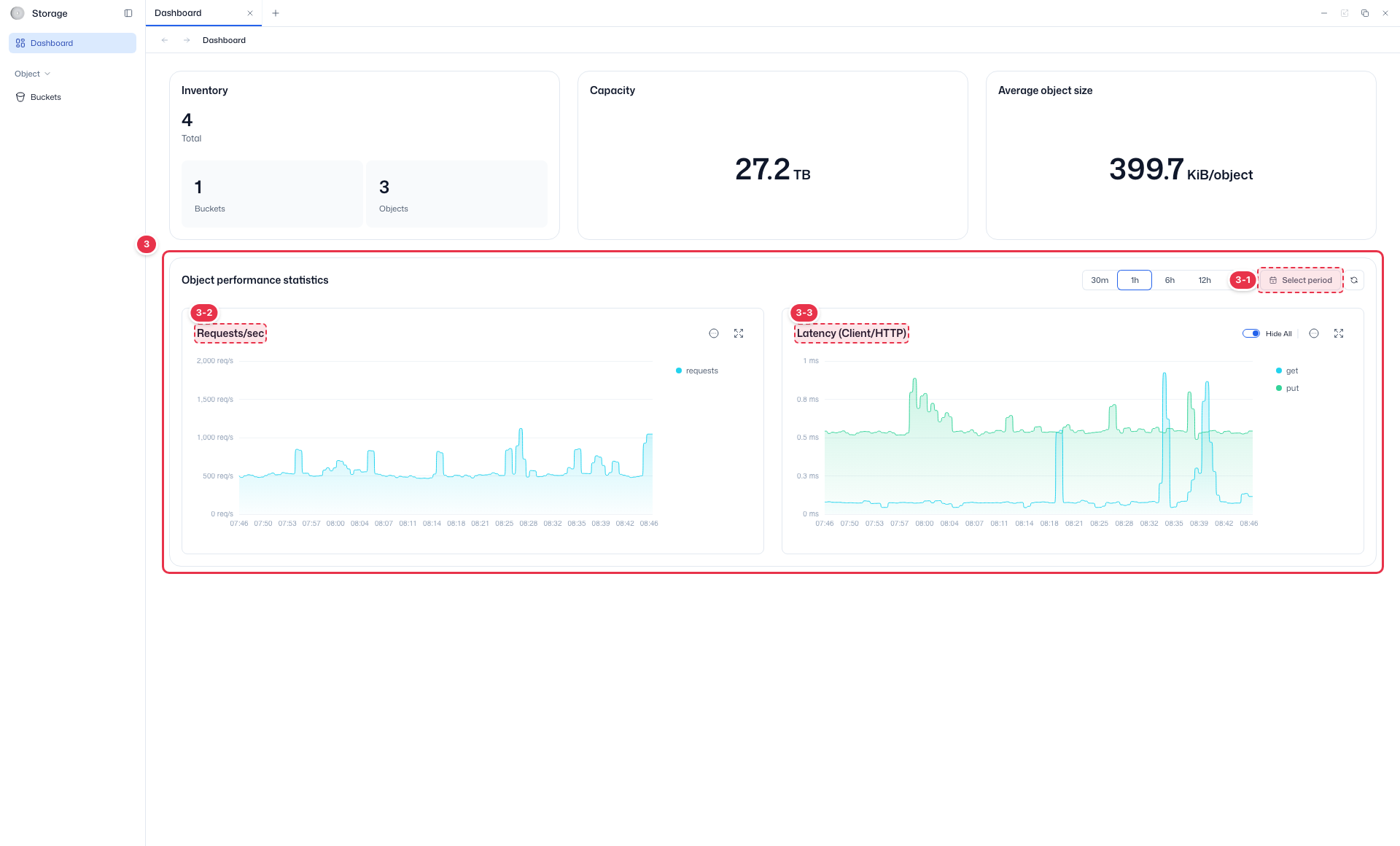
| No. | Feature | Item | Description |
|---|---|---|---|
| 3-1 | Period | 30m~24h · Select period | · Choose 30 minutes, 1, 6, 12, or 24 hours, or set a custom range with Select period. |
| 3-2 | Requests per second | Requests/sec | · Shows the trend of object requests handled per second (RPS). |
| 3-3 | Latency | Latency (Client/HTTP) | · Shows the response latency trend of get and put requests. |
Time range
Changing the period buttons (30m, 1h, 6h, 12h, 24h) or Select period (number 3-1) at the right of Object performance statistics (number 3) refreshes the charts below for that range.