

Manage Key Pairs
Create, import, and delete SSH Key Pairs.
This guide walks through the screen below.
Search and toolbar
The area for searching the list, exporting CSV, and running bulk actions on selected rows.

| No. | Feature | Item | Description |
|---|---|---|---|
| 2-1 | Search | Attribute search box | · Filters the list by attributes such as name, ID, and status. |
| 2-2 | Export | Download CSV | · Exports the current list as a CSV file. |
| 2-3 | Bulk action | Delete | · Deletes the selected items (a confirmation modal appears). |
Create a key pair
Creates a new SSH key pair or registers a public key.

Create a new SSH key pair. The public key is registered in Thaki Cloud and the private key is downloaded to your PC.
- Click Create key pairs at the top right of the Key Pairs list.
- In the dialog that opens, under Create type, select Create Key Pair. It is selected by default.
- Enter a key pair name. Only letters, numbers, spaces, and
-_.@are allowed, and the name must be 1–255 characters. - Click Create. The private key file downloads automatically.
The private key can be downloaded only once
The private key can be downloaded only once, right after creation, and cannot be downloaded again. Keep it in a safe location, and create a new key pair if you lose it.
Import a key pair
To keep using an SSH key you already have, register only its public key.
- Click Create key pairs.
- Under Create type, select Import Key Pair.
- Enter a key pair name, then use Choose file under Public key to upload the public key file (
.pub). - Click Create. Keep using the private key that is already on your PC.
If you do not have a public key, you can generate one as shown below. Then upload the resulting ~/.ssh/my-key.pub file.
ssh-keygen -t ed25519 -f ~/.ssh/my-keyList
A table that shows the registered SSH key pairs with their name, fingerprint, and creation date.
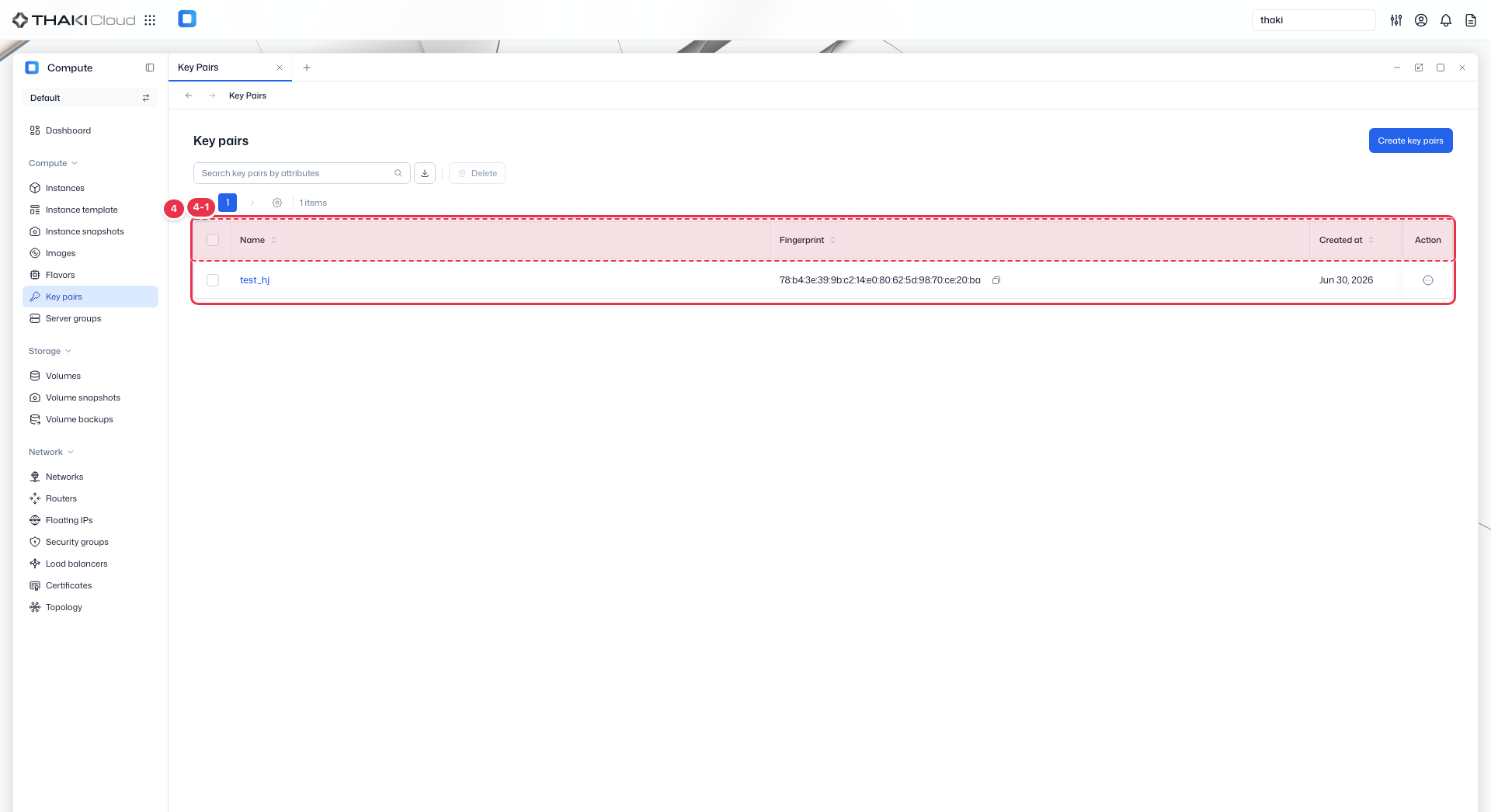
| No. | Feature | Item | Description |
|---|---|---|---|
| 4-1 | List columns | Name | The key pair name. |
| Fingerprint | The public key fingerprint. | ||
| Created at | The creation date and time. | ||
| Action | The menu that opens from the button at the end of the row contains only Delete. A registered key pair cannot be edited. |
View and delete key pairs
The list shows the key pair name, fingerprint, and creation time. The Action menu on each row has only Delete, and the name and public key of a registered key pair cannot be changed. To change them, delete the key pair and create it again. Deleting a key pair does not affect Instances already created with that key.