

Manage Networks
Networks provide connectivity for instances.
Key features
- List view: View all networks with status, subnets, and sharing information
- Tab-based organization: Browse by Current tenant, Shared, or External networks
- Search: Find networks by name or ID
- Detail view: Review network details, subnets, and connected ports
- Subnet management: Create and manage subnets within networks
Type tabs
Tabs that split the Networks list by type.

| No. | Feature | Item | Description |
|---|---|---|---|
| 2-1 | Type tab | Current tenant | · Networks owned by the current tenant. |
| 2-2 | Type tab | Shared | · Shared networks. |
| 2-3 | Type tab | External | · External (provider) networks. |
Search and toolbar
The area for searching the list, exporting CSV, and running bulk actions on selected rows.

| No. | Feature | Item | Description |
|---|---|---|---|
| 3-1 | Search | Attribute search box | · Filters the list by attributes such as name, ID, and status. |
| 3-2 | Export | Download CSV | · Exports the current list as a CSV file. |
| 3-3 | Bulk action | Delete | · Deletes the selected items (a confirmation modal appears). |
Create a network
Creates a new virtual network and subnet.

A network is usually created together with a subnet. Instances can only receive an IP when a subnet exists.
Click Create network at the top right of the Networks list.
Under Basic information, enter a network name and, optionally, a description, then click Next. Expand Advanced to change the items below; if you leave them alone, the defaults apply.
Item Description Admin State Whether the network is created in the Up state. Default: Up Port security Allows only permitted devices to access this network. Keeping it on is recommended in most cases. Default: On MTU The MTU value of the network, in bytes. Minimum 68; the system default applies if left empty. In the Subnet step, fill in the fields below with Create subnet turned on. If you turn it off, only the network is created, without a subnet.
Field Description Subnet name A name that identifies the subnet. CIDR The address range of the subnet. Example: 192.168.1.0/24Gateway Turn it on and enter the gateway IP. It must be an address inside the subnet; the network address and broadcast address cannot be used. DHCP (Advanced) When on, instances are assigned an IP automatically. On by default. Allocation pools (Advanced) Manually define the range of IPs that DHCP assigns automatically. Addresses outside the range are not assigned, so use this to set addresses aside for fixed IPs. Enter one range per line (for example, 192.168.0.100,192.168.0.200).DNS (Advanced) Enter one DNS server address per line. Host routes (Advanced) Manually specify a route to a specific destination. Enter the destination CIDR and the next hop IP (for example, 10.10.0.0/24,192.168.0.254).Check the network and subnet quotas in the summary on the right, then click Create.
To communicate with the outside
After creating the network, create a Router, turn on its external gateway, and connect this subnet to the router. Only then can instances reach the outside.
List
A table that shows virtual networks with their status, subnet CIDR, and whether they are external or shared.
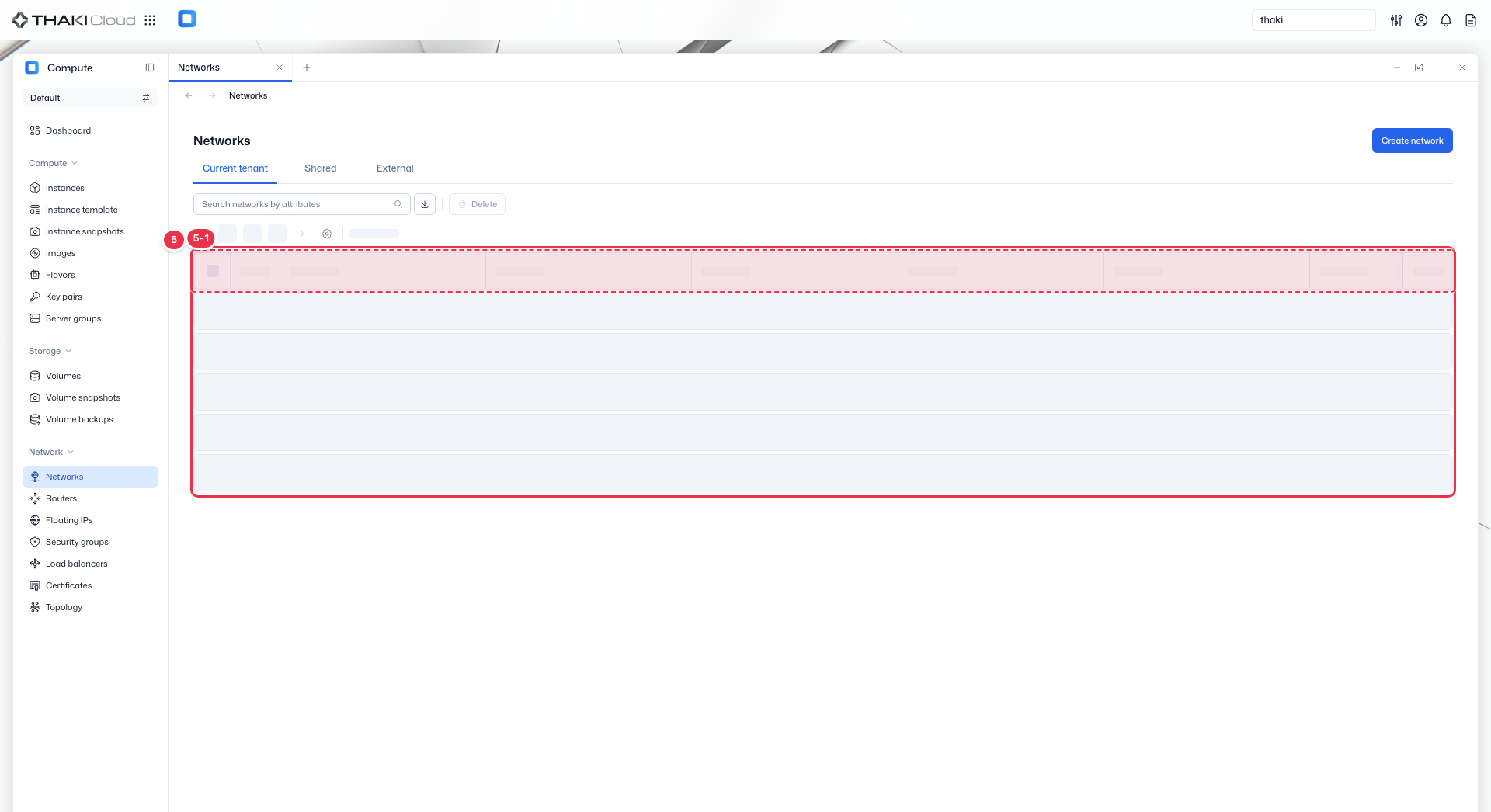
| No. | Feature | Item | Description |
|---|---|---|---|
| 5-1 | List columns | Status | The network status (Active and so on). |
| Name | The network name and ID. | ||
| Subnet CIDR | The subnet range (CIDR). | ||
| External | Whether the network is external. | ||
| Shared | Whether the network is shared. | ||
| Admin State | The admin state (Up/Down). | ||
| Created at | The creation date and time. | ||
| Action | The menu that opens from the button at the end of the row: Create subnet (add a subnet) · Edit · Delete. |
Available actions
| Action | Description | Availability |
|---|---|---|
| Create Subnet | Add a new subnet to the network | Networks in the current tenant only (external networks excluded) |
| Edit | Change the network name and description | Networks in the current tenant only |
| Delete | Remove the network and all its subnets | Networks in the current tenant only, no ports in use |
Network types
- Current tenant: Private networks created in the current tenant
- Shared: Networks shared by other tenants
- External: Networks providing external/internet connectivity (read-only)
Create a subnet
Add a subnet to an existing network. Subnets cannot be added to external networks.
- In the list, click Action → Create subnet on the network row. You can also open it from the button at the top of the network detail page or the same button on the Subnets tab.
- In the dialog that opens, enter the subnet name, CIDR, and gateway, and set DHCP, allocation pools, DNS, and host routes under Advanced if needed. The fields are the same as in the subnet table under Create a network above. You can check the subnet quota at the bottom of the dialog.
- Click Create.
The new subnet appears on the Subnets tab of the network details. Each row's action menu has Edit and Delete, and you can also select several subnets and delete them at once with the delete button at the top of the tab.
Network details
Click a network name in the list to open its detail page. The top summarizes the status, ID, admin state, shared, external, and creation time, and the content below is split into tabs.
| Tab | Contents |
|---|---|
| Details | Basic information: network name, availability zone, description (edit with the edit button on the right) Specifications: MTU, port security, external router or not, provider network type, segmentation ID |
| Subnets | The subnets in this network (name, CIDR, gateway IP, port count, creation time), plus creating, editing, and deleting subnets |
| Ports | The ports in this network, plus creating ports |
Ports (Ports tab)
A port is the point (virtual NIC) where an instance, router, or load balancer attaches to a network. There is no separate sidebar menu for ports; manage them on the Ports tab of the network details. Some screens call a port a Virtual adapter.
| Item | Description |
|---|---|
| Status | Port status |
| Name | Port name and ID. Shown as (no name) when the port has no name. |
| Attached to | The attached resource (instance, router, DHCP, and so on) |
| Security Groups | Security groups applied to the port |
| Fixed IP | The port's private IP |
| Floating IP | The associated Floating IP. Shows "-" when there is none. |
| MAC Address | Hardware address |
| Admin State | Admin state (Up/Down) |
| Created at | Creation time |
| Action | Menu opened by the button at the end of the row: Manage Security Groups, Edit, and Delete |
Create a port
A port created in advance can be selected when you create an instance or associate a Floating IP.
- Click Create port at the top of the Ports tab.
- Fill in the two steps below, moving on with Next.
| Step | What you enter |
|---|---|
| Basic information | Name (Virtual adaptor name, required), description, Fixed IP (choose a subnet; the address is auto-allocated or entered manually), and MAC address (Auto-allocate or Manual) |
| Security | Turn Port security on or off and choose the security groups to apply from the list. If the security group you need does not exist, you can create it with Create a new security group. This step can be skipped with Skip. |
Port actions
The same actions are available from the action menu on each row and from the buttons at the top of the port details.
| Action | Description |
|---|---|
| Manage Security Groups | Turn port security on or off and choose the security groups to apply. With port security off, no security groups are applied and anti-spoofing checks are also turned off. |
| Edit | Changes the port name and description. |
| Delete | Deletes the port. This cannot be undone and may affect the network connectivity of the attached resource. |
Port details
Click a port name to open the port details. The top has the three buttons above, along with a summary of the status, ID, admin state, port security, and creation time.
| Tab | Contents | What you can do |
|---|---|---|
| Details | Basic information: port name, description, admin state Owned network: network, fixed IP address, MAC address Attachment: bound device type, bound device QoS policy: policy name, egress/ingress bandwidth limits (shown only for ports with a policy applied) | Edit with Edit at the right of Basic information |
| Allowed address pairs | The additional IP (CIDR) and MAC addresses the port may use | Add with Create allowed address pair |
| Security Groups | The security groups applied to the port | Change with Manage Security Group; detach with Detach in the row menu |